Chapter 3
Your profile
On this page
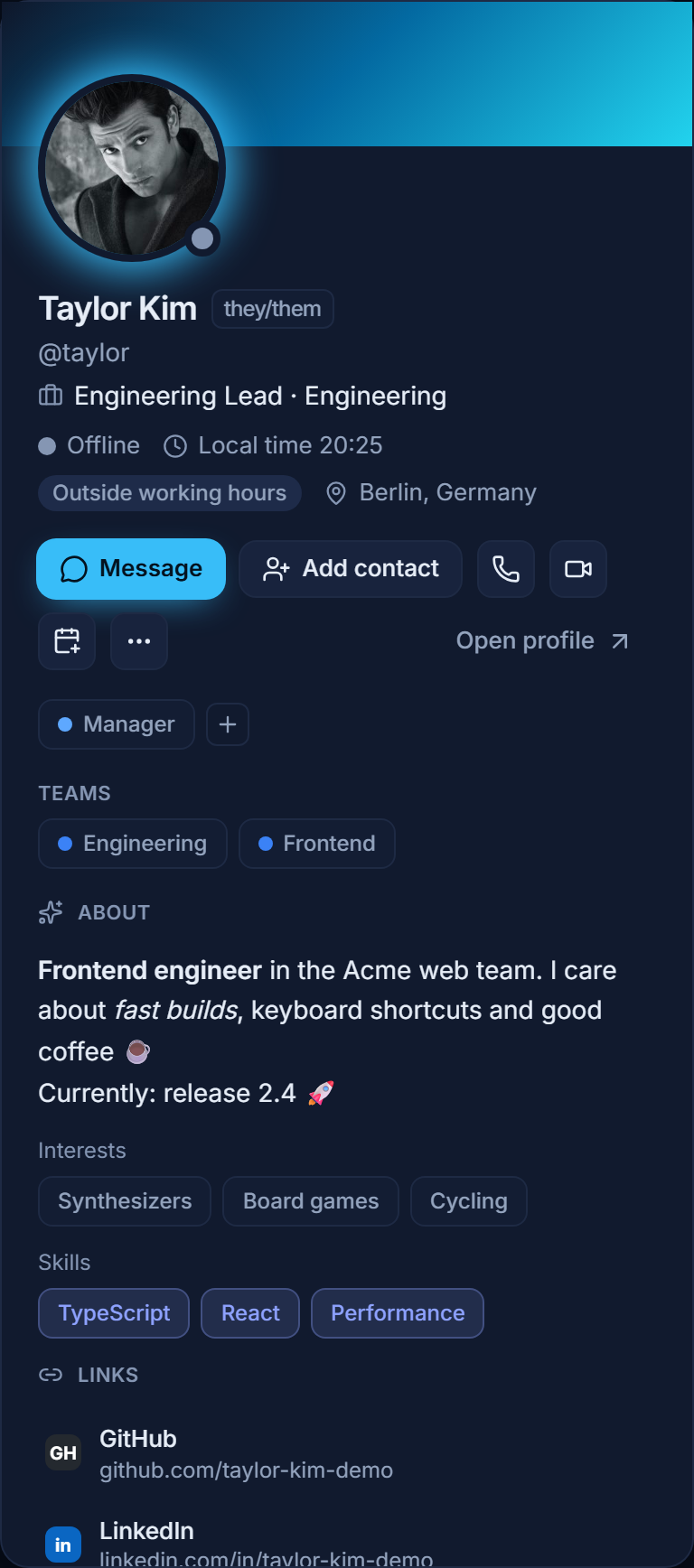
Everybody in Coviqo has a profile page and a compact profile card. The card opens when you click a name or an avatar anywhere in Coviqo; Open profile in the card takes you to the full page. Besides your name, picture and bio, a profile can show a banner, pronouns, your local time, your job and working hours, languages, your teams, links and a few community details. You decide per field who can see what – and the defaults are cautious.
The profile page#
Every profile has its own address: /u/@username, for example /u/@jamie. /u/@me always opens your own profile.
- The page is only available inside the app and only when you are signed in. Profiles are never public on the web and are not indexed by search engines.
- The address always uses the lower-case username. When someone changes their username, links with the old username stop working – Coviqo never reveals previous usernames.
- Meeting guests and the live demo account have no profile page; their card only shows the name and picture.
- If you open a profile you are not allowed to see, Coviqo simply says it was not found.
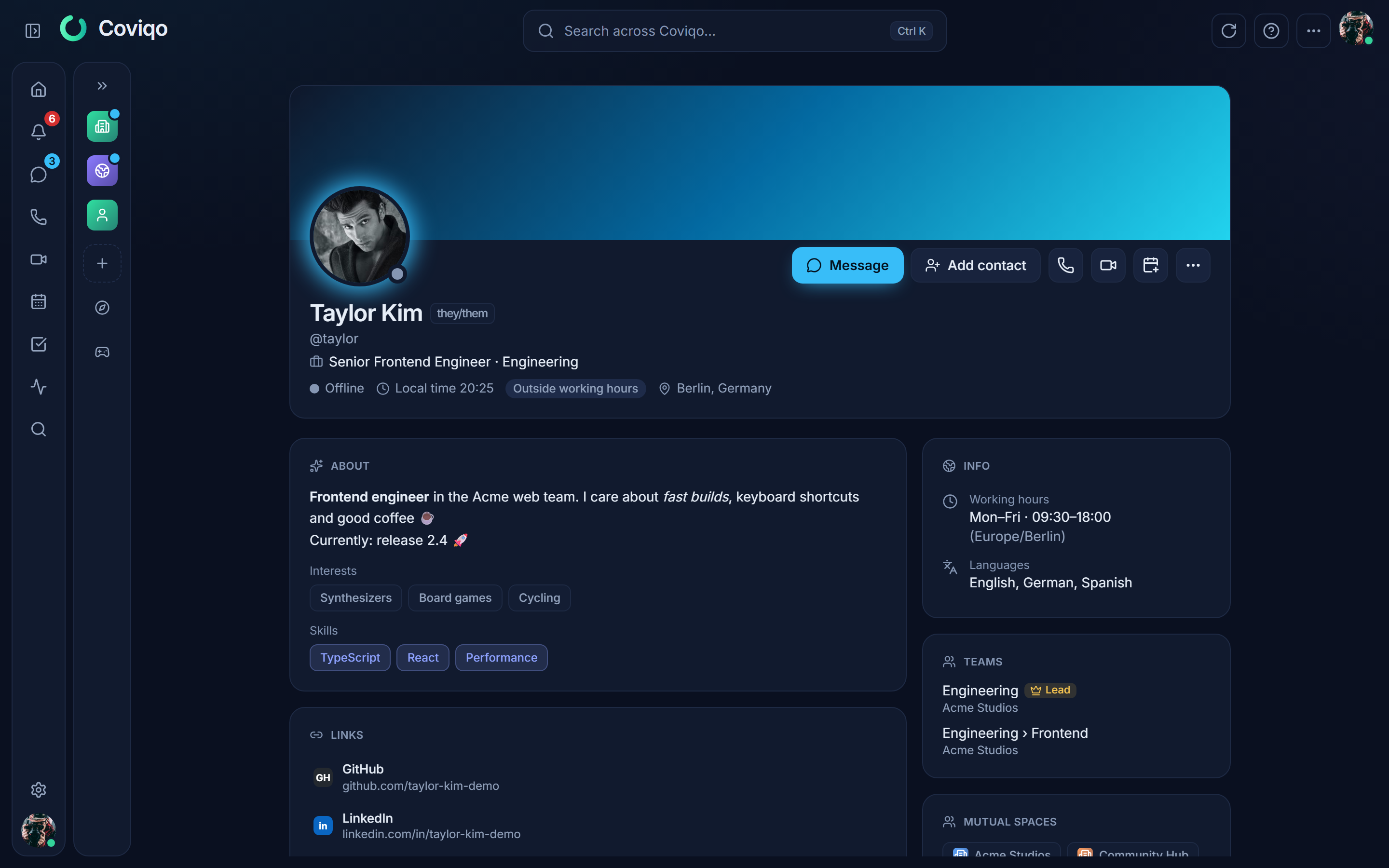
At the top you see the banner (or the accent colour), the picture, the name with pronouns, the status and – if the person shares them with you – the local time ("Local time 14:32") and a badge Available or Outside working hours. Below come the work details (job title, department, location, languages), the team path from the organisation chart (for example IT › Development › QA), mutual spaces, links, verified connections, badges, the gaming card and the About me blocks.
A small ✓ with the name of an organisation means: the person's e-mail address belongs to a domain that this organisation has verified, and the person is an active member of it.
Contacting someone#
The buttons on a profile page and in the card:
| Button | What it does |
|---|---|
| Message | Opens (or starts) a direct message. The person's direct-message settings and your organisation's rules apply – see Direct messages. |
| Start call | Starts an instant meeting in a space you share and invites the person. |
| Schedule meeting | Opens the scheduling dialog with the person already added as invitee. |
| Copy link | Copies the profile address. |
| Report | Reports the profile to the Coviqo Trust & Safety team (see below). |
| Block | Blocks the person – see Direct messages › Blocking. |
Links leave Coviqo with a warning#
Every link on a profile – in the links list, in the bio or a pinned post – first opens a dialog You are leaving Coviqo. It shows the complete address and highlights the website's domain, so you can check where you are going before you click Continue. Links to messages inside Coviqo open directly.
Editing your profile#
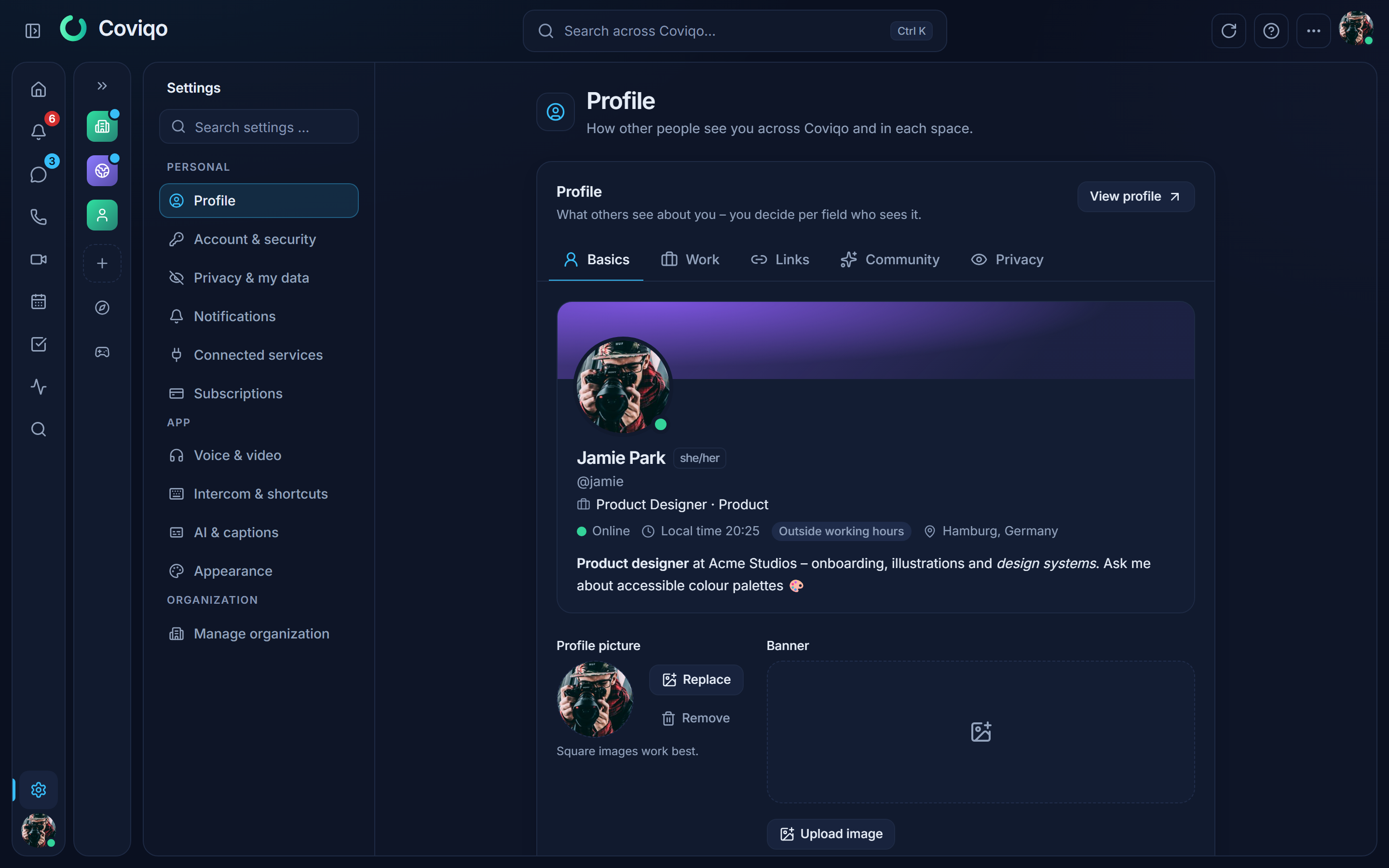
Open Settings › Profile. The page has five sections; changes are saved with Save.
Basics#
- Profile picture and Banner – upload an image (square for the picture, wide 3:1 for the banner). Only images uploaded to Coviqo are accepted; every image is checked, and files that are not images or contain malware are refused.
- Accent colour – used as the banner colour when you have no banner image.
Adjusting an image#
After you choose a picture, a banner, a space icon or banner, a room cover or an event cover, the Adjust image window opens. The frame shows exactly the shape the image gets in Coviqo – a circle for profile pictures, a rounded square for space icons, the wide strip for banners and covers.
- Move: drag the image with the mouse or one finger, or use the arrow keys (with Shift in larger steps).
- Zoom: the slider, the mouse wheel, two fingers (pinch) or the + and - keys.
- Rotate 90° turns the image clockwise; Reset returns to the start position.
- The Preview shows the result small and large (for a banner: inside a profile card). Apply uploads the section you chose, Cancel keeps the previous image.
Until you leave the page, Adjust next to the image opens the window again with the original, so you can correct the section. Images uploaded earlier can only be replaced. Animated GIFs are uploaded unchanged, because cutting them would remove the animation. On phones the window fills the screen.
- Theme – a banner gradient (Aurora, Sunset, Ocean, Forest, Berry, Graphite) and a frame for your picture (Glow, Double, Gradient).
- Display name, Username (can be changed once every 30 days – see Direct messages › Changing your username). Some names are reserved and cannot be chosen, for example me, admin, support, settings or anything starting with coviqo.
- Pronouns – pick a suggestion or type your own (up to 40 characters).
- Bio – up to 500 characters. The toolbar and a live preview help with the formatting you can use: bold (
**text**), italic (*text*or_text_), links ([text](https://…)or a plainhttps://address) and emoji. Other formatting and HTML are shown as plain text. - Time zone – shown as your local time on the profile; the preview shows the current time there.
Work#
Job title, Department, Location (free text), Working hours (weekdays, a time range and a time zone – night shifts across midnight work too) and Languages. From your working hours Coviqo shows Available or Outside working hours on your profile.
If your account is managed by your organisation, the organisation may fill in your job title and department – from its directory (single sign-on or SCIM) or by an administrator. Those fields are then read-only and say Managed by organisation. You still decide who can see them. When the organisation releases your account, you can edit them again.
Links#
Up to five links. Coviqo recognises many platforms and shows their icon – for example LinkedIn, XING, GitHub, GitLab, Mastodon, Bluesky, YouTube, Twitch, Instagram, Discord, Steam, Behance or Medium. Every link is checked while you type. Coviqo refuses:
- addresses that do not start with
https://, - addresses with a user name or password, an IP address, a port number or an internationalised (look-alike) domain,
- URL shorteners and IP loggers,
- addresses that look like phishing – for example a brand name inside a foreign domain or a domain that imitates a well-known one.
Links are checked again every time someone opens your profile, so a link that turns out to be unsafe later disappears on its own.
Community#
- Verified connections – show that you have linked Google, Microsoft, Apple or Discord (and GitHub through a personal GitHub connection). Others see "verified ✓" – never your e-mail address. Steam and Epic Games keep their own switch under Settings › Account & security › Linked accounts.
- Featured badges and featured space roles – a space role is only shown to people who are members of that space too.
- Gaming – Show what I'm playing shows your current Steam game (needs a linked Steam account) and a list of favourite games.
- About me – interests, skills and a pinned post (an
https://link or a link to a message in Coviqo).
Privacy: who sees what#
For each detail you choose who can see it:
| Choice | Who sees it |
|---|---|
| Everyone signed in who can find you | Signed-in people who may open your profile: people you share a space with, your organisation, people you have a direct message with, and people who find you through the people search. |
| Shared spaces | People you share a space with – and your organisation. |
| My organisation | Only people from your organisation. |
| Only me | Nobody else. |
The defaults are Shared spaces for everything, and My organisation for job title, department and teams. Some rules apply regardless of your choice:
- Guests (people who only meet you as external guests) never see your links, verified connections, teams, organisation or working hours.
- If you block someone – or they block you – they only see your name and picture.
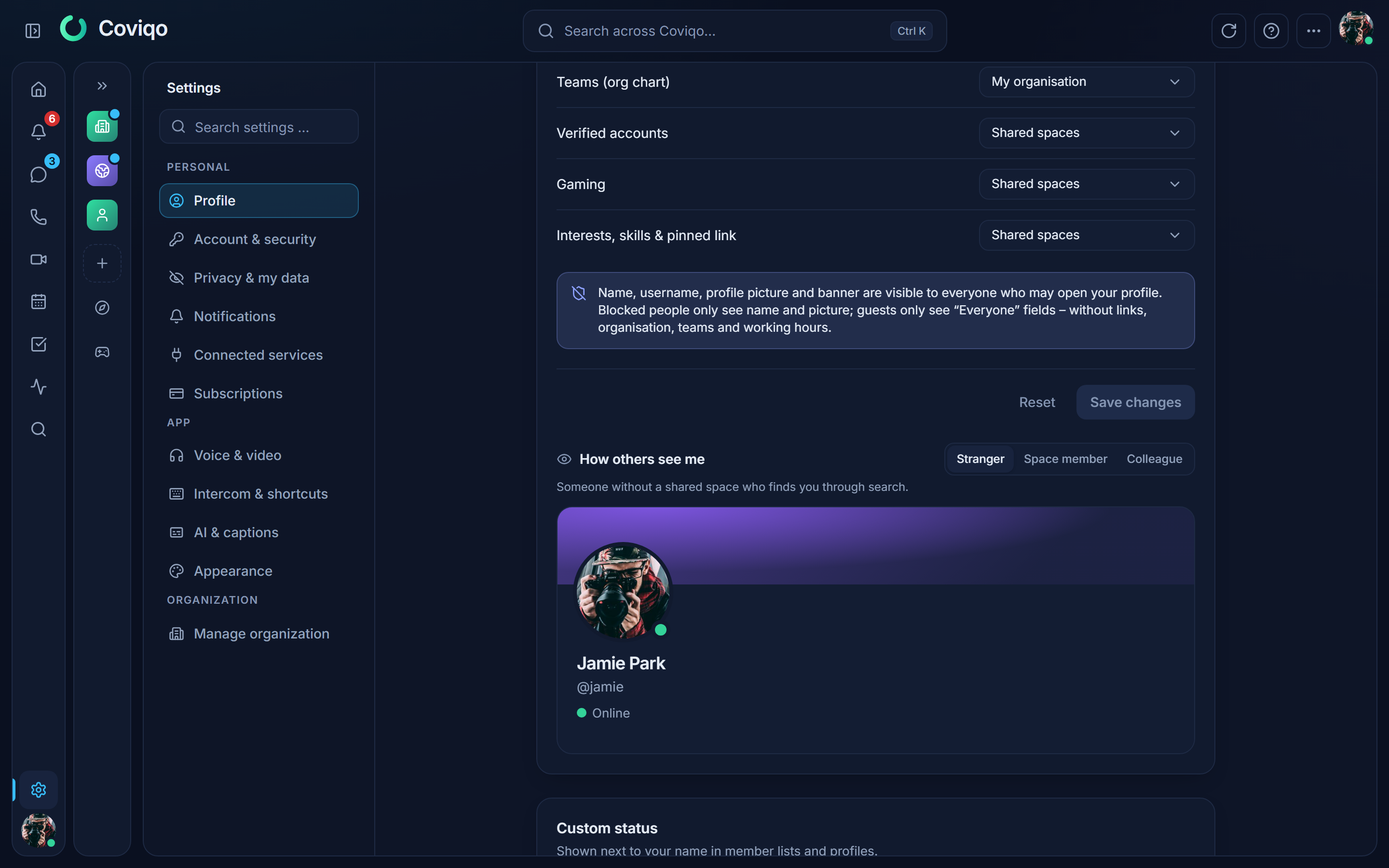
How others see me shows your profile exactly as others see it. Switch between Stranger, Space member and Colleague.
Tip
Colleagues from your own organisation can find you in the people search by job title or department. Set these fields to Only me if you do not want that.
Reporting a profile#
If a profile contains something inappropriate – an offensive picture, a scam link, harassment in the bio – click Report on the profile, choose a reason and optionally add details. The report goes directly to the Coviqo Trust & Safety team, not to the moderators of a space. It includes a snapshot of the profile as you saw it. You cannot report your own profile, and reporting the same profile twice keeps your first open report.
Trust & Safety can warn, suspend or ban the account or reset parts of the profile (for example bio, picture, banner, links or About me). If your profile content is reset, you get a notification and a statement of reasons under Settings › Legal decisions, against which you can lodge a complaint (see Privacy and your data). For content that breaks the law, the report dialog also offers Report illegal content (DSA).
Your profile and your data#
Your profile details are part of your data export (Settings › Account & security › Export my data) and are deleted together with your account. See the chapter Privacy and your data.