Chapter 46
Notifications
On this page
Coviqo tells you when something needs your attention: a mention, a task assigned to you, an event about to start, someone waiting in the lobby of your meeting. This chapter explains where notifications appear, which channels exist (in-app, push and e-mail), and how to control them per type, per space and per room so that you are informed without being flooded.
How notifications reach you#
Every notification can be delivered through up to three channels:
| Channel | Where it appears | Requirements |
|---|---|---|
| In-app | The Notifications page and the unread counter in the sidebar | None |
| Push | A system notification on your computer or phone, even when no Coviqo tab is open | Push enabled on the device (see below) |
| Your inbox | A confirmed e-mail address |
On top of that, while Coviqo is open but not in the foreground, you get a notification from your browser or the desktop app for every new in-app notification. See Notifications on this device below.
Coviqo never notifies you about your own actions. Ordinary chat messages don't create notifications either. They show up as unread markers on rooms and spaces in the sidebar. You are notified when someone addresses you: with a mention, a reply, an assignment or an invitation.
The Notifications page#
Click Notifications in the sidebar. The number next to it is your unread count. On a phone, you find Notifications in the menu of the top bar.
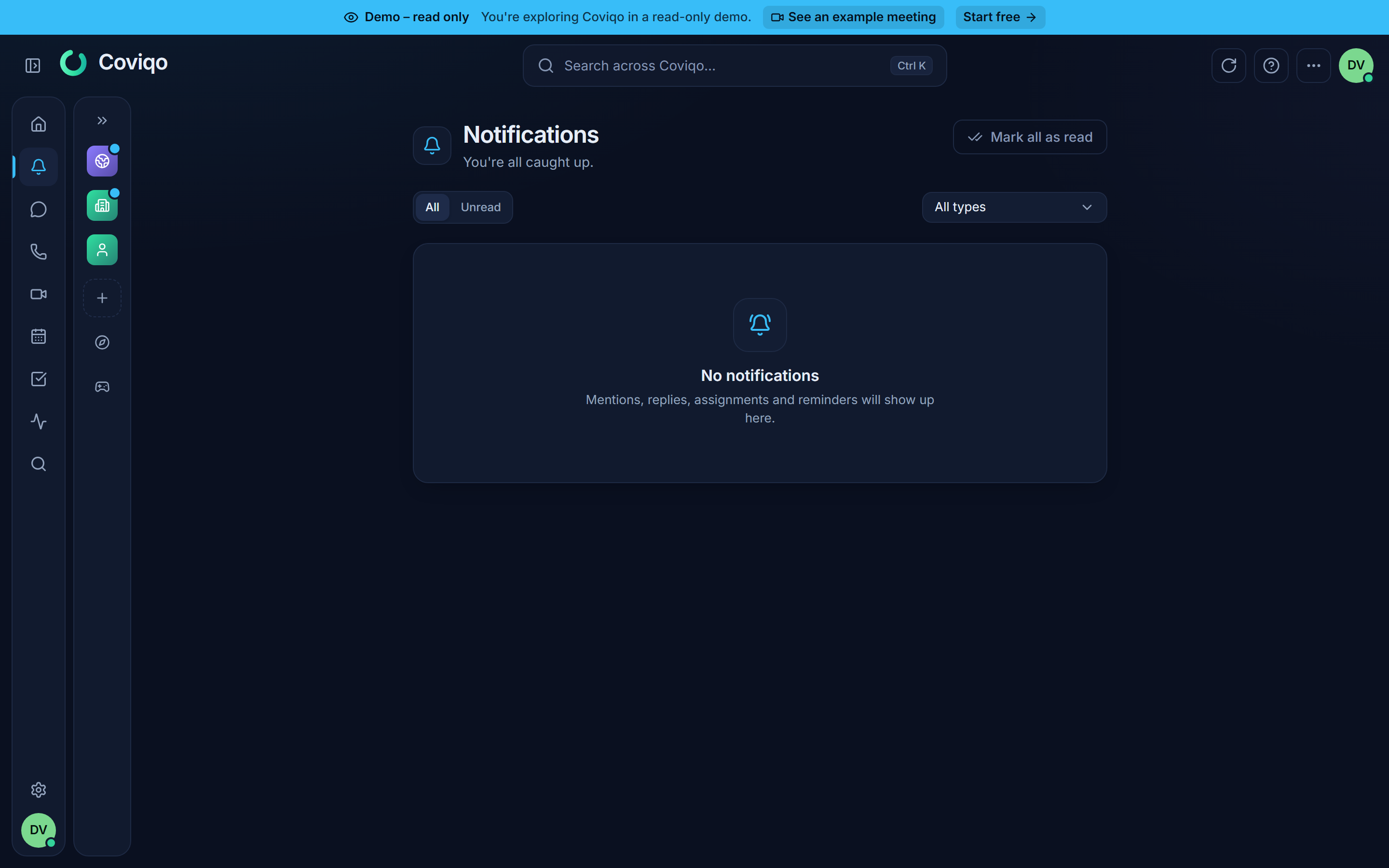
The page shows your notifications, newest first. The subtitle tells you how many are unread, or says You're all caught up.
- Switch between All and Unread.
- Use Filter notifications to show only one category: Mentions & replies (incl. replies in threads you follow), Reminders, Tasks, Events, Meetings or Other. All types shows everything again. Reminders also lists My reminders – the pending message reminders and those sent in the last 7 days (see Threads, voice messages and reminders).
- Click a notification to go straight to the message, task, event or meeting it is about. It is marked as read at the same time.
- Unread notifications have a Mark as read button (tick icon) on the right – click it to mark just this one as read without opening it.
- Use the Notification actions menu of an entry to Mark as read or Delete it.
- Mark all as read clears the unread counter in one go.
- Load more shows older notifications.
Some notifications ask you to do something – for example "… is waiting in the lobby". Once the request has been dealt with – nobody is waiting in the lobby any more (everyone was admitted or turned away, by you or another organizer, or left), or the meeting has ended – the notification is marked as read automatically and shows a green Done badge, so you can see at a glance that nothing is left to do.
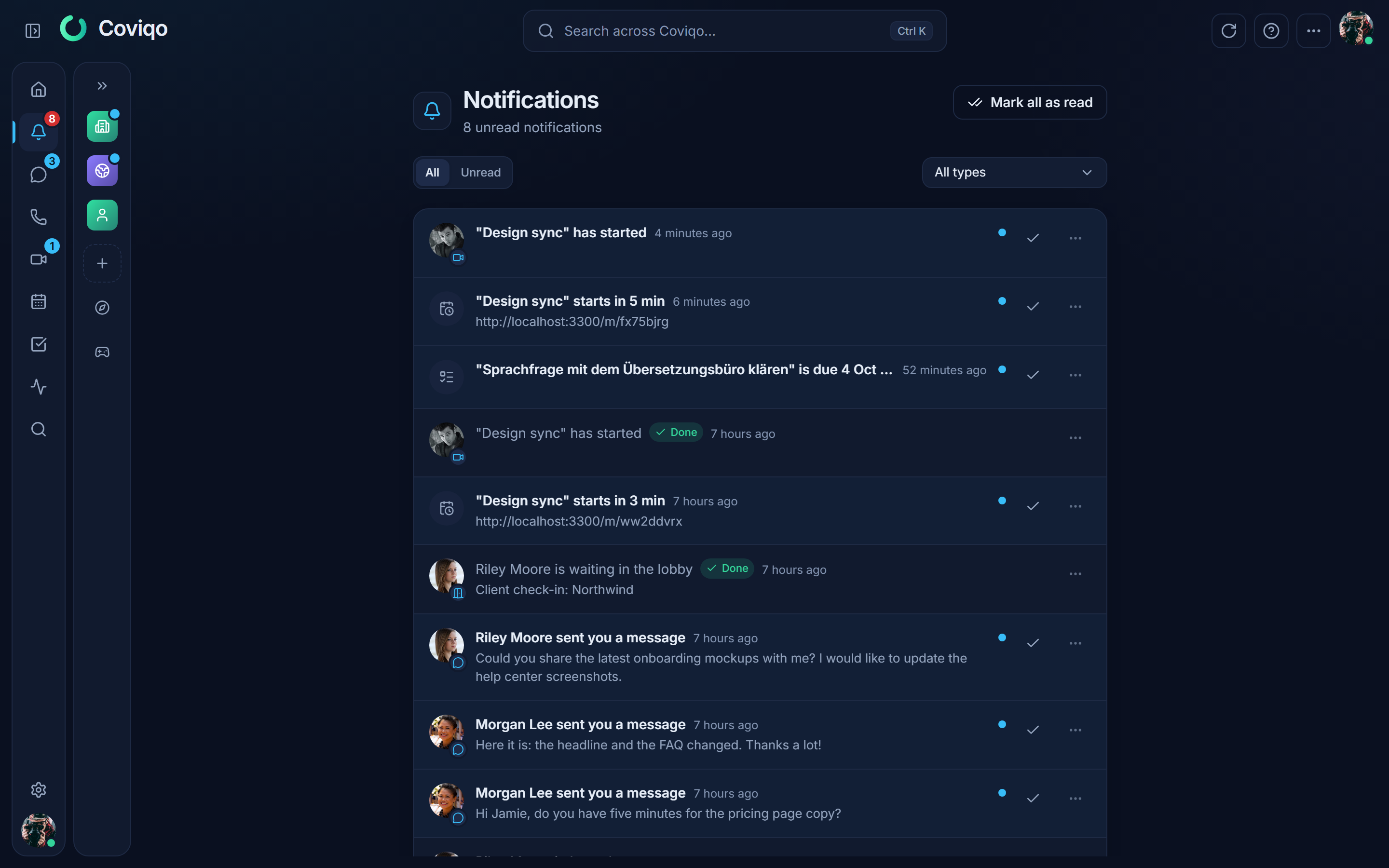
Notifications are kept for 90 days and then removed automatically.
Tip
The Notifications page lists single events as they happen. For a summary of everything relevant since your last visit, use the catch-up on the home page. See the chapter Catch-up and activity.
Notification types and defaults#
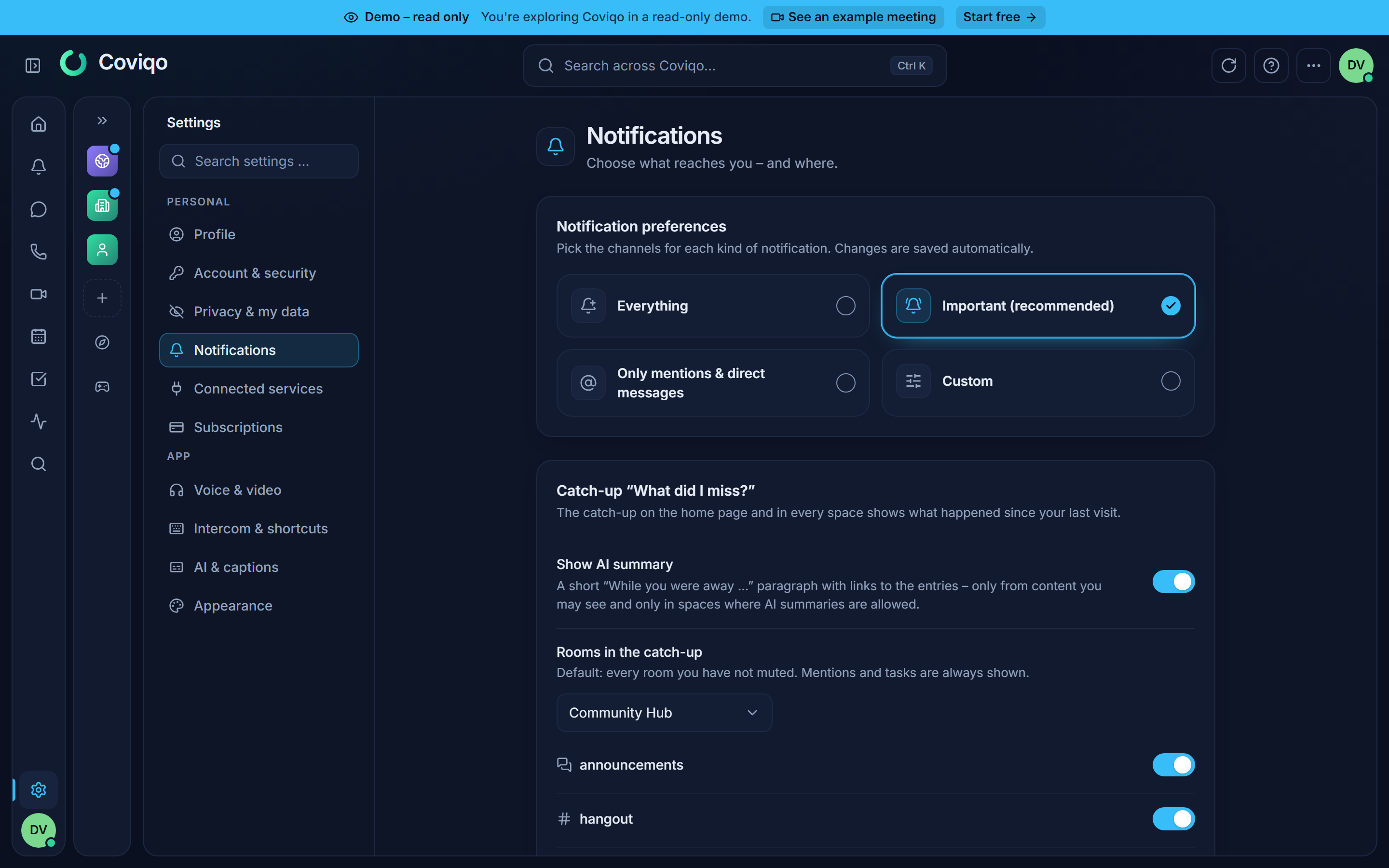
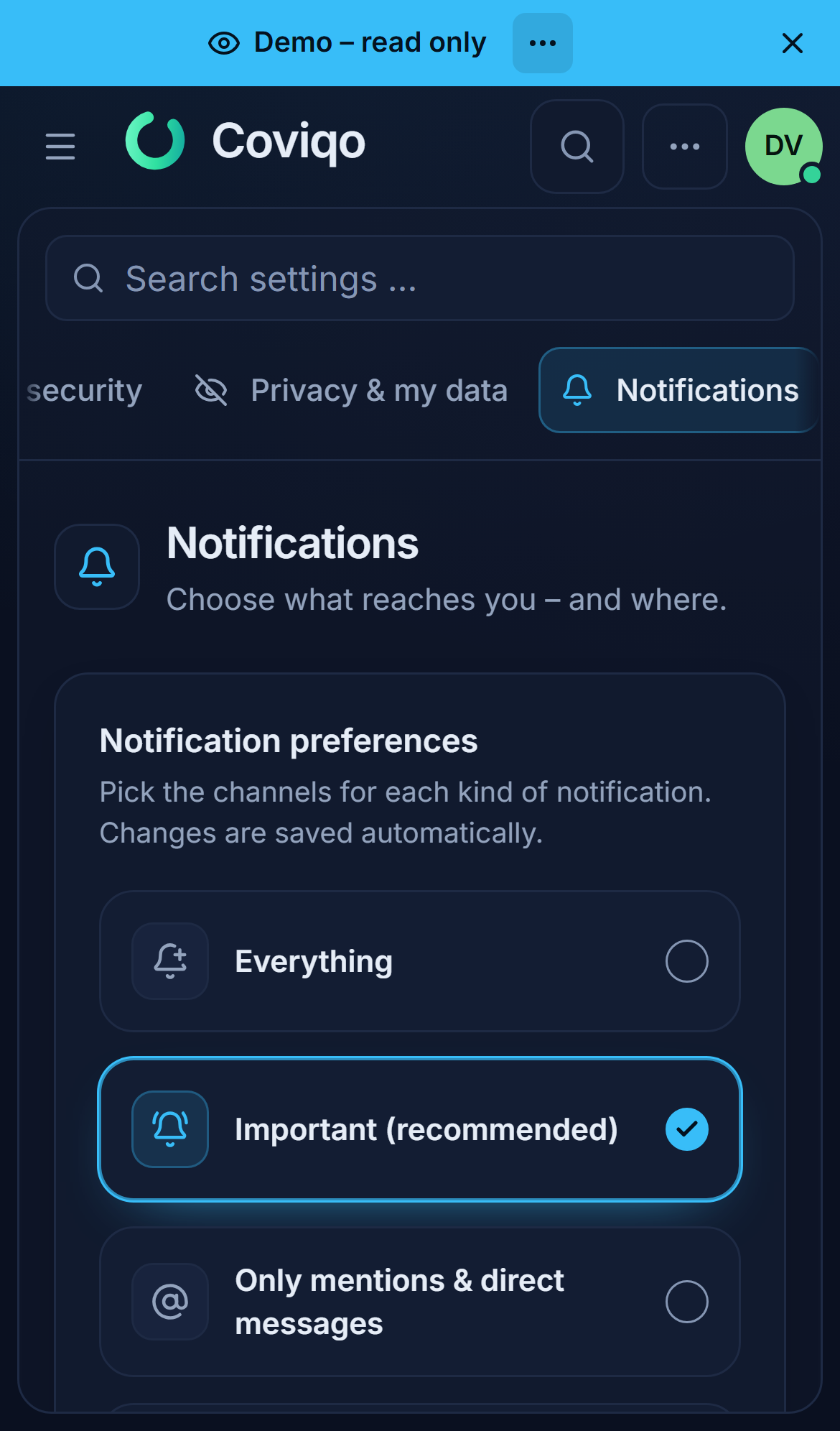
Open Settings › Notifications. Under Notification preferences choose how much should reach you:
| Preset | What it does |
|---|---|
| Everything | Every notification in the app and as push; e-mails as with Important. |
| Important (recommended) | The defaults of new accounts (table below): everything in the app, push for direct messages, mentions, replies, calls, tasks, meetings and approvals, e-mail for invitations, assigned tasks, approvals, security and billing. |
| Only mentions & direct messages | Only direct messages and mentions (in-app and push). Security and billing messages still arrive in the app and by e-mail. |
| Custom | Shows the full table – choose every type and channel yourself. |
Choosing a preset saves it right away. Coviqo recognises your current setting: if it matches a preset, that preset is selected; any other combination shows Custom.
Under Custom you see a table with one row per notification type and one column per channel: In-app, Push and E-mail; the groups (Conversations, Tasks & files …) can be collapsed. Tick or untick the boxes. "Changes are saved automatically", and you see Saving … and then Saved. To switch a whole channel on or off at once, use the checkbox in the column header (Toggle all {channel} notifications).
The types are grouped as follows. The last column shows which channels are on by default.
| Group | Type | Default channels |
|---|---|---|
| Conversations | Mentions – someone mentions you or a role you have, also in a comment of an office document | In-app, Push |
| Replies – someone replies to one of your messages | In-app, Push | |
| Tasks & files | Task assigned | In-app, Push, E-mail |
| Task due | In-app | |
| Shared files | In-app | |
| Threads & reminders | Replies in threads – a new reply in a thread you follow | In-app, Push |
| Message reminders – a reminder you set with Remind me is due (also in muted rooms) | In-app, Push | |
| Events | Event reminders | In-app, Push |
| Event invitations | In-app, E-mail | |
| Meetings | Meeting invitations – also when a meeting is rescheduled | In-app, E-mail |
| Meeting started – marked as done automatically when the meeting (or that occurrence) ends | In-app, Push | |
| People in the lobby | In-app, Push | |
| Summary ready | In-app, E-mail | |
| Recording ready | In-app | |
| Meeting results – results to review, correction requests, decisions you are responsible for | In-app | |
| Weekly open items | In-app, E-mail | |
| Spaces & moderation | Space invitations | In-app, E-mail |
| Role changes | In-app | |
| Moderation – warnings, timeouts or other actions concerning you | In-app, E-mail | |
| New reports – for moderators | In-app | |
| Account | Security – new sign-ins, password and 2FA changes, support access to your account | In-app, E-mail |
| Billing – invoices, payment problems, plan changes | In-app, E-mail | |
| Product updates | In-app |
A few types need a word of explanation:
- Task due is sent 24 hours before the due date of an open task that came from a meeting and is assigned to you. By default you only see it in-app. Turn on E-mail or Push if you want more.
- Weekly open items is an e-mail digest. Every Monday morning (7:00, German time) you get one overview of your open meeting tasks, results waiting for your review and correction requests. It is only sent if there is something open. Untick E-mail in this row to stop the weekly e-mail.
- Event reminders follow the reminder times set on each event. You only get them for events where Remind me is on. See the chapter Calendar and events.
Note
Coviqo only sends e-mail to a confirmed address. If your address shows Not verified under Settings › Account & security, click Resend e-mail and confirm it. Security notifications are the only exception. They are sent even to an unconfirmed address.
Space and room settings#
Besides the channel settings, you can decide how much each space and each room may notify you.
Notification level per space#
Each space has one of three levels:
| Level | Effect |
|---|---|
| All messages | You get all notifications from this space. |
| Mentions only | Only when someone mentions you or replies to you. |
| Nothing (mute space) – in the identity settings Mute space | The space is muted. Mentions, replies and meeting notifications from this space no longer reach you. Direct items still arrive. |
To change the level:
- Right-click the space icon in the sidebar (press and hold on a touch screen), choose Notifications and pick a level.
- Or open Settings › Profile, scroll to Identities & worlds, click Edit identity on the space and choose under Notifications from this space.
- Or open Settings › Notifications › Per space: all your spaces are listed there, each with its level.
Worlds: work and leisure#
Spaces belong to a world – Work (company spaces) or Leisure (communities), or a world of your own. In Settings › Profile › Identities & worlds you can give each world notification hours (for example Work Monday–Friday 8:00–18:00) and use the quick switch Only Work / Only Leisure / Everything. Outside its hours – or while another world is switched on – a world is quiet: no push and no e-mail, the notification waits quietly in the Notifications page. Security, billing and system messages and direct messages always arrive. Details in the chapter Identities and worlds.
Muting a room#
To silence a single busy room, open it and choose Mute notifications in the room header, or right-click the room in the sidebar and choose Mute notifications. Mentions and replies from this room no longer notify you. Unmute notifications reverses it.
A muted room still shows unread markers, and by default it is still included in your catch-up. See the chapter Catch-up and activity.
Things that always reach you#
Some notifications are about you personally. They are delivered even if the space is set to Nothing or the room is muted:
- Task assigned and Task due,
- Event reminders and Event invitations,
- Shared files,
- Space invitations and Role changes,
- Moderation and New reports,
- Security, Billing and Product updates,
- Meeting results and Weekly open items.
For these types you control the channels in Settings › Notifications.
Notifications on this device#
The lower part of Settings › Notifications (Notifications on this device) controls system notifications on the device you are using right now. You have to set this up on each computer and phone separately.
In the browser#
Coviqo offers two kinds of browser notifications:
- Browser notifications: shown while Coviqo is open in a tab but not in the foreground. Click Enable and allow notifications when your browser asks.
- Browser notifications (push): delivered even when no Coviqo tab is open. Turn it on here. After that, notification types with the Push channel reach this device.
The current state is shown next to each option:
| State | Meaning |
|---|---|
| "Allowed – you'll get notifications while Coviqo is open in a tab." | Browser notifications work. |
| "On – notifications arrive even when no Coviqo tab is open." | Push is active on this device. |
| "Blocked in your browser. …" | You (or your browser) declined permission. Allow notifications for this site in the browser settings, then reload the page. |
| "Push notifications are not set up on this server." | The operator hasn't configured push. Only in-app and e-mail work. |
When you sign out – or the session is signed out from another device – this browser stops receiving push notifications for your account; turn push on again after the next sign-in if you want it back.
Click Send test to check that push works. The result says how many devices received the test ("Test sent to 1 device"). A notification titled "Coviqo" with the text "Push notifications work." should appear.
Warning
On an iPhone or iPad, push only works if you add Coviqo to your home screen first and open it from there (iOS 16.4 or later). In Safari itself, iOS doesn't offer push for websites. See the chapter Using Coviqo on mobile.
In the desktop app#
The desktop app shows native notifications of your operating system instead of browser notifications. Under Settings › Desktop app › Desktop notifications you can set:
- Native notifications: show notifications through the operating system,
- Notification sound: play a sound for new notifications,
- Flash on mention: flash the taskbar icon when someone mentions you.
The app icon also shows the number of unread notifications as a badge.
Focus, Busy and do-not-disturb#
Coviqo has no separate do-not-disturb switch or quiet hours. The statuses Busy and Focus in your account menu only tell others that you shouldn't be disturbed. They don't block notifications.
To get some quiet, combine the tools described above:
- Set spaces you only need to check occasionally to Mentions only or Nothing (mute space).
- Mute busy rooms.
- Untick the Push column (under Custom) in Settings › Notifications to stop all push notifications, and tick it again later.
- Use the do-not-disturb or focus mode of your operating system or phone. It also silences Coviqo's system notifications.
- Set your status to Focus or Busy so colleagues know you are heads-down.
Nothing gets lost while you are silenced. Everything stays on the Notifications page and in your catch-up.