Chapter 47
Integrations
On this page
- Overview
- Space integrations: GitHub, Jira and Notion
- Step 1: Turn the integration on
- Step 2: Connect an account
- Step 3: Link a resource to a room
- Using GitHub and Jira in a room
- Updates in the chat
- Link previews
- Creating an issue from a message or task
- The Jira and GitHub tabs of a room
- Finding issues
- Link your own account to make changes
- Add an issue as a Coviqo task
- Guests
- Using Notion in a room
- Importing a Notion page as a note
- Exporting a note to Notion
- Personal cloud drives: Google Drive and OneDrive
- Connecting your drive
- Adding a file to a room
- Space admins and cloud drives
- Disconnecting
- Space integrations
- Personal Jira and GitHub accounts
- Personal drives
- Sign in with Coviqo
- Sharing your membership in a space
- Linking a login app to your space (space admins)
- When a connection stops working
Integrations connect Coviqo with tools your team already uses: GitHub, Jira and Notion at space level, and Google Drive and OneDrive for each member personally. This chapter explains what each integration does, how space admins and members connect it, how it is used in rooms, and how to disconnect it again.
Overview#
| Integration | Connected by | What it does |
|---|---|---|
| GitHub | A space admin, for the whole space | Posts issues, pull requests, pushes, releases and issue comments into rooms, shows link previews, creates issues from tasks and messages, optionally syncs the status of tasks and issues, and adds a live GitHub tab to linked rooms. |
| Jira (Jira Cloud) | A space admin, for the whole space | Posts created and updated issues and comments into rooms, shows link previews, creates issues from tasks and messages, optionally syncs the status, and adds a live Jira tab to linked rooms. |
| Notion | A space admin, for the whole space | Imports Notion pages as Coviqo notes, exports notes to Notion, shows link previews. |
| Google Drive | Each member, for themselves | Browse your drive in the Files tab of rooms, link files or import a copy. Google Docs, Sheets and Slides are imported as Office files. |
| OneDrive | Each member, for themselves | Browse your OneDrive in the Files tab of rooms, link files or import a copy, including files shared with you. |
Whether an integration is available depends on three things:
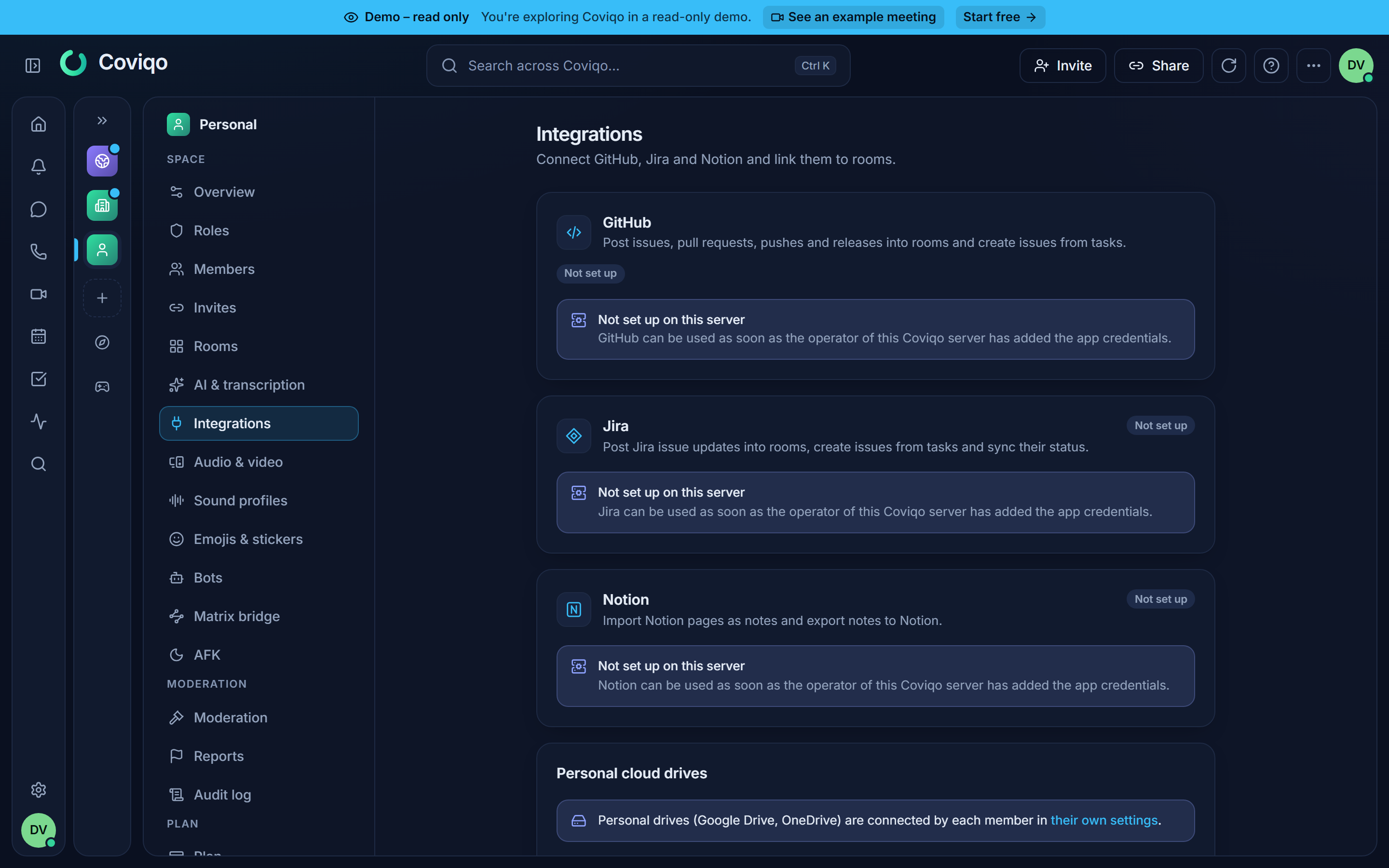
- The server: the operator has to set up each integration first. Otherwise it shows Not set up ("{provider} can be used as soon as the operator of this Coviqo server has added the app credentials.").
- The plan: integrations are part of all standard plans, but an operator can switch them off for a plan or customer. You then see Integrations are not included in your plan.
- The space: space admins can turn each integration off for their space (Off in this space).
Space integrations: GitHub, Jira and Notion#
You manage space integrations under Space settings › Apps & integrations › Integrations ("Connect GitHub, Jira and Notion and link them to rooms."). You need the Manage space permission to connect, disconnect and turn integrations on or off. Other members can see which integrations are active.
Step 1: Turn the integration on#
Each integration has an Enabled in this space switch:
- On: "Members can use it in rooms that are linked below."
- Off: "Turned off – no updates are posted and nobody can use it in rooms."
An integration has to be on before you can connect an account ("Turn the integration on to connect an account.").
Step 2: Connect an account#
Click Connect {provider}. You are sent to the provider to sign in and grant access, and then back to Coviqo. Finish the connection in the same browser you started it in: for your protection, a connection started in one browser cannot be completed in another. In the desktop app the provider opens in your system browser; at the end the browser asks to open the Coviqo app again, confirm it and the app completes the connection.
- GitHub: GitHub asks you to install the Coviqo GitHub App. Choose the organisation or personal account and select which repositories Coviqo may access. Coviqo only ever sees the repositories you allow.
- Jira: Atlassian asks you to allow access to your Jira site. If your account has access to several Jira sites, the first site is connected. Ask your operator if you need a different one.
- Notion: Notion asks you which pages Coviqo may access. Only those pages and their sub-pages can be imported, previewed or used as an export target. You can share more pages with the integration in Notion later.
After connecting you see "{provider} connected". The connection shows who connected it and when (Connected by {name} {when}), plus its status: Active, Error or Access revoked. Use Connect another account to add a second GitHub organisation, Jira site or Notion workspace.
Step 3: Link a resource to a room#
A connection does nothing on its own. You decide which repository, project or page belongs to which room. Members with Manage space, and members with Manage rooms in the room concerned, can create links.
- Under Linked rooms, click Link to room.
- Choose the Room.
- Choose the Type if there is a choice (Repository, Project, Page or Database) and search for the resource.
- Under Post into the room chat, tick the events that should appear as messages in the room:
- GitHub: Issues, Pull requests, Pushes, Releases, Issue comments,
- Jira: Issue created, Issue updated, Comments.
- For GitHub repositories and Jira projects, choose the Status sync for issues:
- Off: "Issues created from tasks do not change the task status."
- Provider → Coviqo: "When an issue is closed or reopened, the linked task follows."
- Both directions: "Issue and task stay in sync in both directions."
- Click Link. You see "{name} linked to #{room}".
screen: integration-link-dialogYou can link several resources to one room, and one resource to several rooms. Edit link changes the events and status sync. Unlink removes the link. Messages already posted stay in the chat.
Using GitHub and Jira in a room#
Updates in the chat#
Selected events appear in the room chat as compact cards, for example a new pull request or a closed issue. They are stored like any other chat message, so they can be searched and are encrypted like the rest of the space. The card is shown with the person who created the link as its author.
Link previews#
When someone posts a link to a GitHub repository, issue, pull request, commit or release, a Jira issue, or a Notion page, Coviqo shows a preview with the title and status. Previews only work if the space has an active connection for that provider that can access the item.
Creating an issue from a message or task#
In a room with a linked repository or project:
- From a message: open the message menu and choose Create GitHub issue or Create Jira issue.
- From a task: open the task. Under Linked issues, click Create issue in GitHub/Jira.
In the dialog, choose the Repository / project, check the Title and Description (Markdown is supported.) and click Create issue. "The issue links back to Coviqo and a note is posted in the room chat." You see Issue {key} created with a button to open it.
A task shows its issues under Linked issues. With status sync:
- GitHub: closing the issue completes the task, and reopening the issue reopens it. With Both directions, completing the task closes the issue, and canceling the task closes it as "not planned".
- Jira: the task follows the status category of the Jira issue (to do, in progress, done). With Both directions, Coviqo moves the Jira issue using the first matching workflow transition.
Note
You need permission to see the task or message, and Create tasks or Send messages in the room, to create an issue from it.
The Jira and GitHub tabs of a room#
A room with a linked Jira project or GitHub repository gets its own Jira or GitHub tab next to the other tabs. It shows the issues live from Jira or GitHub: nothing is copied into Coviqo, and changes made in Jira or GitHub appear automatically within seconds. If several projects or repositories are linked to the room, pick one at the top of the tab.
Finding issues#
- Switch between List and Board. The board groups issues by status: To do, In progress and Done for Jira, Open and Closed for GitHub. On phones the tab always shows the list.
- Filter by Open, Closed or All, Assigned to me, Current sprint (Jira sites with sprints only) and Labels, search with Search issues … and choose the order (Recently updated, Newest, Priority for Jira).
- Click an issue to open its details: description, status, assignee, labels, type, priority, the latest comments and Open in Jira / Open in GitHub.
Link your own account to make changes#
Everybody who can see the room can read the tab. To change something, Coviqo uses your own Jira or GitHub account, so your permissions at the provider apply and the change shows your name there. The first time, the tab shows "Viewing works without – to change status or assignee, comment or create issues, link your own {provider} account." Click Link {provider} account, sign in at Atlassian or GitHub and allow access; you return to the tab ("{provider} account linked").
With a linked account you can:
- Change the status: click the status in the details. For Jira you only see the workflow steps your Jira account may use; for GitHub you can Close as completed, Close as not planned or Reopen.
- Change the assignee: click the assignee and search for a person, or Remove assignee.
- Comment: write in the comment box and click Comment.
- Create an issue: click New issue, choose the type (Jira), enter a Title, a Description and Labels, and click Create issue.
Assigned to me also needs a linked account. Your linked accounts are listed under Settings › Connected services › Personal developer accounts, where you can disconnect them.
Add an issue as a Coviqo task#
Click Add as Coviqo task in the issue details to create a task in this room that is linked to the issue. It then works like an issue created from a task: with status sync on the link, the task follows the issue (Provider → Coviqo) or both stay in sync (Both directions). Each issue can be added once per room; afterwards the details show Already a task in this room with Open task. You need the Create tasks permission and the Tasks tab in the room.
Guests#
External guests don't see the Jira and GitHub tabs by default. Members with Manage rooms can open the tab settings (gear icon) and switch on Guests may see the Jira / GitHub tab. Guests can then view the issues but can't change anything or link an account.
Note
The tab asks Jira and GitHub at most once a minute for the same view and keeps the answer only briefly. If the service is busy you see "The service is receiving too many requests right now. Please try again in a moment."
Using Notion in a room#
Importing a Notion page as a note#
- Open the Notes tab of a room linked to Notion. You need the Edit notes permission.
- Click Import from Notion.
- Paste the Notion page URL, or search with Search Notion pages.
- Click Import. The page becomes a new note (Notion page imported).
If you see "Page not found – share it with the Coviqo integration in Notion first.", share the page with the Coviqo integration in Notion and try again.
Imports have some limits. At most 2,000 blocks and 4 levels of nesting are imported. Tables become simple text rows. Images and files become links, and Notion's own file links expire after about an hour.
Exporting a note to Notion#
- Open the note and click Export to Notion.
- For the first export, enter the Parent page URL. The note is created as a sub-page of that page.
- Click Export.
After that, the button shows that the note was exported (Exported to Notion). Exporting again (Update in Notion) updates the same Notion page. Only enter a new parent page if you want a second copy somewhere else. Comments are not exported. Lists nested deeper than two levels are flattened.
Personal cloud drives: Google Drive and OneDrive#
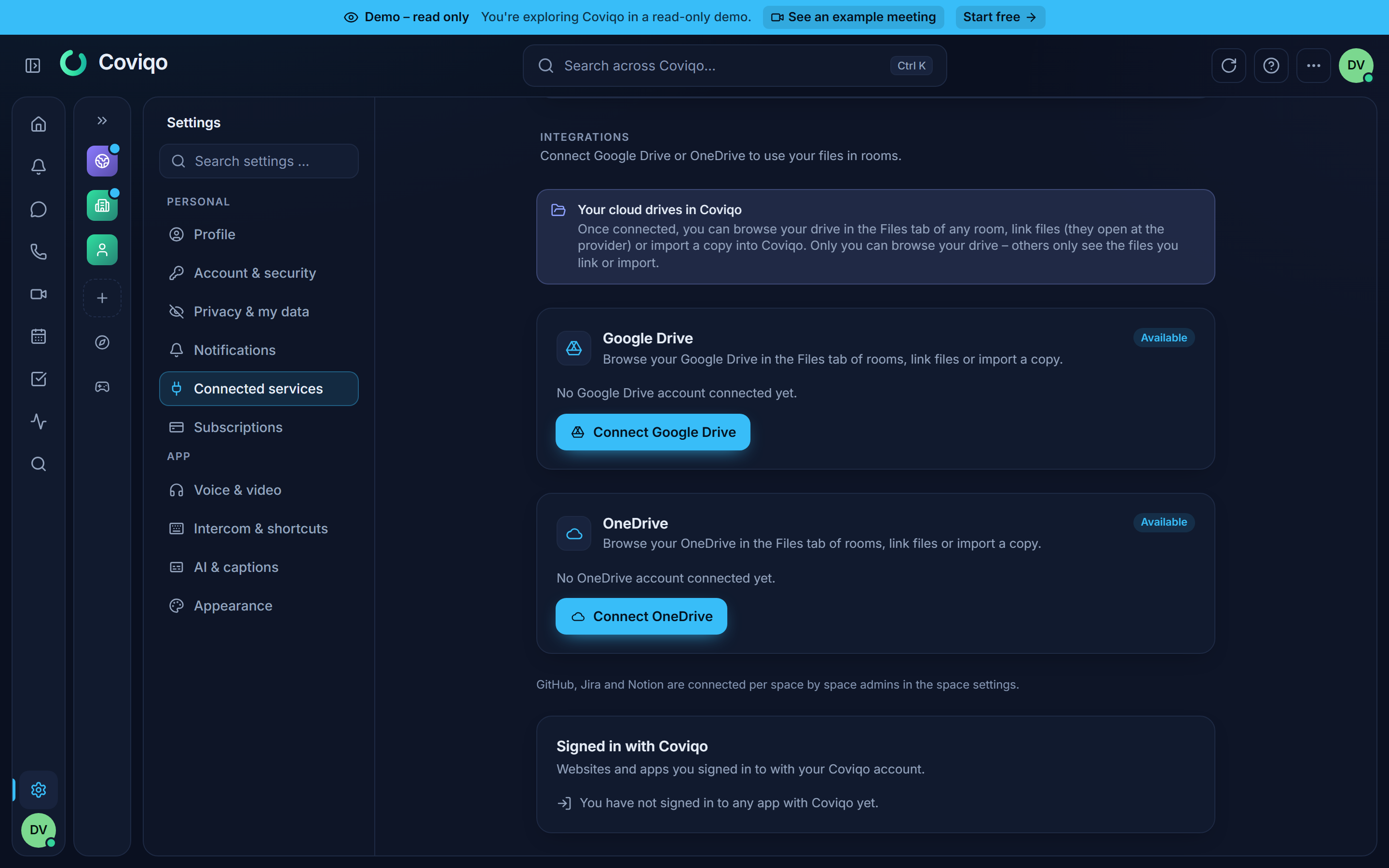
Cloud drives are personal. Each member connects their own Google Drive or OneDrive, and only that member can browse it. Other members only see the files you link or import.
Connecting your drive#
- Open Settings › Connected services.
- Click Connect Google Drive or Connect OneDrive and allow access. Coviqo only asks for read access.
- The drive now appears as connected, with the account name.
Adding a file to a room#
- Open the Files tab of a room. You need the Upload files permission.
- Click Add from cloud. If you haven't connected a drive yet, the button reads Connect cloud drive.
- Browse the folders or use Search {provider}, and select a file.
- Choose how to add it:
- Link: the file appears in the room and Opens in {provider}. People need access to the file at the provider to open it. Coviqo only stores the name and a link, with the metadata from the time you linked it.
- Import copy: Coviqo downloads a copy into the room. The copy is encrypted and scanned for viruses like any upload ("Import started – the file appears when the virus scan is done."). Google Docs, Sheets and Slides are converted to Word, Excel and PowerPoint files.
screen: files-add-from-cloudFolders can't be linked or imported. Imports are limited by your plan's maximum upload size, and Google documents are limited to 50 MB when converted.
To take a linked file out of the room, choose Remove from room. "{name} is only removed from this room – it stays in {provider}." You can remove files you added yourself. Members with Manage files can remove anyone's.
Space admins and cloud drives#
Under Space settings › Apps & integrations › Integrations, the section Personal cloud drives has a switch for each drive. Turn a drive off if members shouldn't bring files from it into this space: "Turned off – members cannot link or import files from this drive in this space."
Disconnecting#
Space integrations#
In Space settings › Apps & integrations › Integrations, click Disconnect on the connection and confirm. "Rooms linked through this account stop receiving updates." Messages already posted stay in the chat. For Jira, the names of Jira users in those messages are replaced with "Atlassian user", because Coviqo can no longer check with Atlassian whether they may be kept.
Note
Coviqo regularly checks with Atlassian whether the Jira users named in chat messages still exist. If someone closes their Atlassian account, their name in these messages is replaced with "Former Atlassian user"; if someone changes their name in Atlassian, the messages show the new name.
Warning
Disconnecting GitHub in Coviqo does not uninstall the Coviqo GitHub App from your GitHub organisation, because other spaces may use it. To remove it completely, uninstall the app in GitHub under your organisation's settings. If you uninstall it on GitHub first, Coviqo notices and marks the connection as Access revoked.
To pause an integration without losing its links, turn off Enabled in this space instead.
Personal Jira and GitHub accounts#
In Settings › Connected services › Personal developer accounts, click Disconnect on the account. Viewing the Jira and GitHub tabs keeps working; the next time you want to change something, the tab asks you to link the account again. Disconnecting GitHub also withdraws Coviqo's token at GitHub.
Personal drives#
In Settings › Connected services, click Disconnect on the drive. "Files you already linked stay visible in the rooms; imported copies are kept."
When you disconnect Google Drive, Coviqo also withdraws its access at Google, unless you still use Google Calendar sync with the same Google account. Withdrawing access would stop the calendar sync too.
Sign in with Coviqo#
Some websites and apps let you sign in with your Coviqo account instead of creating a new password – with a button Sign in with Coviqo. Coviqo then shows a page {app} wants to access your Coviqo account with who operates the app and exactly what it receives:
- Your Coviqo identity – a user ID that is unique to this app,
- Your profile – display name, username, profile picture and language (if the app asks for it),
- Your e-mail address – and whether it is verified (if the app asks for it).
Your messages, files, contacts and your password are never shared, and your spaces only if a space admin linked the app to a space (see below). Click Authorize to sign in, or Cancel. The page also links to the app's privacy policy and terms and says where you will be sent afterwards. If a space was linked to the app in the meantime, the page reloads when you click and shows the current state.
Settings › Connected services › Signed in with Coviqo lists every app you signed in to, with what it may read, since when and when it was last used. Remove access stops the app's access at once; you may stay signed in on its own site until you sign out there, and the next time it asks again.
Guest accounts, the live demo and support sessions cannot sign in to other apps, and organisations can switch it off for their members. Developers register their own login apps in Settings › Developer (see Bots and webhooks › For developers).
Sharing your membership in a space#
Some community websites need to know whether you belong to their space – for example to unlock a members' area or to show your rank. If a space admin linked the login app to the space, the consent page shows an extra block {app} will see these spaces with each linked space and what the app sees there:
- whether you are a member (and whether as a guest), your display name in this space, your roles and teams, whether you are currently timed out and when you joined;
- your global Coviqo user ID. Unlike the user ID that is unique to each app, this ID is the same for every app – the app can use it to recognise you uniquely, also across these spaces.
If you are not a member of a linked space, the app only learns that you are not a member there. The app reads this information fresh on every request – a new role, leaving the space or removing access applies at once. If another space is linked to the app later, you are asked again. Settings › Connected services shows under each app the spaces you share with it.
Linking a login app to your space (space admins)#
If you have the permission Manage space, you can allow a login app to request the membership in your space: open Settings › Developer › Login apps, choose the app and click Link a space under Linked spaces (at most 5 spaces per app; only for apps you registered yourself). The app may then request the scope space.membership – nobody's data is shared until the person agrees when signing in.
All admins of the space see the linked apps under Space settings › Apps & integrations › Integrations › Login apps with membership access, with who linked the app, when, and how many people shared their membership. Revoke access ends the access at once; the app only gets access again if it is linked again, and everyone is asked again.
When a connection stops working#
| Status or message | What to do |
|---|---|
| Error – "The last request to the service failed." | Usually temporary. If it keeps happening, click Reconnect. |
| Access revoked | Access was withdrawn or has expired, for example after a password change at the provider. Click Reconnect and sign in again. You also get a notification when this happens. |
| "This integration has been turned off for this space." | A space admin turned the integration off. Ask them to turn it on again. |
| "Not found – or the connection has no access to it." | The repository, project or page isn't shared with Coviqo. Grant access at the provider (GitHub App repository selection, Notion page sharing). |
| "The sign-in took too long or was already used. Please start again." | Start connecting again from the settings page. |
| "The connection was started in another browser or session. Please start it again here." | The provider sign-in ended in a different browser than the one you started in (for example a copied link). Start connecting again in the browser you want to use. |
| "Link your own account first – changes are made with your account." | Click Link {provider} account in the Jira or GitHub tab. |
| "Your account does not have permission to do this." | Your own Jira or GitHub account lacks the permission for this change. Ask a project or repository admin. |
| "Your Atlassian account has no access to the Jira site of this space." | Sign in with an Atlassian account that has access to the space's Jira site. |
| "This Jira site has no sprints (Jira Software) – the filter has been hidden." | The Jira site doesn't use sprints; filter by status or label instead. |
Every connect, disconnect, link and settings change is recorded in the space activity (for example Connected {provider} or Linked {provider} to a room) and in the audit log.