Chapter 53
Privacy and your data
On this page
- Who is responsible for which data
- End-to-end encrypted rooms
- Exporting your data
- Your consent history
- Direct messages in the export and privacy settings
- Onboarding answers
- Deleting your account
- What happens to your direct messages
- What happens to your messages in other spaces
- Transcription: opting out
- Recordings
- Where the AI runs
- Cookies and local storage
- Images from other websites
- Error reports
- Your rights and privacy requests
- Reporting illegal content
- Decisions about your content
- Legal documents
- Your privacy cockpit
- Where your data lives
- Permissions per space
- For space admins: data of your space
Coviqo is built to process as little personal data as possible and to give you control over the rest. This chapter explains where you can see and download your data, how deleting your account works, how you object to being transcribed, what happens when a meeting is recorded, which cookies Coviqo uses, and where the AI features run. It also covers the tools space admins have for the content of their space.
Who is responsible for which data#
Two roles are worth knowing, because they decide whom you ask about what:
| Data | Responsible ("controller") |
|---|---|
| Your account, sign-in, sessions, security logs and billing | The operator of Coviqo |
| Content in a space run by an organisation – messages, files, notes, tasks, events, meetings, recordings, transcripts | The organisation or person that owns the space; the operator processes it on their behalf |
Direct messages belong to the organisation when every participant is a managed member of the same organisation; otherwise each participant is responsible for their own messages and the operator provides the service (see Direct messages).
So if you want to know what your employer's space keeps about you, the space owner is your first contact. For questions about your account itself, contact the operator (see Your rights and privacy requests below).
End-to-end encrypted rooms#
In end-to-end encrypted rooms (Business plan and up) and end-to-end encrypted direct conversations and their calls (every plan, switched on per conversation – chapter "End-to-end encrypted rooms") Coviqo only stores ciphertext and your public keys; the keys to read the content stay on your devices and in your encrypted key backup. Notifications of encrypted direct messages contain no text. Your data export contains such content as ciphertext. If you lose all devices and your recovery key, Coviqo cannot recover that content. Organisations can switch encrypted direct messages off for their managed accounts when they have to retain direct messages. Encryption of a conversation only ends if every participant agrees; Coviqo records who switched it on, asked to end it, agreed or declined (with the time, never the content). To search encrypted messages your device keeps an encrypted index that never leaves it and is deleted when you sign out.
Exporting your data#
You can download a copy of everything Coviqo stores about your account at any time (your rights of access and portability under Art. 15 and 20 GDPR).
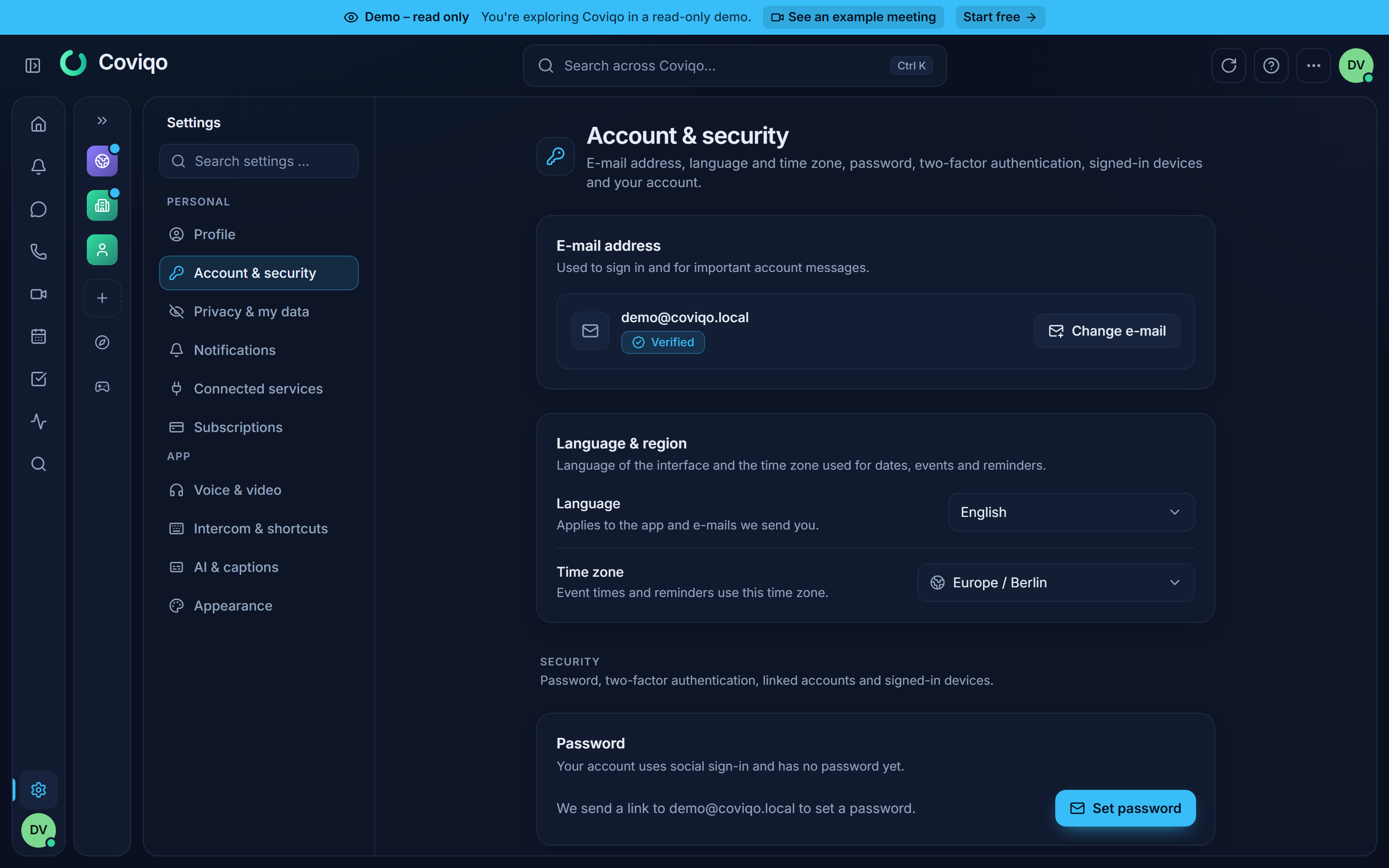
- Open Settings › Account & security.
- In the card Export my data, click Request export.
- While the archive is built, the card shows "Your export is being prepared …". Coviqo sends you an e-mail when it is ready – usually within a few minutes.
- Click Download next to the export for the complete ZIP archive, or PDF report for the readable report on its own. You must be signed in; the download link itself is only valid for a few minutes.
The export is a ZIP archive with:
- a designed PDF report – Datenauskunft nach Art. 15 DSGVO (in English: Data access report) – with a cover page, a table of contents, the information the GDPR requires (purposes, categories, recipients, retention, your rights, where the data comes from, no automated decisions) and one chapter per kind of data (profile, sessions and security, spaces, messages, direct messages, notes, tasks, files, meetings and transcripts, notifications, integrations, consents, Find players requests, contracts and billing …) with readable tables. Very large categories show the first entries and say where the complete list is, for example "complete in messages.json",
- machine-readable JSON files with all data (for moving to another service),
- the files you uploaded (the report only lists them).
The report uses the language of your account (German or English).
Each export is listed under Recent exports with its status (Queued, Preparing, Ready, Failed or Expired). "The download is available for 7 days. You can request one export per day." After seven days, the archive and its encryption key are deleted. If an export failed, request a new one.
Your consent history#
Below the export, the card Consents shows when you accepted which version of the Terms of Service and the Privacy Policy (Show history). When the operator publishes a new version, Coviqo asks you once with We've updated our terms – click Accept to continue, or Sign out.
Direct messages in the export and privacy settings#
The export contains every direct conversation you take part in with all its messages (direct-messages.json) and your direct message settings – who may message you, whether you are discoverable, your blocked people (direct-message-settings.json) – and your contacts, the contact requests you sent and received, who may send you requests and your read receipt settings (contacts.json). Who may send you direct messages, discoverability and blocking are set in Settings › Privacy & my data (chapter Direct messages). The export also lists the calls from direct messages you took part in – who, when, how long and the outcome, never any content (calls.json, kept 180 days) – and who may call you (chapter Calls).
Onboarding answers#
Your answers to the onboarding questions of spaces and when you accepted their rules are in the export as space-onboarding.json. Space admins only ever see how many people picked an answer, never who picked what. Your answers are deleted when you leave the space or delete your account.
Deleting your account#
You find Delete account in Settings › Account & security under Danger zone.
- Click Delete account.
- Read what happens: you are signed out on all devices, you leave every space, and your data is deleted for good after the grace period.
- Confirm with your current password and, if you use two-factor authentication, a current code. Wrong two-factor codes count towards the temporary account lock.
- Tick the confirmation and click Delete account.
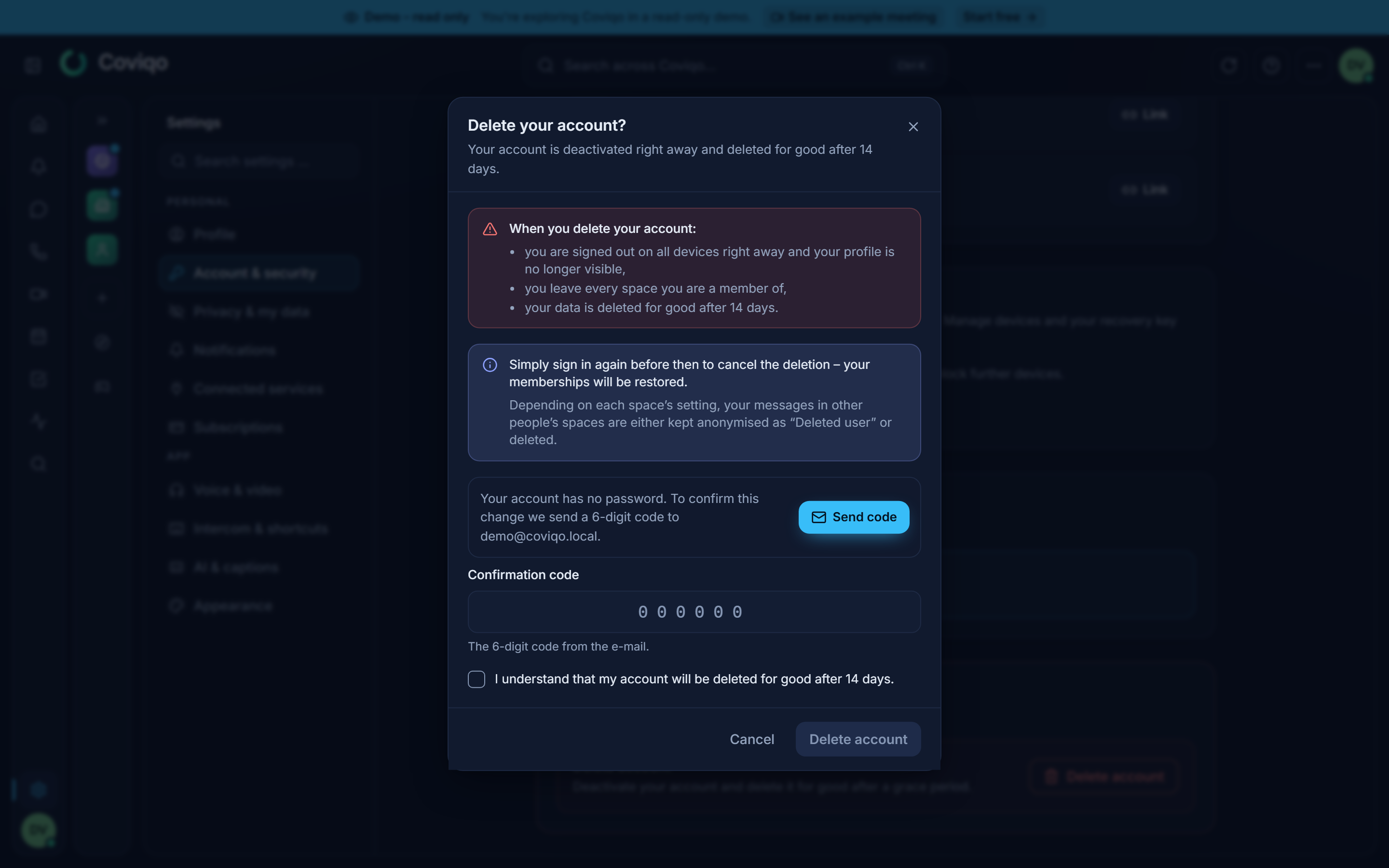
The deletion runs in two steps:
- Right away your account is deactivated, your sessions end and your profile disappears.
- After the grace period – 14 days by default; the dialog shows the exact number – your account is erased for good: your private space (if you have one) and its files, your sessions, linked accounts, notification settings and calendar connections are deleted. What remains is a pseudonymous placeholder so that audit logs and conversations stay consistent.
Tip
Changed your mind? "Simply sign in again before then to cancel the deletion – your memberships will be restored." The dialog links to the data export too – download your data first if you want to keep a copy.
What is kept after deletion. Platform backups are kept for no more than 12 months; deleted data disappears from the backups by then at the latest. Accounting records (invoices, credit notes, payments, contract changes, cancellations) are kept separately for 10 years, as required by law – in pseudonymised form where possible: your e-mail address is replaced, but invoices keep the billing details as printed on them and cancellation declarations keep the name of the person who made them. They are deleted when the retention period ends.
If you still own spaces, you see You still own spaces: "Transfer ownership or delete these spaces before deleting your account."
What happens to your direct messages#
When your account is finally deleted, you leave all your direct conversations and your direct messages are deleted. Conversations in which nobody is left are removed completely, including their attachments. During the grace period your conversation partners can still read the conversation but not write to you.
What happens to your messages in other spaces#
Each space decides what happens to the chat messages of people who delete their account. Space admins set this in Space settings › Data & log › Data & privacy under Messages of members who delete their account:
- Keep anonymised (default) – messages stay and the author is shown as "Deleted user". Conversations stay readable.
- Delete with the account – the person's messages are deleted together with the account.
Files, notes and tasks you created in other people's spaces stay in those spaces. Speaker names in meeting transcripts are anonymised.
Transcription: opting out#
In spaces where meetings are transcribed, you can object to having your voice processed:
- Open Settings › AI & captions.
- Under Privacy, switch on Don't transcribe my voice.
"Your microphone is excluded from live captions, transcripts and summaries. Others still see you as present." In meetings with transcription you then see "You are not being transcribed." The setting applies to all meetings until you switch it off again. It also covers your voice messages in chats: they are not transcribed.
Clips: in voice rooms that allow clips (you see Clips on), others can save the last seconds of the call. Switch on Exclude my voice from all clips (Settings › Privacy & my data › Clips of me) or exclude yourself per room in the call's … menu – you are then neither heard nor shown in clips. A clip lists who is audible in it, and it is only transcribed when nobody audible has switched on Don't transcribe my voice.
While transcription is running, every participant sees a Transcribing indicator. If the transcription service is unavailable, the indicator reads Transcription waiting and nothing is transcribed until the service is back.
Recordings#
A recording can only be started by someone with the permission to record, and it is shown to everybody for its entire duration:
- When a recording starts, all participants get the notice "This meeting is being recorded" – "By staying in the meeting you consent to the recording." A Recording badge stays visible.
- Coviqo logs who was present when the recording or transcription started, and who joined while it was running, as evidence that they saw the notice. This evidence is kept for three years.
- Recordings are deleted automatically after the retention period of the plan (for example 30 days on Community Pro, 365 days on Business); organisation owners and admins can set shorter periods for the whole organisation (Retention), and recordings can always be deleted earlier. A meeting can never keep a recording longer than the plan allows.
Note
Whoever starts a recording or organises the meeting is responsible for informing participants in advance and, where required, for asking their consent. If you don't want to be recorded, say so or leave the meeting.
Where the AI runs#
Transcription, live translation of captions, meeting summaries and the catch-up paragraph are produced by speech recognition and a language model that run on the Coviqo infrastructure itself. Audio, transcripts and content are not sent to external AI providers and are not used to train third-party models.
- AI features must be enabled on several levels: by the operator, by your plan (the Free plan includes no AI transcription or summaries), by the space admin under Space settings › AI & transcription and for the individual meeting.
- The AI only makes suggestions. Summaries, action items and decisions are drafts that people review; Coviqo makes no automated decisions about you.
- Results can contain errors. Check important statements against the recording or the transcript.
The AI settings for meetings are described in the chapter Meetings.
Cookies and local storage#
Coviqo uses no tracking, analytics or advertising cookies – that is why there is no cookie banner. It only stores what is technically necessary:
| Item | Purpose |
|---|---|
| Sign-in cookie | Keeps you signed in (valid only for the sign-in endpoints). |
| Trusted-device cookie | Only if you tick Trust this device for 30 days: lets password sign-ins from this browser skip the authenticator code for 30 days (valid only for the sign-in endpoints). |
| Short-lived sign-in cookie | Protects the sign-in with Google, Microsoft, Apple, Discord, Steam or Epic Games against misuse (10 minutes; up to 30 minutes while you confirm your e-mail address after a Steam or Epic sign-up). |
| Language cookie | Remembers the language you chose. |
Session hint (cq_si) |
Only says "signed in" (no account data) so that opening the app address takes you straight to the app instead of the sign-in page; 30 days, removed when you sign out. |
Single sign-on cookie (cq_sso) |
Only during a sign-in with your organisation's single sign-on: binds the sign-in to this browser (protection against misuse); valid only for the sign-in endpoints, at most 10 minutes. |
| Browser storage | Interface settings such as theme, list view and a collapsed sidebar, a device ID, your selected microphone, camera and output volume. The device ID is a random identifier without any information about you; it is saved with your sessions and helps the Coviqo security team recognise and, in case of abuse, block a device. Clearing your browser data creates a new one. |
| Unsent note changes | Only while you edit a note without a connection: your changes are kept in the browser until the server has confirmed them, then deleted – and always when you sign out. |
| Push subscription | Only if you switch on push notifications and allow them in your browser. |
You can delete local storage in your browser at any time; Coviqo then falls back to its defaults.
Public forms (registration, forgot password, contact, privacy request, contract cancellation, guest join, share-link passwords) are protected against bots by a self-hosted proof-of-work check: your browser solves a small computation that the Coviqo server issues and verifies. It sets no cookie, builds no profile and involves no third party.
Images from other websites#
When someone posts an image from another website in a chat, a direct message or a text, or when a profile picture comes from another service (for example after signing in with Google, Discord or Steam), your browser does not load it from that website. Coviqo's server fetches it through its own image proxy – without your IP address, cookies or the page you are on – and keeps a copy for up to 24 hours. Space admins can switch external images off completely under Space settings › Overview › Show external images; they then appear only as links.
Error reports#
If something unexpected goes wrong in Coviqo (the server, the web app or the desktop app), a technical error report – type of error, error message, the place in the program and the version – may be recorded so the problem can be fixed. Before it is stored, e-mail addresses, access keys and content are removed and IP addresses are shortened; the report is not linked to your account. Error reports stay on Coviqo's own servers (no third party) and are deleted after 30 days.
Your rights and privacy requests#
Besides the self-service export and deletion, you have the rights to rectification, restriction and objection. Most corrections you make yourself in Settings › Profile and Settings › Account & security. For everything else, use the public form Your rights under the GDPR at /privacy-request (linked in the website footer) – it also works without a Coviqo account:
- Choose the type of request: Access, Data portability, Erasure, Rectification, Restriction or Objection.
- Enter your E-mail address (ideally the one of your Coviqo account), optionally your Name, and describe the request under Details.
- Click Send request, then confirm it via the link in the e-mail (valid for 7 days).
After confirming, you see a Reference number and the date by which the answer is due – within one month, as the GDPR requires.
Reporting illegal content#
Report message and Report on a profile send a report to the moderators of the space or to Coviqo's Trust & Safety team (see Communication and Your profile). If you think that content on Coviqo breaks the law, you can additionally send a formal notice to Coviqo under the EU Digital Services Act (DSA):
- Open the form Report illegal content – from Report illegal content (DSA) in the report dialog of a message or profile (the link of the content is filled in), from the website footer, from ? › About Coviqo, or directly at
/report-content. It also works without a Coviqo account. - Choose the Type of content and paste the exact Location (link) – in the app, use Copy link on the message, file or profile. The form shows what it recognised, for example Recognised: Message. One location per notice; mention further ones in your explanation.
- Explain why the content is illegal, give your Name and E-mail address (optional only for reports of child sexual abuse material) and confirm that your notice is accurate and complete in good faith.
- Click Send notice. You get a Reference and a confirmation of receipt by e-mail; the e-mail contains an optional link to confirm the notice.
Coviqo reviews the notice and tells you its decision and the available remedies by e-mail. Content removed for legal reasons shows This message was removed for legal reasons. in the chat. The page Contact points under the DSA (/legal/dsa, linked in the website footer and in About Coviqo) lists the contact points for users and authorities, the languages and how notices and complaints are handled.
Decisions about your content#
If Coviqo restricts your content or your account – removes a message, resets profile content, suspends an account or a space – you receive a statement of reasons by e-mail and as a notification. All statements are listed under Settings › Legal decisions (the section appears once there is one). Each statement shows the measure, what is affected, its scope and duration, the facts, whether automated means were used, and the ground: illegal content (with the legal basis) or a breach of the terms of service (with the clause).
If you disagree, Lodge a complaint in the statement within six months – free of charge and once per decision. Explain why the decision is wrong; Coviqo reviews it again and tells you the outcome (Complaint under review, Complaint upheld or Complaint rejected). The statement also names the other remedies: an out-of-court dispute settlement body and the courts.
Legal documents#
The Legal notice, the Terms of Service and the Privacy Policy are linked in the footer of the website and in the registration form (/legal/imprint, /legal/terms, /legal/privacy). Each shows its version and the date it became effective.
The Third-party notices (/third-party-notices, German "Lizenzhinweise") list the open-source components Coviqo uses – with their licences, copyright notices, attributions and links to the source code. The page is linked in small print at the bottom of the website footer and, in the desktop app, in Settings › Desktop › About. The desktop app also ships the notices of its own components in its installation folder (resources/THIRD-PARTY-NOTICES.html, next to LICENSE.electron.txt and LICENSES.chromium.html).
Your privacy cockpit#
Settings › Privacy & my data › Privacy cockpit shows what Coviqo knows about you – without any content:
- Where your data lives – data region, hosting country, file storage, backups, whether AI runs on Coviqo’s own servers, and the hosting providers and processors.
- Organisations and spaces that hold data about you, whether an organisation manages your account, and how you appear in each space (your space identity or your global profile).
- Sign-ins and devices – a link to your security settings.
- AI processing – which AI feature (summary, transcription, captions, chapters, "Ask the space", catch-up …) processed content you wrote or that concerns you, per day. You see this for 180 days. The log never contains what was said or written.
- Exports that include you – your own data exports, exports of your account by your organisation, space exports, meeting reports, transcript downloads and audit log exports of your spaces. You see who made them as a role (for example "by a space administrator"), not by name.
- Recordings, transcripts and clips with you – clips you can be heard in, recordings of meetings you attended and transcripts in which you speak. Next to each entry you can ask for deletion: the person who created it and the space administrators get a notification. They decide – nothing is deleted automatically. You can withdraw your request.
- Consents and opt-outs – whether your voice is excluded from transcription and from clips, and your consent history.
- Your data – download everything (the export also contains the AI processing log) or delete your account.
Where your data lives#
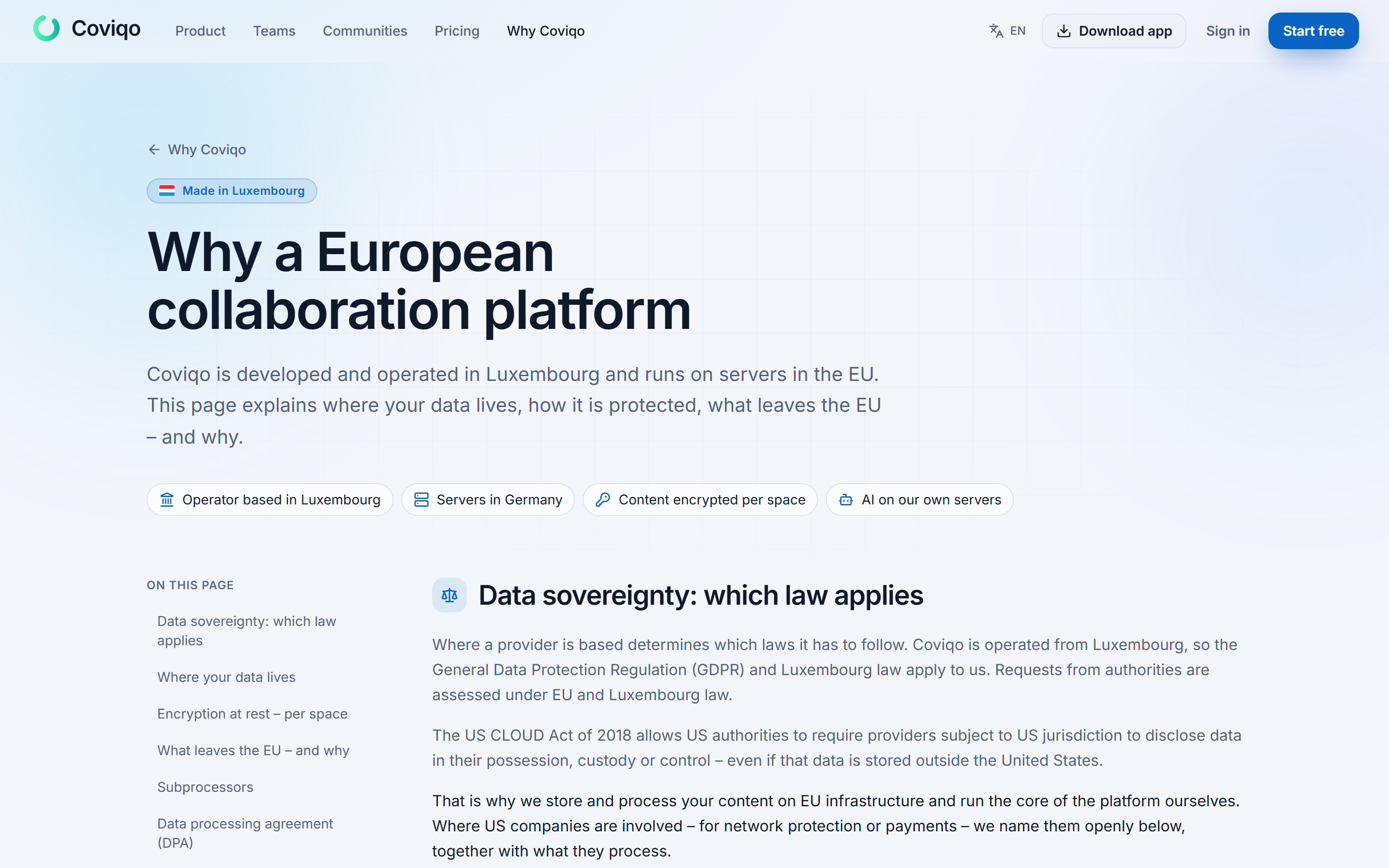
Coviqo is developed and operated in Luxembourg and hosted in the EU. The landing page shows this in the line Made in Luxembourg · Hosted in the EU above the headline and in the band Your data stays in the EU. So does the AI. further down:
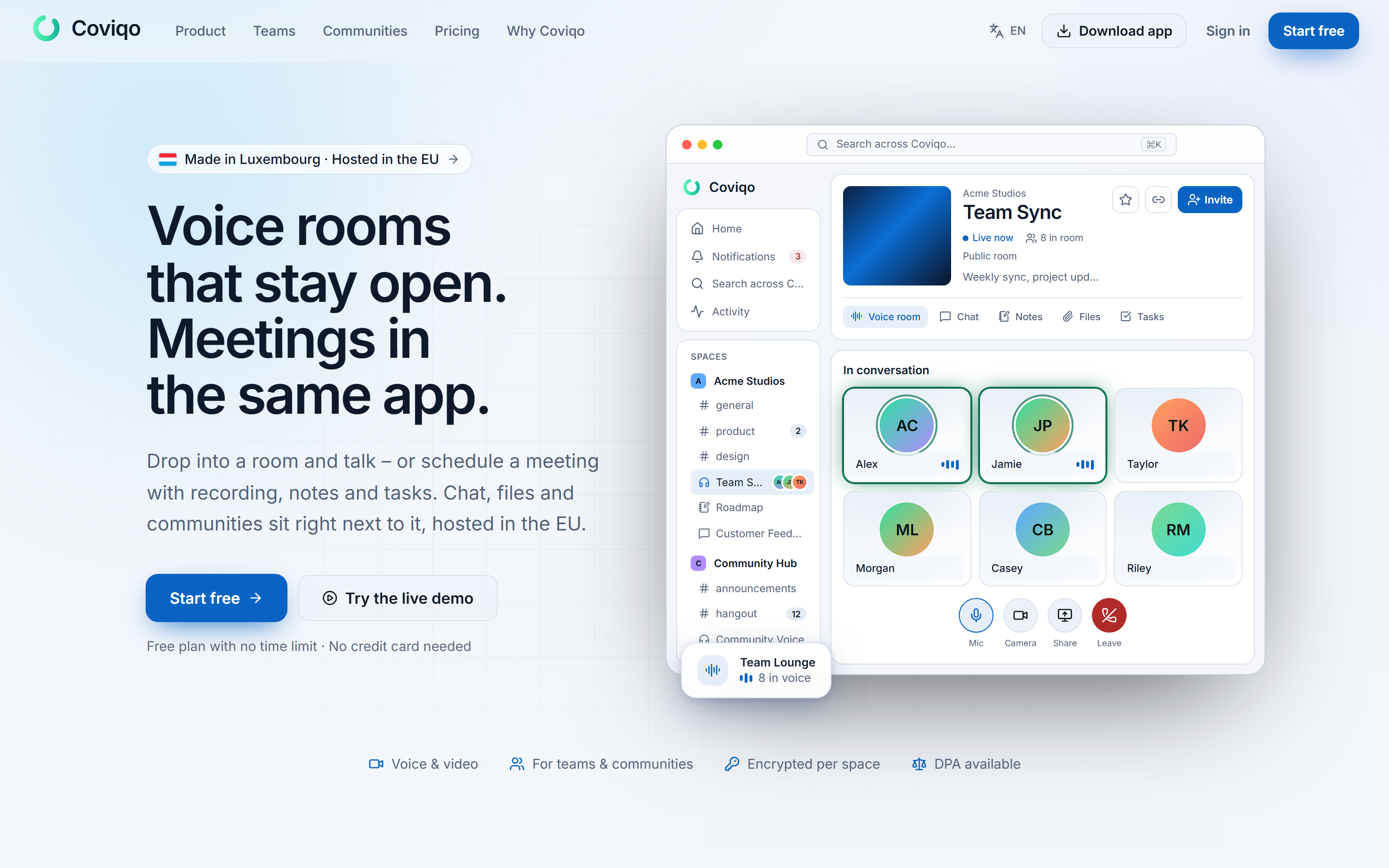
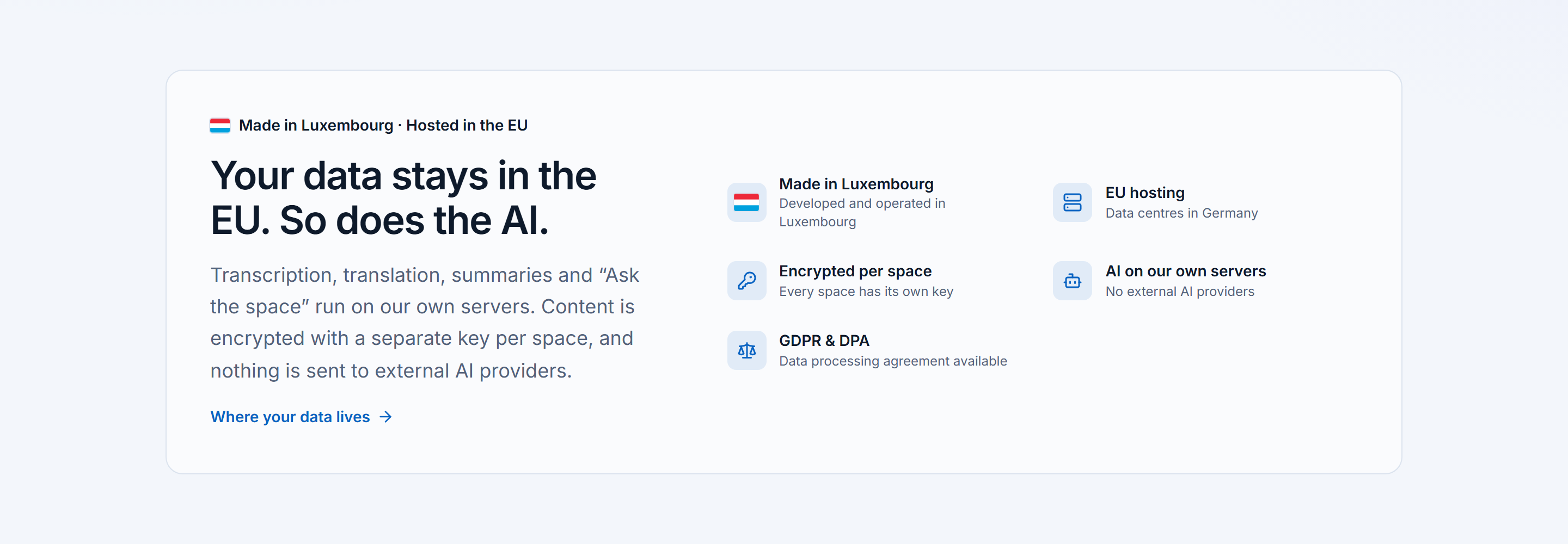
The line and each fact of the band open the matching section of the page Why a European collaboration platform (/why-coviqo/europe, also reached via the Made in Luxembourg · Hosted in the EU badge in the website footer and from the page Why Coviqo). It explains in plain words:
- which law applies to Coviqo and what the US CLOUD Act is about;
- where your data is stored – servers, file storage, backups and AI features;
- how content is encrypted per space – and that this is server-side encryption, not end-to-end encryption;
- what leaves the EU and why – for example network protection, payments with Stripe, and sign-in or integrations you choose to use;
- the list of subprocessors (the same list as in the privacy policy), the data processing agreement (DPA) for organisations, and whom to contact about privacy or security.
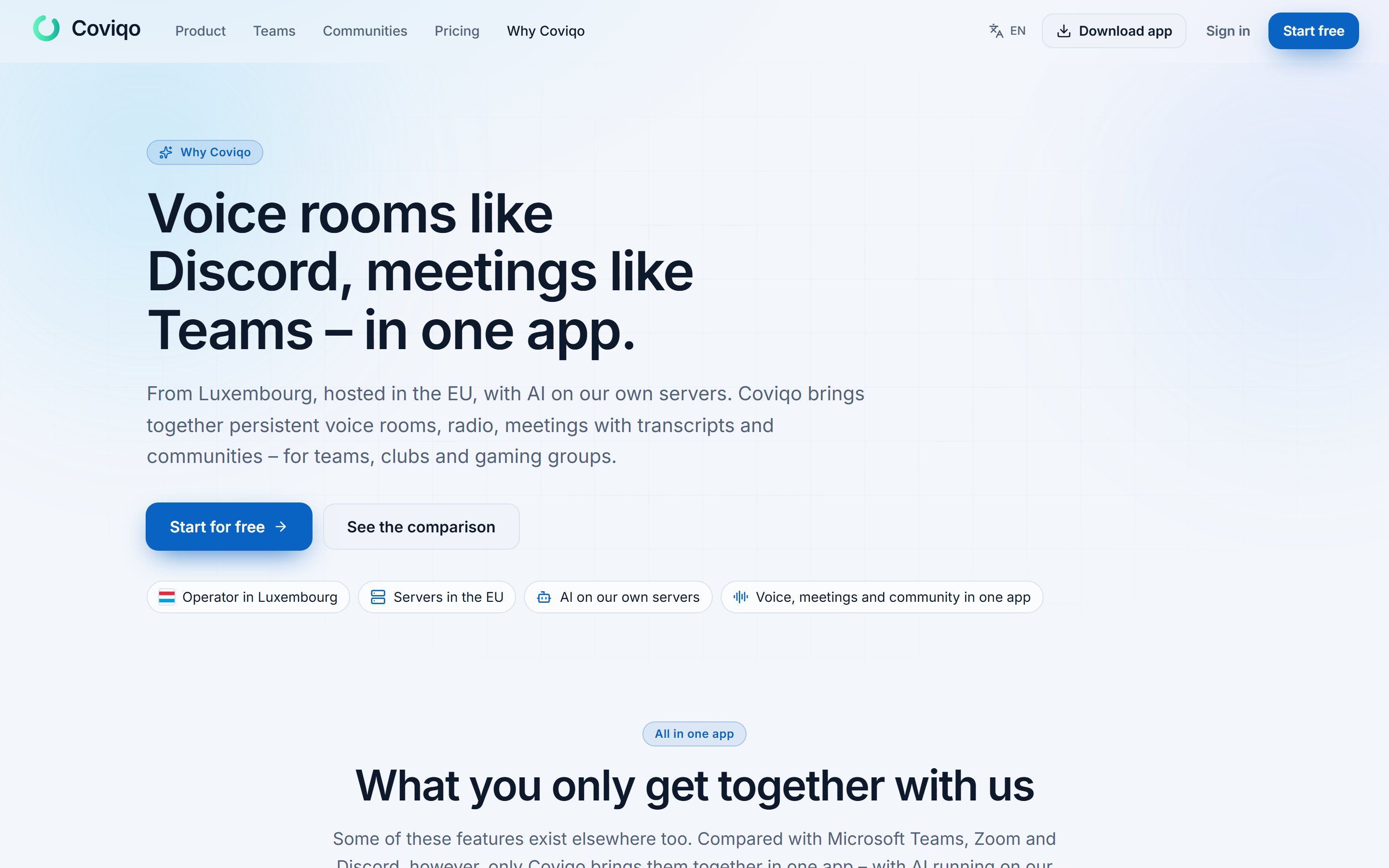
The page Why Coviqo (/why-coviqo, in the website header and footer as Why Coviqo; the old address /why-europe forwards there) sums up what you get with Coviqo – voice rooms and meetings in one app, radio between rooms, tasks, notes, files and events, AI on our own servers, phone dial-in, community and gaming features. Its section From Luxembourg. Hosted in the EU. is a short version of the page above and links to it.
Permissions per space#
Some things are only shared if you allow them – separately for each space, and only while you are a member there. Open your profile for the space (Settings › Profile › Identities & worlds › Edit identity) and look at Permissions in this space. Everything is off by default:
| Switch | What it allows |
|---|---|
| Share my linked Discord account with this space's bots | Bots of this space that a space admin gave the data access Linked accounts see your Discord ID and Discord username – for example to take over your roles from a Discord server. Only possible if you linked Discord under Settings › Security › Linked accounts. Your e-mail address is never shared. |
| Show my name in the public voice channel widget | If the space shows a public widget on its website (see Website embed), your name and profile picture appear there while you are in a voice room. Otherwise you appear anonymously. |
You can turn each switch off again at any time. All permissions of a space end when you leave it (or are removed), and unlinking Discord ends every Discord permission – a new link is only shared after you allow it again. Settings › Security › Linked accounts lists the spaces in which you share your Discord account, with Revoke next to each one.
A bot or a space admin may send you a link like https://app.coviqo.com/s/<space>?consent=discord (or ?consent=voice): it opens these switches directly – nothing is switched on until you do it yourself. Your data export contains every permission in space-consents.json, together with the spaces you shared with login apps (see Integrations › Sign in with Coviqo).
For space admins: data of your space#
Admins with the right permissions find the privacy tools of a space under Space settings › Data & log › Data & privacy:
- Export space data (only for the space owner and administrators, because the export contains every room, private rooms included) – a ZIP archive with a PDF report (Datenexport Space …), rooms, messages, notes, tasks, events, members and all files, for example to answer an access request, for archiving or for switching providers. One export per space and day; available for 7 days.
- Messages of members who delete their account – see above.
- Owners and admins of the organisation can also set stricter retention periods and conclude the data processing agreement (DPA) here.
Access by Coviqo support to your space's data is recorded in the space's Audit log.