Chapter 44
Catch-up and activity
On this page
- The catch-up: "What did I miss?"
- Choosing the period
- Mark all as seen
- What the catch-up shows
- Decisions
- Mentions & replies
- Your open tasks
- Events & meetings
- Important discussions
- Activity in your rooms
- Acting on entries
- The AI summary "While you were away …"
- Choosing which rooms appear
- The activity feed
- The decision log
After a few hours or a few days away, you usually want to know what happened while you were gone. Coviqo has three views for that: the catch-up ("What did I miss?"), the activity feed and the decision log. This chapter explains what each one shows, how Coviqo decides what counts as new, and how to adjust the catch-up to fit you.
The catch-up: "What did I miss?"#
The catch-up collects what matters to you personally since your last visit. It shows new decisions, questions addressed to you, tasks that are due, events that were moved or canceled, meetings you missed, busy discussions, and a summary of activity in your rooms.
You find it in two places:
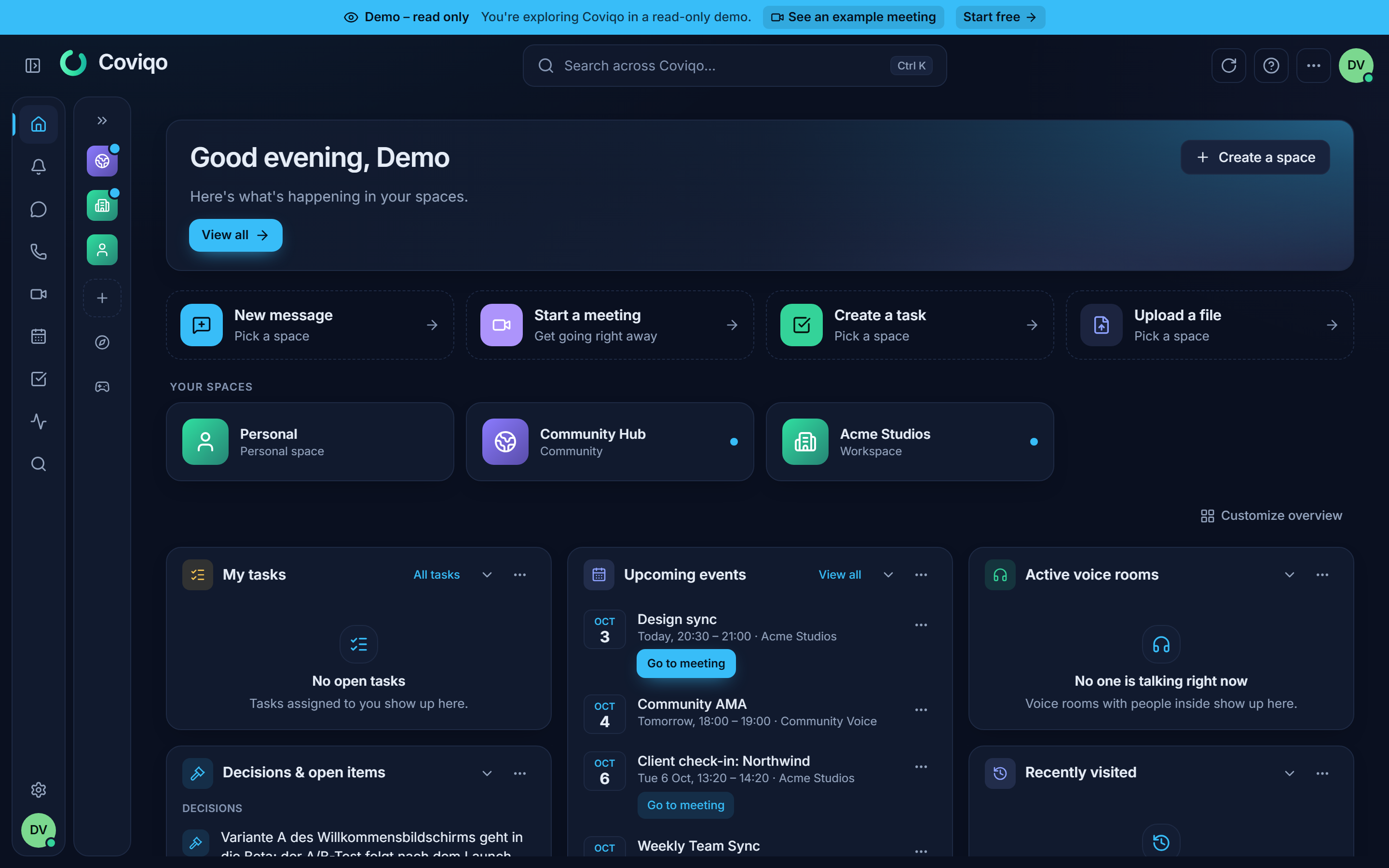
- On the home page: below the greeting, the line Since your last visit: shows the counts; View all opens the full catch-up right there, the double tick marks everything as seen. This catch-up covers all your spaces. Below it, Catch-up per space: links to the catch-up of each space.
- For a single space: right-click the space icon in the sidebar (press and hold on a touch screen) and choose What did I miss?. The page is titled What did I miss? · {space} and covers only that space. The space overview page also shows a short Since your last visit: line with counts and a View all link below the space name.
Choosing the period#
At the top of the catch-up, pick the period:
| Option | What it covers |
|---|---|
| Since last visit (default) | Everything since you last clicked Mark all as seen. If you never did, everything since the end of your last visit. If that is unknown too, the last 7 days. |
| Today | Everything since midnight in your time zone. |
| 7 days | The last 7 days. |
| Period | A range you choose with From and To. The end can't be in the future. |
The heading tells you exactly which period you are looking at, for example "Everything since {date} (last marked as seen)". Every period is limited to 30 days at most.
Mark all as seen#
When you have read everything, click Mark all as seen. The next time you open the catch-up with Since last visit, it starts from this moment. Anything that arrives after you clicked stays new.
The home page and the space catch-ups are linked:
- If you mark everything as seen on the home page, those entries don't show up again in any space.
- If you mark everything as seen in one space, that space's entries also disappear from the home page.
Coviqo doesn't move the marker just because you looked at the page. It only moves when you click Mark all as seen.
Note
Open tasks that are overdue or due soon stay in the catch-up until you finish them, whatever period you choose. They describe a state, not an event in the past.
When nothing is new, you see You're all caught up.
What the catch-up shows#
The catch-up is split into cards. You can collapse each card. Long lists end with Show more ({count}). You only ever see entries from rooms you have access to. Guests only see entries from the rooms shared with them.
Decisions#
New decisions from meetings, and decisions that were replaced (Decision superseded). Some decisions are highlighted and sorted to the top:
- Affects your task: the decision came from a meeting that produced a task assigned to you.
- You're responsible: you are named as responsible for the decision.
- Replaces your decision: it replaces a decision you were responsible for.
Mentions & replies#
Messages that mention you (directly or through one of your roles) and replies to your messages, including meeting chats. A mention that contains a question is labelled You're asked for feedback · {actor}. As long as you haven't written anything in that room since then, it is marked Waiting for your answer and appears at the very top.
Mentions are personal, so they appear even if you muted the room.
Your open tasks#
Tasks assigned to you that are Overdue, due within the next 48 hours (Due {due}), or Newly assigned by someone else.
If you organize meetings, this card also shows:
- tasks from your meetings where someone asked for a correction (Correction requested for a task from your meeting),
- meetings whose drafts wait for your review ("{count} drafts wait for your review"),
- open items proposed for the agenda of your meetings in the next 7 days (Proposed for the agenda of “{meeting}”).
Events & meetings#
- Events you take part in that took place during the period (Event took place).
- Events that were moved (Your event was moved: {from} → {to}). You don't see this for events you moved yourself.
- Events that were canceled before they took place (Event canceled), including canceled meetings.
- Meetings you were invited to but never joined (Missed meeting – see the results), with a link to the summary or the results. For a recurring meeting this is shown for each occurrence you missed; a declined invitation is never "missed".
Important discussions#
Conversations in your rooms that were noticeably busier than usual. Coviqo shows the numbers behind each entry, for example "12 replies, 5 people · usually ≈ 2". An entry appears when:
- a thread got at least 4 replies (or twice the usual number for that room) from at least 3 people, or at least 6 reactions from 3 people,
- a chat suddenly got busy: at least 8 messages (or three times the usual amount) from at least 3 other people within 2 hours,
- a message was posted in an announcement room (Announcement),
- a message was pinned by someone else (Newly pinned).
Discussions you took part in during the period are left out, because you didn't miss them.
Activity in your rooms#
A count per room of what others did: "3 new files, 2 notes changed, 1 task done", plus new events and ended meetings. This card needs the View activity permission.
Acting on entries#
Each entry shows an icon, the reason ("Anna mentioned you"), a link to the item and, where it makes sense, action buttons:
| Action | Where | Result |
|---|---|---|
| Title link | All entries | Opens the message, task, event, decision or meeting and highlights it. |
| Mark as done | Tasks | Completes the task (Task completed). |
| Accept task | Tasks from meetings | Confirms that you take on the task (Task accepted). |
| Add to the agenda | Agenda proposals | Puts the item on the agenda of the next meeting (Added to the agenda). |
| Hide | All entries | Removes this entry from your catch-up (Hidden, with Undo). |
A hidden entry comes back if its situation changes, for example when a task that was due soon becomes overdue.
The AI summary "While you were away …"#
At the top of the catch-up, Coviqo can add a short paragraph that sums up the most important entries in a few sentences. Each sentence ends with small superscript source numbers (¹, ² …) that link to the entry it is based on. The paragraph is marked AI-generated from the entries below – the numbers link to the sources.
- The summary is created in the background. While it is being written you see Creating the summary ….
- It only uses entries you are allowed to see, and only from spaces where AI summaries are allowed by the platform, the plan and the space settings.
- Sentences without a valid source are discarded, so the paragraph can't make up facts that are not in the list below it. Sentences that mention you by name or turn a task into a meeting or discussion are discarded too.
- The paragraph only tells you what is new since your last visit. Tasks that were already assigned to you and are still due stay in the list, but they are not summarised again: after Mark all as seen, if only such tasks are left, there is no paragraph – the line above it (for example "2 tasks due") says enough.
- With only one or two new entries, Coviqo writes the sentences itself from the entries, without AI. They carry the note Put together automatically from the entries below – the numbers link to the sources. instead of the AI label.
- The language follows your Summary language in Settings › AI & captions.
- If the AI service is unavailable, you see The summary could not be created right now. with Try again.
- The number of new summaries per person and per organisation is limited (by default 20 per hour and 60 per day for you). When the limit is reached, you see "You have requested many AI summaries recently – try again later." A summary that was already created is still shown.
The paragraph carries the label AI-generated · <model> – AI can make mistakes, so check the linked sources before you rely on a sentence.
To hide the paragraph, click the eye button (Hide AI summary) or switch off Show AI summary in Settings › Notifications.
Choosing which rooms appear#
By default, every room in your sidebar that you haven't muted is included in the catch-up. Meeting rooms and archived rooms are not included. You can change this per room:
- Right-click a room in the sidebar and choose Show in catch-up or Hide from catch-up.
- Or open Settings › Notifications and scroll to Catch-up “What did I miss?”. Under Rooms in the catch-up, each space lists its rooms with a switch. Muted rooms are marked Muted – still in the catch-up or Muted – therefore hidden.
Tip
Muting a room stops its notifications, but you can still keep it in the catch-up. That way you can read a busy room once a day in the catch-up instead of being notified about every message.
If you explicitly hide a room from the catch-up, its mentions disappear from the catch-up too. Tasks assigned to you are always shown.
The activity feed#
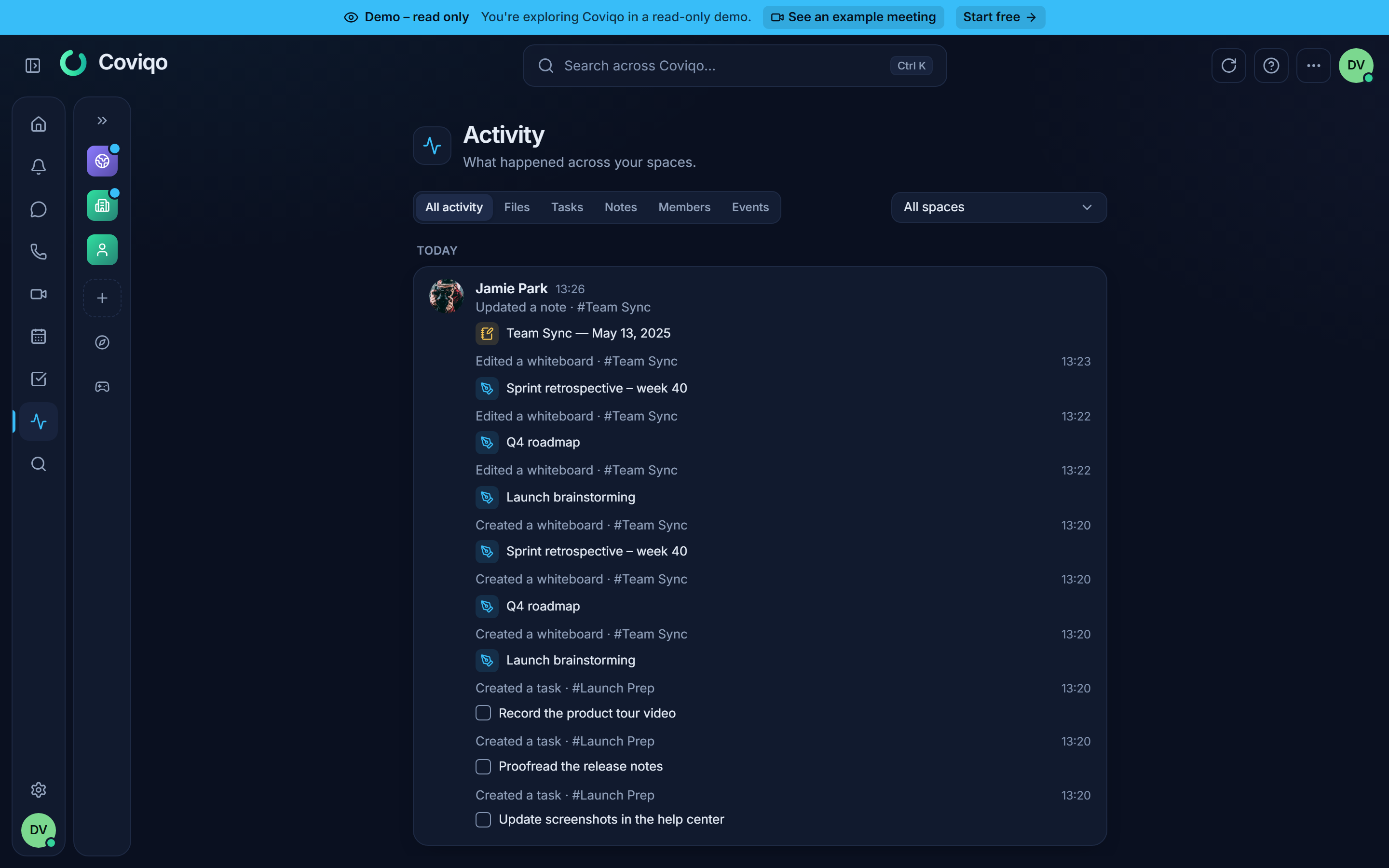
The activity feed is a plain timeline of what happened in your spaces, newest first. Open it with Activity in the sidebar. The page is titled Activity ("What happened across your spaces.").
- Use the space filter to show one space or All spaces.
- Scroll down and click Load more for older entries.
- Consecutive entries of the same person in the same space within 30 minutes are grouped under one header with the name and avatar; a thin line separates the groups.
- Each entry shows who did what, for example Shared a file, Completed a task, Scheduled an event, Joined the space, Connected {provider} or Meeting summary is ready. Automatic entries are shown with Coviqo as the actor.
Each room also has its own feed. Open Members & activity in the room header. The Activity list there can be filtered by All activity, Files, Tasks, Notes, Members and Events.
What you see in the feed:
- Only spaces where you have the View activity permission.
- Only activity in rooms you can access, plus activity at space level. Guests only see their shared rooms.
- Moderation entries, such as Removed a member, Banned a member or Resolved a report, are only visible to moderators and to members who may view the audit log.
Note
The activity feed shows everything visible to you in the order it happened. The catch-up is a selection of what is relevant to you. For a quick overview after being away, use the catch-up. To look up what happened on a particular day, use the feed.
The decision log#
Decisions published from meetings are collected in a decision log. It answers questions like "What did we decide about the release date?", even months later.
- Per room: the Decisions tab of a room lists the decisions that belong to that room.
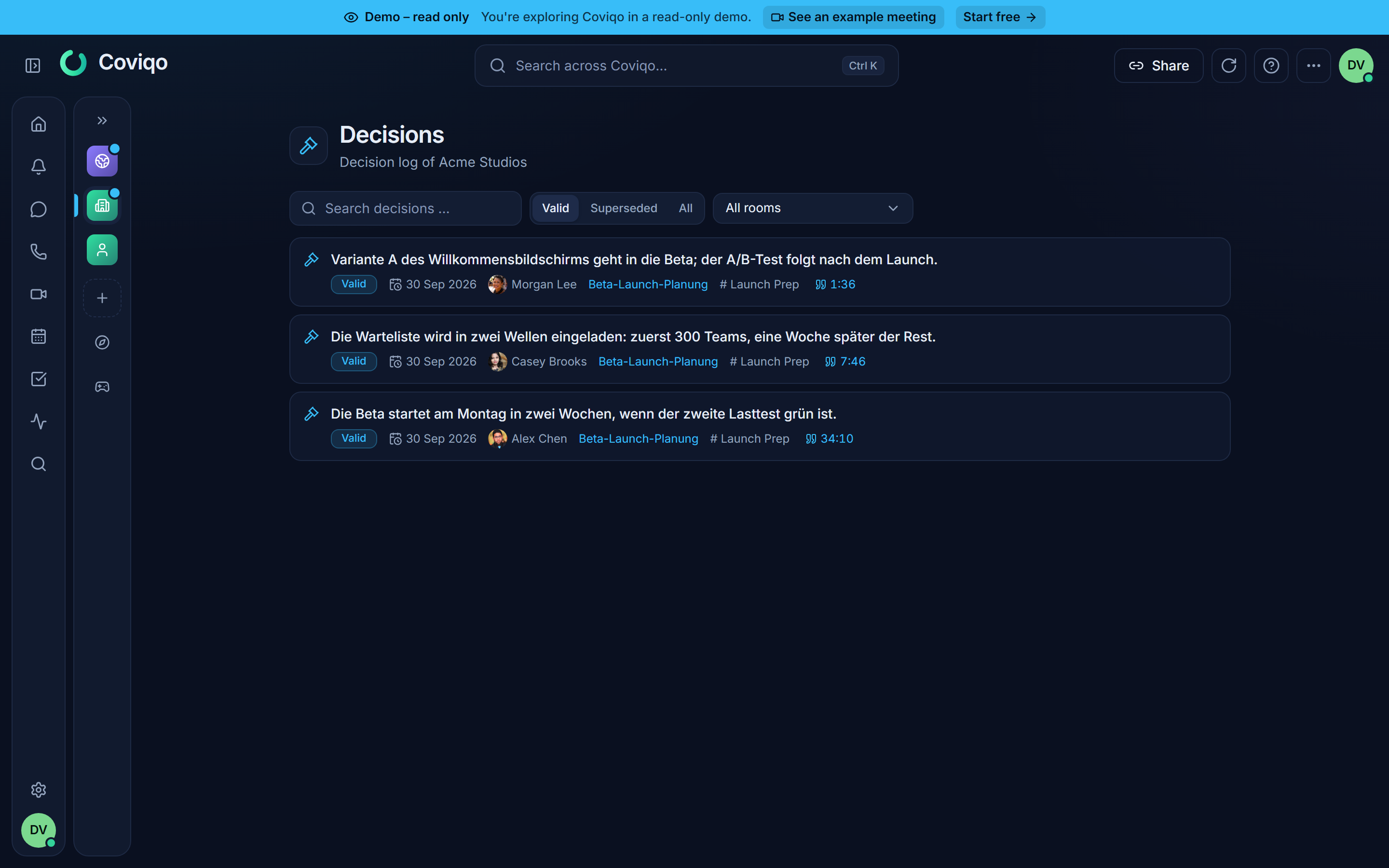
- Per space: open Meetings for a space and click Decisions, or click Decision log in the Decisions & open items card on the space overview. The page is titled Decisions ("Decision log of {space}") and covers all rooms you can see plus space-level decisions.
The log offers:
- A search field (Search decisions …). It finds whole words and the beginnings of words, for example "quart" finds "quarterly". Enter at least two characters.
- A status filter: Valid (the default), Superseded or All.
- On the space page, a room filter (All rooms or a single Room).
Each decision shows its statement, the meeting it came from (From the meeting "{title}"), a Revisit date if one was set, and its history. A decision that was replaced shows Superseded by "{statement}" ({date}). The decision that replaced it shows Supersedes "{statement}" ({date}). Where available, Source jumps to the position in the transcript or recording where the decision was made.
If the log is empty, you see No decisions yet. Decisions appear once meeting organizers publish them from the meeting results. How that works is described in the chapter Meetings.