Chapter 52
Search
On this page
Coviqo has two ways to find things: the command palette, which you open from anywhere with Ctrl+K for a quick jump, and the full Search page with filters for type and space. This chapter explains both, what you can search for, how the search treats words, and why you only ever see results you are allowed to see.
The command palette#
Press Ctrl+K (on macOS ⌘+K) or click the search field Search across Coviqo… in the top bar. On phones, the top bar shows a search icon instead. Press Ctrl+K again or Esc to close the palette.
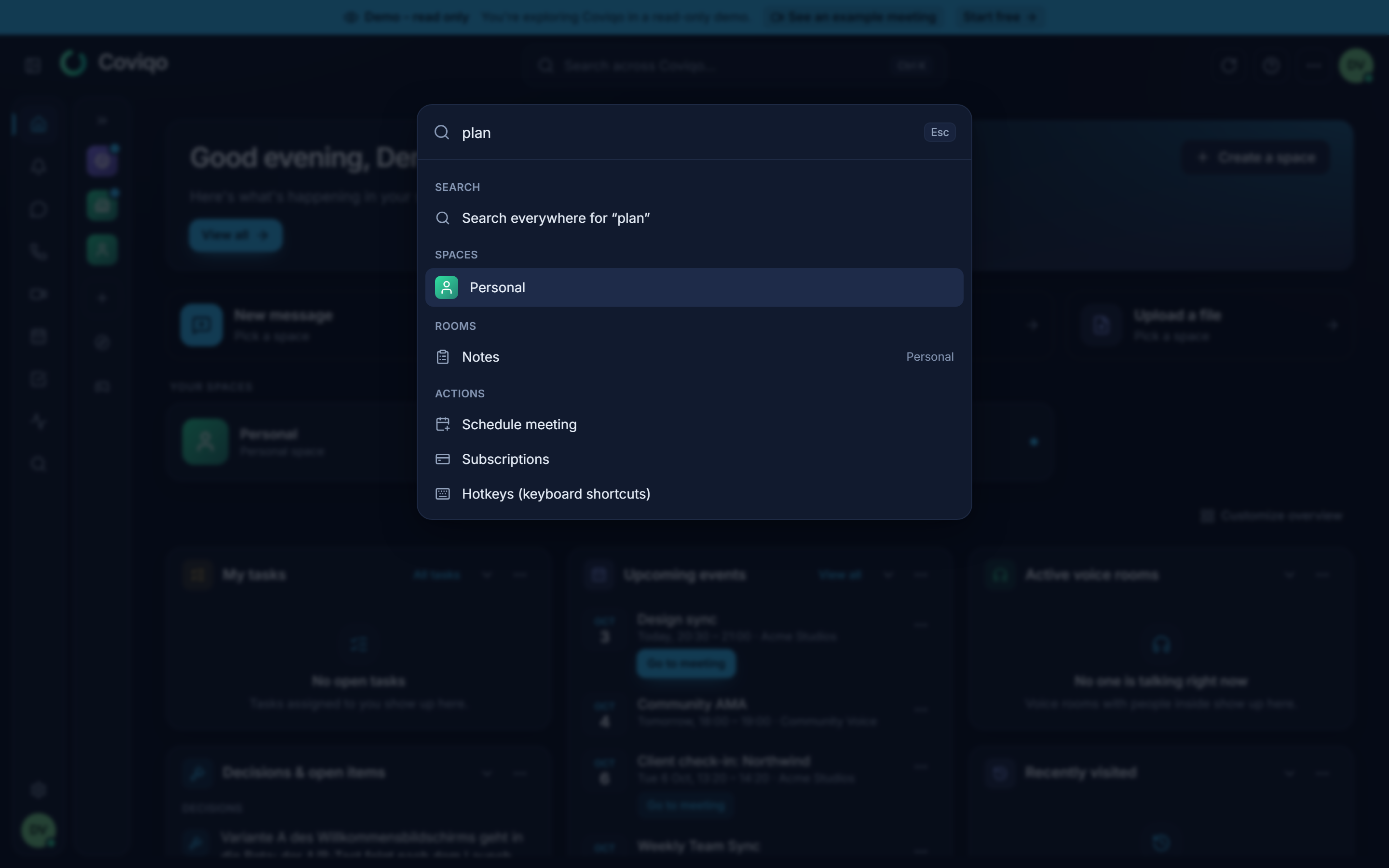
Without typing anything, the palette offers:
| Group | Contents |
|---|---|
| Go to | Home, Notifications, Activity, My tasks, Events calendar and Meetings. |
| Spaces | Your spaces. |
| Rooms | Rooms of the spaces you have already opened. |
| People | Members of those spaces. Selecting a person opens their profile card. |
| Actions | Start instant meeting, Schedule meeting, Create a space, Open settings, Toggle light/dark theme and Open full search. |
Start typing to filter these entries – for example "sett" jumps to Open settings. Use the arrow keys to move and Enter to open the highlighted entry.
As soon as you have typed two characters, the palette also searches the server and adds result groups:
- Public spaces – public spaces you haven't joined yet, marked Open to join.
- Rooms (merged with the rooms already listed) and Matching people.
- Messages, Files, Tasks, Notes and Transcripts.
The palette shows only the first few hits of each type. At the top, Search everywhere for "{q}" takes your query to the full Search page.
Tip
Start instant meeting and Schedule meeting use the space and room you are currently in. Open the palette from within a room to create a meeting for exactly that room.
The Search page#
The Search page shows more results and lets you filter them. Open it with Search everywhere for "{q}" or Open full search in the command palette. The address is /search; your query is part of the address (/search?q=…), so you can bookmark a search or send the link to a colleague – they only see the results they have access to.
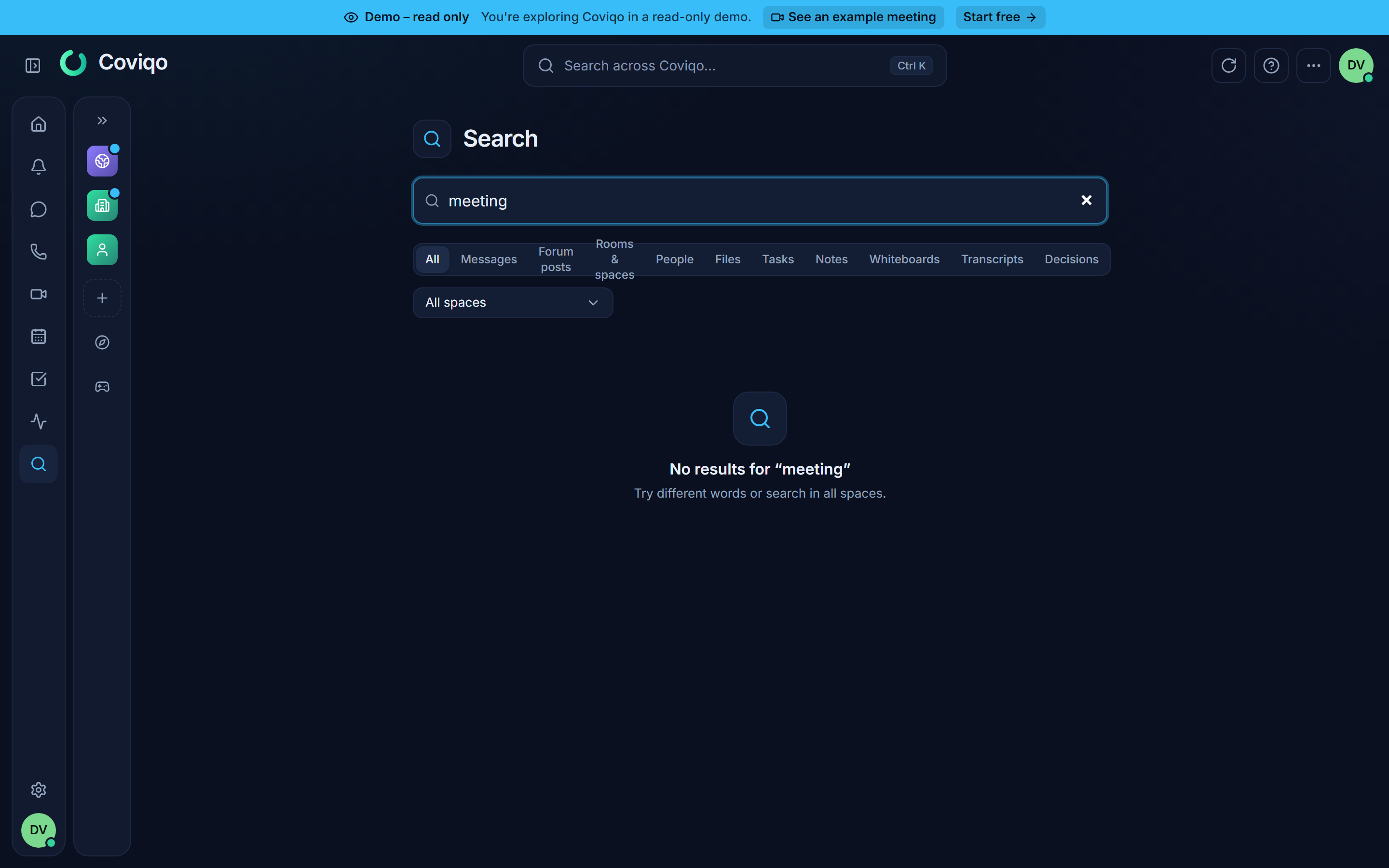
- Type into the field Search messages, rooms, people, files, tasks and notes…. Results appear after two characters.
- Narrow the results by type with the tabs: All, Messages, Rooms & spaces, People, Files, Tasks, Notes, Transcripts and Decisions.
- Narrow them by space with the drop-down on the right: All spaces or a single space.
With All, each type shows up to 8 hits; when you pick a single type, you get up to 30. If there are no hits, you see "No results for {q}" with the hint "Try different words or search in all spaces."
Click a result to go to it: a message opens in the room's chat at that message, a file opens in the room's Files tab, a transcript hit jumps to the matching passage of the meeting transcript, and a decision opens the decision log of its room (or of the space).
What is searchable#
| Type | What is searched | Found where |
|---|---|---|
| People | Display name and username | Members of your spaces; other people only if they are discoverable – by exact @username, or the first three or more letters of their username or name (see Direct messages › Finding people) |
| Rooms & spaces | Room name and description, space name | Rooms you can see; your spaces plus public spaces |
| Messages | Message text | Chat of rooms you can read and your direct messages |
| Files | File name (not the file content) | Files of rooms you can see, after the virus scan |
| Tasks | Title and description | Task boards you can see |
| Notes | Title and text | Notes of rooms you can see |
| Transcripts | Spoken text of meeting transcripts | Meetings whose transcript you may read |
| Decisions | Decision statement and details | Decision logs of rooms you can see |
Deleted messages, files, tasks and notes are not found. The text inside PDFs or Office documents is not searched – only file names.
Some modules also have their own search box for the current room, for example Search files in the Files tab, Search notes in Notes and Search the transcript … in a meeting transcript. They only look at the room or meeting you are in.
How words are matched#
Your messages, notes, tasks, file names and transcripts are stored encrypted. To still make them searchable, Coviqo keeps a protected word index for each space. This has a few consequences for how you search:
- Whole words and word beginnings are found. "quart" finds "Quarterly goals"; "road" finds "Roadmap".
- Parts in the middle of a word are not found. "map" does not find "Roadmap".
- All words must match. "budget marketing" finds only items that contain both words, in any order. Phrases in quotes are not supported.
- Upper and lower case and accents don't matter. "muller" finds "Müller", "grosse" finds "Größe".
- No typo tolerance. Check the spelling if you expect a hit.
- A query needs at least two characters; single letters are ignored. Word beginnings need at least three characters – a two-letter query only finds that exact word.
- Punctuation separates words: "Q3-report_v2.pdf" is indexed as "q3", "report", "v2" and "pdf".
Names of people, spaces and rooms are not encrypted. For them, any part of the name matches – "ann" finds "Joanna".
Examples#
| You type | Finds | Doesn't find |
|---|---|---|
launch |
"Launch plan", "launched yesterday" | "relaunch" |
q3 budget |
A task "Budget for Q3" | A note that mentions only "budget" |
mull |
A message from or about "Müller" | "Schmull" |
ann (people) |
"Anna", "Joanna", "@hannah" | – |
report.pdf |
"Report.pdf", "Quarterly-report-final.pdf" – dots, dashes and underscores separate words | "Monthlyreport.pdf" |
ux |
"UX review" | "UXR notes" – two letters only match a whole word |
Note
New and edited content is added to the index within a moment. If you have just posted something, give it a second before searching for it.
Search and permissions#
Search never shows more than you could see by browsing. The results are filtered exactly like the rooms themselves:
- Only spaces you are a member of are searched, plus public spaces (by name only, so you can find and join them).
- Within a space, only rooms you can see are searched – private and invite-only rooms you aren't in are left out.
- Each type needs the matching permission in the room, for example View files for files or read access to the chat for messages.
- Transcripts follow the visibility setting of each meeting.
- Messages only show up in search while the room's chat (for forum posts: the forum) is switched on.
People with a block between you and them – in either direction – never appear in the people results, the command palette or the @-mention suggestions (see Direct messages › Blocking).
If you are an external guest in another organisation's space, you only find content from the rooms that were shared with you, and only the people in those rooms. Space-wide content of that organisation stays hidden. External collaboration is explained in the chapter Spaces and rooms.
Tip
Can't find something you know exists? Check the space filter (it may be set to a single space), try a word from the beginning of the name instead of the middle, and make sure you still have access to the room.
Asking instead of searching#
Inside a space the command palette also offers Ask the space: type a question and choose Ask the space: "…" to get a short answer from Coviqo's AI with the sources it is based on. See the chapter Ask the space.