Chapter 7
Customising overviews
On this page
The start page of every space – the space overview – shows a board of cards below the space header (the space name, who is in voice right now, the next event and the Since your last visit: line) and the quick actions: upcoming events, your tasks, the latest messages and much more. Admins decide which cards everybody sees and how they are arranged. Room managers can give a room its own room overview that opens first when someone enters the room. And every member can tidy up the board for themselves by collapsing or hiding cards.
This chapter explains all three levels. Home has no card board and can't be customised.
| Level | Who | What |
|---|---|---|
| Space overview | Owners, administrators and roles with Manage space | Arrange the cards everybody in the space sees |
| Room overview | People who can manage the room (Pro and higher) | Give a room a card overview as its start view |
| For me | Every member, also guests | Collapse or hide cards for yourself only |
Customising the board for yourself#
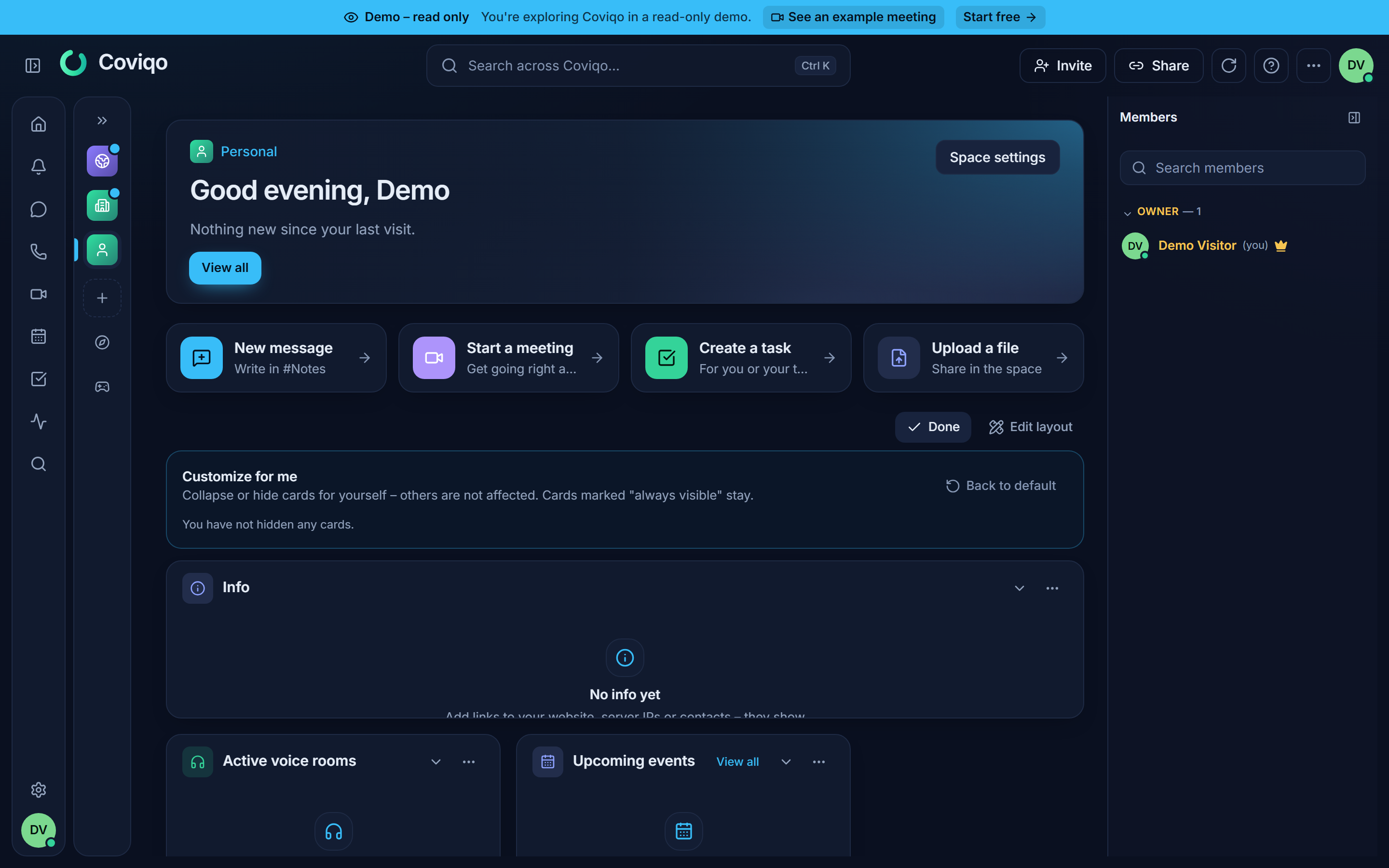
On the space overview (and on a room overview) click Customize above the cards.
- Click the arrow in a card's header to collapse it – only the header stays, the cards below move up. Click it again to expand the card.
- Open the … menu of a card and choose Hide for me to remove it from your board. A message with Undo appears for a few seconds.
- Hidden cards are listed while Customize is open. Click Show next to a card to bring it back.
- Back to default removes all your personal changes for this overview.
Your choices only affect you – nobody else's board changes. Cards that an admin marked Always visible cannot be hidden or collapsed; they don't show the arrow or the menu.
Editing the space overview#
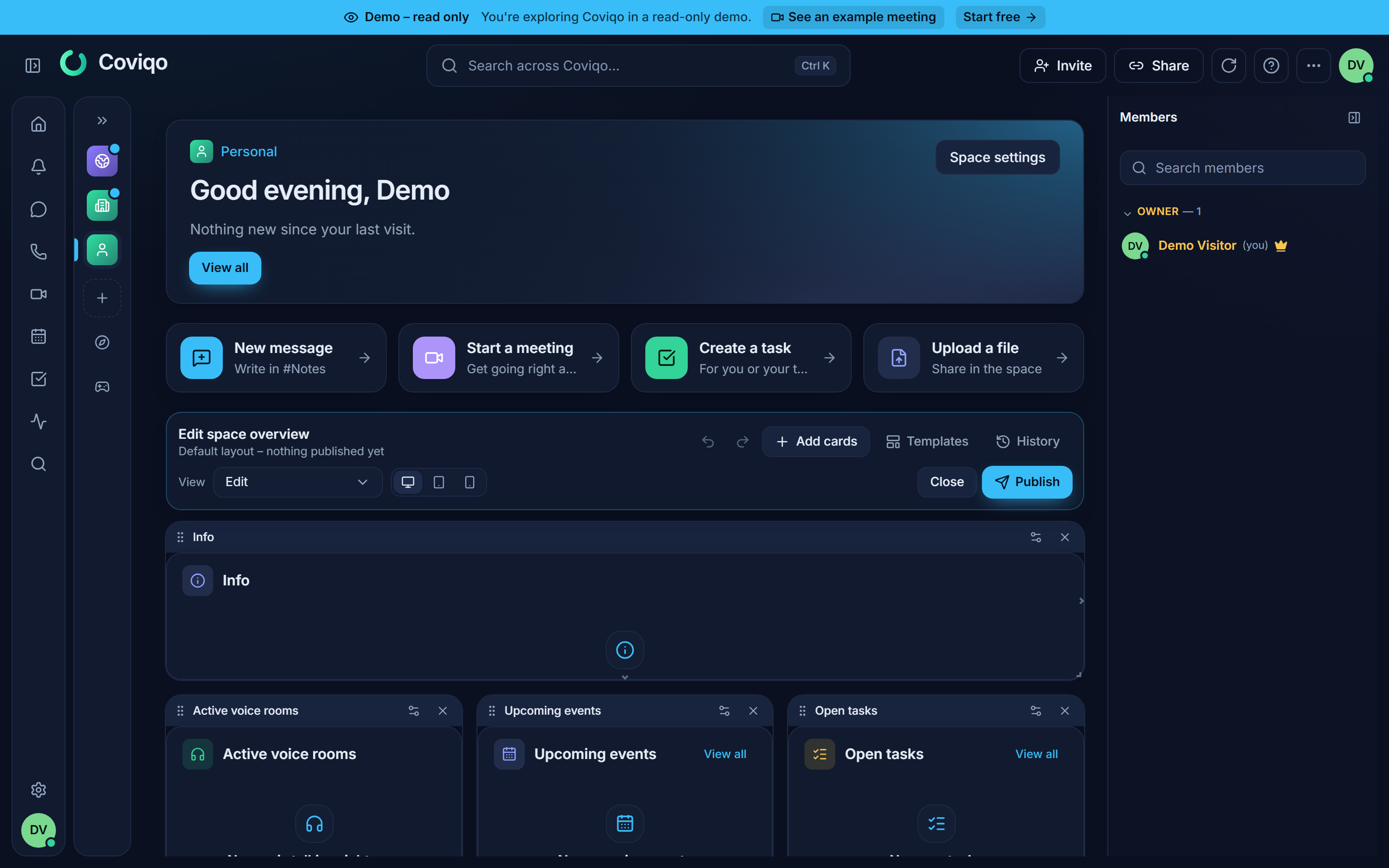
If you may manage the space, click Edit layout above the cards (or Space settings › Overview › Open layout editor). The board turns into the editor.
Arranging cards#
- Move a card by dragging its header (the bar with the grip on the left).
- Resize it with the handles on its right edge, its bottom edge or the bottom-right corner. Every card type has a smallest and largest size.
- The grid has 12 columns. Cards slide up on their own, so no gaps are left.
- With the keyboard: select a card with Tab, move it with the arrow keys, change its size with Shift + arrow keys, open its settings with Enter and remove it with Delete. The settings panel also has buttons for position and size.
- Undo and Redo (also Ctrl+Z and Ctrl+Y) step through your last 50 changes.
Adding cards#
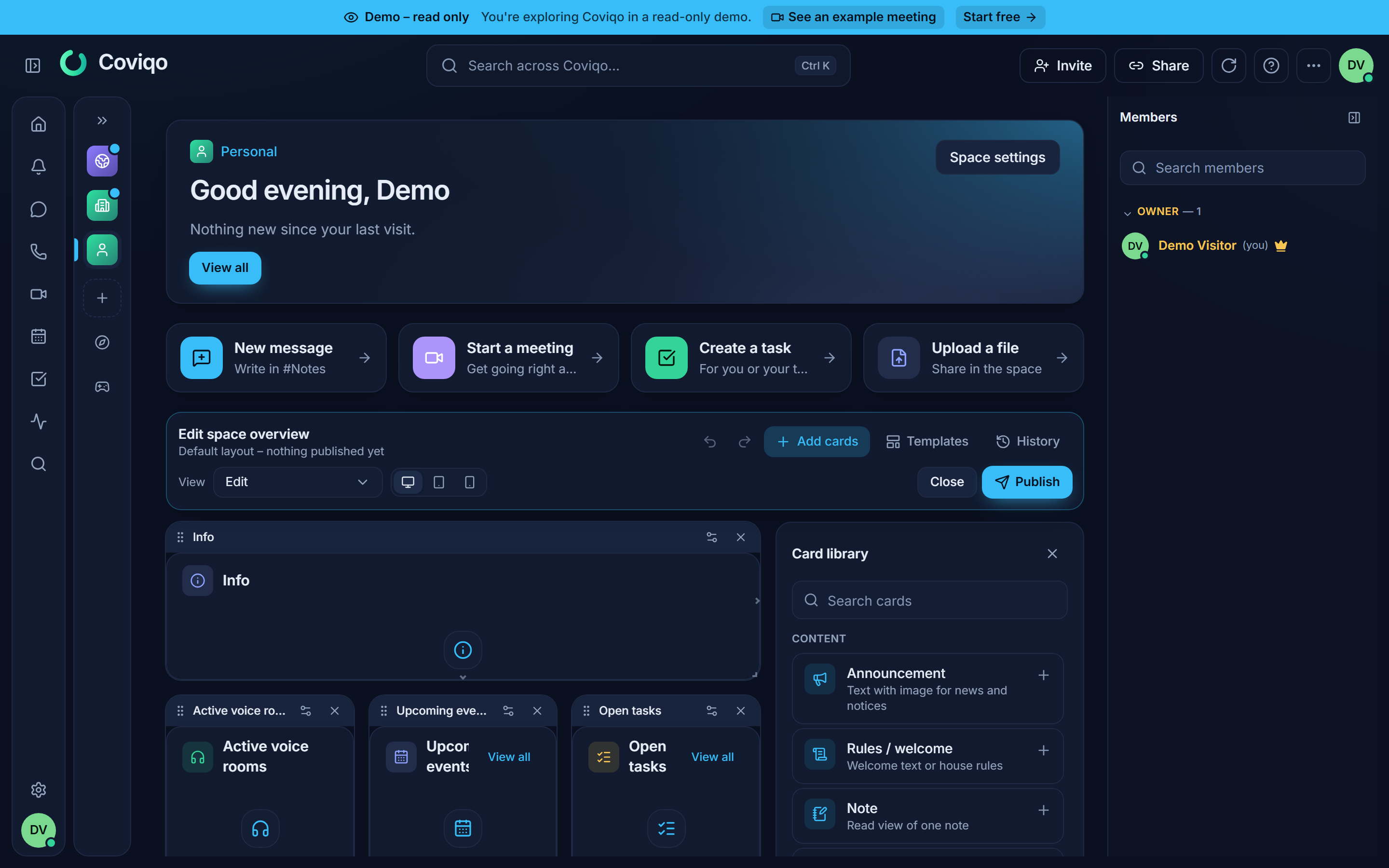
Click Add cards to open the Card library. Cards are grouped into Content, Communication, Work, Events & meetings, People and Integrations; the search field filters them. Click a card to place it at the first free spot – its settings open right away.
| Card | Shows |
|---|---|
| Info | Links, server addresses and other details of the space (see below) |
| Announcement | A text with an optional picture – news, notices |
| Rules / welcome | Your welcome text or house rules |
| Pinned messages | The pinned messages of a chat room |
| Latest messages | The newest messages of one room or of all rooms |
| Upcoming events / Calendar | The next events and meetings, or a month view |
| Open tasks | Tasks assigned to you, all open tasks or overdue tasks, optionally one column of a room |
| Decisions & follow-ups | Decisions and open items from meetings |
| Meeting summaries | The latest meetings that have a summary |
| Note | The read view of one note |
| Latest files | The newest files of one room or of the space |
| Tickets | Open tickets of one room or of all rooms with tickets: how many are New, In progress and Waiting for reply, and the latest ones – click one to open it. Filter: All open, Assigned to me or Unassigned |
| Whiteboard preview | The preview picture of a board |
| Links & bookmarks | A list of important links |
| Online now / New members | Who is online, who joined recently |
| Team / org chart | The members of a team or the team tree |
| Roles | The roles of the space |
| GitHub / Jira issues | Open issues of the projects or repositories linked to a room |
| Countdown | The time left until a date |
| Statistics | Number of messages and of active members over 7 or 30 days – totals only, nothing about single people |
| Member growth | Members over the last 30, 90 or 365 days with joins and leaves – counted once a day from the day this card was introduced (no earlier history) |
| Embed | A YouTube or Vimeo video |
| Active voice rooms / Latest activity | Who is talking right now, what happened in the space |
Every card only ever shows what the person looking at it may see. A guest who has access to two rooms sees the messages of those two rooms – never more, whatever the card is set to. Cards about the whole space (New members, Team / org chart, Roles, Statistics, Member growth, Latest activity) and the Tickets card are not shown to guests at all. Tickets stay private on the card too: members with a ticket team permission (See all tickets, Handle tickets or Manage tickets) see all tickets of the room, everybody else only their own tickets ("You have 2 open tickets"). If a card can't show anything for someone, it says Not available.
The Info card. Up to 20 entries with a label and an icon – for example the website, a contact address or the address of a game server. Each entry is a Link (https, mailto: or a steam://connect/ link to join a game server – opens on click), plain Text, or a Value to copy (for example 203.0.113.10:27015, shown with a copy button and never opened as a link). Entries can be Visible to members only; guests and visitors of public spaces then don't see them. Edit the entries with Edit on the card or under Space settings › Overview › Overview info. Spaces without their own layout show the card at the top of the overview as soon as it has entries; with an own layout, add it from the card library. Members don't see the card while it is empty; managers see Add info.
The Embed card loads nothing from YouTube or Vimeo until somebody clicks Play – the card says that the video is loaded from the provider. Only YouTube (privacy mode) and Vimeo links are accepted.
Card settings#
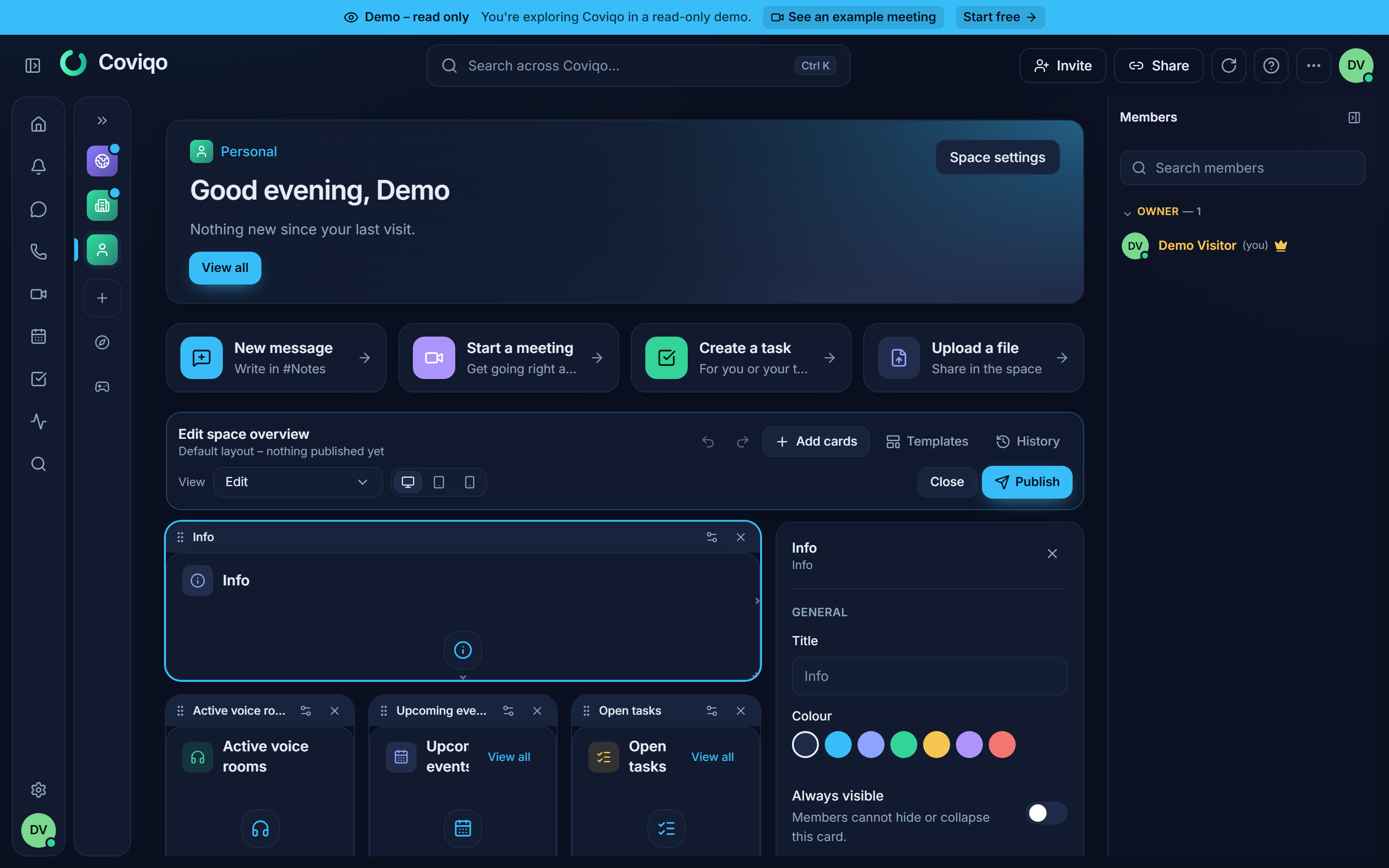
Click the gear in a card's header to open its settings:
- Title – your own title instead of the card name.
- Colour – the colour of the icon tile.
- Always visible – members cannot hide or collapse the card.
- Hidden for everyone – the card stays in the layout with its settings, but nobody sees it. Handy for preparing a card.
- Visible for – tick roles to show the card only to people with one of these roles (owners and administrators always see it). Available on Pro and higher.
- Content – what the card shows, for example the room, the number of entries, a filter, the text or the date. Cards that still need a setting (for example a Note card without a note) are marked Set up and are not shown to members yet.
Preview#
Use View in the toolbar to see the board as a member, as a guest or as a role. The preview shows which cards that group gets; the content of the cards is always loaded with each person's own permissions. The buttons next to it show the board on a tablet or a phone.
Draft and publish#
Your changes are saved as a draft automatically – the toolbar says Draft saved – not published yet. Members keep seeing the published board until you click Publish; then everybody's board updates right away, also in windows that are already open. Discard throws the draft away and goes back to the published version. Close leaves the editor; the draft stays for next time.
Version history#
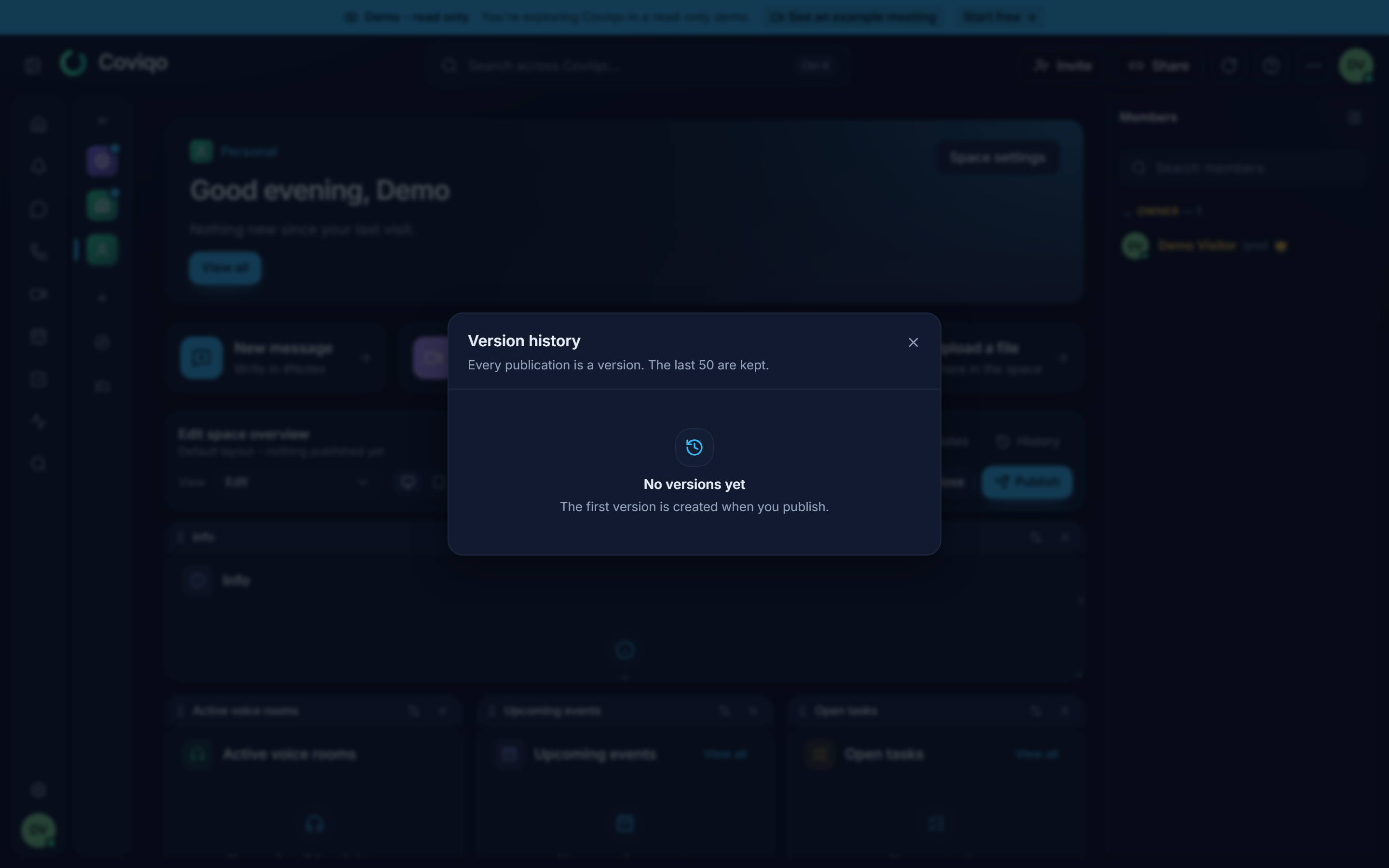
History lists every published version with date and author (the last 50 are kept). Load into editor puts an old version into the editor so you can adjust it before publishing. Restore publishes it again right away as a new version.
Templates#
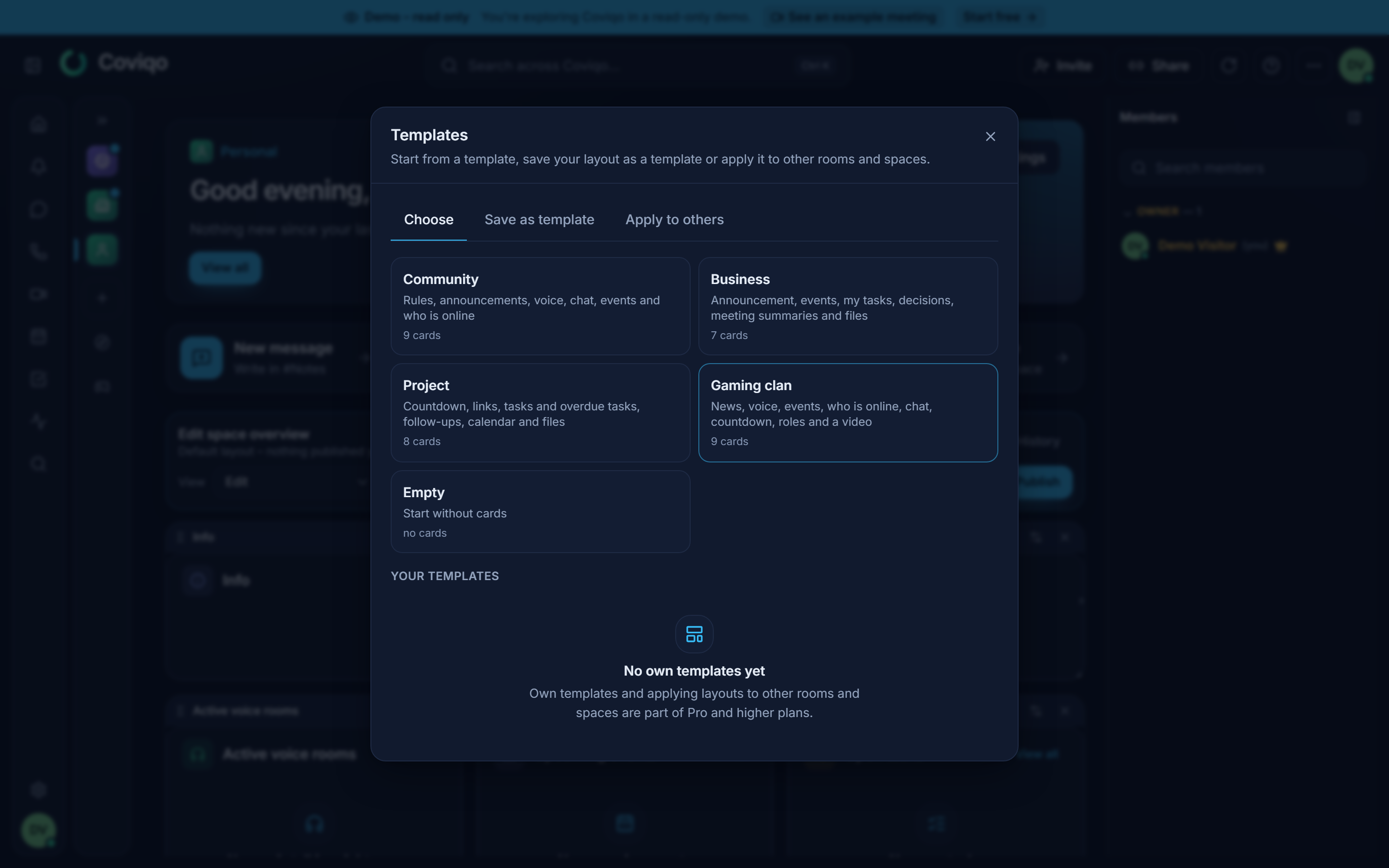
Templates offers ready-made boards: Community, Business, Project, Gaming clan and Empty. Choosing one replaces the cards in the editor – nothing changes for members until you publish, and Undo brings your previous board back.
On Pro and higher you can also:
- Save as template – keep the current board under a name for this space.
- Apply to others – copy the current board to other spaces or rooms you manage, as a draft or published right away. Rooms, notes and roles only carry over inside the same space; in another space those cards ask to be set up again.
On a phone#
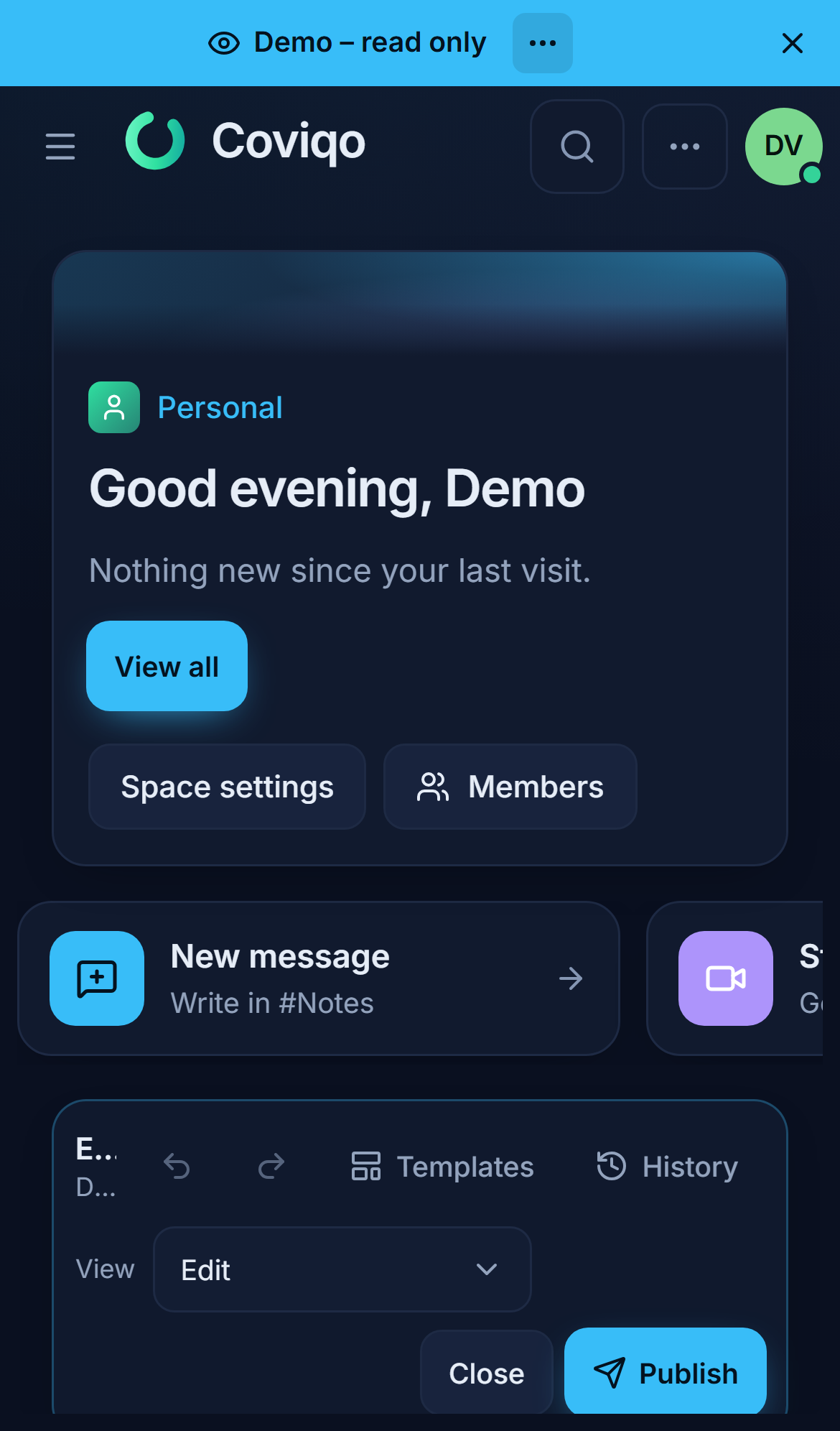
On a phone the board is one column. The editor then shows a list: drag a card by its grip (touch and hold) or use the arrows to change the order, and use the switch to show or hide a card for everyone. Sizes and card settings are edited on a larger screen.
Room overviews#
On Pro and higher, a room can have its own overview. When it is switched on, it becomes the first tab Overview and the room opens with it; Chat, Tasks, Notes and the other tabs stay one click away. Rooms without an overview open exactly as before.
- Open the room settings and go to Content.
- Switch on Room overview. Coviqo starts with cards that fit the room's modules (for example pinned messages, latest messages and open tasks).
- Click Edit overview to arrange the cards – the editor works as described above. Cards set to This room always show the current room.
screen: layout-room-overviewYou can also switch the room overview on or off in the editor's toolbar (Room overview on).
When the plan changes#
If your organisation moves to a plan without room overviews, the rooms open with their normal start view again – the overviews are kept and come back after an upgrade. Cards that are visible only for selected roles keep their restriction, but new restrictions can't be added. Your own templates stay stored but can't be applied. The downgrade dialog lists what is affected before you confirm.
Before the layout editor existed, admins could only order and hide the cards of the space overview. That board has become the first layout of every space automatically – nobody loses anything, and cards you had hidden or collapsed for yourself stay that way.