Chapter 6
Teams and the member list
On this page
Teams group people inside a space – for example Design, Development or Support. You can mention a whole team in chat, give a team access to a room and assign tasks to a team. The member list next to every room shows who is around, grouped like in Discord: first the roles that are shown separately, then Online and Offline.
Teams#
What a team is#
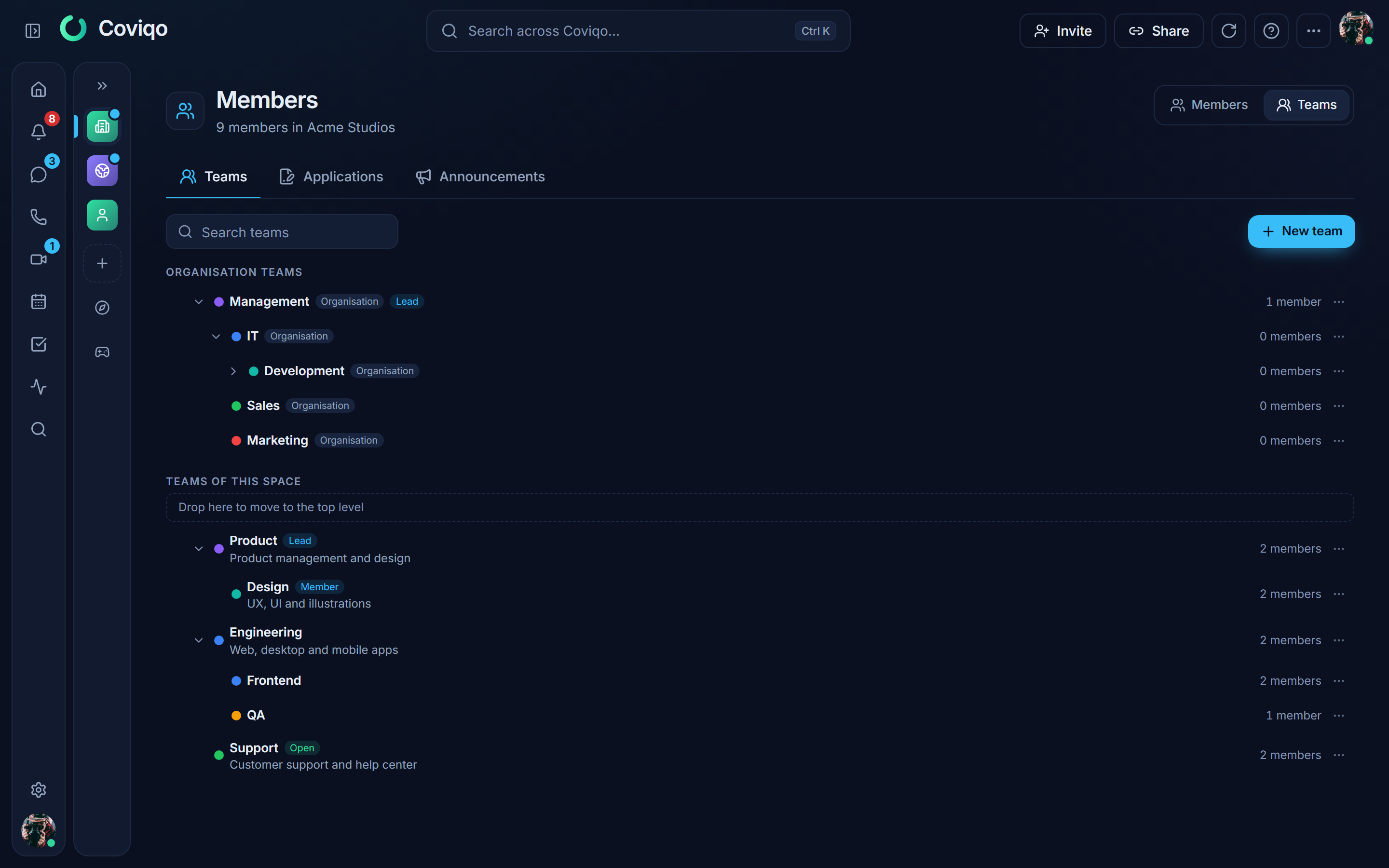
A team has a name, an optional description and colour, members and optional team leads. Teams can contain sub-teams, for example IT › Development › QA. People in a sub-team automatically count as members of every team above it: mentioning @it also reaches Development and QA, and a room shared with IT is open to Development and QA as well. The full path (IT › Development › QA) is shown wherever a team appears.
There are two kinds of teams:
- Space teams belong to one space.
- Organisation teams belong to your organisation and work in every space of it (Business plan). A space team can also hang below an organisation team.
Finding teams#
Click Team below the rooms of a space in the sidebar (also in the space menu of the collapsed sidebar) and switch to Teams – or use Show all teams at the bottom of the member list, which opens the teams view directly. You see the team tree with the number of members per team and markers for Open teams and for teams you belong to (Member / Lead). Click a team to show its members; team leads are marked with a crown. Organisation teams are listed above the teams of the space.
Joining and leaving#
A team is either Open – anyone in the space can join – or Invite only, in which case admins and team leads add members. Use Join or Leave team in the team's menu (…). Teams marked Password can be joined with a password: Join asks for it – the team leads tell you the password (for example on your clan's website). After a few wrong tries you have to wait a few minutes before trying again. If your organisation syncs a team from its identity provider (marked IdP), your membership follows the directory and you cannot leave it yourself.
Creating and managing teams#
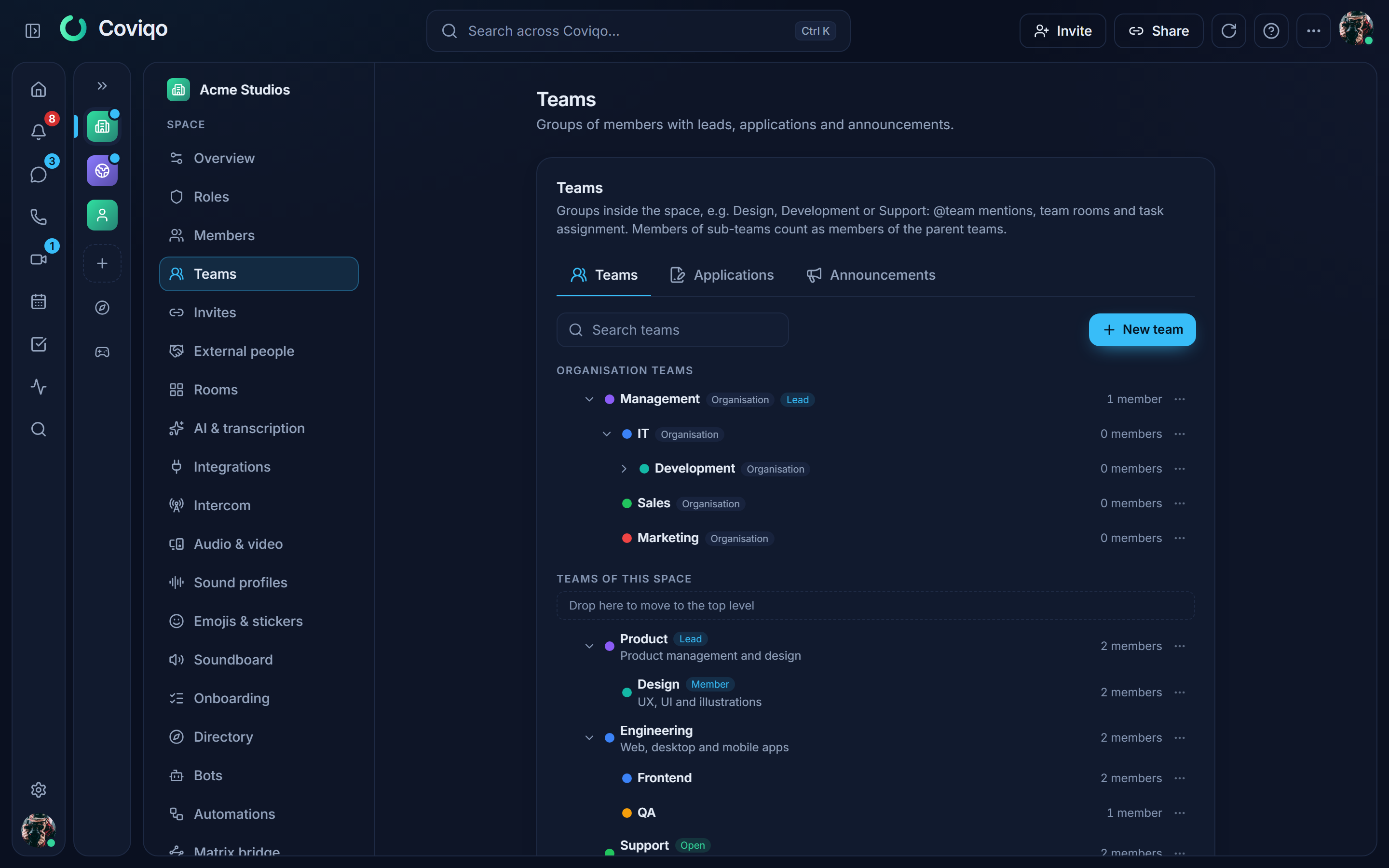
People with Manage space or the permission Manage teams see Space settings › Members › Teams. There you can:
- New team – name, description, colour, Joining (Open / Invite only / Application / Password) and @team mentions (when off, only people allowed to mention everyone can mention the team).
- Create sub-team from a team's menu.
- Add members and choose whether they join as team lead; Make lead / Remove lead and remove members in the expanded member list.
- Move a team by dragging it onto another team (or onto Drop here to move to the top level). With the keyboard use Move to… in the team menu and pick the new parent. The whole sub-tree moves along. Teams can be at most six levels deep and cannot be moved below one of their own sub-teams.
- Delete a team: its sub-teams move up one level, tasks keep their person, and rooms shared with the team are no longer open through it.
Team leads manage their own team and every team below it – also from Members › Teams – even without space permissions. The lead of IT can therefore manage Development and QA.
Mentioning a team#
Type @ in the chat and pick a team from the list (teams show as Team · @handle, e.g. @development). Everyone in the team and its sub-teams is notified – but only people who can see the room. Mentioned teams appear as a highlighted chip in the message.
Team rooms#
In Room settings › Access › Permissions click Add team and allow View rooms (and, for restricted rooms, Join rooms). The room then opens for everyone in the team and its sub-teams, even when the room is private. A personal Deny on View rooms still wins, and external guests never get access through a team.
Applying to a team#
Space teams can also use the joining mode Application. Instead of Join you then see Apply in the team's menu: write a short message (the team can ask a question that appears above the text box) and send it. The team is marked Applied while your application is open; Withdraw application takes it back. You can have up to five open applications per space. After a declined or withdrawn application you can apply to the same team again after 24 hours.
Team leads – also leads of a parent team – and people with Manage teams decide in the tab Applications of the Teams view. The tab shows how many applications are open. Accept adds the person to the team, Decline closes the application; an optional note is shown to the applicant. Applicants and leads are notified (Settings › Notifications › Team applications / Answer to your application). Admins choose Application under Joining when creating or editing a team and can add a question for applicants.
Joining with a password#
With the joining mode Password people join the team themselves – but only with the password you set. Choose Password under Joining when creating or editing a team and enter a password (6 to 128 characters). Nobody can read the password afterwards, not even admins: the field only shows Change password – enter a new one to replace it, or leave it empty to keep the current one. Switching the team to another joining mode deletes the password. Bots with the right to manage teams can set the password too (for example when your website hands it out after a sign-up); a bot may only do this when the team grants nothing in its rooms that the bot does not have itself.
Team announcements#
The tab Announcements shows the news of your teams. Team leads and people with Manage teams can publish an announcement with an optional title. Everyone in the team and its sub-teams is notified. Optionally the announcement is also posted as a message into a room of the space (you need the right to write there). A team can publish at most ten announcements per hour.
Removing someone from a team room#
Team leads can remove people from the voice room of their team without being moderators: open the menu of the person's tile in the voice room and choose Remove from team room. This only works in rooms shared with the team (or one of its sub-teams) and only for normal members – never for the owner, admins, people who may move members in that room or other leads of the team or of a team above it. Every removal appears in the space's moderation log.
Tasks for a team#
In the task dialog choose a Team in addition to, or instead of, a person. Under My tasks switch between Assigned to me and Assigned to my teams – the second list shows the tasks of all your teams, including teams above your sub-teams.
The member list#
Where you find it#
- In a room: the Members tab of the right-hand column. It lists exactly the people who can see the room: members whose roles allow it and external guests who were given access to this room (marked External). Guests without access to the room are not listed. The list updates live when someone is given access or loses it.
- On the space overview: the member column on the right.
When the window is too narrow for the column next to the page, it opens from the right instead: Members & activity in the top bar of a room, Members at the top of the space overview (always the case on phones and tablets). In a room's task board the column always moves out of the way.
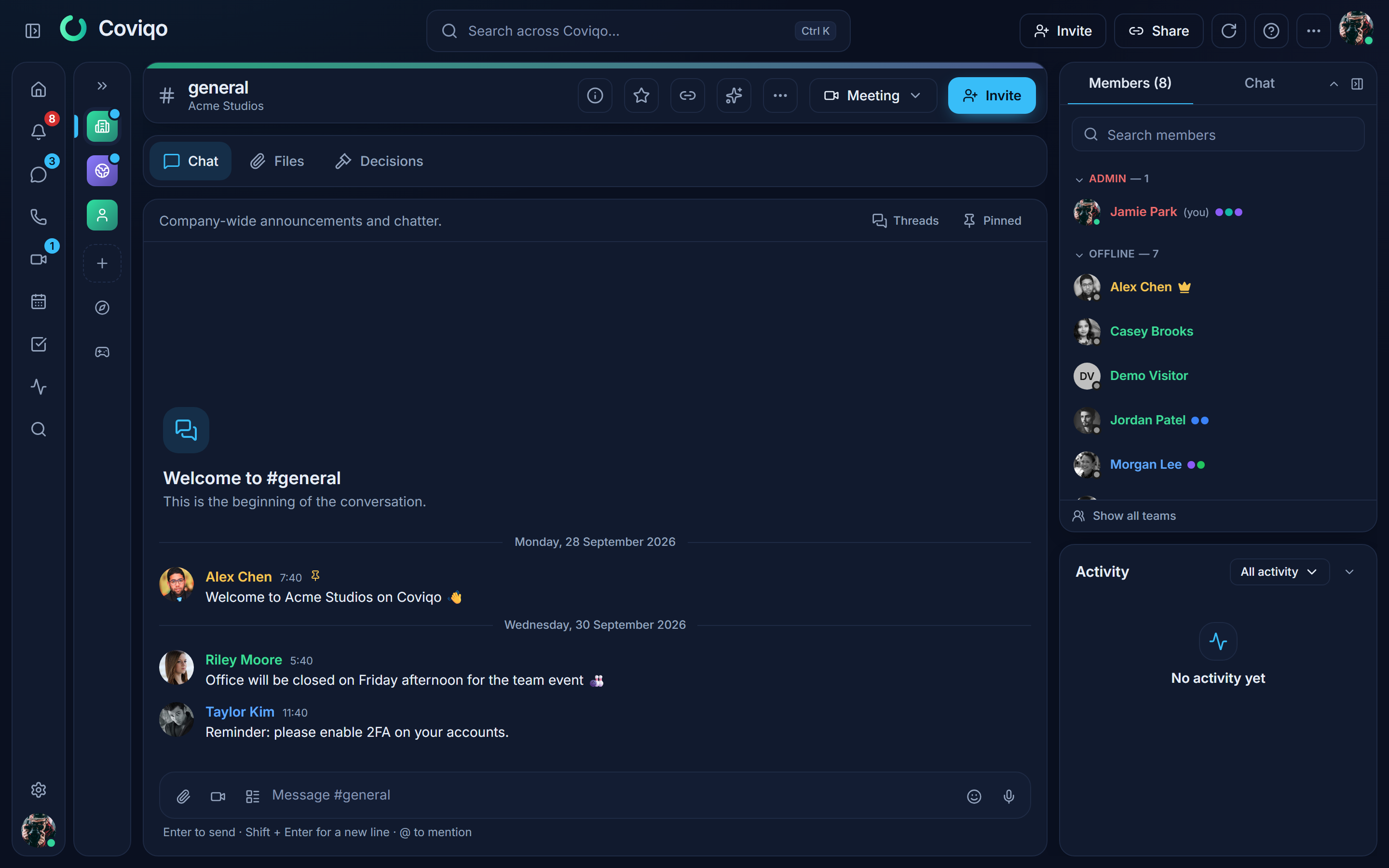
Use the button with the panel icon to collapse the column; Coviqo remembers this for you on this device. Group headings can be collapsed as well.
How it is sorted#
- Online people with a role marked Show separately (for example Owner, Admin, Moderator) are grouped under that role, in the role's colour.
- Everyone else who is online appears under Online — n.
- Everyone who is offline appears under Offline — n.
Each entry shows the avatar with a status dot, the name in the colour of the person's highest coloured role, the status text, whether the person is in a voice room or a meeting, small team dots (hover to see the team paths) and External for external guests. Click a person to open the profile, which also lists their teams.
In large community spaces the list loads more people while you scroll, so it stays fast even with thousands of members.
Privacy#
- People who set themselves to Invisible appear offline.
- External guests only see the people of the rooms shared with them.
- People you have blocked do not appear in your list.
- Admins can limit the list: Space settings › Overview › Member list visible to – All members or Admins only. With Admins only, regular members no longer see the member column, and elsewhere (for example in pickers and profile cards) they no longer see who is online. Names stay visible where they are needed, for example for @-mentions.
- Whether someone is timed out is only shown to people who can moderate or manage members (and to the person themselves).
- External guests see only the roles of the people they share a room with.
- In Space settings › Roles switch Show separately on or off to decide which roles get their own group.
Assign roles quickly#
If you may manage members and roles, right-click a person in the member list (or use … on the row, or the + next to the roles in the profile card) and open Roles. Tick or untick roles – the change is saved immediately and the list regroups. You only see roles below your own highest role; system roles and bot roles are not offered, and people ranked at or above you cannot be changed.
For an external guest the menu shows a hint: giving them any role other than Guest makes them a member who sees every room their roles allow – the highest role counts. Make member does the same with the default role.