Chapter 37
Whiteboard
On this page
- Whiteboards at a glance
- The board list
- Creating a board
- Templates
- Drawing and writing
- Sticky notes
- The Coviqo library
- Saving items for the whole space
- Your personal library
- Images from the room files
- Working together
- Sticky notes → tasks
- AI helpers
- Sharing a board in a call
- Version history
- Exporting
- Maximize and full screen
- On your phone
- Good to know
The whiteboard is an infinite canvas inside a room: sketch ideas, collect sticky notes in a workshop, plan the week or draw an org chart – together and live. Each room with the Whiteboard module can hold several boards. Everyone sees the others' pointers and changes as they happen, and every board keeps a version history.
This chapter shows you how to create boards, use templates, sticky notes and the Coviqo library, work together, turn sticky notes into tasks, use the optional AI helpers, share a board in a call, export it and use it on your phone.
Whiteboards at a glance#
Boards live in the Whiteboard tab of a room. If the tab is missing, a room manager can switch the module on in Room settings › Content (new voice rooms have it on by default).
Two permissions control what you can do:
| Permission | What it allows |
|---|---|
| View whiteboards | Open boards, follow them live, zoom and pan, see the version history, export. |
| Edit whiteboards | Create, draw on, rename, duplicate, restore and delete boards. |
Guests can view boards. They can only edit when their role allows it and the organisation that owns the space lets guests edit documents. If you can only view, the board header shows View only and the drawing tools are hidden.
The board list#
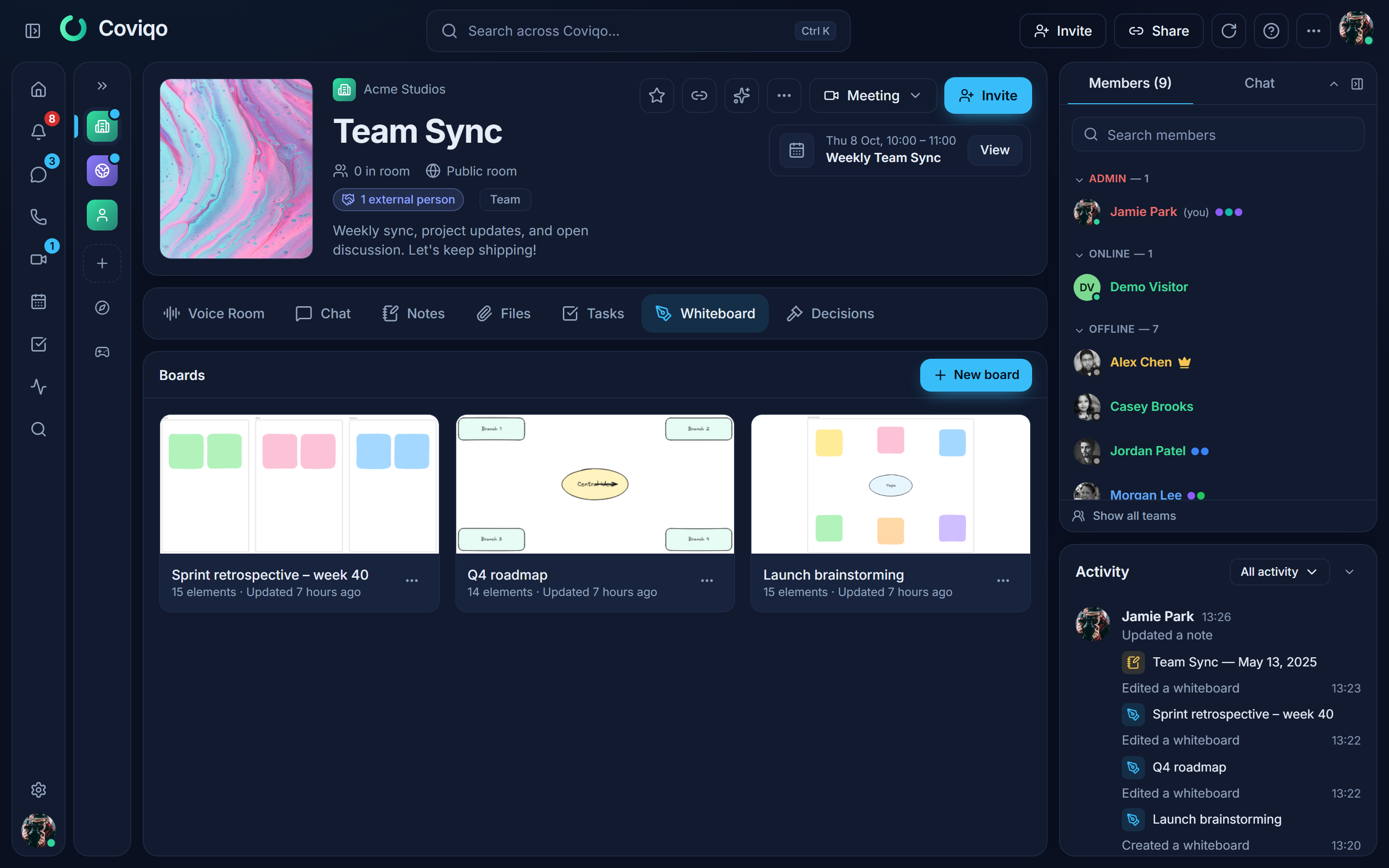
The tab first shows all boards of the room as cards with a preview picture, the number of elements and when the board was last changed. Click a card to open the board; the arrow at the top left brings you back to the list.
The … button on a card opens the board menu:
| Action | What it does |
|---|---|
| Rename | Gives the board a new name. |
| Duplicate | Creates a copy of the board with everything on it. |
| Delete | Removes the board for everyone in the room, after a confirmation. |
Creating a board#
- Open the Whiteboard tab of a room.
- Click New board (or Create the first board in an empty room).
- Type a name – or leave it empty to use the name of the template.
- Choose a template and click Create board. The board opens right away.
Templates#
| Template | What you get |
|---|---|
| Blank | An empty canvas. |
| Brainstorming | A topic in the middle and six coloured sticky notes for ideas. |
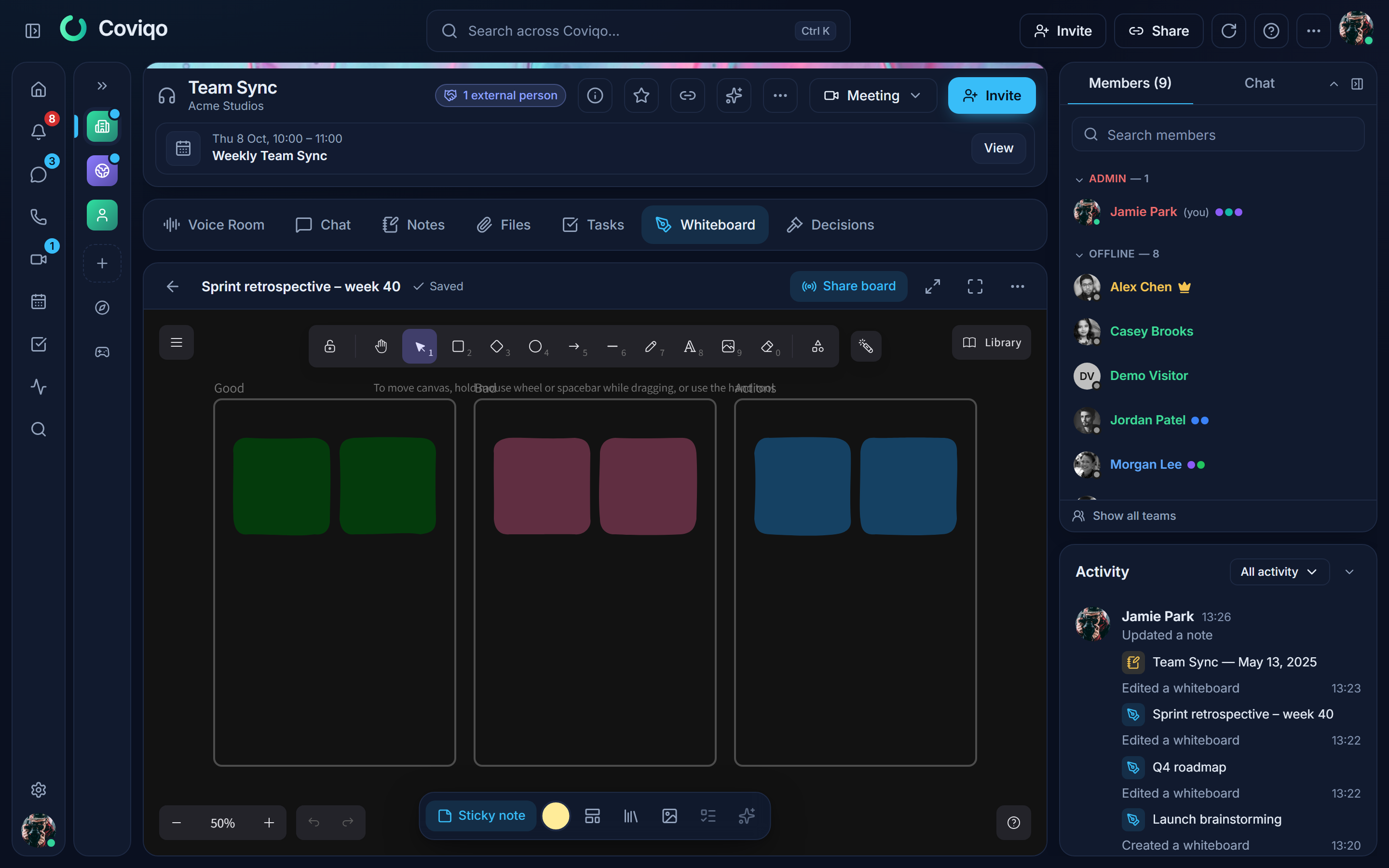
| Retrospective | Three columns Good, Bad and Actions with sticky notes. |
| Mind map | A central idea with four connected branches. |
| Weekly planning | One frame per weekday. |
| Org chart sketch | Management, three teams and people, connected with arrows. |
You can also add a template to an existing board at any time: toolbar at the bottom → Insert template. It appears in the middle of the visible area.
Drawing and writing#
The board uses the familiar Excalidraw tools at the top: select, hand (pan), rectangle, diamond, ellipse, arrow, line, freehand, text, image, eraser and frames. Zoom with Ctrl + mouse wheel or the zoom buttons at the bottom, pan with the hand tool, the space bar or two fingers. Everything is saved automatically – there is no save button. Ctrl+Z undoes your own last change.
- Frames group elements into named areas (for example the columns of a retrospective). Moving a frame moves everything inside.
- Arrows snap to shapes and stay connected when you move them.
- Links on elements must start with
http://orhttps://; they open in a new tab. - Embedding other websites is not possible on Coviqo boards.
Sticky notes#
The bar at the bottom of the board has the button Sticky note. Each click places a new sticky note in the middle of the visible area – double-click it to write. The round colour button next to it chooses the colour for new sticky notes: yellow, pink, blue, green, orange or purple.
Tip
Select several sticky notes by dragging a rectangle around them or with Shift+click. You can then move, recolour or group them together.
The Coviqo library#
The Coviqo library holds ready-made shapes you can drop onto any board. Open it with the Coviqo library button in the bottom bar, from the board's main menu (top left) or with the library icon at the top right and then the Coviqo tab.
- Click an item to insert it in the middle of the visible area, or drag it to the spot where you want it. You always get a copy – change it as you like.
- The built-in items are grouped: Moderation & workshops (sticky notes in all six colours, voting dots, timer, parking lot, thumbs up and down), Flowchart (start, end, process, decision, document, database, connector), Planning (kanban card, milestone, timeline segment, checklist, priority labels), Organisation (person card, team area, role label), Wireframes (browser window, phone frame, button, input field, select, card, navigation bar), Tech (server, database, cloud, user, API, queue, firewall) and Arrows & highlights (speech bubble, callout box, numbers 1–5, bracket, curved arrow, highlighter). Texts inside the items follow your language. Sticky notes from the library work with Sticky notes → tasks like any other sticky note.
Saving items for the whole space#
Under Space library at the top of the Coviqo tab you find items that members of your space saved – for example your team's standard kanban card or a workshop layout.
- Select the elements on the board.
- Click Save selection for the space and give the item a name.
Everybody who can edit boards in the space can now insert it. Pictures are never saved in the library – Coviqo removes them and tells you. You can remove items you saved yourself (trash icon on the item); space managers and people who manage files can remove any item. An item holds up to 200 elements; a space library holds up to 200 items.
Your personal library#
Excalidraw's own Library tab (next to the Coviqo tab) stays available for your personal items – use Add to library from the right-click menu. Personal items are kept only in this browser and are removed when you sign out. To share an item with your team, save it for the space instead.
Images from the room files#
Click Image from room files in the bottom bar and pick a picture from the room's files. You can also drag a picture onto the board or paste it. New pictures are uploaded into the room's Files automatically – they are virus-scanned and stored encrypted like every other file – so you need the permission to upload files in the room. Everyone who can see the board sees the picture as soon as the scan has finished.
Working together#
Everyone who has the board open sees the others' pointers with name and colour and which elements they have selected; the avatars in the header show who is on the board right now. Changes appear for everyone within a fraction of a second.
The header shows the save state: Saving …, Saved or Offline – changes will be sent later. If you lose the connection, keep working: your changes stay in the browser and are sent when you are back online. (If your organisation does not allow offline copies of notes, this also applies to boards – then unsent changes are lost when you close the tab while offline.)
Sticky notes → tasks#
Turn the results of a workshop into work items in one step:
- Select the sticky notes (or their texts).
- Click Sticky notes → tasks in the bottom bar.
Each sticky note becomes a task in the room: the first line is the title, the other lines the description, plus a link back to the board. A message shows how many tasks were created, with a link to the Tasks tab. Sticky notes that already became a task are skipped the next time. You need the permission to create tasks and the Tasks module in the room.
AI helpers#
If AI is available in your space (see the chapter Plans and billing and the space's AI settings), the bottom bar has an AI button. Select some sticky notes first:
- Group by topic – the AI suggests groups with short headings. Check the suggestion and click Apply: Coviqo draws a named frame around each group. Nothing changes if you cancel.
- Summarise – the AI writes a draft with a title, a summary, decisions and next steps. Edit the draft in the dialog and click Save as note to create a note in the room, or Copy text.
Both dialogs show the label AI-generated · <model> so you always know the suggestion comes from an AI.
The AI only sees the texts of the selected sticky notes and the board title. Results are drafts – always review them before you use them.
Sharing a board in a call#
- In a meeting, open Panels › Whiteboard in the call's control bar. It shows the boards of the meeting's room; open one and click Share board – the board opens next to the video for every participant who may view it. Others see a hint if they have no access. Close board ends sharing.
- In a voice room, click Share board in the board's header. Everyone in the room gets a notification with Open.
Version history#
Board menu … → Version history lists the saved versions with time, the people who changed the board and the number of elements. Click a version to see a preview. Restore sets the board back to that version for everyone – the current state stays in the history, so a restore can be undone.
Versions are created automatically: while people edit (at most every ten minutes) and when the last person leaves the board.
Exporting#
Board menu … → Export:
| Format | Use |
|---|---|
| As PNG | Picture for chats, slides or documents. |
| As SVG | Scalable vector graphic. |
| As PDF | One page with the whole board. |
| As Excalidraw file | .excalidraw file to open in Excalidraw or re-use elsewhere. |
Copy link copies a link that opens exactly this board.
Maximize and full screen#
The two buttons in the board header give you more room, like in the office editor:
- Maximize lays the board over the whole window. Restore size or
Escbrings the room back (Escfirst cancels whatever you are doing on the board, such as a selection or a tool). - Full screen uses the whole screen. Press
Escor Exit full screen to leave it. If the browser does not allow full screen, the board is maximized instead.
In a meeting's Whiteboard panel the same buttons let you look at the board bigger without leaving the call.
On your phone#
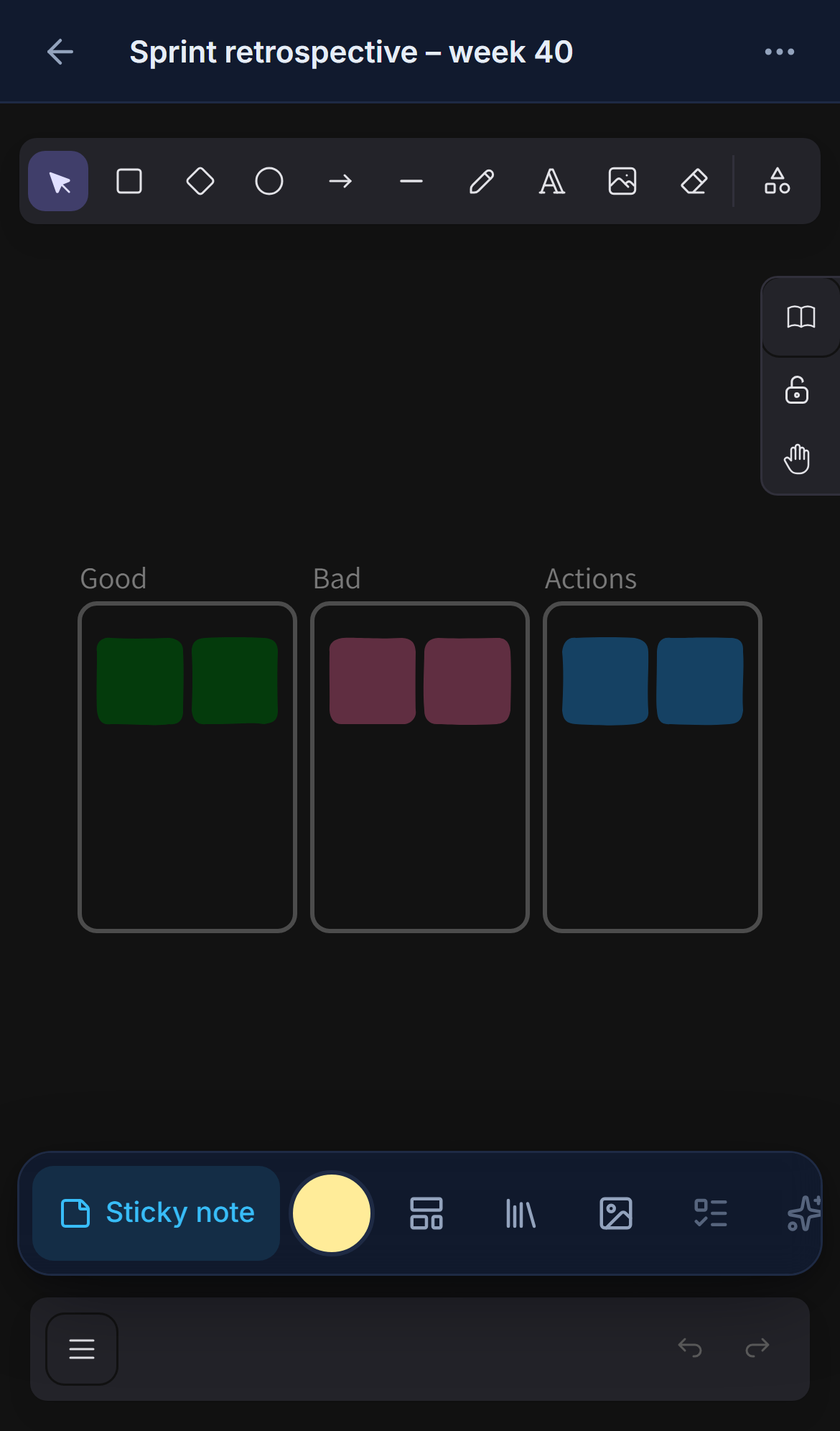
On phones a board opens over the whole screen; the arrow at the top left brings you back to the list. Pinch to zoom, drag with two fingers to pan. With edit rights the large Sticky note button and the colour button stay at the bottom – add a sticky note, double-tap to write, drag it with one finger to move it. Viewers can zoom and pan.
Good to know#
- A room can have up to 200 boards; a very large board (thousands of elements) stops accepting new elements – split it into several boards.
- Deleting a room or space deletes its boards. Deleted boards are removed for good after the retention period of the platform.
- Your data export contains the boards you created or edited as Excalidraw files with a preview picture.