Chapter 36
Notes
On this page
Notes are shared documents inside a room: meeting minutes, agendas, how-tos, project plans or anything else your team wants to write down together. Everyone in the room with the right permission can edit a note – several people at the same time, live, like in an online document –, changes are saved automatically, and every note keeps a version history and its own comment thread.
This chapter shows you how to create and organize notes, how to format text in the editor, what happens when several people edit at the same time, and how to use version history, comments and exports.
Notes at a glance#
Notes live in the Notes tab of a room. Each room with the Notes module has its own collection of notes; a note always belongs to exactly one room. Meetings have notes too – they are the meeting's shared notes you open during the call or in the Notes tab of the meeting overview (see the chapter Meetings).
Two permissions control what you can do:
| Permission | What it allows |
|---|---|
| View notes | Read notes, see their history and write comments. |
| Edit notes | Create, edit, pin, restore and delete notes. |
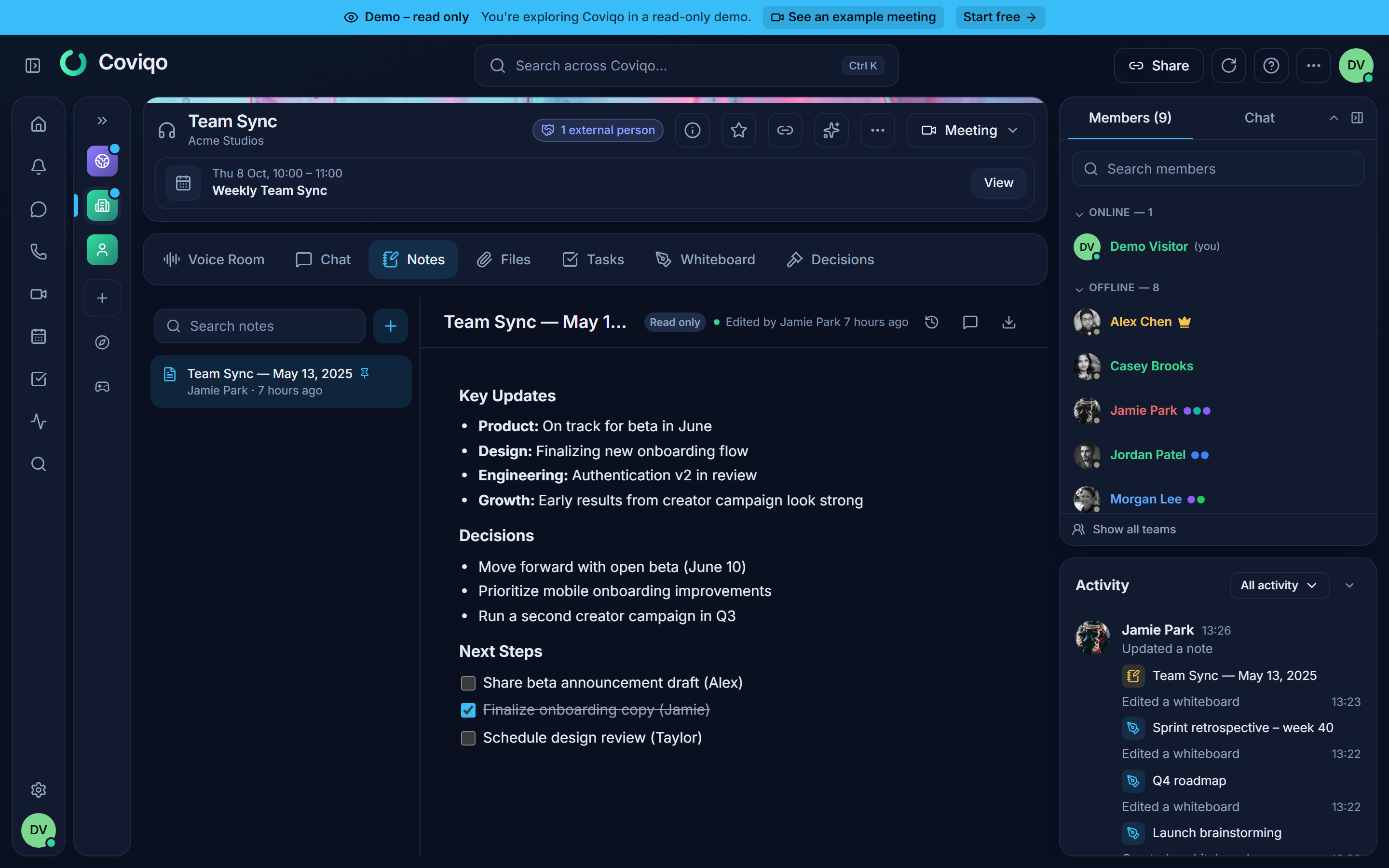
If you can only read a note, the editor shows a Read only badge and no formatting toolbar.
The note list#
The left side of the Notes tab lists all notes of the room. Pinned notes come first, followed by the others with the most recently changed on top. Each entry shows the title, a pin icon for pinned notes, and who last edited it and when.
- Search notes filters the list by title.
- The + button (New note) creates a note.
- The … button next to a note – or a right-click on it – opens the note menu.
| Action | What it does |
|---|---|
| Open | Shows the note in the editor. |
| Pin / Unpin | Keeps important notes at the top of the list. |
| Export as Markdown | Downloads the note as a .md file. |
| Copy link | Copies a link that opens exactly this note. |
| Delete note | Removes the note for everyone in the room, after a confirmation. |
When a room has no notes yet, you see No notes yet with the button Create first note.
The room overview card#
On the room's Overview, the Meeting Notes card shows the most relevant note – the pinned one, or otherwise the one changed last – in a compact preview. Click Open notes to open the Notes tab, or use the card's menu to create a New note. If the room has no notes yet, the card invites you to start the meeting notes for the room.
Creating a note#
- Open the Notes tab of a room.
- Click New note (or Create first note in an empty room). A note called Untitled note is created and opened.
- Click the title and type a name. Press
Enterto jump into the text. - Start writing. There is no save button – your changes are saved automatically.
Tip
If your space is connected to Notion, you can also Import from Notion: paste the link of a Notion page, and Coviqo creates a new note from it. The page must be shared with the Coviqo integration in Notion first. See the chapter Integrations.
Writing and formatting#
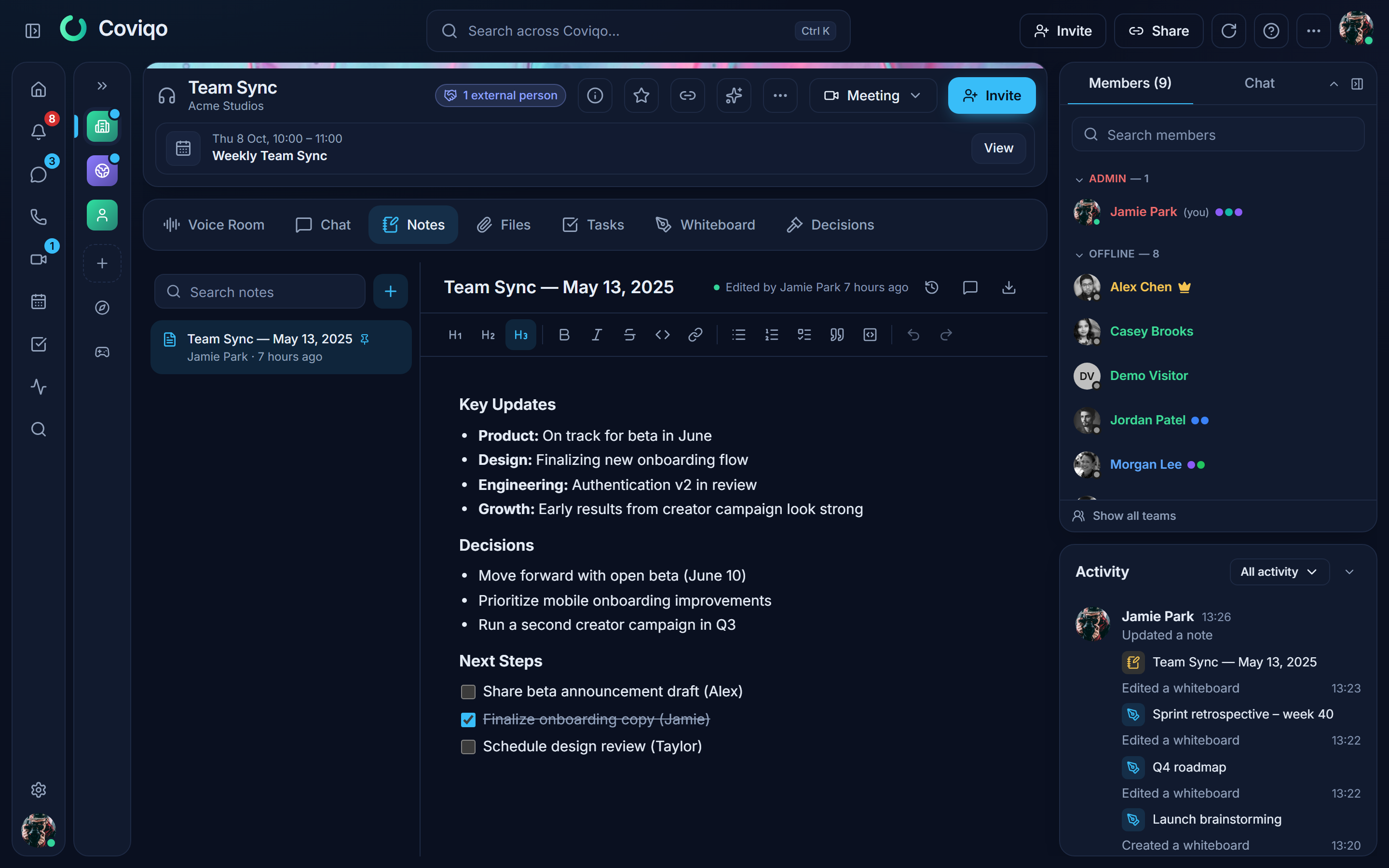
The editor formats text as you write. Use the toolbar above the text or type Markdown shortcuts directly – the placeholder reminds you: "Use the toolbar or Markdown shortcuts like # or - [ ]".
| Toolbar button | Markdown shortcut | Result |
|---|---|---|
| Heading 1, Heading 2, Heading 3 | #, ##, ### followed by a space |
Headings in three sizes. |
| Bold | **text** or Ctrl+B |
Bold text. |
| Italic | *text* or Ctrl+I |
Italic text. |
| Strikethrough | ~~text~~ |
Crossed-out text. |
| Inline code | `code` |
Code within a line. |
| Link | – | Paste or type a link, then Apply; Remove deletes it. |
| Bullet list | - or * followed by a space |
A bulleted list. |
| Numbered list | 1. followed by a space |
A numbered list. |
| Checklist | - [ ] followed by a space |
A list with tick boxes, nestable. |
| Quote | > followed by a space |
A quoted block. |
| Code block | ``` |
A multi-line code block. |
| Undo / Redo | Ctrl+Z / Ctrl+Y |
Undo or repeat your last change. Only your own changes are undone, never those of others editing at the same time. |
Web addresses you type become links automatically.
Saving#
There is no save button: every change is sent to the server as you type and stored a moment later. The status next to the title tells you where you stand:
| Status | Meaning |
|---|---|
| Connecting… | The note is being connected to the live editing session. You already see the last saved state. |
| Saving… | Your latest changes are on their way to the server. |
| Edited by … (green dot) | Everything is stored. Shows who changed the note last and when; hover over it for the exact time. |
| Offline | Coviqo cannot reach the server. You see the last state; changes by others appear once you are back online. |
| Offline – your changes will sync when you reconnect | You kept writing without a connection. Your changes are kept and merged automatically when the connection returns (see below). |
| Could not save | The title could not be saved. Click Retry. |
| Note is full – last change not saved | The note reached its size limit of 5 MB. The last change was not stored and the note is read-only until you reload it. Shorten it or split it into several notes. |
Size limit#
A note can be at most 5 MB (its live editing state and every saved version). Pasting or importing more is refused with the message "The note is too large (at most 5 MB)". Deleting text is always possible, also in a full note. Large content such as long logs or exports belongs in a file instead.
Writing without a connection#
If your connection drops while you write, just keep going. Your changes stay in the browser and are merged into the note automatically as soon as Coviqo is online again – even if someone else changed the note in the meantime. Hover over the offline status to see how your changes are kept:
- "Your changes are saved in this browser and merged automatically when you reconnect – even if you close the tab." – you can close the tab; the changes are sent the next time you open the note in this browser.
- "Your changes are kept in this tab and merged automatically when you reconnect. Don't close the tab." – the browser cannot store them (for example in a private window). Keep the tab open until you are back online. If you try to close it anyway, your browser asks you to confirm.
Note
Offline changes are stored only in the browser you used. They are deleted from the browser as soon as the server has confirmed them, and when you sign out. On a shared computer, don't leave unsent changes behind – reconnect or sign out first.
Editing together#
Several people can write in the same note at the same time, and everyone sees the others' changes as they type. Nothing has to be reloaded and nobody overwrites anybody: changes made at the same moment – even in the same paragraph – are merged automatically.
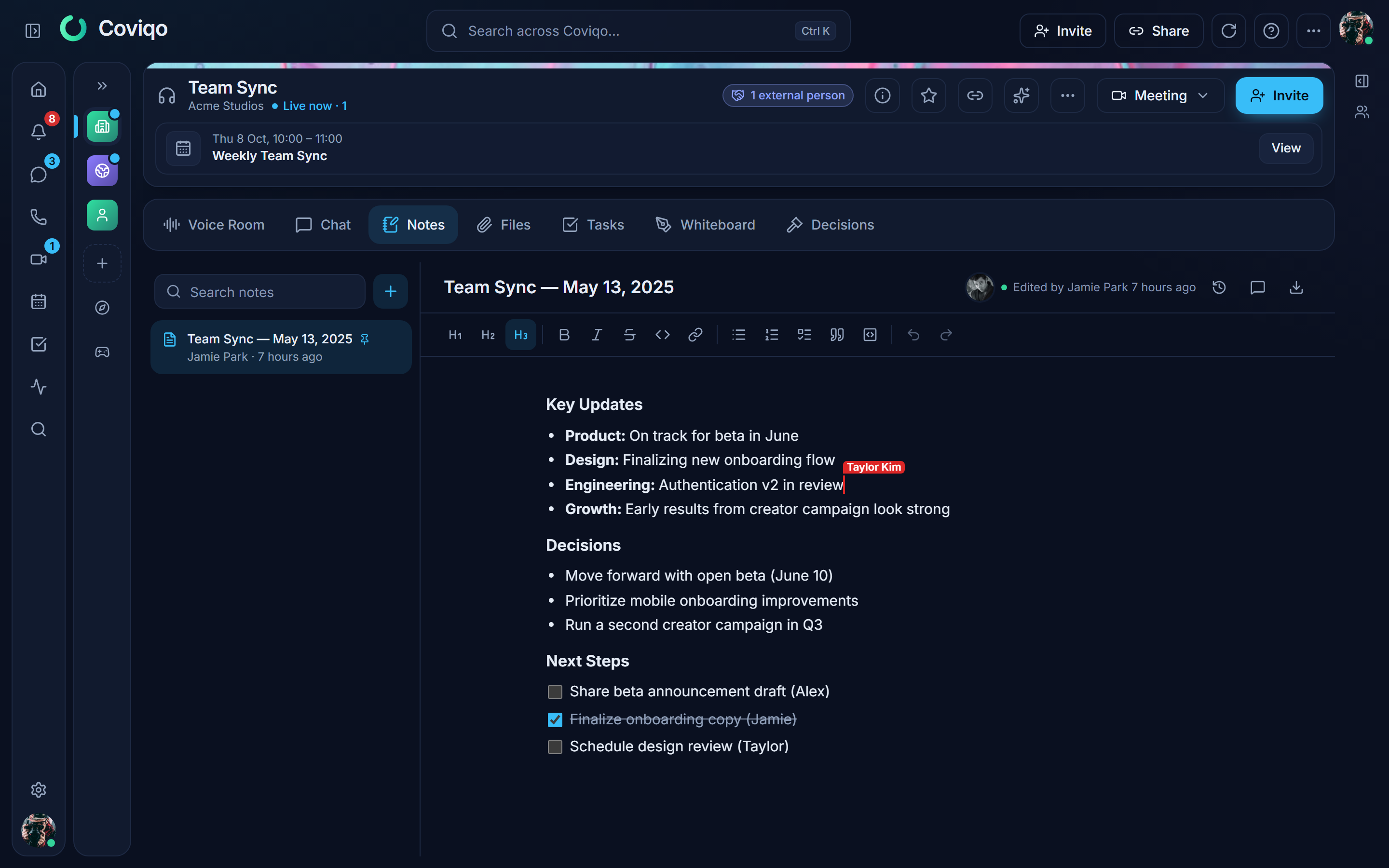
- The avatars next to the title show who has the note open right now ("In this note now: …").
- Each person writing in the note has a coloured cursor with their name above it, so you can see where they are working. Text they select is highlighted in their colour.
- People who can only read the note see all changes live, but cannot type.
- External people (guests) only read the notes of a room. A room manager can let them edit in Room settings → Content → Guests may edit notes (off by default).
Tip
In long documents, agree on who writes which section – not because of conflicts, but so that people don't rewrite the same sentence at the same time.
Version history#
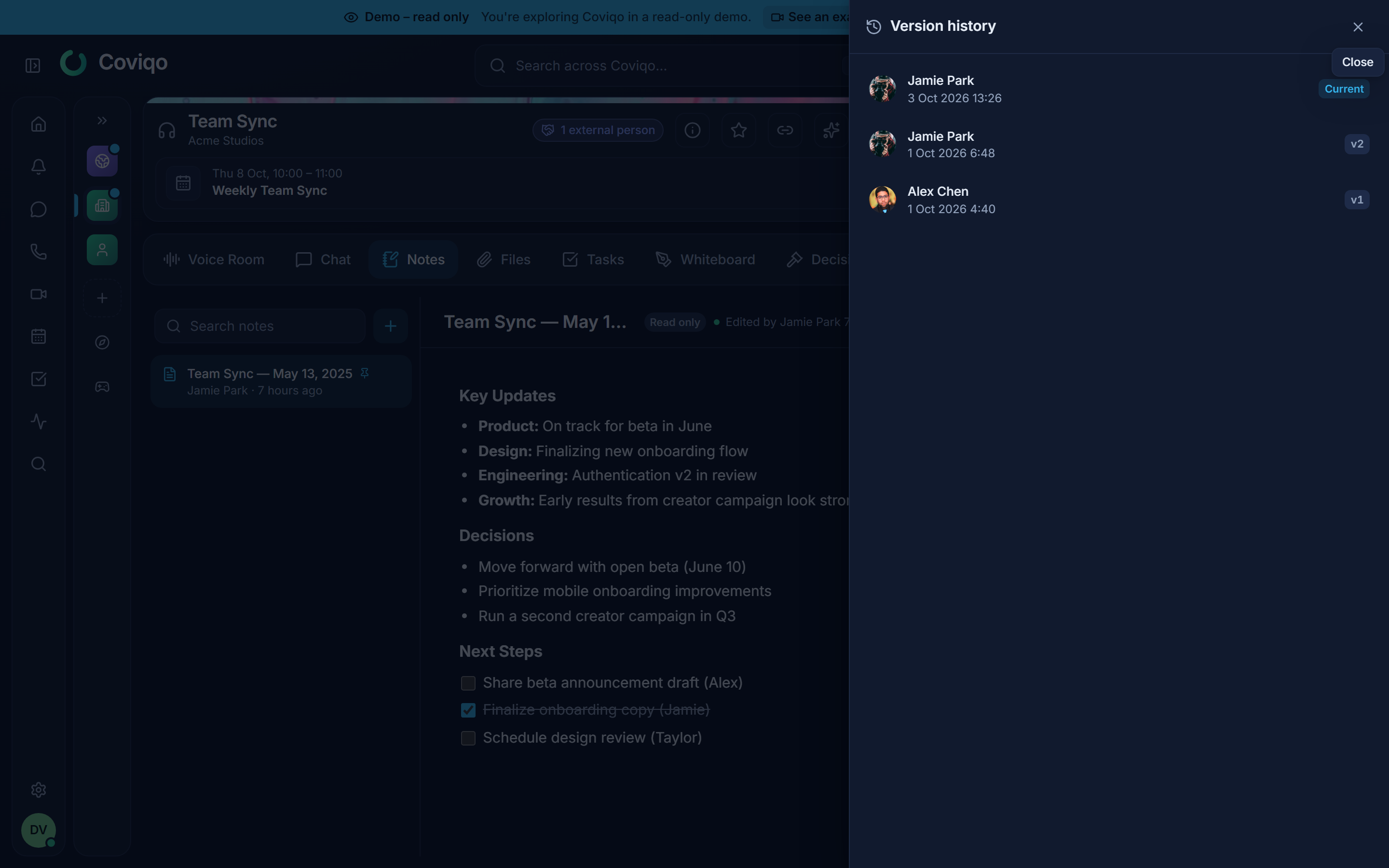
Coviqo keeps snapshots of a note automatically while it is being edited – at most one every ten minutes of live editing, plus one when the last person leaves the note – so you can go back to an earlier state.
- Click the Version history button (clock icon) above the note.
- A panel lists all saved versions with their number, author and date. If several people wrote in the note since the previous snapshot, the others are listed next to the author ("Anna with Ben, Chris"). The newest version is marked Current.
- Click a version to preview it.
- Click Restore this version and confirm ("The current content is kept in the history, so you can go back at any time.").
The restored content appears immediately for everyone who has the note open – as a normal change, without reloading. The content you replace is kept in the history too, so you can always go back again. Restoring requires Edit notes; anyone who can read the note can browse the history.
Comments#
Comments let you ask questions or leave feedback without changing the note itself.
- Click the Comments button (speech bubble) above the note. The comments panel opens on the right.
- Type into Write a comment… and click Send comment, or press
Ctrl+Enter.
Open comments are listed first. When a point has been dealt with, open the comment's menu and choose Resolve; resolved comments are collected under "resolved comments" and can be brought back with Reopen.
| Who | Can do |
|---|---|
| Everyone who can read the note | Write comments. |
| The author of a comment | Resolve, reopen and delete their own comment. |
| People with Edit notes | Resolve, reopen and delete any comment. |
Deleting a comment cannot be undone.
Exporting and sharing#
Notes are shared through the room: everyone who can see the room's Notes tab can read them. To point someone to a specific note, use Copy link – the link opens the room with that note selected. People without access to the room cannot open it.
To take a note out of Coviqo:
- Export as Markdown – the download button above the note, or the entry in the note menu, saves a
.mdfile that you can open in any text editor. - Export to Notion – if the space is connected to Notion, the Notion button above the note creates the note as a sub-page of a Notion page you choose. Exporting the same note again updates the existing Notion page (Update in Notion).
Note
Coviqo has no note templates. A simple way to reuse a structure is to keep a pinned "template" note in the room and copy its content into a new note.
Tips for meeting notes#
- Create the notes before the meeting starts and put the agenda in as a checklist – everyone sees it in the Notes panel during the call.
- Write decisions and next steps as short, clear sentences. The meeting notes feed into the AI summary together with the transcript and the chat.
- Pin the most important note of a room so it shows up in the room's Meeting Notes card.
- Turn next steps into real tasks with owners and due dates – see the chapter Tasks.