Chapter 63
FAQ and troubleshooting
On this page
- Account and sign-in
- A form says the security check failed or has not finished.
- I forgot my password. What now?
- I lost my phone with the authenticator app.
- Coviqo asks for my authenticator code although I trusted this device.
- I changed my e-mail address but no confirmation link arrived.
- The sign-in page says my organisation uses single sign-on.
- I was signed out with "Your organisation ended this session".
- A button is greyed out and says my organisation does not allow it.
- I never received the verification e-mail.
- Why can't I create a space or invite people any more?
- How do I see where I am signed in, and sign out a lost device?
- Audio, video and permissions
- Others can't hear me.
- Coviqo says my camera or microphone is blocked.
- Others hear an echo, or hear themselves.
- There is a lot of background noise (keyboard, fans).
- Push-to-talk doesn't work when Coviqo is in the background.
- Meetings and guests
- How do I invite someone who has no Coviqo account?
- A guest is waiting, but I don't see them.
- The join link says "Invalid link" or the meeting has ended.
- Why is there no transcript, no captions or no summary?
- Where do I find the recording, the transcript and the summary after a meeting?
- Notifications
- I don't get any push notifications.
- I don't get push notifications on my iPhone.
- Why don't I get a notification for every chat message?
- I get too many e-mails.
- Files
- My file says "Scanning…" and I can't open it.
- My file was blocked as malware.
- The upload fails with "The file is too large."
- A Word, Excel or PowerPoint file opens read-only.
- My changes to a document don't appear as a new version yet.
- Service status
- How do I know whether Coviqo itself has a problem?
- Coviqo stays on its loading screen
- A banner at the top says there is an outage or maintenance.
- Can I get notified about outages and maintenance?
- My call dropped for a few seconds and then came back. What happened?
- Desktop app
- The desktop app shows "Coviqo is currently unreachable".
- Where are the desktop app's settings?
- Where do I get the desktop app, and how do I update it?
- Windows or macOS warns me when I start the installer.
- Screen sharing on macOS shows a black screen.
- My screen share stutters while I play a game.
- I pressed Alt+F8 but no clip was saved.
- Sign-in with Google opens my browser. Is that right?
- Mobile
- Can I share my screen from my phone?
- Pressing and holding on iPhone selects text instead of opening the menu.
- My camera turned off when I switched apps.
- Spaces, rooms and access
- I can't see a room that a colleague sees.
- A button described in this guide is missing.
- My guest access to a space stopped working.
- Privacy
- Are my meetings sent to an external AI service?
- I don't want my voice to be transcribed.
- How do I know a meeting is being recorded?
- How do I get a copy of my data, or delete my account?
This chapter answers the questions that come up most often, and helps you when something doesn't work as expected. The answers are short. Where a topic has its own chapter, you find a pointer to it.
If your problem isn't listed here, ask an admin of your space first. Many "missing" buttons are simply a question of permissions.
Account and sign-in#
A form says the security check failed or has not finished.#
Public forms (registration, forgot password, contact, cancellation, guest join, share links) run an automatic security check in the background. Wait a moment and submit again. If it keeps failing, reload the page – very old browsers without Web Crypto support, or pages opened over plain http:// on a non-local address, cannot run the check.
I forgot my password. What now?#
On the sign-in page, click Forgot password?, enter your e-mail and click Send reset link. The link in the e-mail is valid for one hour. If it has expired, you see Invalid reset link; click Request a new link. After the reset, all your other sessions are signed out.
If you signed up with Google, Microsoft, Apple, Discord, Steam or Epic Games, your account may have no password at all. Use the same Sign in with … button again, or set a password later under Settings › Account & security with Set password.
I lost my phone with the authenticator app.#
On the Two-factor authentication screen, click Use a recovery code instead and enter one of the 10 recovery codes you saved when you set up two-factor authentication. Each code works once. After signing in, set up two-factor authentication on your new phone under Settings › Account & security and create new codes with Generate new codes.
Warning
Without your authenticator app and without recovery codes, you cannot sign in any more. Contact the administrator of your Coviqo installation in that case.
Coviqo asks for my authenticator code although I trusted this device.#
Trusting a device (Trust this device for 30 days) only skips the code when you sign in again in the same browser or desktop app – with your password or a linked account such as Google or Microsoft. Coviqo asks again when the 30 days are over (7 days for Coviqo operators), when you removed the device under Settings › Account & security › Trusted devices, or after you changed or reset your password, used a recovery code, switched two-factor authentication off or clicked Sign out all other sessions – each of these ends the trust on all devices. Your organisation may also have shortened or switched off the option. Signing in with your organisation's single sign-on never uses trusted devices.
Security-relevant changes (for example your password, e-mail address or a data export) always ask for a current code on a trusted device – that is intended.
I changed my e-mail address but no confirmation link arrived.#
After Change e-mail Coviqo always shows the same message: if the new address can be used, a confirmation link is on its way. For privacy reasons Coviqo does not say whether an address already belongs to another account – in that case no link is sent. Check the spelling and your spam folder; if the address is already used by another Coviqo account (perhaps an old one of yours), sign in there and change or delete it first. You can request the change up to five times per hour.
The sign-in page says my organisation uses single sign-on.#
Your e-mail domain belongs to an organisation that has set up SSO. Click Continue with … SSO (or Sign in with SSO) and sign in on your organisation's page. If your organisation enforces SSO, password and social sign-in are refused for its addresses, so the SSO button is the only way in.
I was signed out with "Your organisation ended this session".#
Your account is managed by an organisation that limits how long a sign-in lasts or signs you out after a period of inactivity. Simply sign in again. Messages like "… does not allow signing in from this network" or "… does not allow this app" mean that your organisation only allows certain networks or apps – use the company network or VPN, or the app your organisation allows. If it says your account was deactivated, contact your organisation's administrators. See the chapter Organisation settings.
A button is greyed out and says my organisation does not allow it.#
An organisation rule blocks the action – either your own organisation's rule (when you work in a space of another organisation) or the rule of the organisation that owns the space (when you are a guest there). The tooltip names the organisation. Ask its administrators if you need an exception; for joining spaces of other organisations there may be an approval request.
I never received the verification e-mail.#
Check your spam folder first. Then open Settings › Account & security and click Resend e-mail next to your address (marked Not verified), or use Resend e-mail in the banner at the top of Coviqo. The link is valid for 48 hours. Until your address is verified, Coviqo sends you no e-mail notifications except security notices.
Why can't I create a space or invite people any more?#
Your e-mail address is not verified yet and more than 7 days have passed since you registered. Until you verify it, you cannot create spaces, invite people, message people you don't share a space or conversation with, or create public links. Everything else keeps working. Click Resend e-mail in the banner at the top of Coviqo, open the link in the e-mail, and the restrictions end right away.
How do I see where I am signed in, and sign out a lost device?#
Open Settings › Account & security › Active sessions. Every device is listed as Web browser, Desktop app or Mobile app with its last activity. Click Sign out next to a device you don't recognise, or Sign out all other sessions. Changing your password also signs out all other devices.
Audio, video and permissions#
Others can't hear me.#
Work through these points:
- Is your microphone muted in Coviqo? The mic button shows a crossed-out microphone.
- Did you choose the right microphone? Check More › Devices & audio in the call, or Settings › Audio & video › Devices.
- Is your input mode Push to talk? Then you are only heard while you hold the key. Switch to Voice activity under Settings › Audio & video › Input mode.
- Is the Noise gate threshold too high? It only transmits above the threshold. Use Mic test in Settings › Audio & video to check your level.
- Did a moderator mute you, or are you in a stage audience? Then you can't unmute yourself; Raise hand in a stage.
- Does the browser or the operating system block the microphone? See the next question.
Coviqo says my camera or microphone is blocked.#
The browser, the operating system or both have denied access. Coviqo shows instructions for your device on the pre-join screen. In short:
| Where | What to do |
|---|---|
| Chrome, Edge, Firefox on a computer | Click the camera or lock icon in the address bar and allow camera and microphone for this site. Also check the privacy settings of your operating system. |
| macOS | System Settings › Privacy & Security › Camera / Microphone and allow your browser or the Coviqo app. |
| Safari on iPhone/iPad | Tap aA in the address bar → Website Settings → set Camera and Microphone to Allow. |
| Android | The icon next to the address → Permissions → allow Camera and Microphone. |
Then click Try again. You can join a meeting without camera and microphone and fix it later.
Others hear an echo, or hear themselves.#
Someone's speakers are feeding back into their microphone. Use headphones, or make sure Echo cancellation is on under Settings › Audio & video › Audio processing. If two people sit in the same room with two devices, only one of them should have the microphone and speakers on.
There is a lot of background noise (keyboard, fans).#
Turn on Voice isolation (AI) in Settings › Audio & video and choose Strong (recommended). It removes keyboard clicks and background noise almost completely. Alternatively use the Noise gate, which only transmits while you speak louder than the threshold. In a call, both switches are also available under More.
Push-to-talk doesn't work when Coviqo is in the background.#
In the browser, push-to-talk only works while the Coviqo tab is focused. For a key that works in every application, use the desktop app and activate Push to talk under Settings › Intercom & shortcuts. See the chapter Getting started.
Meetings and guests#
How do I invite someone who has no Coviqo account?#
Share the meeting's join link. The organizer has to allow guests for the meeting; otherwise the person sees "Guest access is turned off for this meeting". Guests enter their name, wait in the lobby until an organizer lets them in, and see only that meeting. Their temporary access is deleted automatically after the meeting. See the chapter Meetings.
A guest is waiting, but I don't see them.#
Guests wait in the Lobby. Organizers see a notice such as "{name} is waiting in the lobby" in the call, and get a People in the lobby notification. Only the Organizer and Co-organizers can admit people. If you aren't one of them, ask them to let the guest in.
The join link says "Invalid link" or the meeting has ended.#
The link may be mistyped or the meeting may have been deleted, canceled or ended. Ask the organizer for a current link. If the meeting has a Passcode, check that you entered it exactly as given.
Why is there no transcript, no captions or no summary?#
Coviqo tells you why when you hover over (or tap) the disabled button, for example "Live captions is not available: Disabled for this meeting". The possible reasons are:
| Reason | Meaning |
|---|---|
| Disabled platform-wide | The operator hasn't enabled this AI feature. |
| Not included in your plan | Your organisation's plan doesn't include it. |
| Disabled in this space | An admin switched it off in the space settings. |
| Disabled for this meeting | The organizer switched it off for this meeting. |
| Service currently unavailable | The AI service is temporarily not reachable. Try again later. |
Also note: people who have turned on Don't transcribe my voice don't appear in captions, the transcript or the summary.
Where do I find the recording, the transcript and the summary after a meeting?#
Open the meeting from Meetings or from the linked room. The meeting's detail page has the tabs Overview, Recording, Transcript, Summary, Notes, Files, Chat, Tasks, Participants and Results. On a phone, swipe the tab bar sideways to reach all of them. Recordings need some processing time; you get a Recording ready notification. Who can see recordings and transcripts depends on the meeting settings.
Notifications#
I don't get any push notifications.#
Check in this order:
- Settings › Notifications › Notifications on this device: Is Browser notifications (push) on for this device? Push has to be enabled on every device separately.
- Click Send test. If nothing appears, the browser or the operating system blocks notifications. The status text tells you what to do.
- Is the Push column ticked for the notification type in question? For example, Event invitations have no push by default.
- Is the space set to Nothing (mute space) or the room muted? Then mentions and replies from there don't reach you.
- Does the status say "Push notifications are not set up on this server."? Then only in-app and e-mail notifications work. Ask your administrator.
- Is do-not-disturb or a focus mode on in your operating system or phone?
I don't get push notifications on my iPhone.#
On iPhone and iPad, push only works in the home screen app, from iOS/iPadOS 16.4. Add Coviqo to your home screen from Safari (Share › Add to Home Screen), open it from there, sign in, and turn on push in Settings › Notifications. See the chapter Using Coviqo on mobile.
Why don't I get a notification for every chat message?#
That's intentional. Normal chat messages show up as unread markers on rooms and spaces. You are notified when someone addresses you: a mention, a reply, a task assignment, an invitation. To see everything you missed at a glance, use the catch-up (What did I miss?) on the home page.
I get too many e-mails.#
Untick the E-mail column for the types you don't want in Settings › Notifications. The weekly e-mail about open meeting items is the row Weekly open items.
Files#
My file says "Scanning…" and I can't open it.#
Every upload is checked for malware before anyone can open it. This usually takes a few seconds; the file becomes available by itself. Imports from Google Drive or OneDrive are scanned too.
My file was blocked as malware.#
The file is marked Blocked (malware): "The virus scan flagged this file. It cannot be opened or downloaded." Nobody can download it, including you. If you are sure the file is harmless (a false alarm), send it in a different format, for example as a PDF instead of a document with macros, or ask your administrator.
The upload fails with "The file is too large."#
Your installation or plan limits the size of single files. Compress the file, split it, or share it through a linked cloud drive. See the chapter Files.
A Word, Excel or PowerPoint file opens read-only.#
Check the header of the editor: View only means you can read but not change the document. Usual reasons:
- You don't have the Upload files permission in the room, the room is archived, or you are timed out.
- The file is in an older format such as
.doc,.xlsor.ppt. Use Save as DOCX (or XLSX / PPTX) in the file menu and edit the new file. - You opened it as a chat attachment, or you are in the read-only live demo.
If Office files show No preview available instead of opening, your installation doesn't offer office documents. See Office documents in the chapter Files.
My changes to a document don't appear as a new version yet.#
The editor saves continuously, but a new file version is only created when the last person closes the document (about ten seconds later) or when someone presses Ctrl+S. Until then, everyone who opens the document joins the running session and sees the latest changes.
Service status#
How do I know whether Coviqo itself has a problem?#
Open the status page (for coviqo.com: status.coviqo.com, also linked from the website footer under System status). It is checked automatically from outside every 30 seconds and shows each feature in plain words – for example Meetings & voice rooms: Operational or Degraded – joining may take longer. When it runs on separate infrastructure (recommended), it stays reachable during an outage; the website's System status page only says so when that is the case. If Coviqo cannot be reached at all, the Coviqo is not reachable screen has a Check current status link.
Coviqo stays on its loading screen#
Right after an update the app may need a moment. It reloads itself if needed; if Coviqo does not answer, you see the Coviqo is not reachable screen, which tries again every 10 seconds. Should the loading screen (logo ring with a small spinner) stay for longer than 15 seconds, it shows Loading is taking longer than usual. with a Reload link – click it. If that does not help either, check the status page.
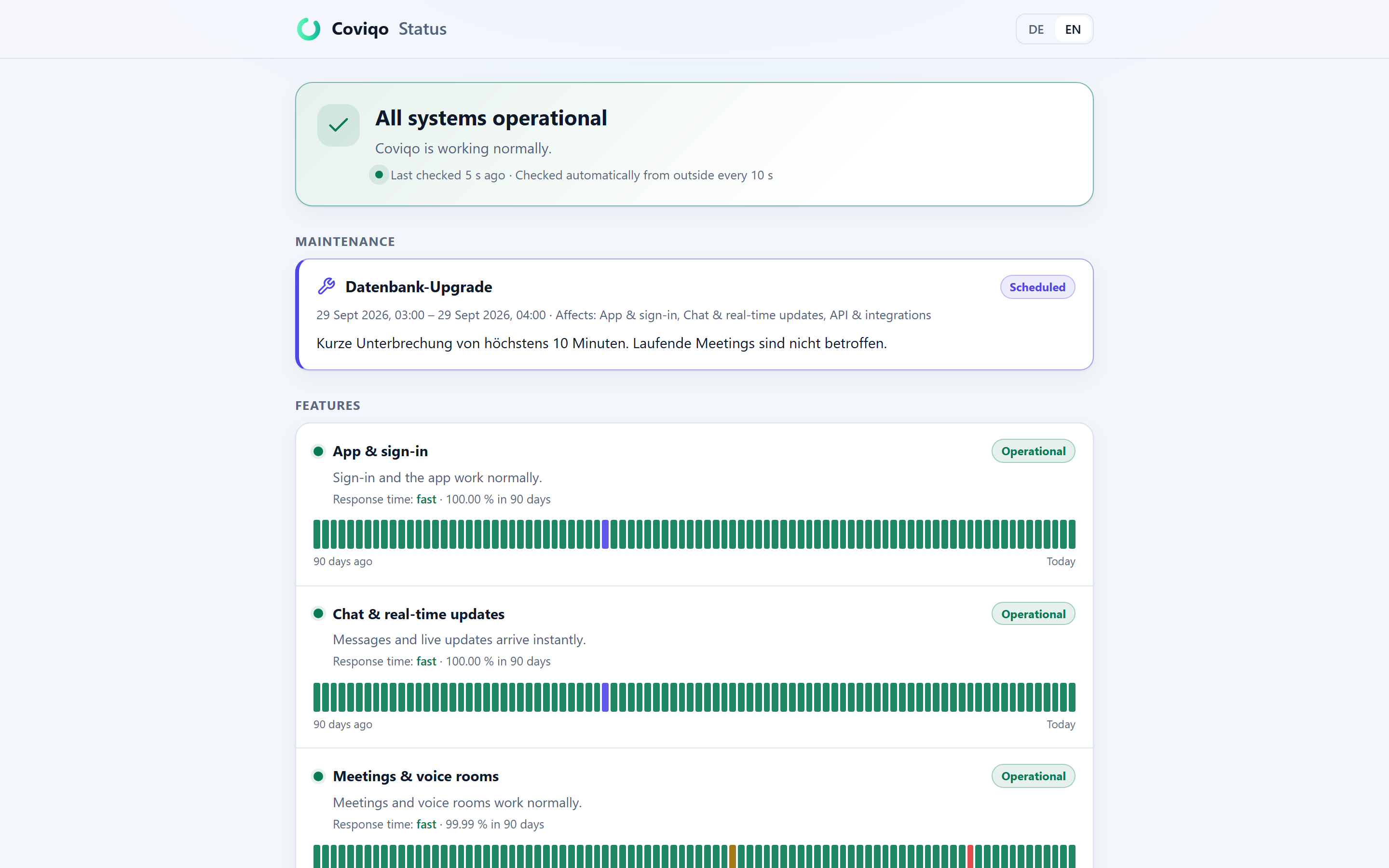
A banner at the top says there is an outage or maintenance.#
During a larger outage or a planned maintenance, a slim banner appears under the top bar. Details on the status page opens the status page with the latest updates. Click × to hide the banner; it comes back only for a new incident or maintenance window.
Can I get notified about outages and maintenance?#
Besides the checks from outside, an automatic test account regularly signs in, sends a message, uploads a file and connects to a voice room – the way you would. If that fails twice in a row, the affected feature shows Partial outage even when the servers still answer, so the status page reflects what you actually experience.
Yes – subscribe to the RSS or Atom feed linked at the bottom of the status page with any feed reader. The status page sets no cookies and does not track you. You can also subscribe by e-mail with the form on the status page (if your provider has switched it on): enter your address, choose the language and optionally the features you care about, then confirm the link in the e-mail we send you. Only then do you get e-mails about outages and maintenance. Every e-mail has a link to unsubscribe at once – it keeps working even if your provider switches the e-mail subscription off later; unconfirmed sign-ups are deleted after 48 hours.
My call dropped for a few seconds and then came back. What happened?#
Installations that run on two servers switch to the second one automatically when a server fails. Calls and chats reconnect on their own within seconds – just wait a moment. In rare cases an edit to an office document from the last few seconds before the switch was not saved; reopen the document and repeat it.
Calls also survive the loss of a single call server: while the call shows Reconnecting …, Coviqo keeps trying for up to about 45 seconds and moves you to another call server if needed. Your microphone, speaker, camera and mute settings stay as they were – only screen sharing has to be started again. If the call cannot be restored, you see Connection lost and can join again.
Desktop app#
The desktop app shows "Coviqo is currently unreachable".#
The app can't reach its Coviqo server. Check your internet connection – the app keeps trying automatically, or click Try again. Status shows whether Coviqo is down for everyone. The server address is fixed in the app; if your organisation runs its own server and the app connects to the wrong one, ask your administrator for the installer built for your server. Open logs folder helps your IT support.
Where are the desktop app's settings?#
In the app's normal settings: Settings › Desktop app (startup, tray, notifications, interface, updates) and Settings › Intercom & shortcuts (all shortcuts including the global ones). Settings… in the tray menu opens them. The desktop app has no separate settings window.
Where do I get the desktop app, and how do I update it?#
Open the page Download (coviqo.com/download) – it lists Windows, macOS and Linux with version, size and release date –, click Desktop app in the header of coviqo.com on a computer, or use https://coviqo.com/download/desktop/windows (or /mac, /linux). Updates come automatically: the app checks every time it starts and shows an Update available window with the release notes; click Restart now or Later (then it is installed when you quit). See The desktop app in the chapter Getting started.
Windows or macOS warns me when I start the installer.#
Depending on how your organisation distributes the app, the installer may not be code-signed, so SmartScreen or Gatekeeper show a warning. Only continue if the installer comes from your own organisation's Coviqo server.
Screen sharing on macOS shows a black screen.#
macOS needs the screen recording permission for the app. Allow Coviqo under System Settings › Privacy & Security › Screen Recording (on newer macOS versions Screen & System Audio Recording), then restart the app.
My screen share stutters while I play a game.#
Share from the Coviqo desktop app for Windows: it captures natively and uses your graphics card's encoder, so the share stays smooth while the game has the focus (see Communication › Screen sharing). Start the game in borderless window mode, and limit its frame rate (VSync or an FPS limit) if your graphics card runs at full load – then there is time left for the capture. More › Connection info shows under Captured by whether the native capture is running and what limits the quality.
I pressed Alt+F8 but no clip was saved.#
Game clips must be switched on under Settings › Desktop app › Replay clips (Windows desktop app), and the game has to run in fullscreen or a borderless window – otherwise Coviqo says No game detected. Add a game that runs in a window to Always record. If your organisation switched off local clips, the card says so. See Game clips.
Sign-in with Google opens my browser. Is that right?#
Yes. Social sign-in continues in your normal browser. When it's done, the browser shows Back to the Coviqo app; confirm with Open Coviqo and the app signs you in.
Mobile#
Can I share my screen from my phone?#
No. Mobile browsers don't allow websites to share the screen, so Coviqo doesn't show the button on phones and tablets. You can watch other people's screens; rotate your phone to landscape or pinch to zoom.
Pressing and holding on iPhone selects text instead of opening the menu.#
Hold your finger still for a little longer, on an empty part of the item rather than on the text. For messages, the menu has Select text if you want to copy part of a message.
My camera turned off when I switched apps.#
That's intentional: Coviqo pauses your camera while it is in the background and keeps the audio running. It starts again when you return, and you see "Camera back on – it was paused while Coviqo was in the background."
Spaces, rooms and access#
I can't see a room that a colleague sees.#
The room is probably Private or Invite only and you aren't a member of it. Ask a member of the room or an admin to add you. If you are an external guest, you only see the rooms that were shared with you.
A button described in this guide is missing.#
Most likely your role doesn't have the permission for it, or a room override takes it away. Ask an admin of your space. If you were put in a Timeout by a moderator, you can read but not write, speak or upload until it ends.
My guest access to a space stopped working.#
External access can end on a fixed date (Expired), when a room's Project end has passed (Project ended) or when an admin suspends it (Suspended by an admin). Ask your contact in the organisation to extend it.
Privacy#
Are my meetings sent to an external AI service?#
No. Transcription, translation and summaries run exclusively on the Coviqo infrastructure itself. Audio and transcripts aren't sent to third-party AI services.
I don't want my voice to be transcribed.#
Open Settings › AI & captions and turn on Don't transcribe my voice. Your microphone is then excluded from live captions, transcripts and summaries. Others still see you as present.
How do I know a meeting is being recorded?#
When recording starts, everyone in the call gets the notice "This meeting is being recorded", and a recording badge stays visible in the call as long as the recording runs.
How do I get a copy of my data, or delete my account?#
In Settings › Account & security, click Request export in the Export my data card. Coviqo prepares a ZIP archive and sends you an e-mail when it's ready. The download is available for 7 days, and you can request one export per day.
In the same place, Delete account deactivates your account at once and deletes it for good after a grace period. If you sign in again before then, the deletion is cancelled. Transfer or delete spaces you own first.