Chapter 58
Plans and billing
On this page
Coviqo is free to start with. When your team or community needs more storage, recording, AI transcription or single sign-on, you can book a paid plan. This chapter compares the plans, explains how to upgrade and pay with Stripe, where you find invoices, how to cancel or withdraw from a contract, and what happens to your data when a paid plan ends.
Who can manage billing#
A plan belongs to the organisation that owns a space, not to a single space: all spaces of that organisation share the same plan and the same limits (for example the storage). Your own personal organisation – created for you when you signed up – counts as an organisation too, so you can book a plan for it without setting up anything else.
Billing is managed by the owners, admins and billing contacts of the organisation – usually the person who created it. They find it in three places:
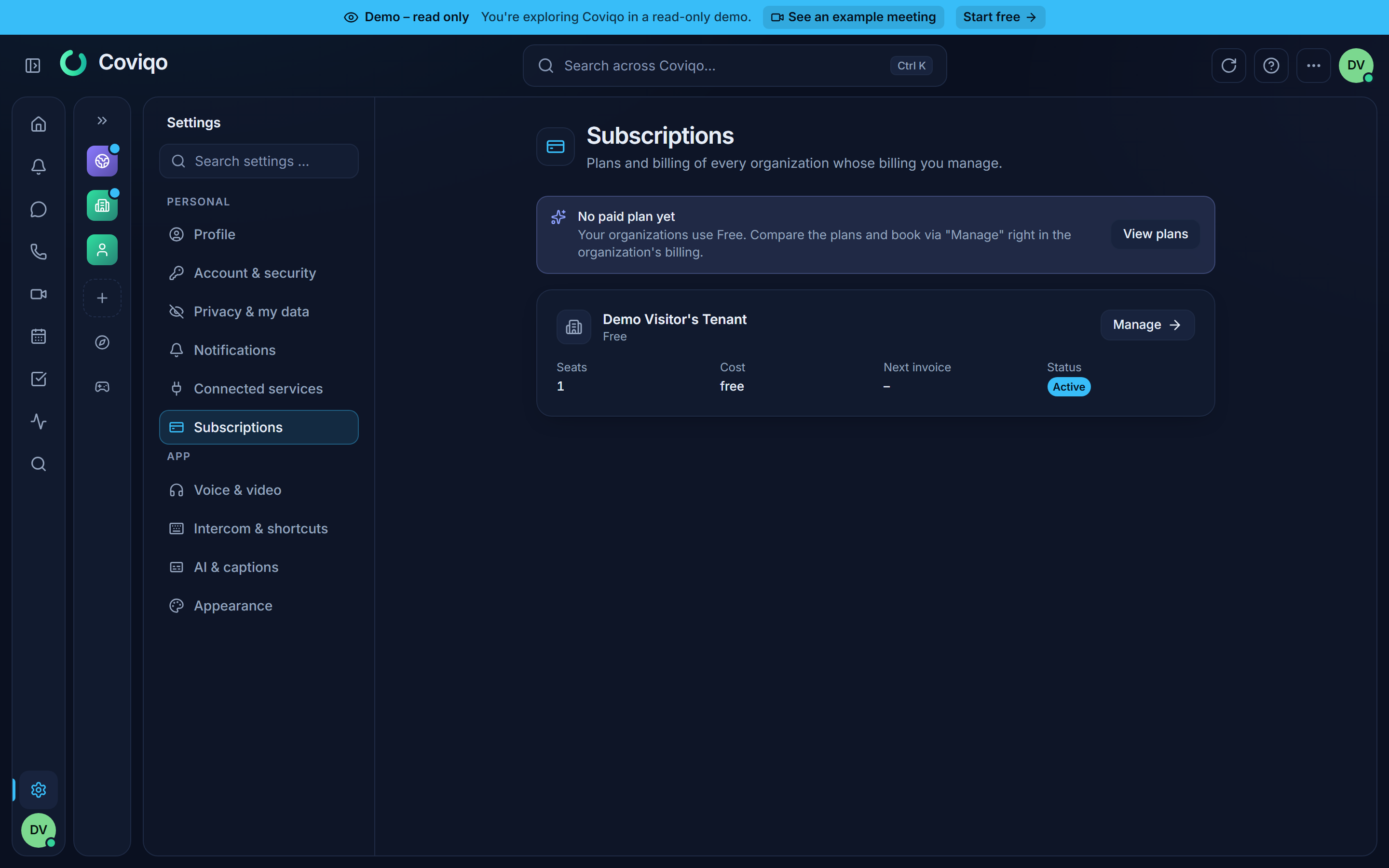
- Subscriptions – in the user menu (your avatar), in the command palette (
Ctrl+K, type "Subscriptions") and under Settings › Subscriptions (https://app.coviqo.com/settings/subscriptions). The list shows every organisation whose billing you manage with its Plan, Seats, Cost per month or year, Next invoice and Status (Active, Trial, Payment overdue, Canceled). Manage opens the organisation's billing page. If you don't manage any organisation's billing, the page says so and offers View plans. - Organisation › Billing – the billing page itself:
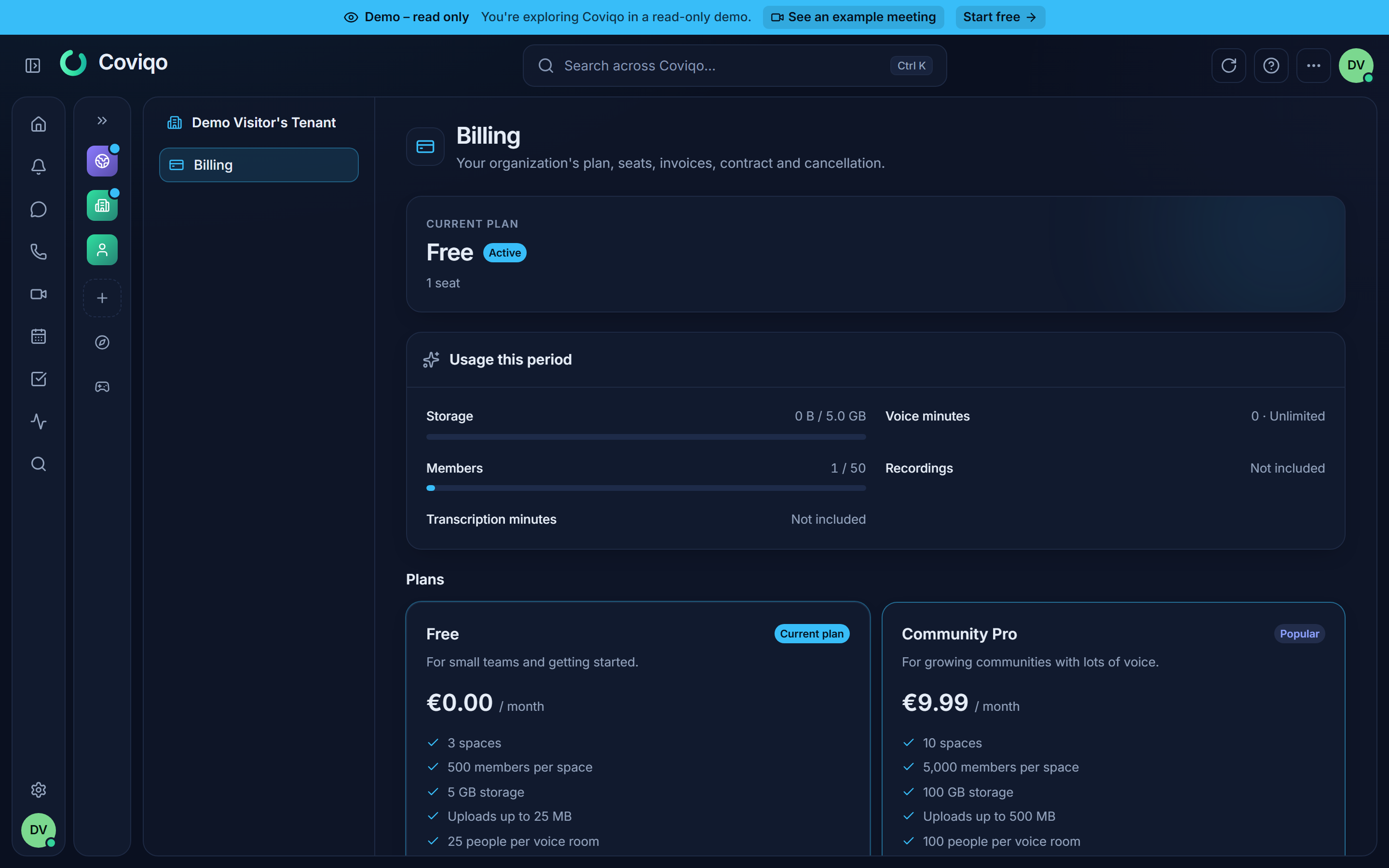
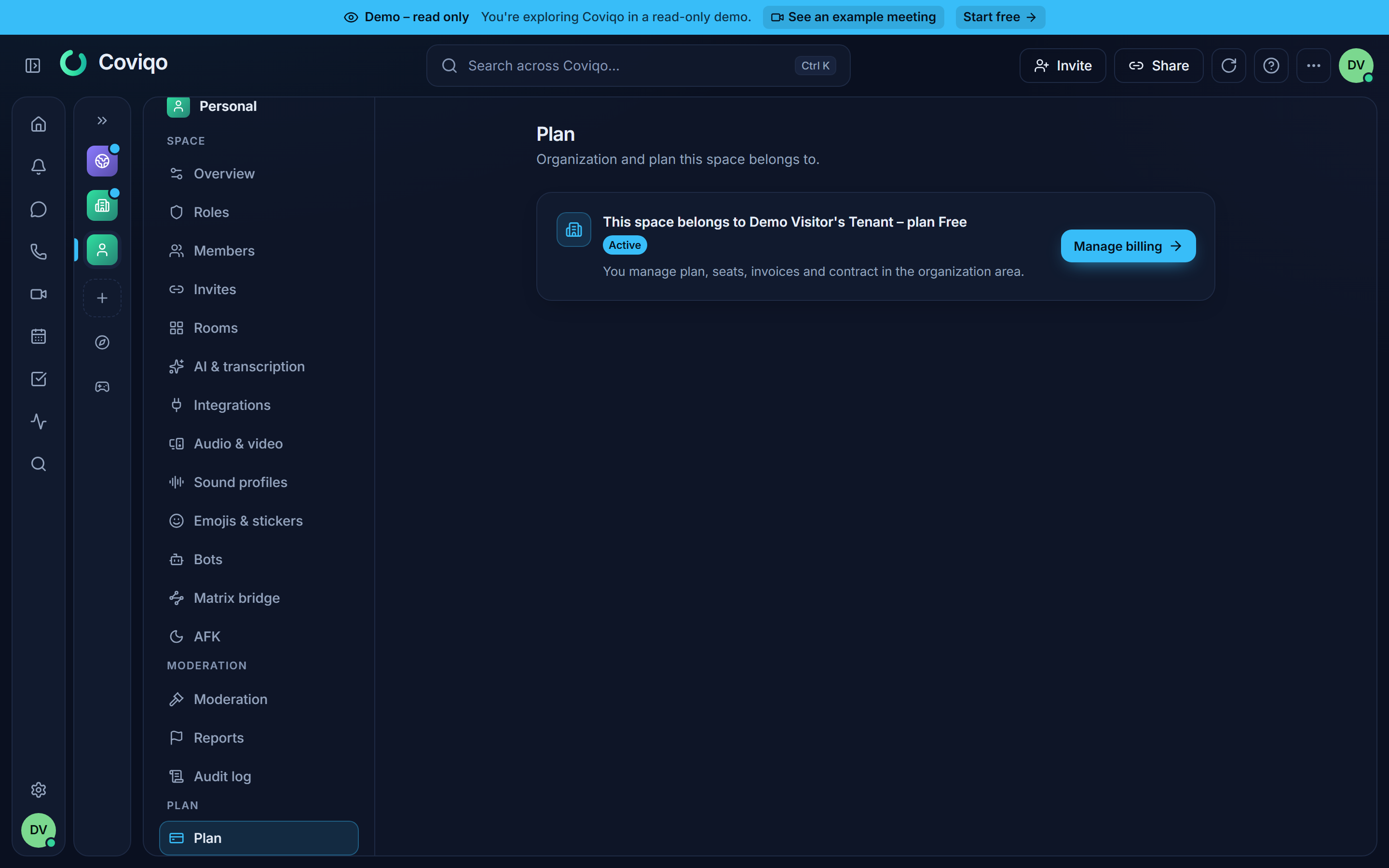
https://app.coviqo.com/org/<organisation>/billing. It is part of the organisation area (chapter Organisation settings). If your organisation doesn't use the organisation settings (for example your personal organisation or a small community on Free or Community Pro), the area shows only the Billing section. - Space settings › Organization & plan › Plan – every space shows "This space belongs to {organisation} – plan {plan}". Billing contacts get the button Manage billing, which leads to the organisation's billing page; everyone else who manages the space sees only the plan.
Note
Older links to Space settings › Billing (bookmarks, e-mails, notifications) still work: they take billing contacts to the organisation's billing page and everyone else to the space's plan card.
The plans#
| Free | Community Pro | Community Plus | Business | Enterprise | |
|---|---|---|---|---|---|
| Price | Free | €12.99 / month | €29.99 / month | €7 per user / month (min. 3 users) | From €12 per user / month (min. 50 users), on request |
| Spaces | 1 | 2 | 4 | 20 | Unlimited |
| Members (all spaces together) | 300 | 1,000 | 5,000 | 10,000 | Unlimited |
| Storage (incl. recordings) | 2 GB | 50 GB | 200 GB | 50 GB per user (150 GB – 2 TB) | Unlimited |
| Maximum file size | 25 MB | 500 MB | 500 MB | 2 GB | 5 GB |
| People per voice room | 25 | 100 | 150 | 200 | 500 |
| Screen sharing (max.) | 720p · 30 fps | 1440p · 30 fps / 1080p · 60 fps | 4K · 30 fps / 1440p · 60 fps | 4K · 30 fps / 1440p · 60 fps | 4K · 30 fps / 1440p · 60 fps |
| HD viewer hours (screen sharing above 1080p30) | – | Unlimited | 300 / month | 30 per user / month | Unlimited |
| Voice and video quality | up to 24 kbit/s, camera 540p · 24 fps | up to 128 kbit/s stereo, camera 720p · 30 fps | up to 128 kbit/s stereo, camera 720p · 30 fps | up to 256 kbit/s stereo, camera 1080p · 30 fps, AV1 | up to 510 kbit/s stereo, camera 1080p · 30 fps, AV1 |
| Recording | – | Yes, kept 30 days | Yes, kept 90 days | Yes, kept 90 days | Yes, no time limit |
| AI transcription, translation and summaries | – | 300 minutes / month | 600 minutes / month | 250 minutes per user / month | Unlimited |
| Ask the space (questions per person and day) | – | 30 | 30 | 100 | Unlimited |
| Audit log history | 90 days | 365 days | 365 days | 730 days (2 years) | 2,555 days (7 years) |
| Guest access | Yes | Yes | Yes | Yes | Yes |
| Single sign-on (SSO) | – | – | – | Yes | Yes |
| Choice of voice region (where calls run) | – | – | – | Yes | Yes |
| Bring your own encryption key | – | – | – | – | Yes |
| Organisation settings: managed accounts, presets, deactivation and handover | – | – | – | Yes | Yes |
| Organisation settings: individual rules, partner list, file types, watermark | – | – | – | – | Yes |
| Security rules: session duration, inactivity sign-out, allowed networks and apps | – | – | – | – | Yes |
| Compliance: legal hold, account export, audit export, SIEM | – | – | – | – | Yes |
| Layout editor: room overviews, own templates, cards for selected roles | – | Yes | Yes | Yes | Yes |
| Bots per space (own bots and Coviqo bots together) | 2 | 15 | 15 | 50 | Unlimited |
| Incoming webhooks per space | 2 | 10 | 10 | 50 | Unlimited |
| Feeds per room (module “Feed”) / shortest polling interval | 1 / 30 min | 10 / 15 min | 10 / 15 min | 10 / 10 min | 25 / 10 min |
| Custom emojis / stickers per space | 20 / 5 | 200 / 50 | 200 / 50 | 500 / 100 | Unlimited |
| Animated emojis and stickers | – | Yes | Yes | Yes | Yes |
| Soundboard (sounds per space) | – | 30 | 30 | 100 | Unlimited |
| Watch together and music | – | Yes | Yes | Yes | Yes |
| Breakout rooms per meeting | – | 20 | 20 | 50 | 50 |
| Webinars (attendees) | – | – | – | 1,000 | Unlimited |
| Attendance reports | – | – | – | Yes | Yes |
| Live streams at the same time | – | – | 1 | 2 | 10 |
| "Listen translated" (languages at the same time) | – | – | – | 3 | 7 |
| Telephony and phone dial-in | – | – | – | Yes | Yes |
| Phone numbers | – | – | – | 1 per user | 20 |
| Incoming phone minutes | – | – | – | 50 per user / month | 3,000 / month |
| Outgoing phone calls | – | – | – | Add-on, billed per minute | 1,500 minutes / month, then add-on |
| Own SIP provider | – | – | – | Yes | Yes |
| End-to-end encrypted rooms | – | – | – | Yes | Yes |
| Platform fee on paid memberships and tickets | 5 %, at least €0.50 | 5 %, at least €0.50 | 5 %, at least €0.50 | 5 %, at least €0.50 | 5 %, at least €0.50 |
All plans include the layout editor for the space overview with all standard cards and the built-in templates, guests, external collaboration, integrations, meeting follow-up, polls and questions in meetings, the catch-up overview and – where the installation offers them – office documents (viewing and editing Word, Excel, PowerPoint and PDF files together in the browser). Bots don't count as members or seats – they only count towards the bot limit of the space (see the chapter Bots and webhooks).
Voice and video quality follow the plan of the space as well (see Audio and video quality in the chapter Communication); after a change to a smaller plan, rooms that chose more fall back to what the new plan allows. The screen sharing limit follows the plan of the space the call belongs to: in a Community Pro space everyone can share in 1440p at 30 frames per second or in 1080p at 60 frames per second, in a Community Plus, Business or Enterprise space in 4K at 30 or 1440p at 60 frames per second – also people whose own organisation has the Free plan.
Per user (Business). Business is billed per user, with at least 3 users. Storage (50 GB per user, at least 150 GB and at most 2 TB for the organisation), AI minutes (250 per user), phone numbers (1 per user), incoming phone minutes (50 per user) and HD viewer hours (30 per user) grow with the number of users you pay for. Example: 10 users get 500 GB, 2,500 AI minutes, 10 numbers, 500 incoming minutes and 300 HD viewer hours a month. Enterprise starts at 50 users and is agreed with the Coviqo team.
Storage includes recordings. Recordings are stored as files of the organisation and count towards the storage shown in the table.
HD viewer hours#
Screen sharing above 1080p at 30 frames per second (1440p, 4K or 60 frames per second) uses HD viewer hours: one HD viewer hour is one hour in which one person watches such a share. Ten people watching a 1440p share for an hour use ten hours. Community Plus includes 300 a month, Business 30 per user; Community Pro and Enterprise have no limit.
When the hours of the month are used up, new shares simply continue in 1080p at 30 frames per second – nothing is blocked and nothing costs extra. Shares that are already running are not interrupted. The quality menu then shows "This month's HD quota is used up – shares run in 1080p30" and greys out the higher choices with HD quota used up; shortly before, it tells you how many hours are left. The hours start again on the first of the next month. You see the month's usage under Usage this period (HD viewer hours).
Add-ons#
Paid plans can book add-ons under Organisation › Billing › Add-ons. They are billed monthly together with your plan (also changed pro rata during the month) and can be cancelled monthly; on a yearly plan they cannot be booked.
| Add-on | Price | Plans |
|---|---|---|
| +100 GB storage | €3 / month each | Community Pro, Community Plus, Business, Enterprise |
| +1,000 AI transcription minutes | €5 / month each | Community Pro, Community Plus, Business, Enterprise |
| Additional phone number | €3 / month each | Business, Enterprise |
| 1,000 inbound minutes | €9 / month each | Business, Enterprise |
| Outbound calls | €0.05 per minute to landlines, €0.12 per minute to mobiles | Business, Enterprise |
Use More / Fewer to choose the quantity and Book with obligation to pay to order; Cancel ends an add-on. Calls to external phone numbers on Business need the add-on Outbound calls (Enterprise includes 1,500 minutes a month first). Every started minute is billed. Set a Monthly spending limit (€5 to €5,000, default €50): the card shows "This month: … of …", and when the limit is reached, no further outgoing calls are possible until the next month or until you raise the limit – this protects you against misuse of your phone access. The add-ons end automatically when the paid plan ends or when you switch to a plan that doesn't include them.
Note
These are the standard plans – the table is generated from the same plan definitions the app uses. The operator of your Coviqo server can change prices and limits, and can set individual limits for your organisation. The plan cards under Organisation › Billing and the public pricing page (coviqo.com/pricing) always show the values that currently apply – they come from the same plan table the app enforces. Prices are in euros; for consumers they include VAT, for businesses VAT is added where applicable (reverse charge for businesses in another EU country with a valid VAT ID).
With yearly billing you pay ten monthly prices for twelve months ("2 months free").
Plans marked "Coming soon"#
The operator can announce a plan before it can be booked. Such a plan appears on the pricing page and under Organisation › Billing with the badge Coming soon ("Demnächst verfügbar" in German); its button is greyed out ("This plan cannot be booked yet."), so you can compare it but not order it. A link to the pricing page with such a plan (for example from an e-mail) opens Subscriptions with the note "{plan} is coming soon and cannot be booked yet." instead of the booking dialog. As soon as the operator releases the plan, the normal Choose plan button appears.
The operator can also withdraw a plan from sale: it then no longer appears on the pricing page or in the plan list at all.
Note
If your organisation already has a plan that is later marked Coming soon or withdrawn, nothing changes for you: the plan keeps renewing, and you can still change its seats or switch between monthly and yearly billing. You only lose it if you switch to another plan or cancel – after that it can no longer be booked again until the operator releases it.
Your current plan and usage#
The top of the billing page shows the Current plan with its status, the billing period (monthly or yearly) and – for plans billed per seat – how many seats are in use and how many are purchased:
| Status | Meaning |
|---|---|
| Active | Everything is fine. The line below shows the number of seats and Renews on {date}. |
| Trial | A trial period is running. |
| Payment overdue | "The last payment failed. Please update your payment method to keep your plan." The plan keeps working for now. |
| Canceled | The subscription has ended; the organisation is on the Free plan. |
| Incomplete | The first payment has not been completed. |
If you have cancelled, you see Ends on {date} and the notice Cancelled – ends on {date} with the button Undo cancellation: until the contract ends you can undo the cancellation, and the subscription then renews as usual (owners and billing contacts get "Subscription continues"). If a pro-rata refund has already been paid out for the end date (consumer yearly plan after the first year), only support can do this.
If a plan change is scheduled for the end of the billing period (see Changing to a smaller plan), it shows Switches to {plan} ({billing}) on {date} with the button Undo switch.
The owners and billing contacts of the organisation are notified in the app (and by e-mail per their preferences) about billing events: Payment failed, Subscription updated (plan, seats or status changed – also when the Coviqo team changes your plan), Subscription ends on …, Subscription continues, Credit note … issued, Refund issued and Invoice … cancelled.
The card Usage this period shows how much of each limit is used – Storage (incl. recordings), Members, Spaces, Recordings, Transcription minutes, HD viewer hours and others. The limits include the allowances per user and your add-ons. The bars turn orange at 80 % and red at 95 %. Limits your plan does not have show Not included, and unlimited ones show Unlimited – both without a bar.
Upgrading#
- Open Subscriptions, click Manage next to the organisation (or go to Organisation › Billing directly) and scroll to Plans.
- Click Choose plan on the plan you want. For Enterprise, click Contact sales.
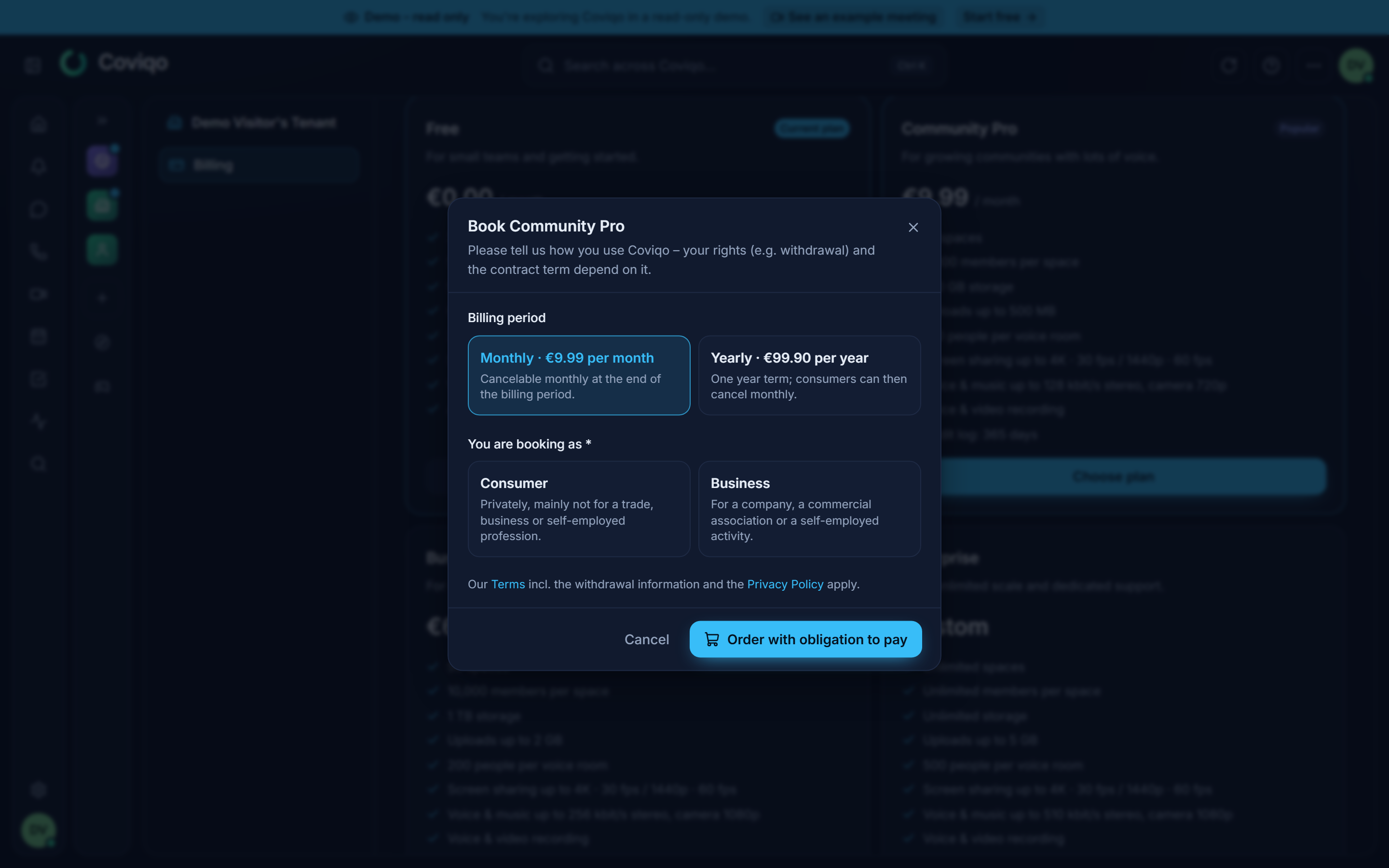
- In the dialog Book {plan}, choose the Billing period: Monthly ("Cancelable monthly at the end of the billing period.") or Yearly ("One year term; consumers can then cancel monthly.").
- Under You are booking as, choose Consumer (privately, mainly not for a trade, business or self-employed profession) or Business. This decides your right of withdrawal and the contract term – and how VAT is shown: when the operator calculates VAT online, the prices read incl. VAT for consumers and plus VAT for businesses.
- For plans billed per user (Business), enter the number of Seats. The minimum is 3 users ("min. 3 users") or the number of active members of your organisation, whichever is higher – "at least this many seats are billed" – and the dialog shows the total per billing period.
- As a consumer, tick the box that you request the service to start before the withdrawal period ends (see Right of withdrawal below). You cannot book without it.
- Click Order with obligation to pay. You are forwarded to Stripe's secure payment page.
- Enter your payment details there and complete the payment. When VAT is calculated online, Stripe also asks for your billing address (it decides the VAT rate of your country) and, if you book as a business, your VAT ID – with a valid VAT ID from another EU country no VAT is charged (reverse charge) and the invoice says so. Stripe sends you back to the organisation's billing page (
https://app.coviqo.com/org/<organisation>/billing); a message confirms the order and the new plan becomes active as soon as Stripe confirms the payment. If you cancel on the Stripe page, you land on the same page with the note that nothing was booked.
Tip
On the pricing page (coviqo.com/pricing), Get started on a paid plan takes you – after signing up or, if you are already signed in, straight away – to Subscriptions. Pick the organisation there and click Manage: the booking dialog for that plan opens by itself.
When you run into a limit in the app (for example "storage full" or a feature your plan doesn't include), the error message offers Manage plans, which opens Subscriptions.
The other sections of the organisation area are described in the chapter Organisation settings.
Coviqo never sees your full card or bank details – they are entered on Stripe's page and processed only by Stripe. If your organisation has a promotion code, you can enter it on the Stripe page.
Tip
On a Coviqo server without online payment, a paid plan is activated by the Coviqo team: Choose plan shows "Online payment is not set up – paid plans are activated by the Coviqo team. Please contact support." Only development and test installations switch the plan directly ("{plan} is now active").
Business and Enterprise are billed per seat (user), for at least the plan's minimum (Business 3, Enterprise 50) and at least the number of active members of your organisation (people with an active membership in its spaces; guests are not counted). If you ask for fewer seats, the higher number is billed anyway. Enterprise is not booked online – Contact sales.
If your organisation already has a paid plan and you choose a higher paid plan (or switch from monthly to yearly billing, or add seats), Coviqo changes your existing subscription instead of starting a second one: the new plan applies right away ("{plan} is now active") without another visit to the payment page, and Stripe settles the difference pro rata with the next invoice. If VAT is calculated online and Stripe has no billing address for your organisation yet (subscriptions from before), the change asks you to add it under Manage billing first.
Changing to a smaller plan#
When you choose a plan below your current one (for example Business → Community Plus, or back to Free), Coviqo first shows These features are no longer included: every feature the new plan doesn't have and every limit that gets lower, with what your organisation uses right now listed first and highlighted – for example "Custom invite link (acme-gaming) – currently in use" or "Storage: 500 GB → 200 GB – currently 260 GB, above the new limit". Tick I understand that these features and limits no longer apply to continue with Switch to {plan}. If nothing you use is lost, the dialog says so and you continue directly.
When it applies. A change to a smaller paid plan – as well as switching from yearly to monthly billing and reducing seats – only applies at the end of the current billing period ("{plan} starts on {date}"). Until then you keep your current plan; there is no pro-rata credit. Until that date you can undo the change on the billing page with Undo switch. If your contract is already cancelled, undo the cancellation first. Going back to Free is not a plan change but the end of the paid contract: after the dialog, Switch to Free takes you to Cancel contracts here (see Cancelling below) – the plan stays active until the end of the term and the organisation moves to Free after that. The pricing page FAQ describes the same rule.
If the plan changes another way (for example by the Coviqo team), the organisation's owners and billing contacts get an e-mail with the same list after the change.
Payment method and invoices#
Click Manage billing next to your current plan on the billing page to open Stripe's customer portal. There you update your payment method, billing address and tax ID and see your payment history. Cancelling and changing plans are not available there – use Cancel contracts here and the plan cards on the billing page. When you leave the portal, Stripe takes you back to the organisation's billing page. In the desktop app, the portal opens in your web browser.
The card Invoices lists every invoice with its number and date, the Period, the Amount and the Status. If VAT was calculated on an invoice, the amount is followed by the net amount and the VAT ("Net 10.00 € · VAT 2.00 €"), or by "reverse charge" for businesses in another EU country with a valid VAT ID:
| Status | Meaning |
|---|---|
| Paid | The invoice is paid in full. |
| Partially refunded | Part of the payment was returned; the amount is shown below the invoice amount (Refunded: …). |
| Refunded | The whole payment was returned. |
| Open | The invoice is not paid yet. |
| Void | The invoice was cancelled and no longer has to be paid. |
| Draft / Uncollectible | Being prepared by Stripe / payment finally failed. |
Click View to open the invoice online or PDF to download it.
Note
Invoices from Coviqo's test phase (made with Stripe's test mode, before real payments started) are not real invoices. The Coviqo team may remove them before going live; if your organisation had such a test subscription it moves back to the Free plan. Real invoices are never removed before the end of the retention period.
Credit notes and refunds#
Whenever Coviqo pays money back – after a withdrawal, after a termination with a pro-rata refund, or as a goodwill refund by our support – Stripe issues a credit note (in German: Gutschrift or Rechnungskorrektur). A credit note is a proper accounting document with its own number that refers to the original invoice.
- Credit notes appear in the Invoices card as their own rows: Credit note with its number, Correction of the invoice number, the date, the amount as a negative value and the status Refunded (to your payment method), Credited (to your customer balance, set off against the next invoice) or Void. View and PDF open the credit note.
- The refunded invoice changes to Partially refunded or Refunded.
- You get a notification (Credit note … issued) and, if enabled by the operator, Stripe e-mails you the credit note as PDF.
- A refund made without a credit note (for example directly by our support in Stripe) is announced with the notification Refund issued and the refunded amount.
- A pro-rata refund (termination, withdrawal) is always calculated from what you actually paid for the period: amounts already refunded or credited are deducted first, so nothing is refunded twice.
- The money goes back to the payment method you paid with. Depending on your bank or card issuer it takes a few days (usually 5–10 business days) until it shows on your statement.
- The withdrawal or termination confirmation (screen, e-mail and PDF) names the credit note number and the refunded amount.
Note
Invoices are kept for ten years because of statutory retention obligations – even after you delete your account.
Cancelling#
You can cancel a paid plan at any time without contacting support. The button Cancel contracts here is available:
- in the Contract card under Organisation › Billing (also reachable via Subscriptions › Manage),
- in the Contracts card under Settings › Account & security,
- in the footer of the website (
/cancel) – there even without signing in.
- Click Cancel contracts here and pick the contract under Which contract?.
- Choose the Type of termination: Ordinary termination (at the end of the term) or Extraordinary termination (without notice for good cause – you have to state a Reason).
- Under When should the contract end?, choose At the next possible date or At a later date. Coviqo shows the resulting end date and, if applicable, a pro-rata refund. When you are signed in, the form also lists what the organisation loses with the end of the paid plan ("When the paid plan ends, these features are no longer included") – for your information only, it is not an extra step.
- Click Cancel now.
You get a confirmation on screen (Your termination was received) with a Reference, the time of receipt and the end of the contract, and the same by e-mail. Download confirmation saves it as a PDF letter (for example Coviqo-Kuendigung-K-20260926-7F3KQ.pdf) with all details, the time of receipt and a legal note; Print / save as PDF opens the same PDF in a new tab for printing. The PDF is also attached to the confirmation e-mail, and the download works without an account. Without signing in, you first confirm your e-mail address via a link.
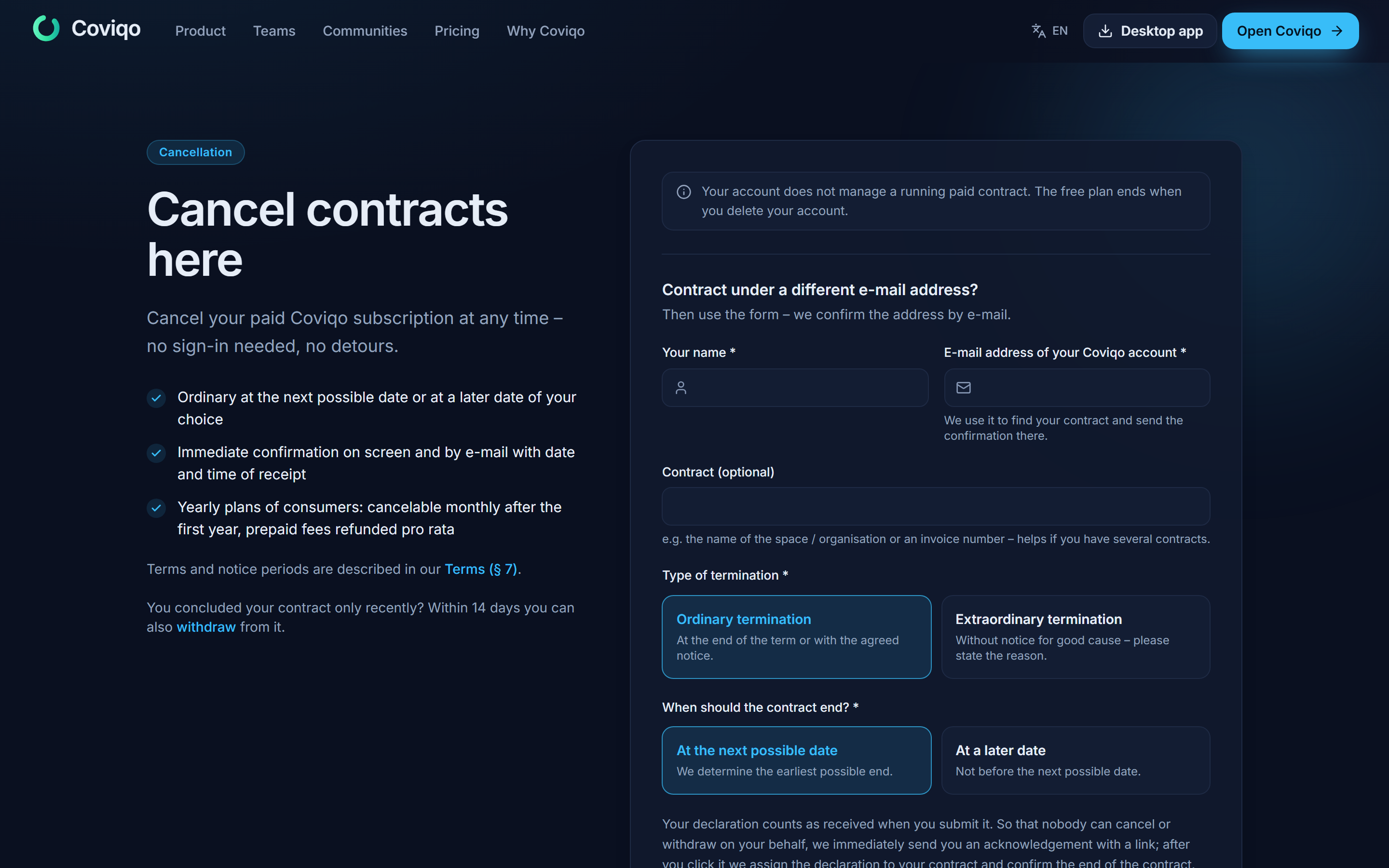
The rules for the end date:
- Monthly plans end at the end of the current (monthly) billing period.
- Yearly plans end at the end of the current contract year.
- You keep using the plan until then; amounts already paid are not refunded pro rata (exceptions: consumer yearly plans after the first year (next point) and withdrawal). Until the contract ends you can undo the cancellation on the billing page with Undo cancellation.
- Consumers on a yearly plan can, after the first year, cancel with one month's notice at any time; fees paid in advance for the time after the end are refunded pro rata.
Right of withdrawal#
If you booked as a consumer, European consumer law gives you a right of withdrawal (in German: Widerrufsrecht): within 14 days of concluding the contract you can back out of it without giving reasons. Businesses have no right of withdrawal.
- While the period is running, the Contract card shows the button Withdraw from contract (also in Settings › Account & security › Contracts and at
/withdraw). - Pick the contract – the page shows until when a withdrawal is possible.
- Click Confirm withdrawal.
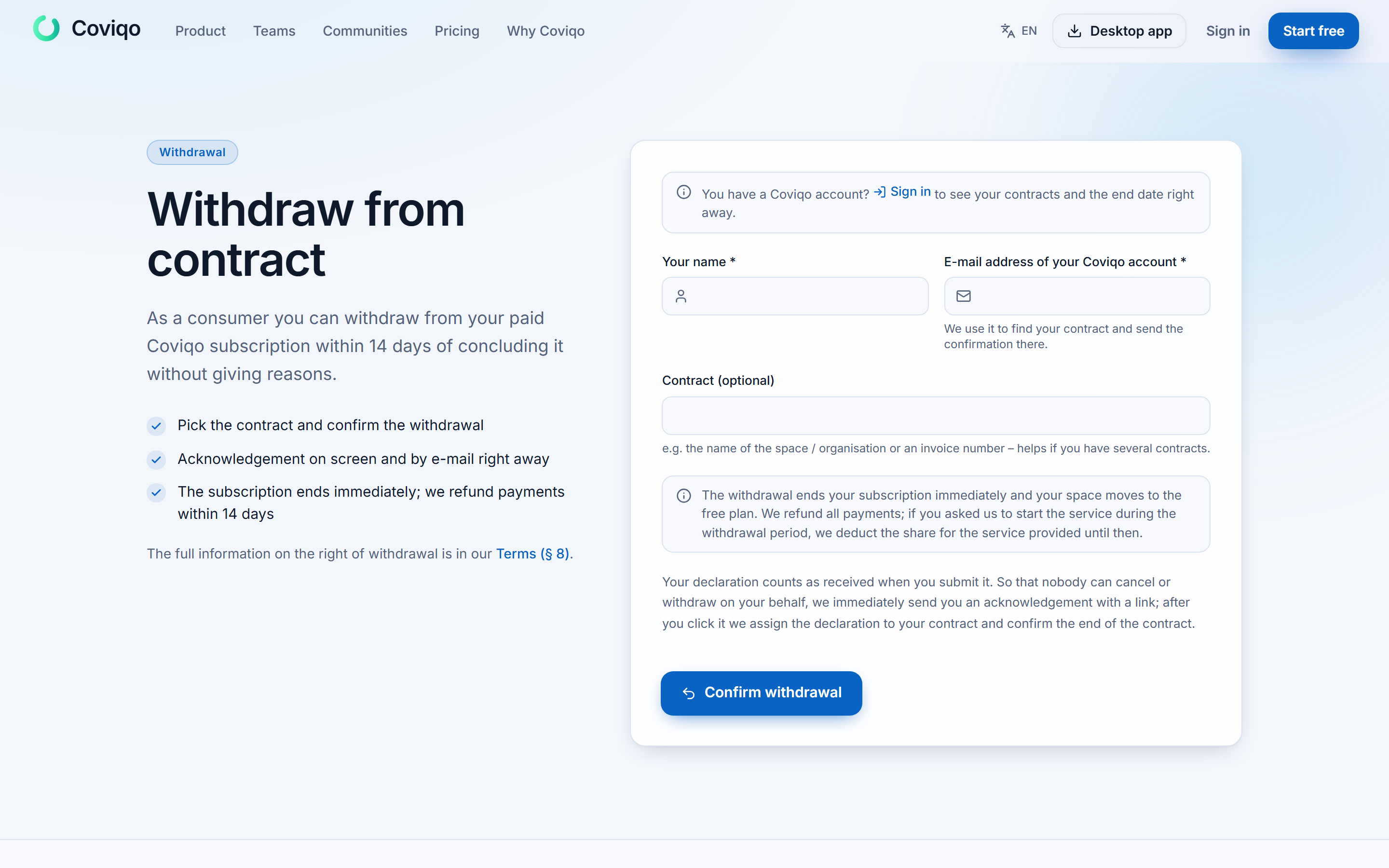
You get the confirmation on screen, as a PDF (Download confirmation, e.g. Coviqo-Widerruf-W-20260926-KKD6G.pdf, or Print / save as PDF) and attached to the e-mail – keep it for your records.
The withdrawal ends your subscription immediately and the organisation moves to the Free plan. You get your payments back within 14 days. Because you asked Coviqo to start the service during the withdrawal period when booking, a proportionate amount for the days you already used is deducted. The refund is documented as a credit note on the invoice of the current period (see Credit notes and refunds above); its number is shown in the confirmation.
How members are counted#
The member limit applies to your whole plan, not to each space: all spaces of your organisation share it (Free 300, Community Pro 1,000, Community Plus 5,000, Business 10,000, Enterprise unlimited).
- Every person counts once, no matter in how many of your spaces they are.
- Guests and bots don't count.
- The billing page shows how many members you have across all spaces, e.g. Members (all spaces): 742 / 1,000.
- When the limit is reached, nobody new can join: invite links, join requests and new invitations are paused. Admins see a note with View plans; people trying to join only see This space is full right now. People who are already a member of one of your spaces can still join your other spaces.
- Existing members are never removed.
Above your plan's limits#
When your organisation uses more than a limit allows – for example after changing to a smaller plan – nothing is deleted. Everything you have stays; only creating more is paused:
- Spaces: existing spaces stay, but you can't create a new one ("You are using {used} of {limit} spaces …").
- Members: members stay, but nobody new can join any of your spaces until you are below the limit again or upgrade.
- Storage (incl. recordings): files stay, but uploads, new versions and recordings are paused until you free up space, book +100 GB storage or upgrade.
The billing page then shows Above your plan's limits ("Everything you have stays …") with the affected limits, and the space creation, the files tab and the invite dialog show a short note with View plans.
When a paid plan ends#
When a paid plan ends – by cancellation, withdrawal or because payment finally failed – the organisation switches to the Free plan. Your content is not deleted:
- All spaces, rooms, messages, notes, tasks and files stay available.
- Features the Free plan doesn't include stop working: no new recordings, no AI transcription or summaries, no SSO.
- Custom invite links become inactive ("This link is currently not active"); their names stay reserved for your spaces for 30 days and come back with a new upgrade (see Your own invite link in the chapter Spaces and rooms).
- Room overviews are no longer shown – the rooms open with their normal start view again. The overviews stay stored and come back with a new upgrade. Cards that are visible only for selected roles keep that restriction; own layout templates stay stored but can't be applied (see the chapter Customising overviews).
- Where you are above a Free limit, you can't add more (see Above your plan's limits): for example, new uploads are refused while storage is above 2 GB, and you can't create a further space while you have more than 1.
- Booked add-ons end together with the paid plan.
- Existing recordings are deleted when their retention period ends, as before.
To get back under the limits, delete files you no longer need or book a plan again. Before you let a plan end, it's a good idea to export your data – see the chapter Privacy and your data.
Warning
Deleting your account is not the same as cancelling. A paid contract has to be cancelled separately; the Free plan simply ends when you delete your account.