Chapter 19
Direct messages
On this page
Direct messages (German UI: Direktnachrichten) are private conversations outside of spaces – with one person or with a small group of up to ten people. They work like the chat in a room: replies, reactions, emoji, attachments, editing and deleting, mentions, link previews, "is typing …" and read markers. Only the people in the conversation can read it.
Finding your conversations#
Messages (German UI: Nachrichten) in the top block of the sidebar – next to Home and Notifications – shows the number of unread direct messages and opens the messages page. It has two columns: on the left the list with the tabs Conversations, Contacts and Requests (German UI: Unterhaltungen, Kontakte, Anfragen; the badges show unread messages and new contact requests), on the right the open conversation. When you open a conversation, the list stays visible, so you can switch between conversations with one click; without a selected conversation the right side says No conversation selected. The Conversations tab lists pinned conversations first, then the most recent ones. Filter the list by name or @username, or start a New message.
Drag the thin line between the two columns to make the list wider or narrower (double-click resets it), or click Collapse list to fold it into a slim bar with the counters – Show list brings it back. Coviqo remembers both in your browser. On a phone you see one column at a time as before: the list first, the conversation after tapping it, and the back arrow returns to the list.
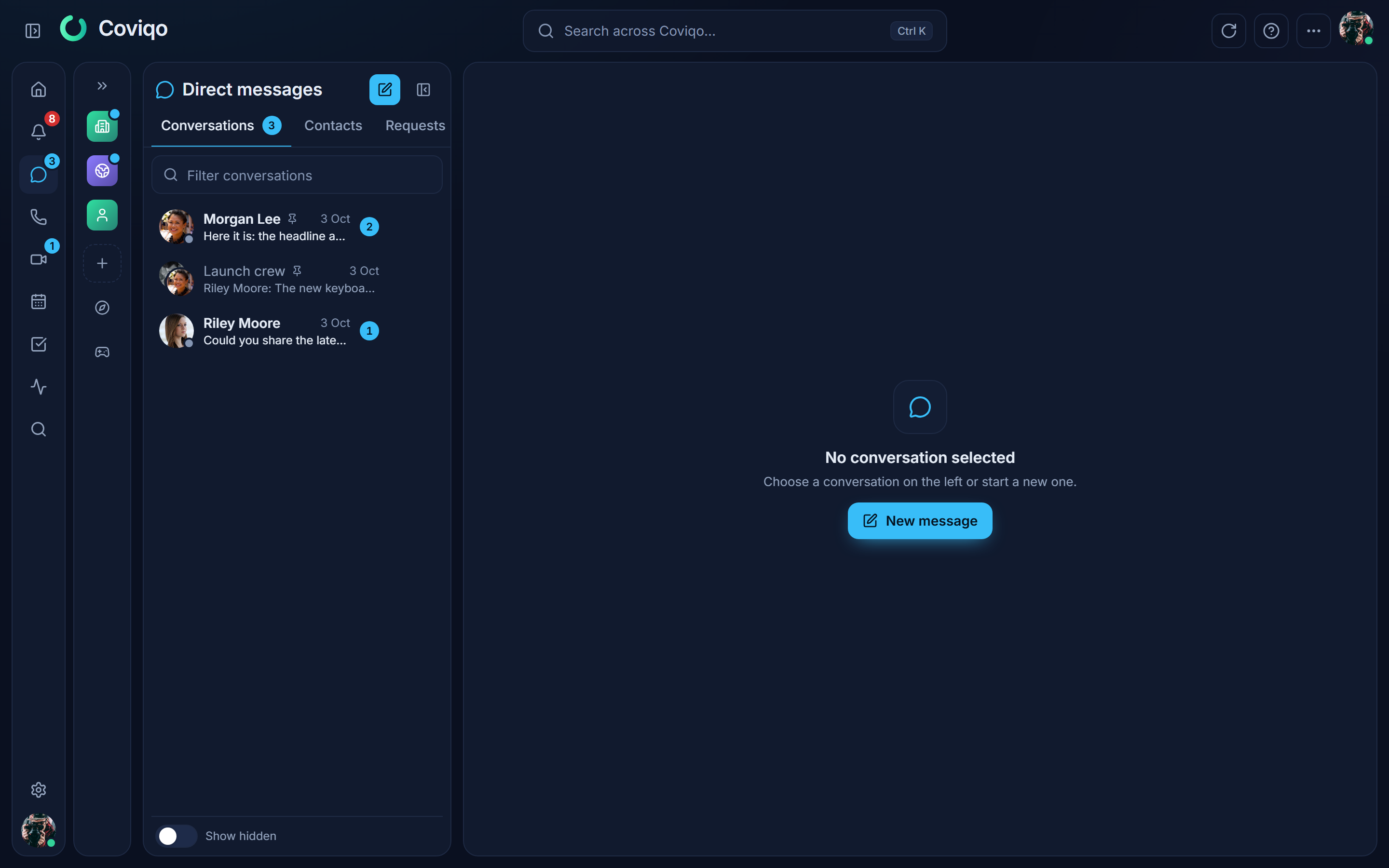
The sidebar has no separate list of conversations – everything is in the Messages overview, so the spaces keep the room. Each entry shows the person (with their presence dot) or the group, a pin icon if it is pinned, and a badge with the number of unread messages. New message at the top of the overview starts a new conversation.
When the sidebar is collapsed to the icon rail, the direct messages icon shows the total number of unread direct messages. Click it to open a small list of your conversations (pinned first, then recent) and New message.
Unread direct messages also count towards the badge of the desktop app.
Hiding and pinning conversations#
- Hide (Ausblenden): move the pointer over a conversation and click the X (Hide conversation) – or right-click it (long-press on phones and tablets) and choose Hide, or use Hide in the conversation's actions menu. The conversation disappears from the sidebar, the overview and the unread count, and is marked as read. A notice offers Undo. Only you are affected: nothing is deleted, you stay in the group, and the others do not notice anything.
- A hidden conversation comes back by itself as soon as a new message arrives – from the others or from you (for example when you answer from a notification) – or when you start it again with New message or Send message in the profile card.
- To see hidden conversations, switch on Show hidden in the overview; Show brings one back right away.
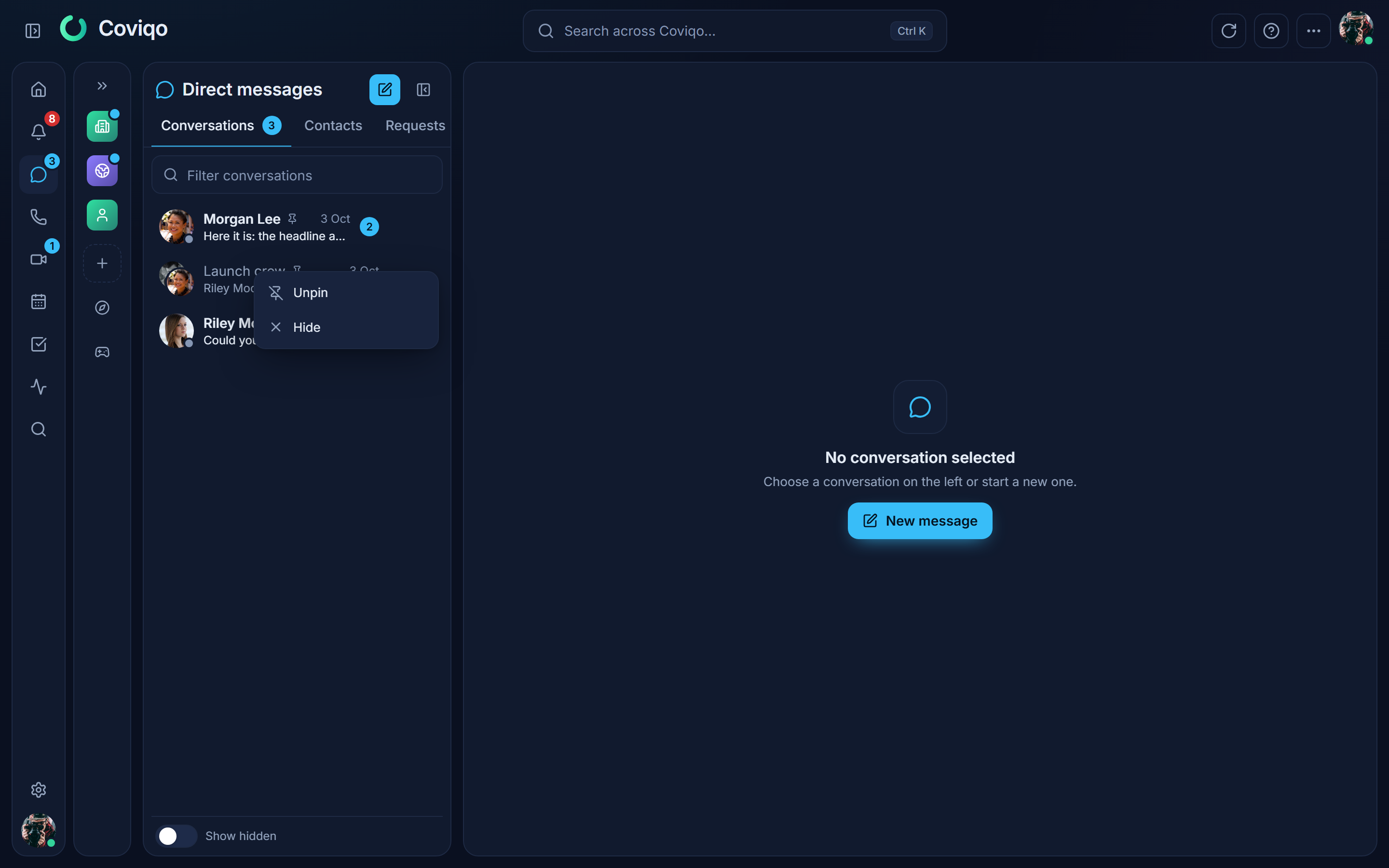
- Pin (Anheften): right-click a conversation (long-press on touch devices) and choose Pin, use the pin button in the overview or Pin in the conversation's actions menu. Pinned conversations always come first in the overview and in the icon-rail list. You can pin up to ten conversations; Unpin (Lösen) removes the pin. Pins are saved with your account and apply on all your devices. Hiding a pinned conversation also unpins it (Undo restores both).
Starting a conversation#
There are three ways:
- New message in the sidebar (or in the command palette): search for people by name or
@username, pick one person for a 1:1 conversation or several people (up to nine) for a group, optionally give the group a name, and click Start conversation or Create group. Results are marked Shared space or Found by username. - Send message in someone's profile card (click a name or avatar anywhere in Coviqo).
- In the command palette (
Ctrl+K/⌘+K): type a name and choose Message name, or pick an existing conversation.
With one person there is always exactly one conversation – starting it again opens the existing one. With several people, Coviqo creates a new group each time.
If a conversation cannot be started, Coviqo tells you why, for example "This person only accepts direct messages from people who share a space" or "Your organisation does not allow direct messages with people outside the organisation".
In a conversation#
The conversation opens with the chat you know from rooms. The header shows the participants and their presence (and Internal · Organisation for conversations inside an organisation). The Conversation actions menu offers:
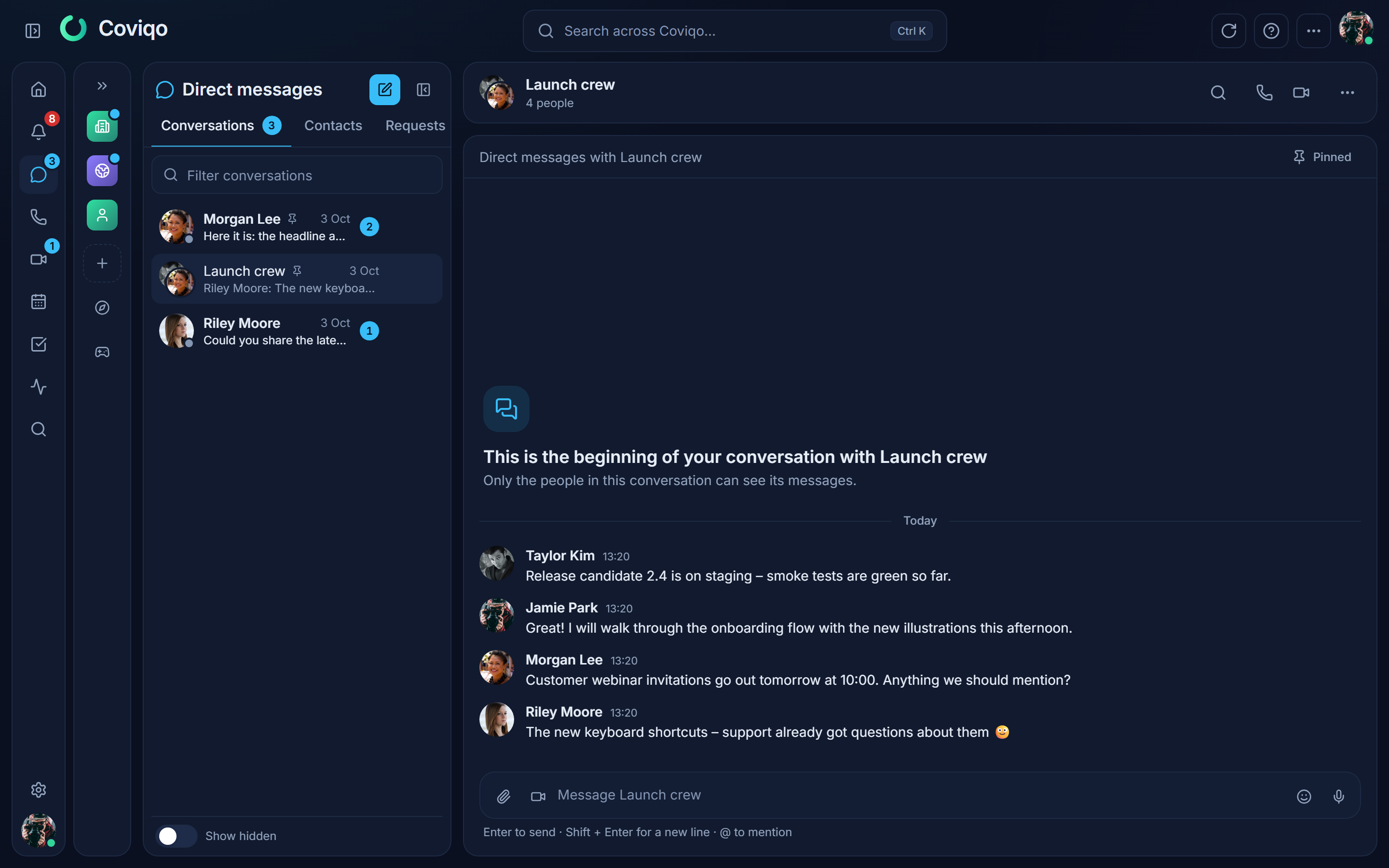
- Search this conversation – only in this menu on phones; on a computer it is the magnifier in the header.
- View profile and New group with … (1:1), Add people and Rename group (groups).
- Mute – no notifications for this conversation; unread messages are still counted.
- Pin / Unpin and Hide – see Hiding and pinning conversations above.
- Block (1:1) – see Blocking below.
- Report person – report the conversation partner or a single message (right-click a message › Report message). Reports of direct messages go to the Coviqo Trust & Safety team, because a conversation has no space moderators.
- Leave group – you leave the group; the others can continue. When the last person leaves, the conversation is deleted.
A 1:1 conversation cannot be left – block the person if you no longer want to hear from them.
People you add to a group can read the earlier messages of the group. A short line in the chat shows who added whom, who left and when the group was renamed.
When you cannot write#
Sometimes a banner explains that the conversation is read-only and the message field is disabled, for example:
- you blocked the person, or the person does not accept messages from you any more,
- nobody else is left in the conversation (they left, or their account was deleted or deactivated),
- an organisation changed its rules and no longer allows direct messages between you.
Nothing is deleted in these cases – you can still read everything, and the conversation becomes writable again when the reason goes away (if you blocked the person, the banner has an Unblock button).
End-to-end encryption#
Any participant can switch a conversation to end-to-end encryption (… › Turn on end-to-end encryption): its messages, attachments, voice messages and calls are then encrypted on the participants' devices and Coviqo cannot read them. The server cannot search, summarise or preview them – your device searches them itself (the magnifier in the conversation header – on phones in the … menu –, Search this conversation; the search page marks such hits found on this device). Notifications only say New encrypted message. Encryption can only be ended if everybody in the conversation agrees (… › End encryption). Details: chapter "End-to-end encrypted rooms", section End-to-end encrypted direct messages.
Notifications#
A new direct message notifies every other participant – in the app, as a push notification (high priority) and, if you switch it on, by e-mail. Choose the channels in Settings › Notifications. Muted conversations stay silent. Opening a conversation marks its notifications as read. Direct messages also appear in the catch-up (What did I miss?) under Mentions & replies; they are never used for the AI summary.
Privacy settings#
In Settings › Privacy & my data you decide:
Who may write to you (German UI: Wer darf mir Nachrichten schreiben)
| Option | Who can start a conversation with you |
|---|---|
| Everyone | Everyone who can find you (blocks and organisation rules still apply) |
| Contacts and shared spaces (default) | Your contacts and people who are members of at least one space together with you |
| Contacts only | Only people you added as contacts |
| Nobody | Nobody – existing conversations stay |
If you had chosen Shared spaces before contacts existed, you now have Contacts and shared spaces – the same people as before, plus the contacts you add.
Who may send you contact requests – Everyone, Shared spaces (default) or Nobody. See Contacts below.
Read receipts – see Read receipts below.
Messages from people outside this group are refused – there is no "message request" inbox. The setting applies to new conversations; conversations that already exist continue. To stop an existing conversation, block the person.
Discoverable by username (on by default): people outside your spaces can find you in the people search by your exact @username, the beginning of your username or of your name. Switch it off and only people who share a space with you (or already have a conversation with you) can find you. Your e-mail address is never searchable and never shown.
Contacts#
Contacts (German UI: Kontakte) work across Coviqo, like friends in a chat app: you do not need a shared space. Your contacts see when you are online (your status and custom status – never which room or meeting you are in), and you see theirs.
- Adding someone: click Add contact in someone's profile card (open it from a name, an avatar or any member list), or open Messages › Contacts and click Add contact to search by
@usernameor name. The person gets a contact request – they only see your public profile. If they already sent you a request, adding them accepts it. - Requests: Messages › Requests lists the requests you received – Accept, Decline or Block – and the ones you sent (Withdraw). A notification tells you about new requests and when someone accepted yours.
- Declined requests simply disappear. You can ask the same person again after seven days.
- Your contact list (Messages › Contacts) shows your contacts sorted by online and offline, with quick actions: Send message, Poke and, in the … menu, View profile and Remove contact. Removing a contact removes you from their list too; they are not notified and your conversation stays.
- Who may send you requests is set in Settings › Privacy & my data: Everyone, Shared spaces (default) or Nobody.
- To prevent spam you can have at most 50 open requests at a time and send at most 20 per hour.
- Blocking someone also ends the contact and removes all requests between you.
If your organisation does not allow contacts with people outside the organisation, you cannot add them and they cannot send you requests; contacts you already had with them are hidden (see For organisation admins).
Poke#
Poke (German UI: Anstupsen) means "come over": open someone's profile card (or your contact list, or the … menu of your conversation with them), choose Poke, add a short message if you like (up to 140 characters) and send it. The person hears a short sound and sees a notice – if you are in a voice room they are allowed to see, the notice has a Join button that takes them straight into your room.
You can poke people you are allowed to message (and people you already have a conversation with). To avoid annoyance, you can poke the same person at most three times in ten minutes. Pokes can be switched off like any other notification in Settings › Notifications.
Read receipts#
In one-to-one conversations you see Seen under your newest message the other person has read. In groups you can see Seen by n – but only among people who switched on Read receipts in groups.
Read receipts are on by default for one-to-one conversations and off for groups. You can switch both off in Settings › Privacy & my data. It works both ways: if you switch read receipts off, others no longer see whether you read their messages – and you no longer see whether they read yours.
Blocking#
Block someone from their profile card, from the conversation menu or with a right-click on their name. A blocked person
- cannot start a conversation with you or add you to a group, and you cannot message them,
- cannot write in your 1:1 conversation any more (it becomes read-only for both of you),
- does not trigger notifications for you (also no mentions in spaces),
- no longer finds you in the people search or the search page, and is not offered to you there either,
- is left out of the @-mention suggestions – yours and theirs,
- is no longer your contact, and cannot send you contact requests or poke you.
Their messages in groups and spaces are hidden behind Message from a blocked person – show. The person is not told that you blocked them; they only see that you do not accept messages from them. Your blocked people are listed in Settings › Privacy & my data › Blocked people, where you can unblock them.
Finding people#
The people search (command palette, New message) finds
- everybody who shares a space with you, by any part of their name or username,
- other people only if they are discoverable, by their exact
@username, the first three or more letters of their username, or the first three or more letters of a word of their name. - colleagues from your own organisation also by their job title or department (two letters or more) – the result says which of the two matched. People outside your organisation are never found this way, and nobody who set the field to Only me (see Your profile).
Guest accounts, deactivated and deleted accounts are never shown. Organisations can hide their members from people outside the organisation.
Changing your username#
You can change your username in Settings › Profile, with a few safety rules (the hint under the field shows them):
- Once every 30 days. The settings show when the next change is possible.
- Your previous username stays reserved for you for 30 days. Nobody else can take it in that time, and you can switch back to it at any time.
- If your organisation manages your account, it may lock the username – the field then says so.
- Your earlier usernames are never shown to others.
- Some names are reserved and cannot be chosen, for example me, admin, support, settings, profile or names starting with coviqo.
- Your profile address
/u/@usernamechanges with the username; links with the old username stop working.
Mentions keep working after a rename: Coviqo stores who was mentioned, not the name, and always shows the current name.
For organisation admins#
Organisations on Business and Enterprise control direct messages of their managed members under Organisation › Policies:
- Direct messages and contacts with external people – allowed, only partners (partner list, Enterprise) or not allowed. The rule works in both directions: members cannot message people outside the organisation, and outsiders cannot message members. The same switch covers contacts: with not allowed members cannot add people outside the organisation as contacts and do not receive their contact requests; contacts that already exist are hidden (not deleted) and can no longer be messaged or poked. Loosening the rule shows them again.
- Internal direct messages – on or off.
- Usernames locked – members cannot change their username.
- End-to-end encryption in direct messages – on by default. Switch it off if your organisation has to retain or review direct messages (compliance): then no conversation with a member can be end-to-end encrypted, members cannot be added to encrypted groups, and encrypted conversations that already exist with members become read-only (their content stays encrypted – nobody can read it afterwards, neither Coviqo nor the organisation).
Presets: Offen allows everything; Medium allows text with outsiders but no attachments to them; Geschlossen blocks direct messages with outsiders and locks usernames. When you tighten the rules, existing conversations with outsiders become read-only – nothing is deleted. Conversations in which every participant is a managed member of your organisation belong to the organisation: your retention rules and legal hold apply to them.