Chapter 18
Communication
On this page
- Chat
- Writing messages
- Formatting with Markdown
- Mentions
- Attachments
- Reactions
- Replies
- Editing and deleting
- Pinning
- Links to messages and more actions
- Context menus
- Voice rooms
- Joining and leaving
- Controls
- Moving people between voice rooms
- Volume
- Stage rooms
- Push-to-talk and hotkeys
- Audio devices and noise filters
- Sounds in voice rooms
- Screen sharing
- Audio and video quality
- Watching cameras and screen shares
- Connection info
- Recording a voice room
- Presence and status
- Custom status
This chapter covers the everyday ways to talk in Coviqo: the chat in every room, the context menus that put the most common actions one right-click away, persistent voice rooms, and your presence status. Scheduled video calls with guests, recordings and AI summaries are described in the chapter Meetings.
For private conversations with one person or a small group outside of spaces, use direct messages (chapter Direct messages). If a group needs more than a chat – voice, files, notes, tasks – create a small private room instead (see Spaces and rooms).
Chat#
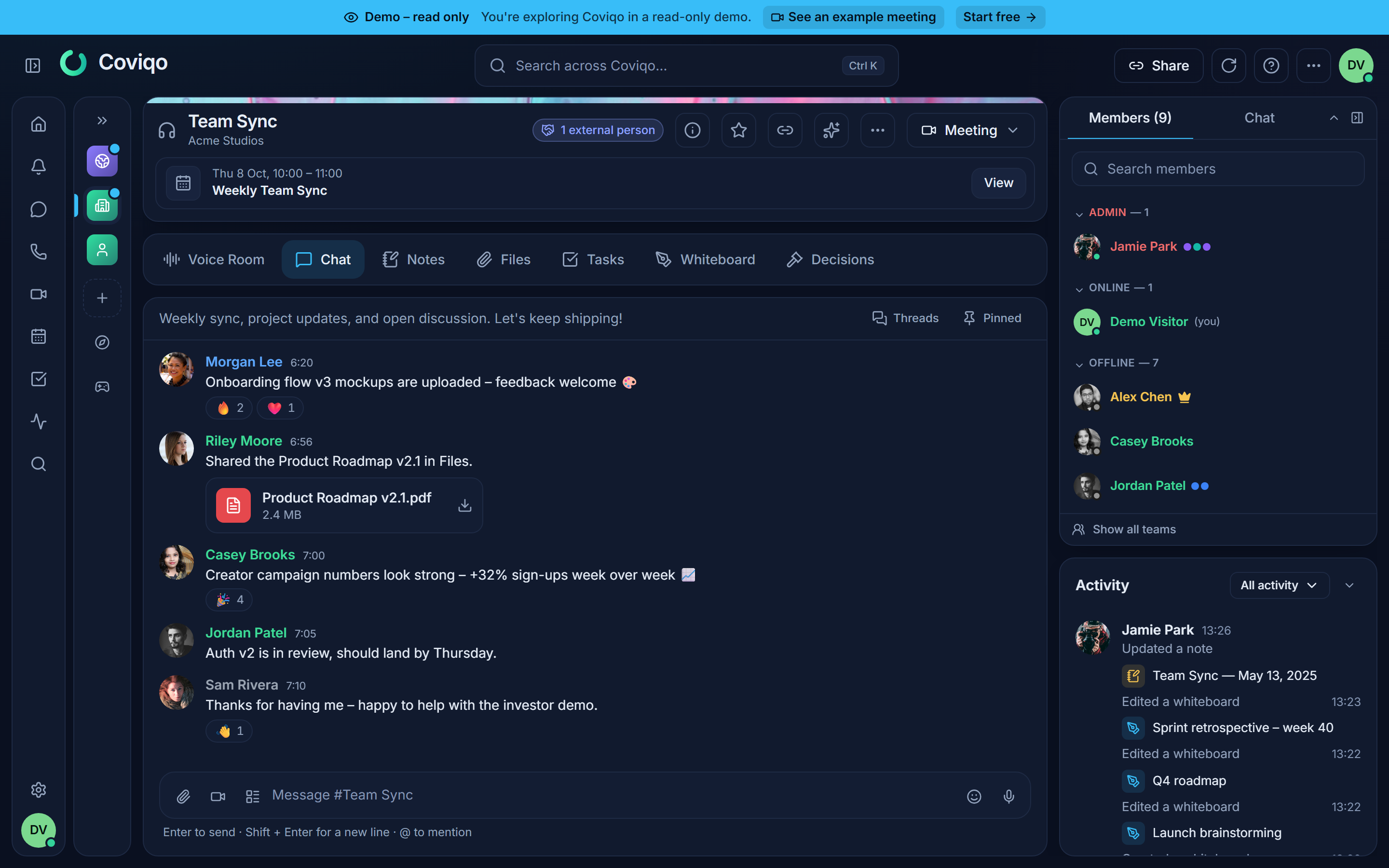
Every room with the Chat module has a chat tab. The chat is also available in the Chat panel on the right side of the room, so you can keep writing while you look at tasks or files.
Writing messages#
Click into the message field (Message #room-name), type and press Enter to send. Use Shift+Enter for a new line. On phones and tablets, Enter always inserts a new line – tap Send to send.
- A message can be up to 4,000 characters long.
- Insert emoji opens a small emoji picker; your system's emoji keyboard works as well.
- Unsent text is kept per room while the browser tab is open, so you can switch rooms and come back to your draft.
- While you type, others see "Anna is typing…" below the message list.
If you lack the Send messages permission in a room (for example in an announcements room), the message field is replaced by You don't have permission to send messages in this room.
Formatting with Markdown#
Messages support Markdown, including the GitHub extensions:
| You type | You get |
|---|---|
**bold** |
bold |
*italic* |
italic |
~~strikethrough~~ |
|
`code` |
code |
| Three backticks on their own line before and after a block | A code block |
> quote |
A quote |
- item or 1. item |
A list |
[text](https://…) |
A link (opens in a new tab) |
 |
An image |
| ` | a |
Plain web addresses become links automatically. HTML in messages is not rendered.
Images from other websites are loaded through the Coviqo image proxy, not by your browser: the other website never sees your IP address or cookies. Only ordinary pictures (PNG, JPEG, GIF, WebP, AVIF, up to 5 MB) are shown. If a space admin has switched Show external images off (Space settings › Overview), such images appear as a link instead. The same applies to meeting summaries and other AI-written text posted in a room.
Mentions#
Type @ followed by a name to open the Mention list. Use the arrow keys and Enter or Tab (or click) to pick someone; Esc closes the list. Coviqo suggests people by display name and username and inserts @username.
| Mention | Who is notified |
|---|---|
@username |
That person. Mentions of you are highlighted in a different color. |
@everyone |
Notify everyone in this room |
@here |
Notify everyone who is online |
@everyone and @here are only suggested if you have the Mention @everyone permission. Clicking a mentioned person opens their profile. How mentions reach you (in-app, e-mail, push) is described in the chapter Notifications.
Note
Guests only get suggestions for people who share a room with them, and a mention only notifies people who can actually see the room.
Attachments#
Click Attach files, drag files onto the message field, or paste an image from the clipboard. You can attach up to 10 files per message and add text before you send. On a phone, you can also Take photo. On phones, Attach files, Take photo, Record a video message and Insert live component sit behind one + button (Add content) next to the message field as soon as at least two of them are available to you.
Every upload is checked by the virus scanner first. Until then the attachment shows Scanning… and cannot be opened or downloaded. If malware is found, the file is shown as Blocked (malware). Attachments are stored with the room's files; see the chapter Files. You need the Attach files permission.
Images (PNG, JPEG, GIF, WebP, AVIF), videos (MP4, WebM, MOV) and audio files (MP3, OGG, WAV, M4A, Opus) are shown directly in the message. Images appear as a preview of up to 400 × 300 pixels and animated GIFs play; several images in one message form a small grid. Click an image to open it large, with Download. Videos and audio files play in a small player with the usual controls (seeking, volume, full screen); nothing plays by itself. The download button sits next to the file name. If your browser cannot play a format, the attachment is shown as a normal file card. SVG files and all other types always stay file cards. In end-to-end encrypted rooms, files up to 50 MB are shown inline: images are decrypted on your device right away, videos and audio only when you click play. To show every attachment as a file card instead, turn off Settings → Appearance → Media in chat → Show images, videos and audio inline (applies to this device). With your browser's data saver on, players load nothing until you press play.
Reactions#
Hover over a message and click one of the quick reactions, or Add reaction for the full picker. Click an existing reaction to add or remove yours; hovering it shows who reacted. You need Add reactions.
Replies#
Click Reply on a message. A bar Replying to Anna appears above the message field; Esc or Cancel reply removes it. The reply shows a short quote of the original message – click the quote to jump to it.
Editing and deleting#
- Edit is available for your own messages. Change the text and press
Enterto save orEscto cancel. Edited messages are marked (edited). - Delete message removes your own message for everyone after a confirmation. People with Manage messages can delete other people's messages too.
Pinning#
People with Manage messages can Pin message to keep important information at hand. Pinned messages show a pin icon. Click Pinned in the chat header (on phones in the slim row above the messages) to see all Pinned messages of the room and jump to one.
Links to messages and more actions#
Copy message link copies a link that opens the room with that message highlighted – handy for pointing colleagues to a decision. Further actions in the message menu:
- Create task – turns the message into a task, with the text as title and a link back to the message (see Tasks).
- Create GitHub issue / Create Jira issue – if the room is linked to an integration (see Integrations).
- Copy text.
- Report message – sends the message to the space's moderators with a reason. If the message breaks the law, Report illegal content (DSA) in the same dialog opens the legal notice form with the message's link filled in (see Privacy and your data).
When you return to a room, a New messages divider marks where you left off. If you have scrolled up, Jump to the latest messages takes you back down.
Context menus#
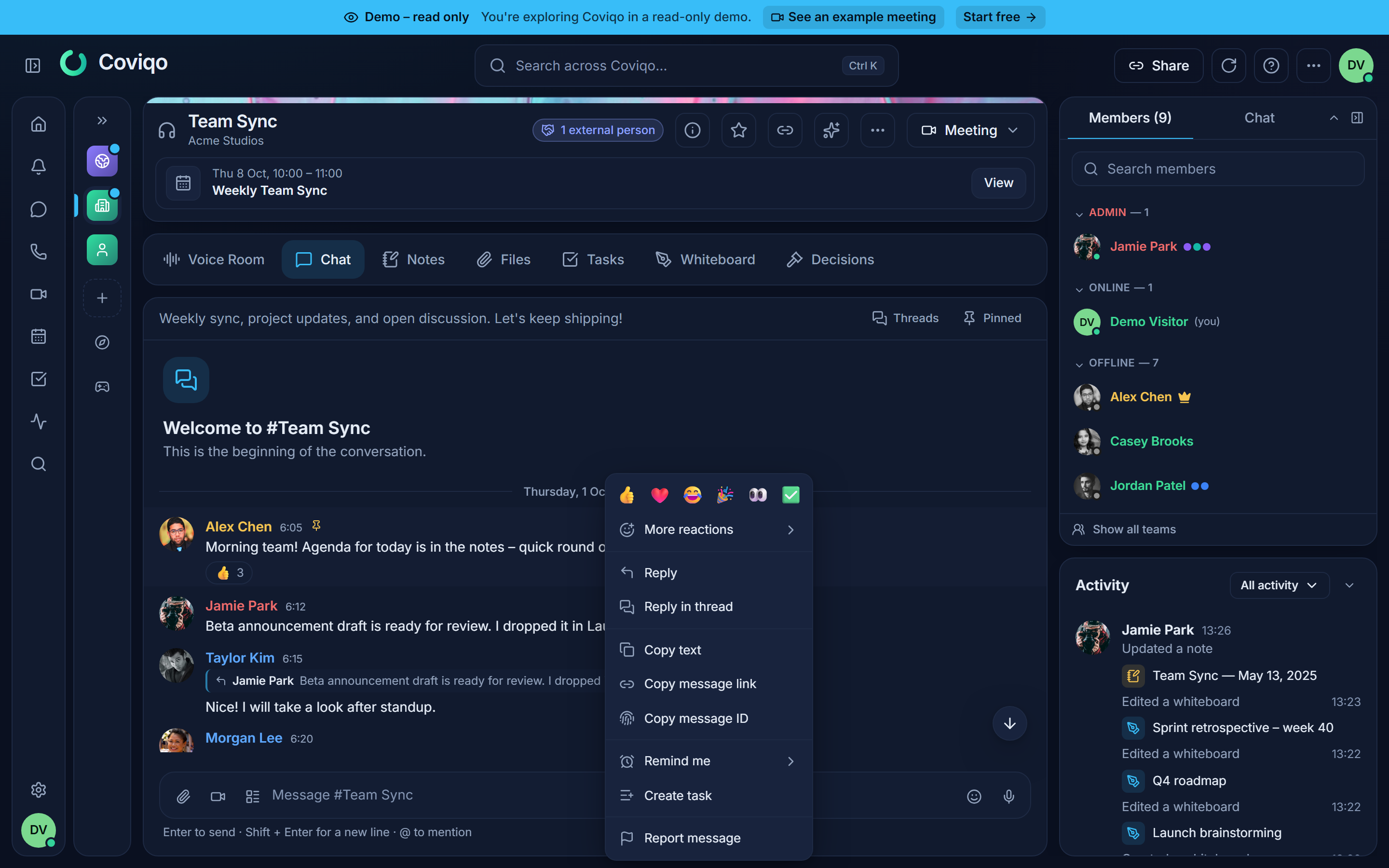
Most things in Coviqo have a context menu with the actions that fit them. Right-click the item on a computer, or press and hold it on a phone or tablet. On touch devices, a short tap on a chat message shows its time, reactions and action buttons; pressing and holding opens the full menu, which also offers Select text.
| Item | Typical actions |
|---|---|
| Space (in the space list) | Mark as read, Notifications (All messages, Mentions only, Nothing (mute space)), Invite people, Create room, What did I miss?, Members, Events, Meetings, Space settings, Copy link, Leave space |
| Room (in the sidebar) | Open, Open in new tab, Join voice / Leave voice, Mark as read, Add to favorites, Mute notifications, Show in catch-up / Hide from catch-up, Invite to room, Start instant meeting, Schedule meeting, Copy link, Room settings |
| Person (member lists, chat author, voice tile) | View profile, Mention, Copy username, and for moderators Manage member, Warn, Timeout, Kick from space, Ban from space; Report user |
| Chat message | Quick reactions, More reactions, Reply, Edit, Pin / Unpin, Copy text, Copy message link, Create task, Report message, Delete message |
You only see the entries you are allowed to use. Files, tasks, notes, events and meetings have context menus too; they are described in their chapters.
Voice rooms#
Voice rooms are always open. There is no call to start and nobody to ring: you join, and anyone else in the room can hear you – like walking into a meeting room where colleagues are already talking. Any room with the Voice module has a Voice Room tab – except meeting rooms, whose call is joined through the meeting (see the chapter Meetings).
Joining and leaving#
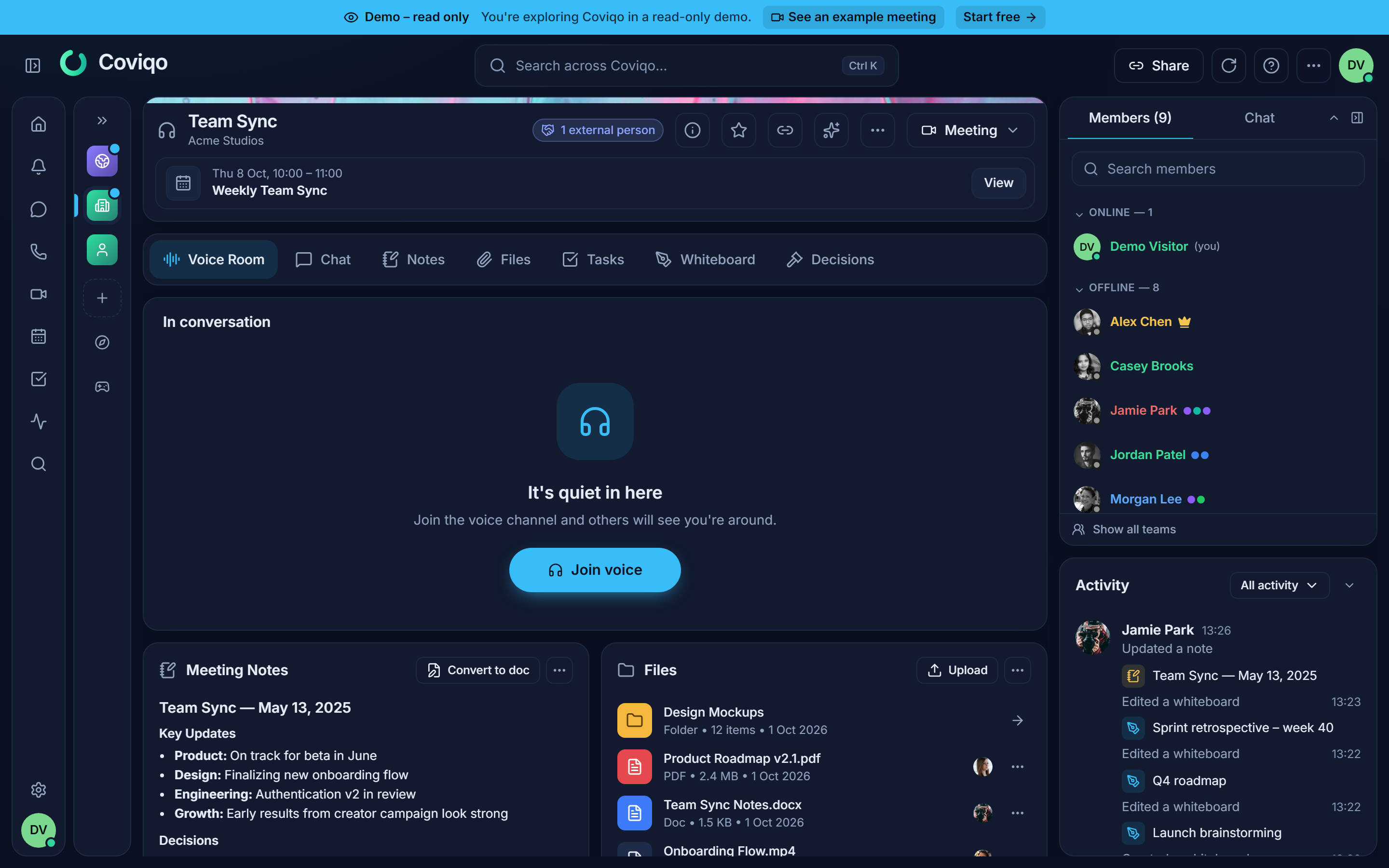
- Open the room's Voice Room tab. It shows who is already there (It's quiet in here when nobody is).
- Click Join voice. Your browser asks for microphone access the first time – allow it.
You can also right-click the room in the sidebar and choose Join voice. People in a voice room are listed under the room in the sidebar, so you can see at a glance where the conversation is. The green ring around a person who is speaking appears only for the voice room you are in yourself.
You can be in one voice room at a time. If you join another one, Coviqo tells you Joining will leave your current voice channel and switches you over.
While connected, a small panel at the bottom of the sidebar shows Voice connected and the room name (click it to go back to the room), with Mute, Deafen and Leave. You can move around the app freely while you stay in voice.
Note
If a room has a User limit and is full, you see Room is full. If you do not have the Join rooms permission, you see You don't have permission to join this voice channel. If you deny microphone access, you stay connected as a listener.
Controls#
| Control | What it does |
|---|---|
| Mic (Mute / Unmute) | Switches your microphone. With push-to-talk it shows Hold ` (your key) and Talking while you hold it. |
| Camera | Switches your camera on or off. |
| Share | Shares your screen or a window. Not available on phones and tablets. |
| More | Deafen (mute all sound for you), device choice (Microphone, Speaker, Camera), the Output volume slider, quick switches for Voice isolation, Noise gate and Push to talk, Start recording (with the Record permission) and Audio & video settings |
| Leave | Leaves the voice room. |
Switch between Speaker view, Grid view and List at the top of the stage. Double-click a participant who has their camera or screen on to Bring to foreground; double-click again or press Esc to shrink it.
List view#
The List shows everybody in the room as a compact row: avatar (with a green ring while the person speaks), name and small icons for muted, sound off, camera on, screen sharing, raised hand and guests. The list fills several columns, so even 60 to 100 people fit on one screen without scrolling (two columns on a phone). People are grouped like the member list – under their highest role that is shown separately (for example Moderator · 3), everyone else under In the call – and sorted alphabetically. Nobody jumps around when they start talking. In stage rooms the list shows On stage first, then the Audience.
- Running screen shares and cameras appear as small chips above the list. Click Watch or Watch camera to see them; the share then appears above the list while the list stays below.
- Click a person (or right-click) to open the same menu as elsewhere: Volume, View profile, quick role assignment and the moderation actions you are allowed to use.
- Compact shows only the avatar and first name, so even more people fit.
- Use the arrow keys to move between people and
Enterto open the menu.
From 25 people Coviqo switches to the list by itself (Automatic). When you pick a view yourself, it stays until you click Automatic again. You can turn the automatic switch off under Settings › Audio & video › Switch to the list from 25 people. Coviqo remembers your choice on this device. The list is also available in lobby sessions and in meetings.
Each participant's menu (Options for Anna) offers a personal Volume slider (only for you) and View profile. People with Mute others can Mute for everyone; people with Move members can Move to another voice room or Disconnect someone.
Moving people between voice rooms#
With the Move members permission you can move people from one voice room to another – in the source room and in the target room. Everybody else can move only themselves.
- Drag & drop in the sidebar – the people in a voice room are listed under it. Drag a person onto another voice room. While you drag, the rooms you may move people into light up; a full room is greyed out and shows its limit (for example 5/5). The grip next to a room's list moves everyone from that room – Coviqo asks before it does. If you prefer the compact look, switch off Settings › Appearance › Show people under voice rooms; the rooms then show small avatars again.
- Move to … – in every menu of a person (right-click on the name in the sidebar, the member list, the people of a room, a participant tile in the voice room) you find Move to … with the voice rooms and how many people are in them (Squad 2 · 3/5). Search rooms … opens a search field for spaces with many rooms. On a phone, long-press the person; the menu opens as a sheet at the bottom.
- Into a lobby session – Move to … also lists the running sessions of the space's lobbies, grouped under the lobby. In the sidebar, drop a person on the lobby and pick the session. The session's leader may move people into their own session too. See Lobbies and sessions.
- Several people at once – hold
Ctrl(Cmdon a Mac) and click people in the sidebar to select them, or holdShiftto select a range. Drag one of them or choose Move # people to …. - Bring everyone here – right-click a voice room: Bring all # here gathers everybody from the other voice rooms of the same category. Send team here moves every member of a team – including its sub-teams – who is in a voice room of the space.
- Split up – right-click a voice room (or use Split up in a lobby) to open a board with one column per room or session. Drag people between the columns, or let Coviqo Distribute randomly (new random groups) or Distribute evenly (equal sizes, as few moves as possible). Nothing happens until you click Apply – then everybody is moved at once.
- Keyboard – in the command palette (
Ctrl+K) type for examplemove jamie to squadand pick Move Jamie to Squad 2. In a room chat you can type/move @jamie #Squad 2.
After a move you see Moved Jamie → Squad 2 with Undo for a few seconds – Undo moves the person back if that is still possible. The person sees Moved to Squad 2 by Alex. Their microphone, sound and camera stay as they were; a screen share ends and can be started again. Every move is recorded in the space's audit log (several people moved together are one entry).
Coviqo asks before you move somebody into a full room (the move goes over the limit) or into a room the person may see but not join themselves. Nobody can be moved into a room they cannot see, into an end-to-end encrypted room they have no access to, or past the role order (the owner and people with a higher role).
Ask to join. If a room is full or closed for you, drag yourself onto it or right-click it and choose Ask to join. Everybody in voice who may move people into that room sees Jamie wants to join Squad 2 with Let in and Decline. The request also appears in their notifications (type Voice room join requests, in the app and as push according to their notification settings); it leads to the room, where open requests are shown with the same buttons. If someone lets you in, Coviqo moves you there. Requests run out after two minutes, and you can ask the same room again after 30 seconds.
In map rooms, people with Move members can drag an avatar to another place on the map – the same rules as Move to the starting point apply.
Volume#
Two sliders control how loud you hear the others. Both only change what you hear – nobody else notices.
- Output volume – the overall volume of everybody in voice rooms and meetings together. You find it in the More menu of a voice room (on a phone under More › Devices & audio), in the Audio options of a meeting (the arrow next to the microphone) and under Settings › Audio & video. Click the speaker icon next to it to Mute everyone, or click it again to Reset volume to 100%. The setting is kept on this device.
- Volume in a person's menu – makes one person louder or quieter, for example someone with a quiet microphone.
Both settings are combined. In Chrome, Edge and other Chromium-based browsers and in the desktop app, the sliders go up to 200 %. Safari and Firefox cannot amplify audio beyond its original level, so there the sliders end at 100 %.
If your browser blocks audio playback, a notice Your browser blocked audio playback – click to enable sound. appears – click it once.
Stage rooms#
A Stage room separates speakers from the Audience. Listeners can Raise hand; people with Mute others can Add to stage or Remove from stage. When nobody is on stage, the room shows Nobody on stage.
Push-to-talk and hotkeys#
By default Coviqo uses Voice activity: your microphone opens automatically when you speak. To be heard only while you hold a key:
- Open Settings › Audio & video.
- Under Input mode, choose Push to talk.
- Next to Push-to-talk key, click Change and press the key you want. The default is the key left of
1(`on US keyboards). - Adjust the Release delay so the ends of words are not cut off (default 200 ms).
The opposite also exists: Push to mute (with Voice activity) mutes your microphone while you hold its key, for example to cough or talk to someone in the room. Set its key under Settings › Intercom & shortcuts.
In the browser, push-to-talk works only while the Coviqo tab is focused. The desktop app uses a global hotkey that also works in other applications – see Getting started, section Hotkeys and global push-to-talk, which also lists the desktop shortcuts for mute, deafen, camera, screen share and leaving voice.
Audio devices and noise filters#
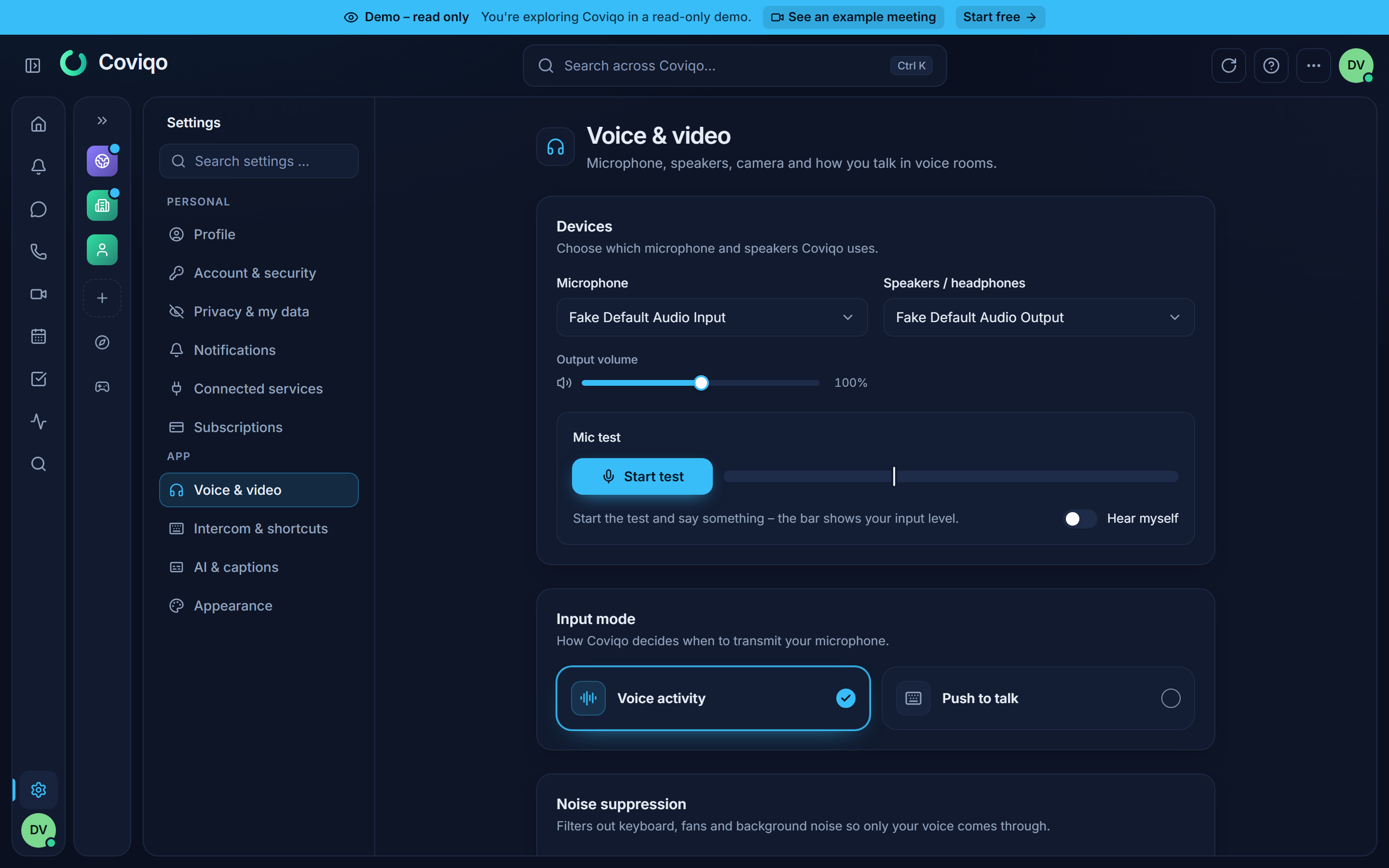
Settings › Audio & video holds everything about your microphone, speakers and camera. These settings are stored per device – set them up once on each computer or phone.
The page shows the everyday settings first:
- Devices – choose the Microphone and Speakers / headphones, and set the Output volume (see Volume above). Use Mic test (Start test) to see your Input level, and switch on Hear myself to listen to your own voice. Some browsers (for example Safari on iPhone) always use the system output device.
- Input mode – Voice activity or Push to talk (see above).
- Noise suppression – one switch. On (the default) means strong AI voice isolation plus a noise gate with automatic sensitivity; Off transmits your microphone unfiltered. If you changed the details under Advanced, the card shows Customised – the switch then resets the details (on) or turns everything off (off). Adjust details opens the detail group.
- Camera – pick your camera, check yourself with Start preview and choose camera effects.
Everything else sits in collapsible groups under Advanced (closed at first; your browser remembers which ones you opened):
- Noise suppression in detail:
- Voice isolation (AI) – Off, Light or Strong (recommended), the default. Strong removes keyboard clicks, fans and background noise almost completely at slightly higher CPU usage.
- Noise gate – transmits only while your level is above the threshold. Sensitivity: Automatic (the default for new accounts) keeps measuring your background noise and sets the threshold just above it; the marker on the level meter shows where it currently is and moves when your surroundings change. Manual lets you set the Threshold yourself: start the mic test, type briefly and speak, then place the threshold between the two. Accounts that already had a threshold before the automatic mode keep Manual until they switch. Hold time keeps the gate open briefly after you stop talking.
- Audio processing – Noise suppression (the browser's own filter), Echo cancellation and Automatic gain control (all on by default).
- Sounds in voice rooms, Sound effects & soundboard and Video & screen sharing (see the sections below).
Intercom channels and the discussion lead key are under Settings › Intercom & shortcuts, the clips opt-out under Settings › Privacy & my data.
On a phone, Devices & audio in the call opens a sheet with the same device choices and switches.
Tip
If others hear your keyboard, keep Noise suppression on (or Voice isolation on Strong under Advanced). If your voice sounds choppy, switch the noise gate to Automatic or lower the Threshold towards Sensitive.
Sounds in voice rooms#
While you are connected to a voice room or meeting, Coviqo plays short tones: when you join or leave, when the connection is lost and restored, when someone else joins or leaves, when you mute, unmute, deafen or undeafen, and when a screen share starts or ends. The sounds play on your selected speakers or headphones. While you are deafened everything stays quiet, only the undeafen tone confirms that you can hear again. When many people join at once you hear one tone, not ten.
Set them up under Settings › Audio & video › Advanced › Sounds in voice rooms (stored per device, like the other voice settings):
- Sounds in voice rooms – the master switch (on by default).
- Sound volume – independent of the voice volume (default 50 %).
- Others joining/leaving, Your own actions (mute, deafen) and Streams – switch groups on or off. In meetings with more than 25 people the join and leave tones of others stay silent.
- Test next to each group plays its tones.
Screen sharing#
Click Share and choose what to share in your browser's dialog. Others see Sharing screen on your tile and can bring it to the foreground. In the desktop app, Coviqo shows its own picker for screens and windows. Below the sources you choose:
- Sound: for a window Window (only that program's sound – the default), Whole computer (everything you hear except Coviqo itself) or Off; for a screen Whole computer (the default) or Off. Coviqo remembers your choice separately for windows and screens on this device. Window needs Windows 11; on Windows 10 a window shares the whole computer's sound.
- Quality: the same resolutions and frame rates as the arrow menu below. The share starts directly at it; the last choice is preselected.
In the browser, the browser's own dialog decides about sound (tab or system sound, depending on the browser). Screen sharing needs the Share screen permission and is not available in mobile browsers.
The small arrow on the Share button chooses the quality. Coviqo remembers it on this device, and you can switch while you are sharing without picking the screen again. First the kind of content:
| Content | Best for |
|---|---|
| Automatic | Most content – balanced. |
| Text & presentations (sharp) | Slides, documents and code – crisp text, up to 15 frames per second, needs the least bandwidth. |
| Video & games (smooth) | Videos, games and animations – keeps the frame rate fluid. |
Below it, Resolution & frame rate offers 720p · 30 fps, 1080p · 30 fps (the default), 1080p · 60 fps, 1440p · 30 fps, 1440p · 60 fps and 4K · 30 fps. What you can pick depends on the plan of the space: the Free plan shares up to 720p · 30 fps, Community Pro up to 1440p · 30 fps or 1080p · 60 fps, Community Plus, Business and Enterprise up to 4K · 30 fps or 1440p · 60 fps. Higher choices are greyed out with a hint such as "from Community Pro". Shares above 1080p · 30 fps use the organisation's HD viewer hours (Community Plus 300 a month, Business 30 per user); when they are used up, the menu says so and new shares run in 1080p · 30 fps until the next month – see HD viewer hours in the chapter Plans and billing. Coviqo never enlarges a smaller screen or window, and high resolutions need a good upload: about 10 Mbit/s for 1080p · 60 fps and 16 Mbit/s for 1440p · 60 fps or 4K.
Viewers with a weak connection automatically receive a lighter version of your share, so one slow connection does not make it stutter for everyone else.
While you share, a click on Share (or its arrow) opens Manage sharing instead of ending the share right away:
- The screen or window you share, with Change source: pick another screen or window. Your viewers keep watching – the share does not end and nobody has to click Watch again.
- Sound: No sound, Computer sound (everything you hear except Coviqo itself) or Only followed by the shared program, for example Only Google Chrome (Windows desktop app, when you share a window). If you change to a whole screen while Only … is chosen, the sound switches off and Coviqo tells you.
- The quality choices described above.
- Stop sharing ends the share.
Which sound options appear depends on where you share: the Windows desktop app offers all three, the browser offers No sound and Computer sound when the browser captured sound with the share. Older versions of the desktop app show the quality choices and Stop sharing only. When you stop, your viewers' tile ends right away – nobody is left with a frozen picture.
Sharing with the desktop app on Windows#
The Windows desktop app captures your screen with its own native screen capture. It is built for games and full-screen programs: the share keeps its frame rate while a game has the focus, and it uses the hardware video encoder of your graphics card (NVIDIA, AMD or Intel), so your computer and your game are barely slowed down. Without a suitable graphics card the app encodes in software.
- Adapts to your upload. If packets get lost or your upload backs up, the app lowers resolution or frame rate step by step – games keep their frame rate, text keeps its sharpness – and tries the higher quality again once there is room. Connection info then says, for example, "Upload is tight – sending 1080p30".
- Two quality layers. Besides the full quality, the app sends a lighter 720p version. Viewers with a slow connection, or who just started watching, get the lighter one instead of a stuttering picture.
- AV1 on new graphics cards. If your graphics card has an AV1 encoder (NVIDIA RTX 40 and newer, AMD Radeon RX 7000 and newer, Intel Arc or Core Ultra), the app shares in AV1: a sharper picture with about a quarter less data. It does so only while everybody in the call can play AV1 on their graphics card, no recording or live stream runs and the channel's video codec is not Compatibility – otherwise it uses H.264 as before. When somebody joins whose device cannot play AV1 in hardware, the share switches to H.264 within about a second; it returns to AV1 a minute after that person has left. An AV1 share sends one quality layer (no lighter 720p version). Connection info shows the codec, for example "AV1" with encoder "nvenc · Hardware". Game clips are always saved as H.264 MP4, so they play everywhere.
- The graphics card's encoder, directly. On NVIDIA and AMD graphics cards the app drives the encoder directly (NVENC, AMF) and hands it each picture without a detour through the computer's memory – less load on the processor and less delay. Connection info shows the encoder, for example "nvenc · Hardware". If it can't be used, the app takes the Windows encoder of the same card (for example "mf-nvidia") and, only as a last resort, software encoding.
- Steady frame rate. Windows delivers a new picture only when something on the screen changes. The app repeats the last picture at the chosen frame rate in the meantime, so viewers see a smooth share instead of pauses, and a still window appears right away.
- No capture border. On Windows 11 there is no yellow frame around the shared window or screen (Windows 10 still shows it).
- Your own preview of the share stays visible while Coviqo is in the background.
- Safety net for the encoder (version 1.0.11 and later). If the graphics card's encoder stops delivering pictures, the app switches to software encoding within a few seconds instead of leaving viewers with a black share, and keeps using software encoding for later shares until you restart the app. If the capture itself hangs, the share ends and Coviqo starts it again (in software, or through the browser engine).
- Whole screens on Windows 10 (version 1.0.11 and later) are captured with Windows' desktop duplication, the method that is reliable there; windows and Windows 11 keep the Windows graphics capture. The mouse pointer is drawn into the picture as before.
Which capture is used is set under Settings › Audio & video › Advanced › Video & screen sharing › Screen capture: Automatic (the default – native capture whenever it is available), Native (desktop app) or Browser engine (the capture built into the app's browser engine, as in older versions). The choice only appears in the Windows desktop app. If native capture cannot start – for example in end-to-end encrypted rooms or in presentation mode – Coviqo says Native screen capture is not available – your share runs through the browser engine. and shares the usual way. Connection info shows under Captured by which one is running.
Two more settings in the same place (Windows desktop app only, version 1.0.7 and later):
- Priority while sharing – what the app favours while you share. Automatic (the default) gives the Coviqo processes a higher processor priority and the capture a high priority on the graphics card. Graphics card only raises only the graphics card priority – your game keeps its full share of the processor. Off changes no priority. The choice applies from the next share.
- Frame conversion – where native capture converts and scales each frame for the encoder: on the Graphics card (the default, takes load off the processor) or on the Processor. If the conversion on the graphics card fails or is too slow, the app switches to the processor by itself. The choice applies from the next share. When the app drives an NVIDIA or AMD encoder directly ("nvenc" / "amf"), the pictures stay on the graphics card anyway – the setting then has no effect.
Audio and video quality#
How voices and cameras sound and look in the calls of a space is set once for the whole space under Space settings › Voice & media › Audio & video (needs Manage space). Voice rooms and lobbies can choose their own values in their room settings (voice rooms under Voice & media › Audio & video, lobbies under Lobby; needs Manage room); every field first shows the space's value with Inherited from the space; Set own value lets you pick an own value, switched off the space's value applies again. Sessions of a lobby use the lobby's values – the settings of a session show them with Inherited from the lobby (read-only), as well as its sound profile. Meetings use the space's values. Changes apply at once, also in calls that are already running – microphones and cameras switch to the new quality within a moment.
Voice quality offers four profiles:
| Profile | Sound | Plans |
|---|---|---|
| Voice | Mono, 24 kbit/s on Free, 48 kbit/s on Community Pro and Business, 64 kbit/s on Enterprise. Silence is not transmitted, lost packets are covered. Your noise suppression settings apply. | all |
| Voice HD | Mono, 64 kbit/s – clearer voices for podcasts and talks. | from Community Pro |
| Music | Stereo, 128 kbit/s for music and instruments. | from Community Pro |
| Music Studio | Stereo, 256–320 kbit/s. | from Business |
With Own bitrate you can move the bitrate of the chosen profile with a slider, up to the maximum of the plan (Community Pro 128, Business 256, Enterprise 510 kbit/s).
In a Music or Music Studio room, echo cancellation, noise suppression, automatic gain and your voice isolation and noise gate are switched off for everyone while they are in the room – instruments and music would otherwise be filtered out. Use headphones there so the room does not echo. The voice panel shows Music mode – voice processing off, headphones recommended. Your own settings are not changed and apply again as soon as you leave.
Camera quality is the highest camera resolution: 540p at 24 frames per second on Free, 720p at 30 on Community Pro, up to 1080p at 30 on Business and Enterprise. Video codec: Automatic (VP9 on computers with Chrome, Edge or the desktop app, VP8 elsewhere – the default), Compatibility (VP8, H.264 in Safari – least CPU load, from Community Pro) and AV1 (Beta) (best picture per bandwidth where the device can encode it, from Business). Everyone else automatically receives a version they can play. The codec also steers screen shares from the Windows desktop app: with Automatic and AV1 (Beta) they use AV1 when the graphics card can and every viewer can play it, with Compatibility they stay on H.264.
Options your plan does not include are greyed out with a hint such as "from Community Pro". When a room does not use the standard voice quality, the voice panel shows a small badge, for example Music · 128 kbit/s. Screen sharing quality is chosen separately by the person sharing (see above).
Watching cameras and screen shares#
In voice rooms you decide what you watch. When someone shares their screen, a tile marked LIVE appears with a small, slightly blurred preview (refreshed every 15 seconds) and a Watch button. Watch shows the share large on stage together with its sound; Stop watching (on the large tile or in its menu) hides it again. Cameras work the same way with Watch camera and Hide camera. Until you click, the video is not sent to you: this saves bandwidth, and you never hear the sound of a share you are not watching. The person sharing sees how many people are watching, for example "3 watching".
On a tile with a camera or a screen share:
- Full screen (the button next to the tile's menu, visible when you point at the tile) shows it on the whole screen, with name and controls;
Escor Exit full screen ends it. This works in the browser and in the desktop app. - The tile's menu has Stream volume (screen share audio) – a slider for the sound of that person's screen share, separate from their voice (shown when the share carries sound). It is remembered on this device and is also available in meetings and calls.
- Low latency in the menu of a screen share shows the picture without buffering – less delay, but choppier on an unstable connection. The choice is remembered on this device.
To see everything right away as before, switch on Show cameras automatically and Watch screen shares automatically under Settings › Audio & video › Advanced › Video & screen sharing (stored per device). In meetings you always see all cameras and shares.
A screen share in its own window#
Open in own window (the button next to Full screen on a watched screen share, or the tile's menu – also in meetings and calls) takes the share out of the stage into a window of its own. The stage tile then says Showing in its own window with Back to the main window.
- Desktop app: a normal window you can drag to another monitor and resize. Coviqo remembers where it was (position, size, monitor) for your account, so the next one opens there again. Up to 4 shares can be in their own windows at the same time. The window's bar shows the name of the person sharing and has the stream volume (when the share carries sound), Low latency, Always on top, Full screen and Back to the main window. Double-click or
Fswitches full screen on that monitor,Escleaves it,Ttoggles Always on top. The bar fades out after a moment without the mouse and comes back when you move it or use the keyboard. - Chrome and Edge: the share opens in a picture-in-picture window that stays on top and can be moved to another monitor and resized; one window at a time (opening another replaces it). Full screen and Always on top are not offered there.
- Safari: the browser's own picture-in-picture (only the picture). Firefox has no button – use Firefox's own picture-in-picture toggle on the video instead.
The picture stays sharp in the window: it uses the same connection as the stage, so nothing is downloaded twice. Sound does not change (the person's stream volume applies). When the share ends the window shows Stream ended for a moment and closes; when you leave the call, switch rooms or stop watching, it closes right away. Drawing on the share and remote control only work on the stage – the window shows a hint.
Connection info#
If audio, video or a screen share stutters, open More › Connection info in the call, or click the signal icon of the voice panel in the sidebar. It shows live values: delay, packet loss, how your connection runs (UDP (direct) is best; TCP or TURN relay means a firewall blocks the direct way), the voice quality with the bitrate your microphone actually sends, your camera's resolution and codec and, for screen shares, resolution, frame rate, bitrate, codec, what limits the quality (CPU or Bandwidth) and – for shares you watch – the Decoder (hardware or software) and the Freezes (last minute): how often the picture froze in the last 60 seconds and for how long. Only repeated freezes (two or more, or more than a second frozen) are marked as a warning. Hints below the values tell you what to try. When you share with the Windows desktop app and your upload is too small for the chosen quality, the hint says which quality is sent right now, for example "Upload is tight – sending 1080p30". At the start of a share the quality climbs for a few seconds; Bandwidth is not shown as a warning then. For a native share, Conversion shows whether frames are converted on the Graphics card or the Processor (Processor (fallback) when the graphics card was chosen but cannot be used). If sharing puts a heavy load on the processor, a hint suggests a lower resolution or frame rate.
No audio connection#
If your network blocks the direct way for audio (UDP), Coviqo says "No audio connection – your network probably blocks UDP; we are trying through TURN" and tries again at once through a relay server (TURN). If that does not work either, the voice panel shows Retry through TURN: click it to connect through the relay only, or try another network (for example a mobile hotspot). Once the relay was needed, Coviqo uses it right away for your next joins in the following 30 minutes, so you do not wait for the direct connection to fail again. Coviqo tells the operator's support about such connection problems (connection type, delay, packet loss and browser version – no IP address, kept 30 days), so they can help when you report a problem. Each call report also says how long joining took (for example how long the server, the connection and your microphone needed), so a slow Join can be traced.
Recording a voice room#
People with the Record permission can Start recording from the More menu; only one recording can run per room. When you Stop recording, the recording is saved as a file in the room's files. Let the people in the room know before you start recording. Recording may be limited by your plan (see Plans and billing).
Starting a recording mutes everybody else in the room (unless the space admins switched off Mute all microphones when a recording starts under Space settings › Voice & media › Audio & video › Recordings) – everybody unmutes themselves when they want to speak. A red Recording in progress banner with who started it and when, a red frame around the voice panel, ● REC in the browser tab and a start sound make it visible to everyone. Whoever joins the room while it is recorded is asked first (Join (microphone off) / Cancel) and joins muted. The same applies when a stage is streamed live.
Presence and status#
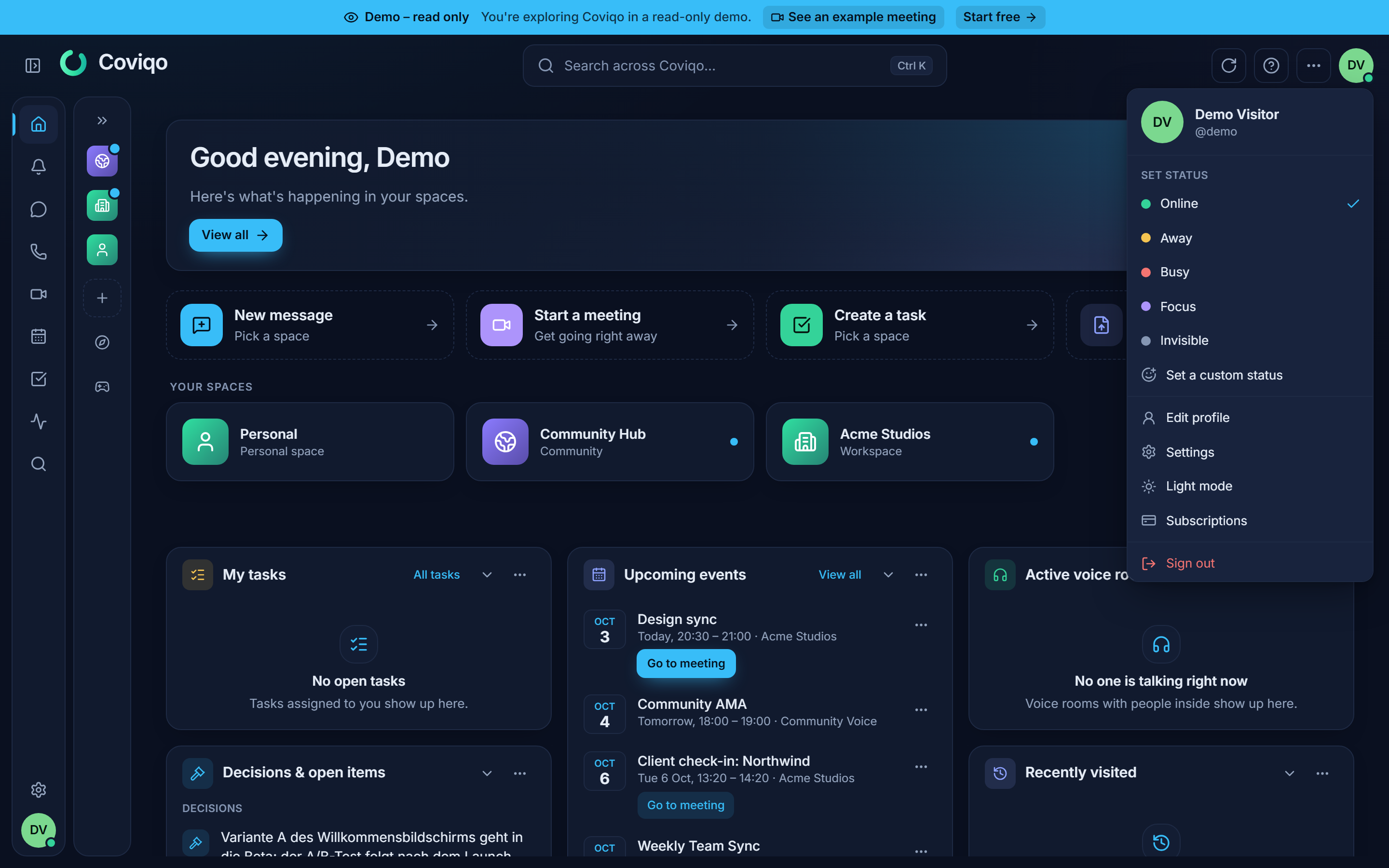
Your presence tells others whether you are around. Open the account menu (your avatar) and choose under Set status:
| Status | Meaning |
|---|---|
| Online | You are available. |
| Away | Set automatically after 10 minutes without input (in the desktop app: when your computer is idle), and back to Online when you return. You can also set it by hand. |
| Busy | Tells others you are occupied. |
| Focus | Tells others you are concentrating. |
| Invisible | You appear as Offline to others while you keep using Coviqo. |
Busy and Focus are signals for your colleagues; they do not change which notifications you receive. To reduce notifications, use the space notification level or the options in the chapter Notifications.
Member lists show each person's status, and people in voice show Speaking, Listening or In room. Depending on the space's privacy settings (Show activity, Show voice room, Show last seen), others may also see which voice room you are in and when you were last online (last seen …). During a meeting others see In a meeting – never the meeting's title – and outside the space the call belongs to only that you are in a call.
Custom status#
Choose Set a custom status in the account menu to add an emoji and a short text such as "In workshops until 3 pm", and pick when it should disappear under Clear after. It appears next to your name in member lists and profiles. See Getting started for details.