Chapter 38
Files
On this page
- The Files tab at a glance
- Who can do what
- Folders
- Moving files and folders
- Renaming and deleting folders
- Uploading files
- The virus scan
- Previewing files
- Office documents
- Opening a document
- Who can edit
- Editing together and saving
- New documents
- Saving a copy in another format
- Comments and mentions
- Office settings of the space
- The file menu
- Versions
- Share links
- Adding files from Google Drive or OneDrive
- Searching in a room
- Deleting files
- Recycle bin
- Storage and upload limits
Every room with the Files module has its own file area: a place for documents, designs, recordings and anything else the room works with. This chapter explains how to organise files in folders, upload and preview them, how to open and edit Word, Excel, PowerPoint and PDF files together right in Coviqo, what the virus scan does, how versions and share links work, how to bring in files from Google Drive or OneDrive, and how your plan's storage limits apply.
The Files tab at a glance#
Open a room and click the Files tab. You see the folders and files of the current folder, with a breadcrumb at the top that starts at Files (the room's top level). Click a folder to open it and a breadcrumb entry to go back up.
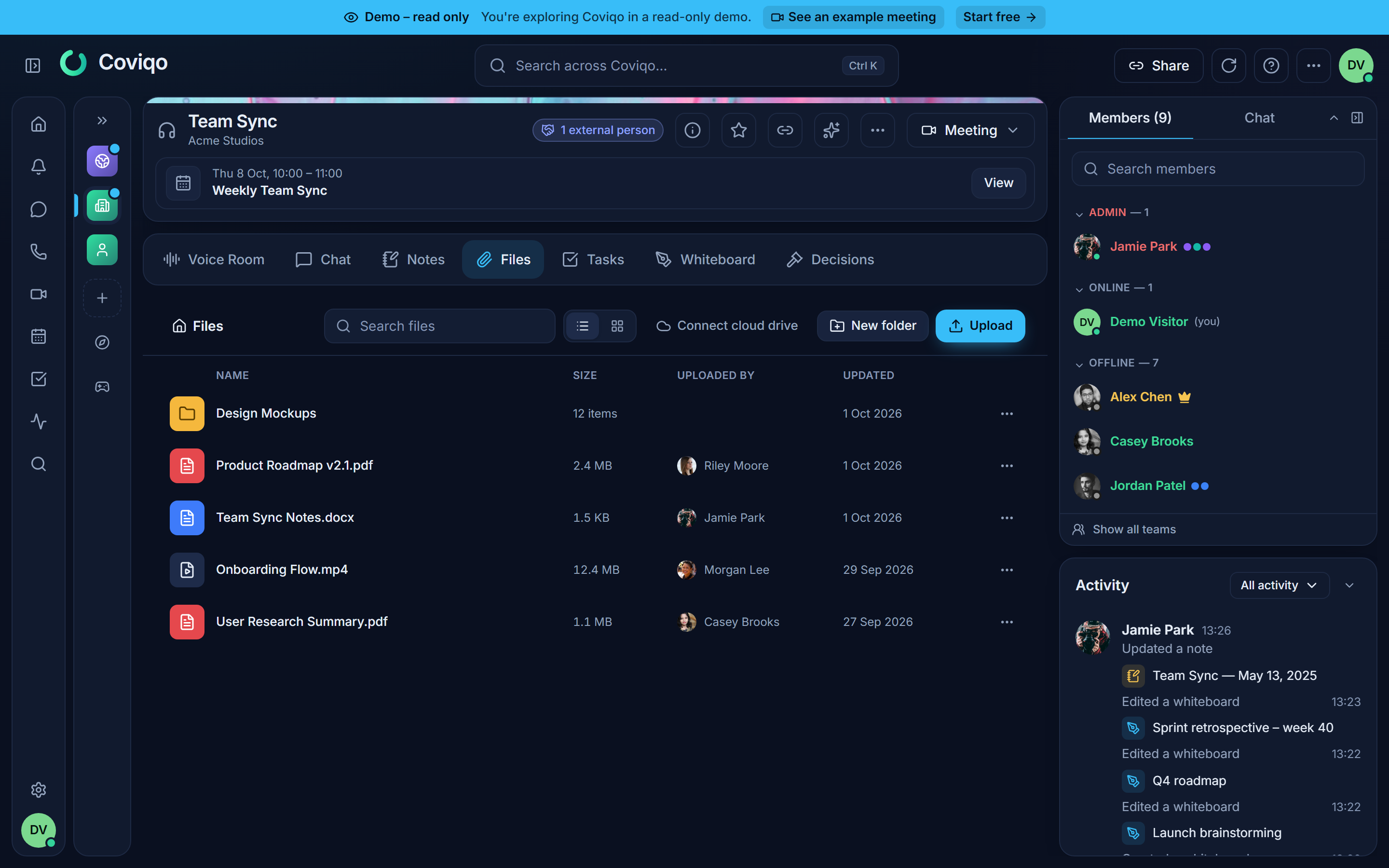
The toolbar offers:
- Search files – filters the room's files by name (see Searching in a room below).
- List view / Grid view – switch between a table and tiles with larger icons. Coviqo remembers your choice on this device.
- Recycle bin (the bin icon) – deleted files and folders you can restore (see Recycle bin below).
- Add from cloud – link or import a file from your Google Drive or OneDrive (see below).
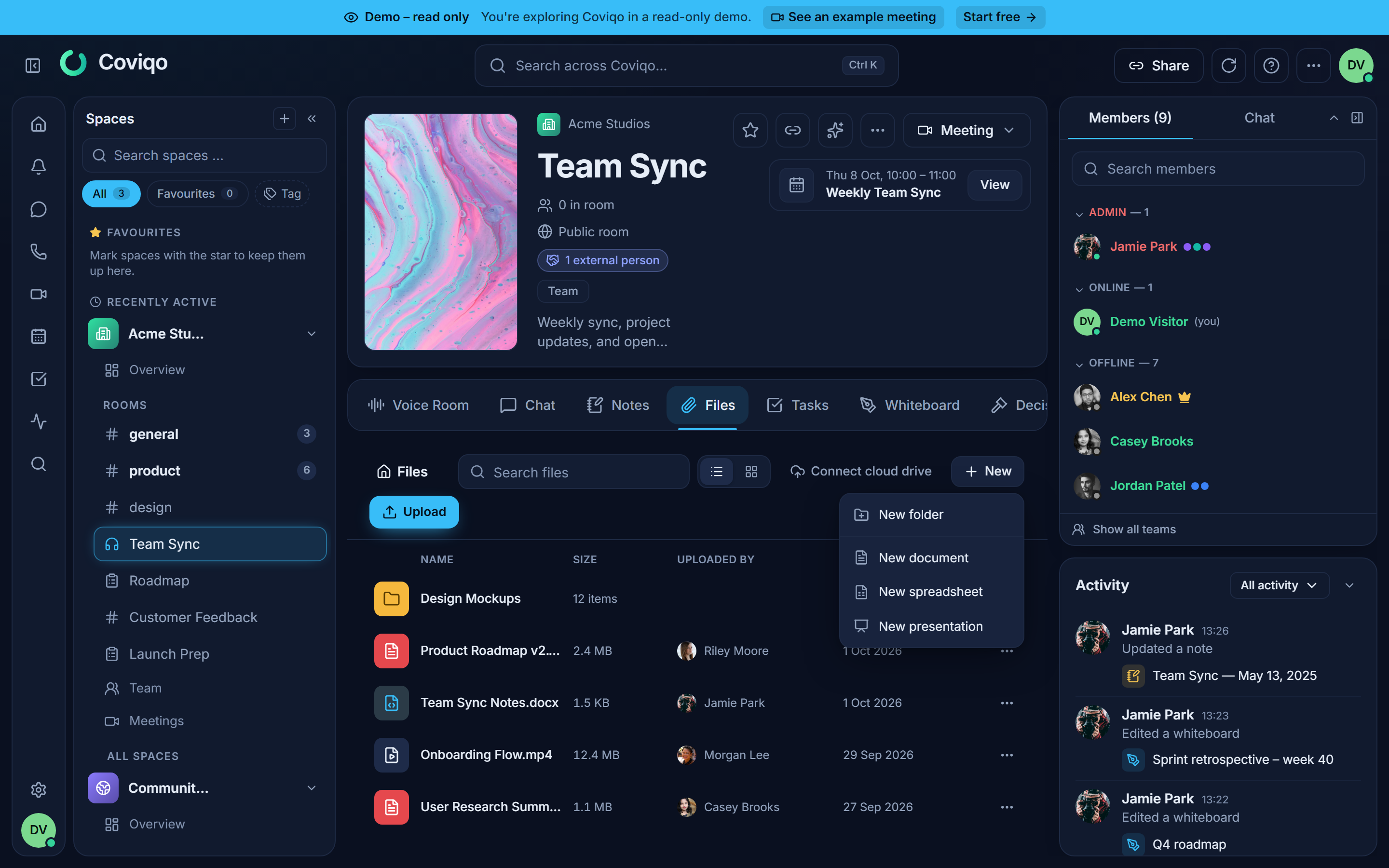
- New folder – creates a folder in the current folder. If your installation offers office documents (see Office documents below), this button is called New and opens a menu with New folder, New document, New spreadsheet and New presentation.
- Upload – choose files from your computer.
In list view the columns show the Name, Size, Uploaded by and when the file was last Updated. For folders, Size is the total size of everything inside (subfolders included), and the next column shows how many files the folder holds in all.
The room overview also has a small files card with the latest uploads. Click Open files or Show all files to jump to the Files tab.
Note
Files you attach to chat messages are stored in the same room. They appear at the top level of the Files tab, so you can find them again without scrolling back through the chat.
Who can do what#
What you see in the Files tab depends on your role in the space and the room:
| Permission | Allows you to |
|---|---|
| View files | See, preview and download files. |
| Upload files | Upload files and new versions, create folders, add files from the cloud. |
| Manage files | Rename, move and delete files and folders of other people, see the whole recycle bin. |
You can always rename, move and delete the files you uploaded yourself and the folders you created. Deleting a folder that contains files or folders of other people needs Manage files. Actions you aren't allowed to use are not shown. Roles and permissions are explained in the chapter Spaces and rooms.
Folders#
Folders keep a room's files in order. They can be nested up to 8 levels deep.
To create a folder:
- Open the folder in which the new folder should appear (or stay at the top level).
- Click New folder, enter a Name and click Create.
To create a folder inside an existing one, right-click the folder (or use its More actions menu) and choose New folder inside.
The breadcrumb at the top shows where you are, for example Files › Projects › 2026. Click any part of it to go back up. Every folder shows how many files it holds and how much space they take – counted over all of its subfolders.
Moving files and folders#
There are two ways to move a file or a folder to another folder of the same room:
- Drag and drop: drag the file or folder onto a folder in the list, or onto a part of the breadcrumb (for example Files for the top level). The target is highlighted while you hover over it.
- Move to folder in the file's or folder's menu: pick the destination in the dialog ("Choose the destination folder"), open subfolders with a click and confirm with Move here.
A folder cannot be moved into itself or into one of its own subfolders, and the move is refused if the result would be nested deeper than 8 levels ("Folders can be nested at most 8 levels deep."). On phones and tablets use Move to folder – drag and drop is meant for a mouse.
Renaming and deleting folders#
Rename and Delete are in the folder's menu. You can rename, move and delete the folders you created; with Manage files you can do so for all folders of the room.
When you delete a folder, Coviqo asks "Delete folder?" and tells you how much it contains. The folder moves to the recycle bin together with everything in it – files, subfolders and files linked from Google Drive or OneDrive. If the folder contains files or folders of other people, only members with Manage files can delete it ("The folder contains files or folders of other people …").
Note
In end-to-end encrypted rooms folder names are encrypted on your device like file names – the server only stores ciphertext. Folders work the same way there; searching for folder names is not possible in such rooms.
Uploading files#
There are several ways to upload:
- Click Upload and pick one or more files.
- Drag files from your computer anywhere onto the Files tab. The area shows Drop to upload – "Files and folders are added to the current folder."
- Drag a whole folder from your computer onto the Files tab: Coviqo recreates the folder with all of its subfolders in the current folder and uploads every file into its place. Folders that already exist with the same name are reused, so you can add to an earlier upload. System files such as .DS_Store or Thumbs.db are skipped.
- Right-click an empty area of the list and choose Upload folder to pick a folder in a dialog (desktop browsers).
- Right-click a folder and choose Upload here to upload straight into it.
One folder upload can contain at most 1,000 files and must stay within the 8 folder levels; larger trees can be uploaded in parts.
While files are uploading, an Uploads panel in the corner shows the progress of each file. You can cancel a running upload with the Cancel button next to it. When everything is done, the panel says Uploads finished.
Coviqo checks your plan's limits before an upload starts. If a file is larger than the maximum upload size, or the upload would exceed the storage of your plan, the upload is refused with a message such as "Your plan's storage limit has been reached." See Storage and upload limits below.
Note
Uploads are not possible in archived rooms. Files you upload are encrypted with the space's key before they are stored.
The virus scan#
Every uploaded file – and every new version – is scanned for malware before anyone can open it. While the scan is running, the file shows the badge Scanning…. Usually this takes only a few seconds.
| Status | What it means |
|---|---|
| Scanning… | The file is being checked. You can see it in the list, but Download and Share link are disabled ("Still being scanned for malware"). The preview shows Checking file…. |
| No badge | The scan found nothing. The file can be previewed, downloaded and shared. |
| Blocked (malware) | The scanner flagged the file. It cannot be opened or downloaded, and its content has been removed from storage. The person who uploaded it gets a notification. |
If the scanning service is temporarily unavailable, files stay in Scanning… and Coviqo retries automatically. A file is never released without a completed scan.
Tip
If one of your files is blocked and you are sure it is harmless, it may be a false positive. Delete the blocked entry and contact your space admin or support – don't try to work around the scan by renaming or zipping the file.
Previewing files#
Click a file, or choose Open preview from its menu, to open the preview:
- Images are shown directly.
- PDFs open in an embedded viewer.
- Video and audio files play in the browser, including seeking.
For all other types (for example archives) you see No preview available – "Download the file to open it." – with a Download button. From the preview you can also use Open in new tab.
Word, Excel and PowerPoint files open in the office editor instead of the preview, if your installation offers office documents – see the next section. Otherwise they show No preview available as well.
screen: files-previewOffice documents#
If your installation offers office documents, you open and edit Word, Excel, PowerPoint and PDF files directly in the Files tab – alone or together with others at the same time. The editor runs on the Coviqo server itself (on app.coviqo.com it is loaded from https://office.coviqo.com): documents are not sent to Microsoft, Google or any other outside service.
Note
Office documents are an optional part of a Coviqo installation. If the operator has not set them up, Office files show No preview available and there is no New menu. Plans include office documents; if your organisation's plan does not, opening a document shows "Your plan does not include office documents."
Opening a document#
- Click a Word, Excel or PowerPoint file. It opens in the editor, which lies over the file list.
- PDF files still open in the quick preview when you click them. To work in a PDF (fill in forms, add annotations, edit it), choose Edit in its menu.
- In the file menu, office files show Edit if you may change them, or Open in editor if you can only read them.
The editor's header shows the file name, the save status, the avatars of the people who are in the document right now ("2 people in this document") and these buttons:
| Button | What it does |
|---|---|
| Maximize / Restore size | Lets the editor fill the whole browser window, or puts it back over the file list. |
| Full screen / Exit full screen | Uses the whole screen. Esc also leaves full screen. |
| Close editor | Closes the document and returns to the file list. |
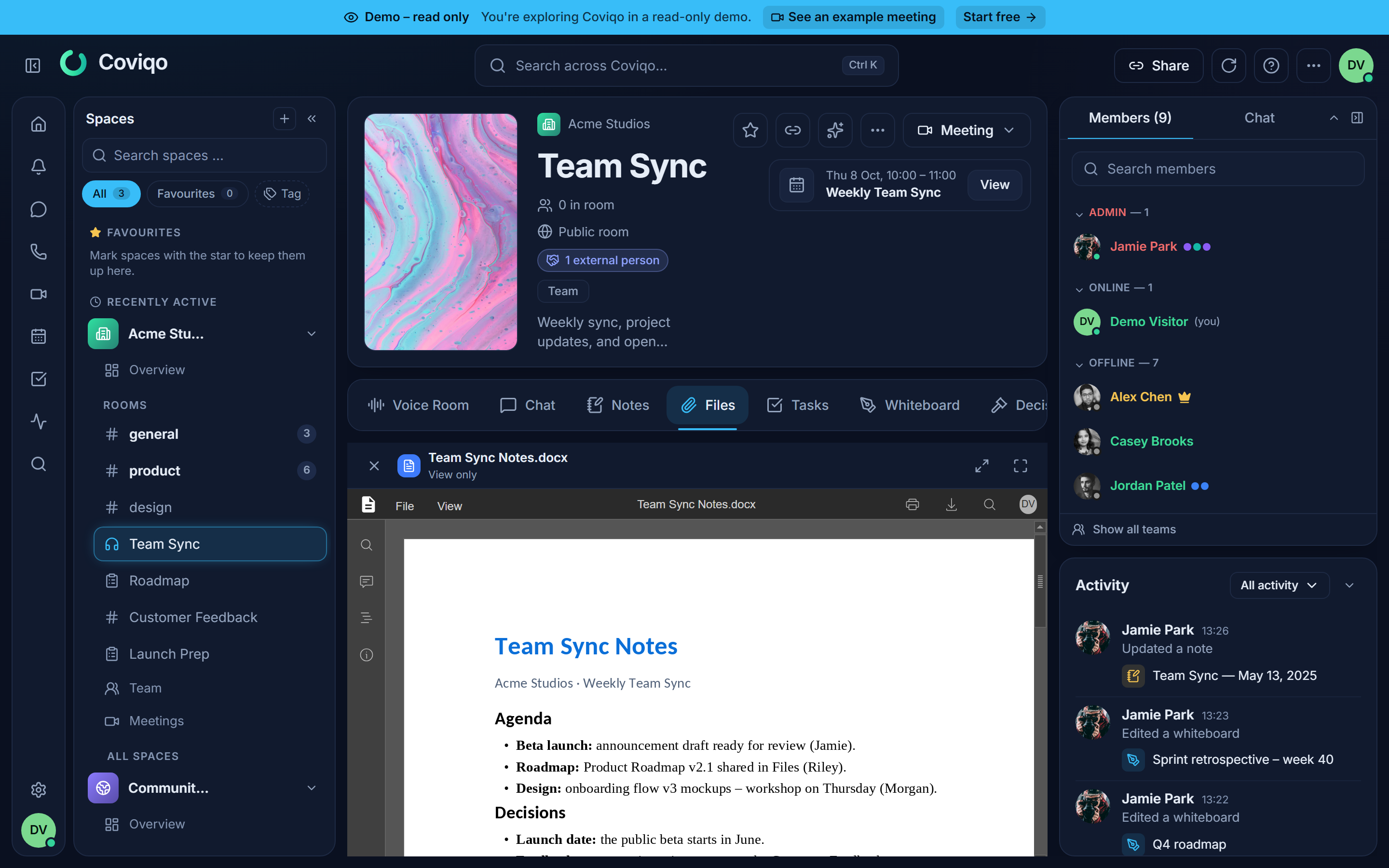
On a phone, documents always open in the full window with the editor's mobile view, which is made for touch.
| Format | Edit | View only |
|---|---|---|
| Text | docx, docm, dotx, odt, txt |
doc, dot, rtf, ott, epub |
| Spreadsheet | xlsx, xlsm, xltx, ods, csv |
xls, xlt, ots |
| Presentation | pptx, pptm, potx, ppsx, odp |
ppt, pps, otp |
pdf (forms, annotations, editing) |
xps, djvu |
Older formats such as .doc, .xls or .ppt open read-only. To edit one, save it in the current format first (Save as DOCX, Save as XLSX or Save as PPTX, see below). Files larger than 100 MB (your operator can change this limit) cannot be opened in the editor ("The file is too large for the editor.").
Who can edit#
| You have | You can |
|---|---|
| View files | Open documents and read along while others edit (View only). |
| View files and Upload files | Edit documents, create new ones and use Save as. |
Nobody can edit documents in an archived room or while they are timed out. Files you only see as a chat attachment open read-only. In the read-only live demo, documents always open in view mode.
Editing together and saving#
Everyone who opens the same document works in the same live session: you see the others' changes and cursors as they type. There is no need to take turns or to upload anything afterwards.
Saving is automatic. The header shows Saving… while changes are pending and All changes saved once they are stored, together with the current version number (for example "All changes saved · v4"). Every save creates a new version of the file:
- when the last person closes the document (about ten seconds after they leave), and
- immediately when someone presses
Ctrl+Sor the save button in the editor.
The Versions dialog shows who worked on a version in the editor ("Edited by Anna, Ben"). Saved versions are encrypted and checked by the virus scan like every upload, and they count towards your storage. The room's activity shows "Edited a document".
Tip
If someone uploads a new version while others are still editing the file, nothing is lost: the running session continues on its state, and its next save becomes the newest version. Both remain in the version list.
New documents#
- Open the folder in which the document should be created.
- Click New and choose New document, New spreadsheet or New presentation – or right-click an empty area of the file list and choose the same entries.
- Coviqo creates an empty file ("New document", "New spreadsheet" or "New presentation"; a number is added if the name is taken) and opens it in the editor right away. Rename it later with Rename in the file menu.
Saving a copy in another format#
The file menu of an office file offers Save as, for example Save as PDF, Save as DOCX or Save as ODT. Coviqo creates a new file next to the original in the same folder; the original stays unchanged. Documents can be saved as PDF and in the other editable formats of their type (text: PDF, DOCX, ODT; spreadsheet: PDF, XLSX, ODS; presentation: PDF, PPTX, ODP). Save as needs the Upload files permission.
Comments and mentions#
People who may edit can add comments in the editor. Type @ and a name in a comment to mention someone: Coviqo suggests the people who can see the room's files, and the person you mention gets a Coviqo notification (type Mentions) with a link that opens the document at that comment.
Office settings of the space#
Members with the Manage space permission decide in Space settings › Apps & integrations › Office documents what the editor allows in this space:
| Setting | What it controls |
|---|---|
| Download & save copy | Download as and Save copy as inside the editor. The file menu of the Files tab (Download) is not affected. |
| Printing documents from the editor. | |
| Comments | Whether people who may edit can add comments and @-mention others. |
All three are on by default. Click Save changes to apply them (Reset discards them). They apply to everyone who opens a document of the space from then on – documents that are already open use the new settings once they are reopened. The section only appears when the installation offers office documents; if your plan does not include them, the switches are locked.
The file menu#
Right-click a file, or click its More actions button (the three dots), to see all actions:
| Action | What it does |
|---|---|
| Open preview | Opens the preview. For office files this entry is replaced by Edit or Open in editor. |
| Download | Downloads the current version. |
| Copy link | Copies an internal link to the file. It only works for people who can see the room. |
| Share link | Creates a public download link that expires and can be revoked (see below). |
| Versions | Shows all versions and lets you upload a new one. |
| Save as … | Office files only: saves a copy in another format, for example Save as PDF (see Office documents). |
| Rename | Changes the file name. |
| Move to folder | Moves the file to another folder of the same room ("Choose the destination folder", then Move here). |
| Delete | Deletes the file and all of its versions after you confirm. |
Folders have their own menu with Open, Copy link, New folder inside, Upload here, Rename, Move to folder and Delete. Right-clicking an empty area of the list offers New folder, Upload files and Upload folder – and, with office documents, New document, New spreadsheet and New presentation.
Versions#
Instead of uploading "report-final-v3.pdf", upload a new version of the existing file. Everyone keeps using the same file and link.
- Choose Versions in the file's menu.
- Click Upload new version and pick the file. The dialog shows "Uploading… {percent}%".
- When the upload is finished, you see "Version {version} uploaded". The new version is scanned for viruses like any upload.
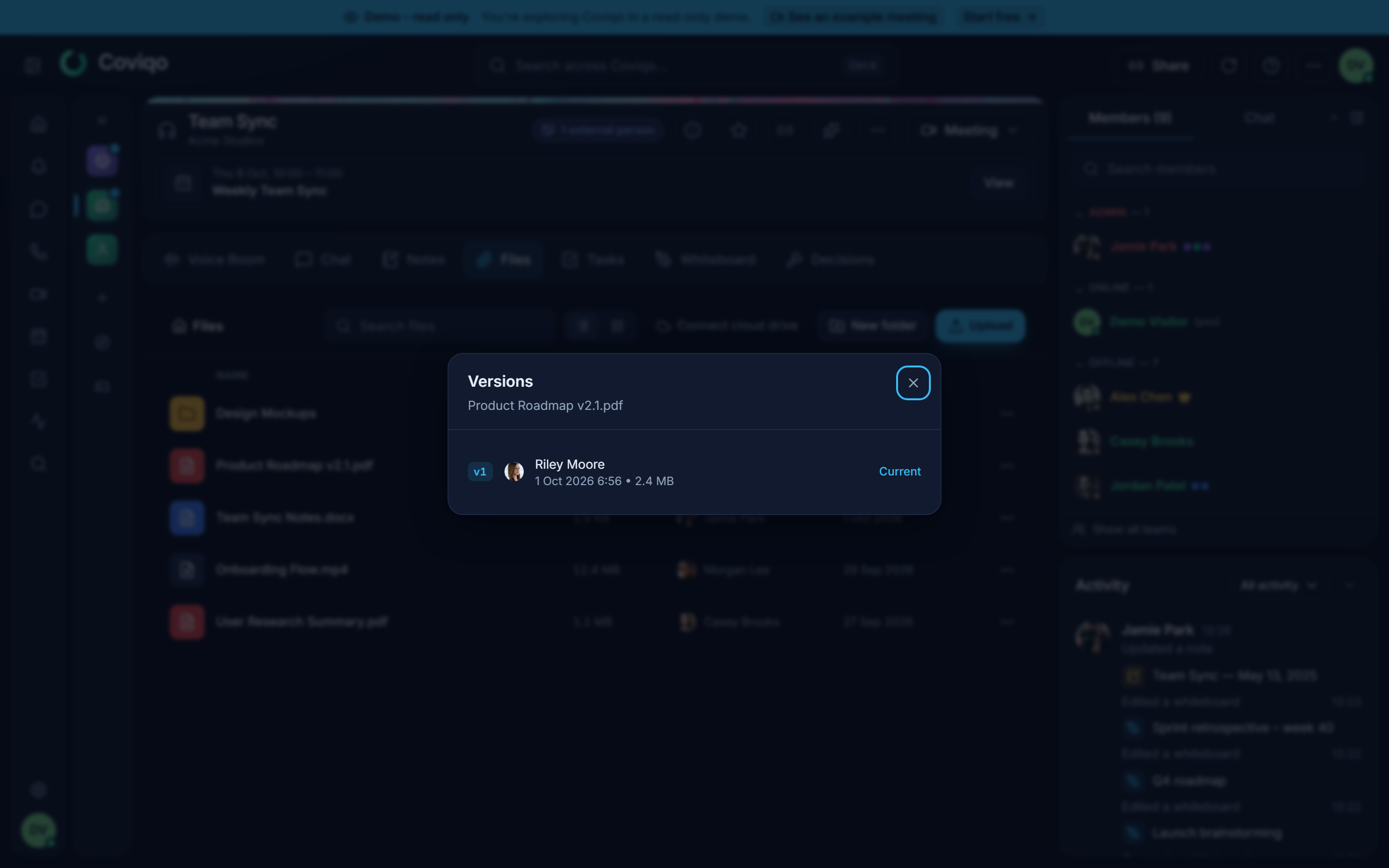
The Versions dialog lists every version with its number, size, the person who uploaded it and the date. Versions saved from the office editor by several people also show Edited by with everyone who worked on them. The version marked Current is the one that is previewed, downloaded and shared.
Note
Older versions are kept for reference, but you cannot download or restore them from the dialog. To go back to an earlier state, upload the older file again as a new version. Every version counts towards your storage.
Share links#
A share link lets people outside Coviqo download a file – for example a customer who has no account.
- Choose Share link in the file's menu.
- Under Expires after, choose how long the link stays valid: 1 hour, 1 day, 3 days or 7 days. The dialog only offers lifetimes up to the maximum set by the operator (7 days unless changed) – "Links are valid for at most {days} days."
- Click Create & copy link. The link is copied to your clipboard and shown in the dialog, together with Valid until {date}. Copy it now – it is shown only once.
"Anyone with the link can download {name} until it expires or is revoked." To create another link, click Create new link.
Below that, Active links lists the file's links that are still valid, with who created them, until when they are valid and how often they were downloaded. Click Revoke to make a link stop working immediately. You see your own links; the uploader of the file, members with the Manage files permission and space administrators see and can revoke all links of the file.
A link also stops working when the file is deleted, or when the person who created it loses access to the file or the right to share it.
Password and organisation rules. You can protect a link with a password; if the organisation that owns the space requires it, the password is mandatory and the dialog may offer shorter lifetimes. Give the password to the recipient separately. The recipient opens the link, sees the file name and size, enters the password and then downloads the file. An organisation can also switch share links off for its spaces – existing links then stop working. See the chapter Organisation settings.
Who can create share links:
- The person who uploaded the file, and members with the Upload files or Manage files permission – in each case only if they can see the room's files. Members who can only read the chat open chat attachments, but cannot share them.
- Guests can never create share links.
- Recordings of meetings can only be shared by the meeting's organizers.
Share links are only available after the virus scan has passed.
Note
Members with the Manage space permission can switch share links off for the whole space with External file links in Space settings › Overview (on by default). Switching it off also ends all existing links at once.
Adding files from Google Drive or OneDrive#
If you have connected your Google Drive or OneDrive under Settings › Connected services, the Files tab shows Add from cloud – on phones the button is labelled Cloud – (otherwise Connect cloud drive). In the dialog you browse or search your drive, select a file and choose:
- Link – the file appears in the room and Opens in {provider}. Nothing is copied into Coviqo.
- Import copy – Coviqo stores an encrypted copy in the room. It goes through the virus scan and counts towards your storage ("Import started – the file appears when the virus scan is done.").
Linked files can be taken out again with Remove from room; the original stays in your drive. The details, including admin settings, are in the chapter Integrations.
Searching in a room#
Type into Search files to find files in this room by name. The search covers the whole room, all folders included, and shows below each result where it lies (for example "Projects / 2026"). It looks at whole words and word beginnings: "quart" finds "Quarterly-report.pdf", but "report" in the middle of a single word like "Quarterlyreport" does not. Folders matching the search are shown too. To search across all rooms and spaces, use the global search described in the chapter Search.
Deleting files#
Choose Delete in the file's menu and confirm "Delete file?". The file and all of its versions disappear from the room immediately, move to the room's recycle bin and are no longer counted towards your storage.
Recycle bin#
Click the bin icon in the toolbar to open the Recycle bin of the room. It lists deleted files and deleted folders – a folder appears as one entry with the number of files and the size of what was deleted with it. Each entry shows where it was ("from Projects / 2026"), who deleted it and when, and the date on which it will be gone for good.
Click Restore to bring an entry back:
- A file returns to its folder. If that folder no longer exists, it returns to the top level.
- A folder returns with everything that was deleted together with it, below its old parent folder – or at the top level if the parent is gone.
- Files that were deleted together with a folder can only be restored with that folder ("This file was deleted together with its folder – restore the folder.").
Members see the entries they deleted themselves; members with Manage files see and restore everything in the room's recycle bin. Restoring counts towards your storage again and is refused when the storage of your plan is full.
Note
Deleted files and folders are removed for good after 30 days (the operator can change this period). The recycle bin cannot be emptied early.
Storage and upload limits#
Storage is counted for the whole organisation that owns the space – all files, versions and chat attachments of all its spaces together. Two limits apply:
| Plan | Total storage | Maximum file size |
|---|---|---|
| Free | 2 GB | 25 MB |
| Community Pro | 50 GB | 500 MB |
| Community Plus | 200 GB | 500 MB |
| Business | 50 GB per user (at least 150 GB, at most 2 TB) | 2 GB |
| Enterprise | Unlimited | 5 GB |
Recordings count towards the storage. Paid plans can add storage with the add-on +100 GB storage (€3 a month each, Plans and billing). These are the standard values; your operator can set different limits for your organisation, and a platform-wide upload cap may be lower. Owners, admins and billing contacts of the organisation see the current consumption under Organisation › Billing › Usage this period (Storage) – reachable via Subscriptions › Manage or Space settings › Organization & plan › Plan › Manage billing. The chapter Plans and billing explains how to upgrade.
When the storage is full, existing files remain available, but new uploads, new versions, imports and new recordings are refused until you delete files, book more storage or upgrade. The files tab then shows a short note with View plans.