Chapter 26
Meetings
On this page
- Meetings at a glance
- Starting an instant meeting
- Scheduling a meeting
- Meeting templates
- Editing and canceling
- The invitation e-mail
- Inviting guests
- Joining a meeting
- The join page
- The device check
- The lobby
- During the call
- The control bar
- Layout, pinning and spotlight
- Chat and notes in the call
- The participants panel and moderation
- Meeting settings during the call
- Recording
- Transcription, captions and translation
- Opting out of transcription
- AI settings of a space
- Leaving and ending
- When a meeting ends by itself
- After the meeting
- The AI summary
- How AI content is labelled
- Reviewing results
- The decision log
- Switching meetings off
- The next meeting and its agenda
- Follow-up actions
Meetings are video calls with everything around them: an invitation with a join link, a lobby, chat and shared notes, an optional recording, a live transcript with captions and translations, and an AI summary afterwards. Coviqo can then turn what was said into results: tasks with an owner and due date, entries in a decision log, and an agenda for the next meeting.
This chapter follows a meeting from start to finish. You learn how to start or schedule a meeting and invite people (including guests without an account), how joining works, which controls you have during the call, and what happens to recording, transcript and summary once the call is over.
Meetings at a glance#
Every meeting belongs to a space. Behind the scenes it gets its own hidden room, so the meeting always has a chat, notes, files and tasks of its own – during the call and afterwards. Optionally you link the meeting to a regular Room of the space: the meeting then shows up in that room, the summary is posted there, and published tasks and decisions land there.
People take part in one of these roles:
| Role | What it can do |
|---|---|
| Organizer | The person who created the meeting. Edits and cancels it, moderates the call, records, controls transcription, ends the meeting for everyone and reviews the results. |
| Co-organizer | The same rights as the organizer. Space members who may manage meetings in the space act as co-organizers automatically. |
| Presenter | Can always use microphone and camera and may present when presenting is limited to presenters. |
| Attendee | Takes part normally. What attendees may do depends on the meeting settings. |
| Guest | Someone from outside the space, for example a person who joined with the link. Guests only see this meeting – no other rooms of the space. |
You find your meetings in several places:
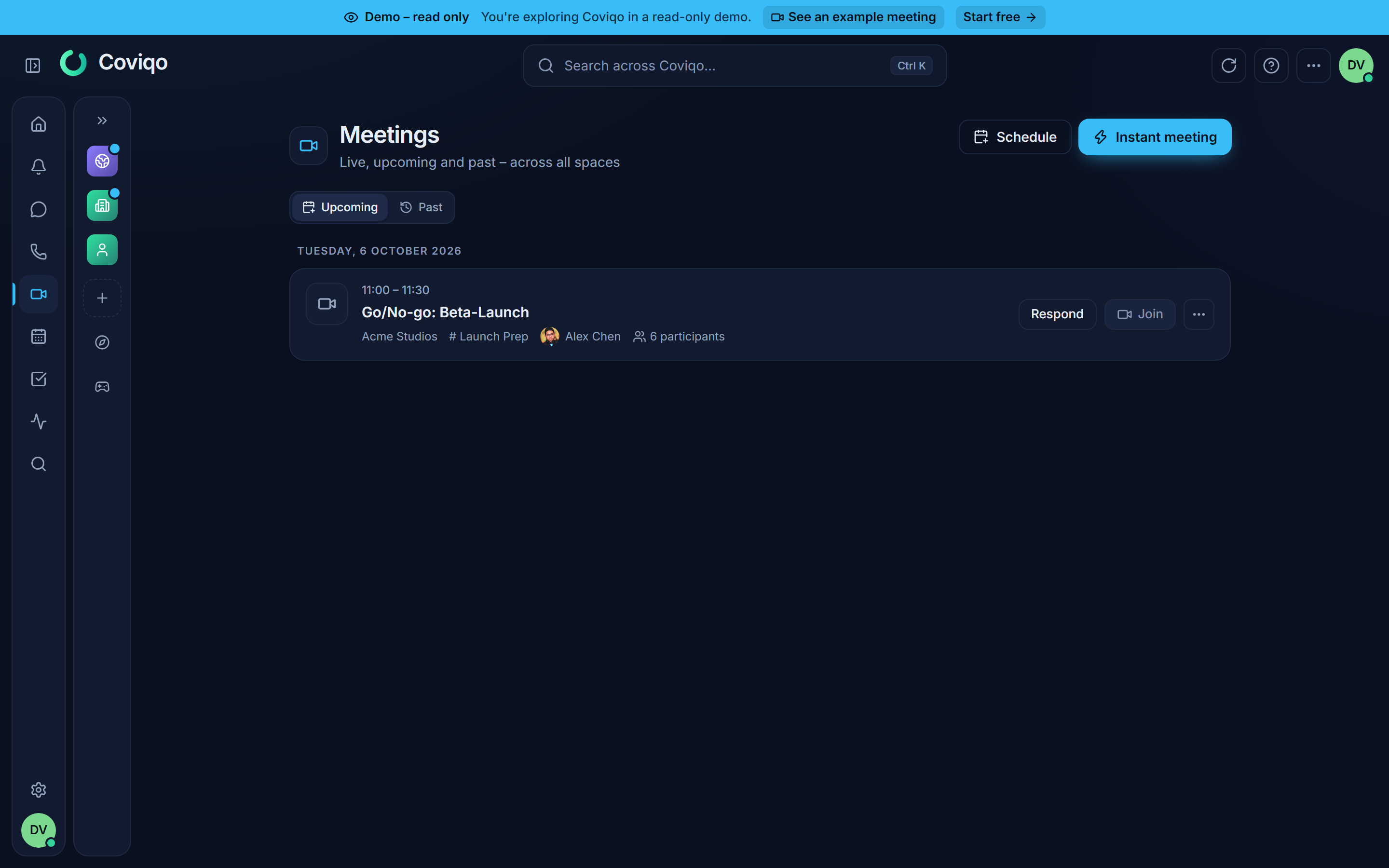
- Meetings in the sidebar opens the page Meetings ("Live, upcoming and past – across all spaces") with the sections Live now, Upcoming and Past. From the space menu you open the meetings of a single space.
- The home page lists running meetings under Now, and the sidebar lists them with a Join button.
- A room that has meetings linked to it shows the Next meeting or Live now in its header.
- Scheduled meetings appear in the calendar like any other event (see the chapter Calendar and events).
Right-click a meeting in a list for quick actions: Join, Details, Respond (Accept, Maybe, Decline), Open recording, Open transcript, Open summary, Copy link, and – for organizers – Edit and Cancel meeting.
Breakout rooms, polls and questions, webinars with registration and the attendance report are described in the next chapter, Breakout rooms, polls, webinars and attendance.
Starting an instant meeting#
An instant meeting starts right away, without a calendar entry.
- Click Instant meeting on the Meetings page, or open the Meeting button in a room header and choose Start instant meeting. The command palette (
Ctrl+K) also offers Start instant meeting. - Adjust the Title (by default "Meeting with" and your name) and pick the Space if you are asked.
- Click Start. You go straight to the device check and into the call.
Share the meeting with Copy invite link in the participants panel once you are in the call.
Note
You only see these buttons in spaces where your role allows you to create meetings. If no space qualifies, Coviqo shows "You can't create meetings in any space."
Scheduling a meeting#
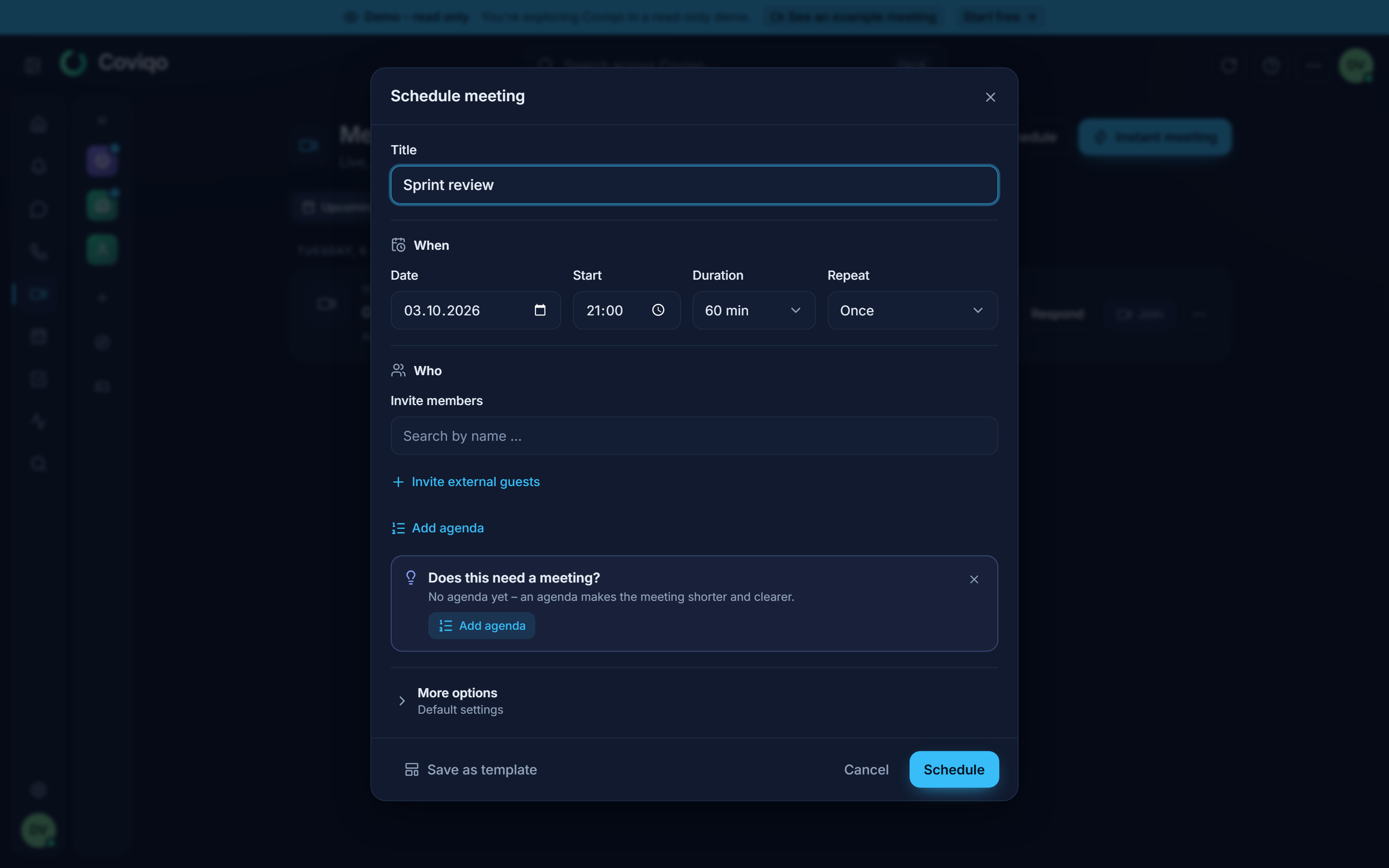
Click Schedule on the Meetings page, choose Schedule meeting from a room's Meeting button, or right-click a day in the calendar and choose Schedule meeting on this day. The dialog Schedule meeting shows the essentials first; everything else is under More options.
The essentials
- Template – only shown when you have templates (see Meeting templates below). Choosing one fills in its settings.
- Meeting or Webinar – only shown when your plan includes webinars (see the chapter on breakout rooms, polls and webinars).
- Title – for example "Weekly team sync".
- When – Date, Start, Duration (15 minutes to 3 hours) and Repeat in one row. Once is the default; choose a daily, weekly or monthly series based on the chosen start. A recurring meeting is one meeting with many occurrences: all occurrences share the same chat, notes and files.
- Who – Invite members: search space members by name. They receive a notification and an invitation e-mail with a calendar entry. Invite external guests opens a field for e-mail addresses: type an address and press
Enter. External guests receive an invitation e-mail with the join link and a calendar entry. Inviting guests is only possible if your role allows it – otherwise the field tells you why.
More options
More options is collapsed. Its line below the heading tells you what differs from the defaults of the space, for example "No guest access · Recording automatic · Transcription German" – or Default settings when nothing does. Open it to see the tabs; a small dot marks the tabs in which something differs. Coviqo remembers the tab you used last on this device. On a phone, the tabs are sections that you open and close one by one.
- Access – Guest access via link (people without an account can join with their name), Passcode (optional; asked when joining), Lobby (who has to wait until an organizer lets them in, see The lobby below) and Who can present? (Everyone, Organizers and presenters or Organizers only). When you edit a meeting, the Phone dial-in numbers and PIN are here too (if your organisation offers dial-in).
- Recording & AI – Record automatically starts recording as soon as the meeting begins; choose the Recording type (Video + audio or Audio only) and the Recording access (Organizers only, Participants or Everyone with access to the room). Mute all microphones when a recording starts follows the space setting (on by default) – switch it here to decide differently for this meeting (see Recording below). Live transcription & captions transcribes speech on your organization's own servers and enables translated captions – set the Spoken language or leave it on Detect automatically. AI summary creates an overview, decisions, open questions and action items after the meeting. The space's AI settings decide what is switched on by default.
- Place & technology – Space (where the meeting lives; it cannot be changed later), Room (optional: "The meeting shows up in this room; summaries are posted there" – choose No room for a meeting on its own), Time zone, End automatically (see When a meeting ends below) and, for meetings, the Questions (Q&A) settings. Voice region is only shown when your Coviqo offers calls in more than one region: Automatic uses the region closest to the first person who joins (or your organisation's setting) – regions outside the EU only if your organisation allowed them. Choose a region when most participants are there, for example "United States" for a call with colleagues in New York. Only the live audio and video run there; chat, notes, files, recordings and transcripts stay where all your data is. The hint below the field tells you if recording or live transcription is not available in that region.
- Broadcast & languages – Announce live broadcast tells everyone on the join screen that the meeting will be streamed live. Interpretation adds the languages interpreters will speak (you assign the interpreters in the meeting) and whether the languages are recorded as extra audio files. Both are available from the Business plan; otherwise the tab tells you from which plan.
- Description – agenda, links and preparation. Markdown is supported.
- Webinar – only for webinars: registration, seats, waiting list, registration questions and Q&A.
If something is missing – for example no space is selected – Coviqo opens the right tab and puts the cursor into the field.
Click Schedule. Coviqo confirms "Meeting scheduled – invitations are on their way" and offers Copy link. The meeting also appears in the space calendar and, if you connected Microsoft 365 or Google Calendar, in your external calendar.
Tip
An existing calendar event can become a meeting later: open the event and click Add online meeting. All participants of the event are invited and receive the join link. Remove online meeting cancels the meeting again but keeps the event.
Meeting templates#
Do you schedule the same kind of meeting again and again? Set up the dialog once and click Save as template. Give the template a name; tick Also save the title if the title should come along. A template stores all settings of the dialog – duration, repeat, invitees, access, recording, transcription, live broadcast and interpretation, description, webinar registration and so on – but never the date, the start time or the passcode.
Next time, choose the template under Template at the top of the dialog: its settings are filled in, and you only pick the date and time.
- Templates are personal: only you see them.
- Space admins and people who may manage meetings can tick Share in this space. Everyone who plans meetings in the space can then use the template. E-mail addresses of external guests are never shared.
- The … menu next to Template renames or deletes templates. Deleting a template does not change meetings that were created from it.
Editing and canceling#
Organizers open a meeting and use Edit (in the meeting's right-click menu) to change time, settings or passcode – the dialog is then called Edit meeting and has the same layout. Invitees are notified when the time changes. Cancel meeting asks for confirmation; all invitees are notified, and chat and notes stay readable. Canceling the meeting's calendar entry, or deleting the space, cancels a scheduled meeting in the same way. Invitees with an e-mail address – also external ones – get a Canceled e-mail whose calendar attachment removes the entry from their calendar (Outlook, Apple Calendar, Google Calendar). Deleting a space also ends meetings that are running in it.
Invitees answer with Respond – Accept, Maybe or Decline – either in the meeting list or in the calendar.
The invitation e-mail#
Every invitee gets an e-mail in the Coviqo design, in their own language (German or English; external guests get the organizer's language). It is sent by Coviqo on behalf of the organizer:
- The subject starts with Invitation, Updated or Canceled, followed by the meeting title. Invitations are also sent when an online meeting is added to or removed from an event.
- A details card shows when the meeting takes place (with time zone, and "Recurring meeting" for a series), that it is online in Coviqo, the space, the organizer and the join link.
- Join meeting opens the meeting, for example
https://app.coviqo.com/m/<code>. Members with a Coviqo account also get an Accept or decline button that opens the meeting in Coviqo. - The attached calendar entry can be added to Outlook, Apple Calendar, Google Calendar and other calendar programs; Outlook shows the same details in the entry.
- If you reply to the e-mail, your reply goes to the organizer, not to Coviqo.
Note
Accept or decline in Coviqo – with Accept or decline in the e-mail, or with Respond in Coviqo. Answers given with the buttons of your calendar program are not sent to Coviqo, so the organizer would not see them. The calendar entry therefore doesn't ask for a reply.
Inviting guests#
There are two ways to bring in people from outside the space:
- By e-mail – add their address under External guests by e-mail when scheduling. If the address belongs to an existing Coviqo account with a verified e-mail, that person is invited with their account and later finds the meeting in their own meeting list. Everybody else receives an e-mail with the join link.
- By link – switch on Guest access via link and share the join link (Copy link on the meeting, or Copy invite link in the call). Anyone with the link can join with their name, and the passcode if one is set.
If you copy the link while guest access is off, Coviqo warns you ("Link copied – but guests are not allowed"). Organizers can switch it on directly with Allow guests in that message.
Note
A guest who joins with the link gets temporary access that covers only this meeting. It is deleted automatically 24 hours after the meeting ends. Messages the guest wrote stay in the chat.
Joining a meeting#
The join page#
A join link has the form https://app.coviqo.com/m/…. What you see on the join page depends on whether you are signed in:
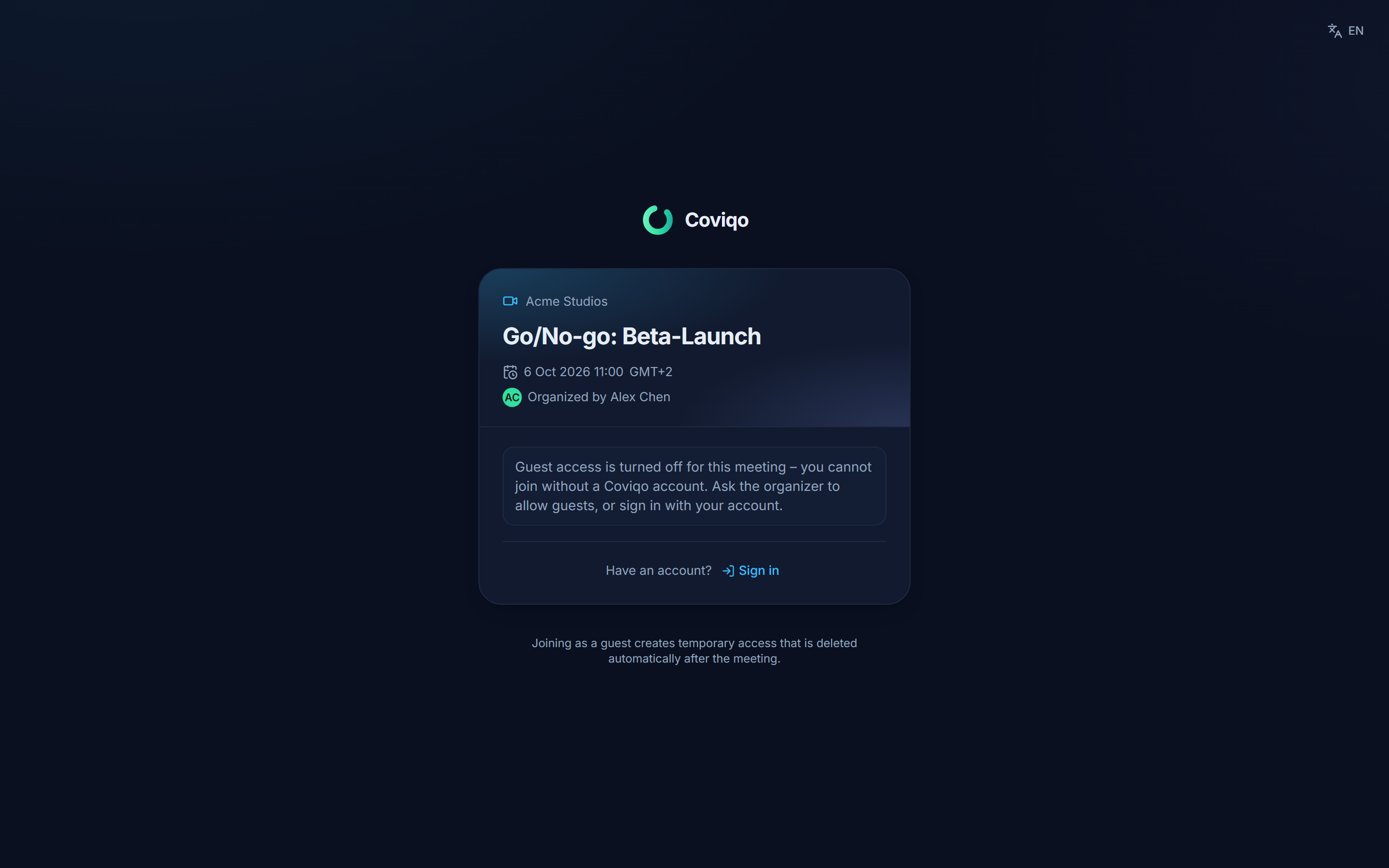
- Not signed in – enter Your name ("This is how others see you in the meeting"), the Passcode if needed, and click Join as guest. If you have an account, click Sign in under Have an account? instead.
- Signed in and invited – click Join.
- Signed in but not a member of the space – click Join with my account. You join as a guest of this meeting only and see no other rooms of the space.
If guest access is turned off, people without an account cannot join, and the page says so. Ended or canceled meetings show a short note instead of the form.
Members of the space join from the meeting list, the room header, the calendar entry or a notification. For scheduled meetings, the Join button appears 15 minutes before the start ("Joining opens 15 minutes before the start").
The device check#
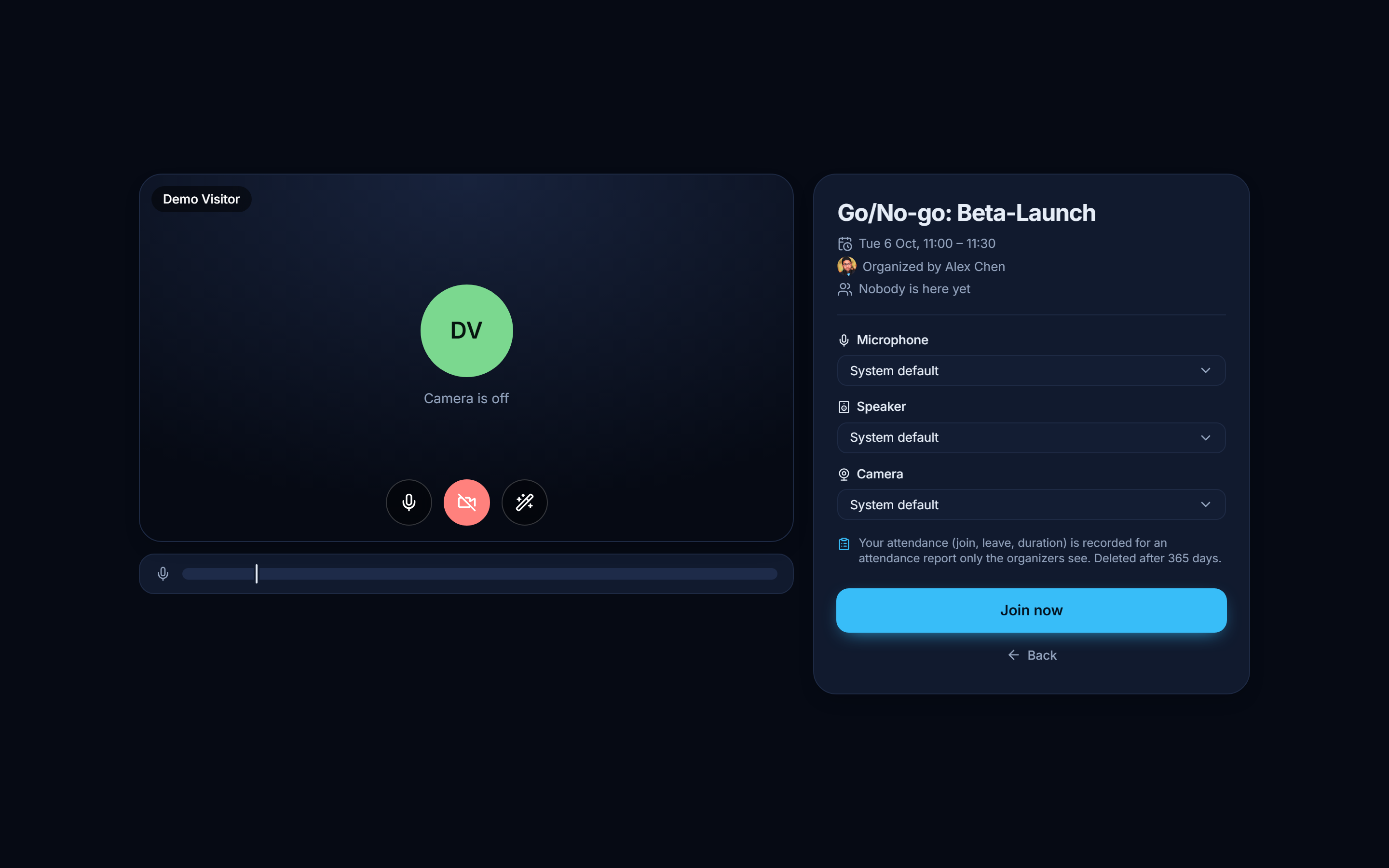
Before you enter the call, Coviqo shows a preview with the meeting title, who organizes the meeting and how many people are already in it.
- Check your camera picture and switch microphone and camera on or off.
- Pick the Microphone, Speaker and Camera you want to use (System default or a specific device).
- Optionally choose a Background: a light or strong blur, one of the built-in images, an image provided by the space (Business and above), or one of your own images (Upload, from Community Pro). Light correction brightens your picture in dark rooms. Everything is computed on your device (the files the effects need come from Coviqo's own servers, not from third parties); the choice is stored on this device only. If the device cannot keep up, Coviqo pauses the effect and says so – Try again switches it back on. The same Background effects are available in voice rooms and direct calls (More → Background effects) and under Settings → Audio & video → Camera effects.
- Enter the Passcode if asked, then click Join now.
If the browser blocks your camera or microphone, the preview explains how to allow access; you can also join without them.
Note
You can only be in one call at a time. If you are still connected to a voice room or another meeting, Coviqo tells you ("You're still connected to …") and switches when you join.
The lobby#
Depending on the Lobby setting, some people wait before they get in:
| Setting | Who waits |
|---|---|
| Everyone joins directly | Nobody. |
| Guests wait in the lobby | Guests (the default). |
| Guests and uninvited people wait | Guests and members who were not invited. |
| Everyone except organizers waits | Everybody except organizers and co-organizers. |
While you wait, you see You're in the lobby, your Position in the queue, and Stop waiting to leave. Organizers get a notice such as "Anna is waiting in the lobby" with Admit, Admit all or Show; the participants panel lists everyone waiting with Admit and Deny. If an organizer declines, you see Request declined.
When an organizer Locks the meeting, only organizers get in directly; everyone else waits in the lobby.
During the call#
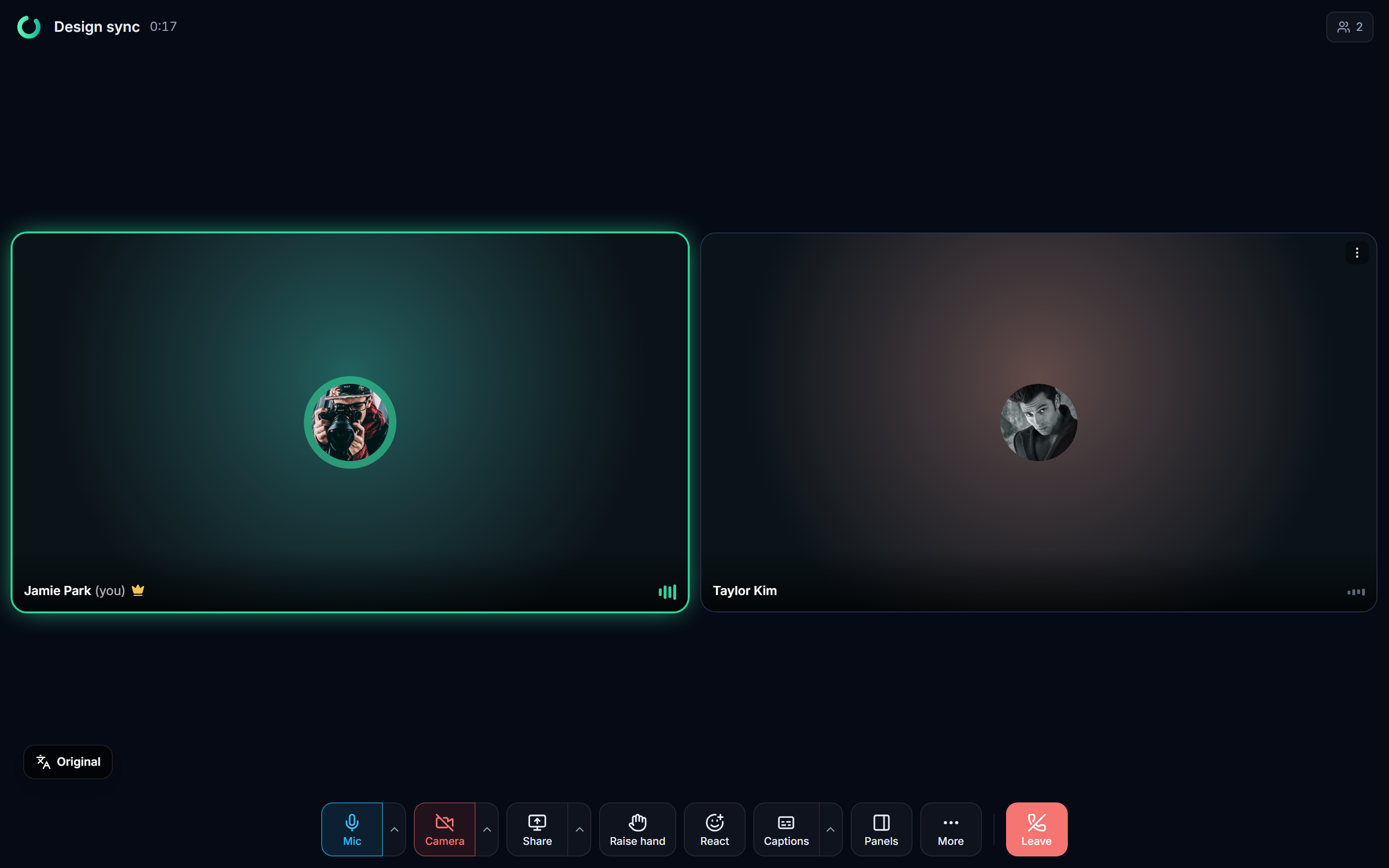
The control bar#
| Control | What it does |
|---|---|
| Microphone | Mute or unmute. The arrow next to it opens Audio options (microphone, speaker, Output volume, deafen). |
| Camera | Turn camera on / Turn camera off. The arrow opens Video options with the camera and Background effects. |
| Share screen | Present your screen, a window or a browser tab. The arrow next to it chooses the quality: Automatic, Text & presentations (sharp) or Video & games (smooth). While you share, the button opens Manage sharing: Change source, Sound and Stop sharing – see Screen sharing in the chapter Communication, which also explains the native screen capture of the Windows desktop app. On a phone, More › Stop sharing ends it. |
| Raise hand | Put your hand up; you appear under Raised hands. Lower hand takes it down. |
| React | Send a quick reaction (for example a thumbs-up or applause) that floats over the video. |
| Captions | Turn captions on / Turn captions off. The arrow opens Caption language. |
| Panels | One menu for all side panels: Participants, Chat, Notes, Transcript, Polls & questions, Breakout rooms, Whiteboard and Meeting settings – each only where it is available to you. The open panel has a check mark; choose it again to close it. Pending counts (people in the lobby, raised hands, open polls and questions, help requests from breakout rooms) appear next to the entries, and a dot on the Panels button tells you something is waiting behind it. |
| More | Layout, Full screen, Background effects, Keyboard shortcuts, Connection info (live connection and screen share values when something stutters) and, for organizers, Start recording. |
| Leave | Leave the call (see Leaving and ending below). |
You can also open Participants by clicking the participant count in the header of the call. From a window width of 1280 pixels, the buttons show short labels under their icons (Mic, Camera, Share, Captions, Panels, More, Leave …); on smaller screens they are icons only and the full name appears as a tooltip.
Keyboard shortcuts in the call: M toggles the microphone, V the camera, H raises or lowers your hand, F switches full screen, and Esc unpins a tile or exits full screen. In the desktop app your global hotkeys and push-to-talk work as well. M, V, H and F do nothing in a meeting if you bound the same key yourself – for Push to talk, intercom, Speak as discussion lead or a desktop hotkey.
Some controls may be greyed out: an organizer can disable your microphone, camera or screen sharing, or the meeting settings allow presenting only for presenters.
Layout, pinning and spotlight#
Under More › Layout choose Automatic, Grid, Speaker or List. List shows everybody as compact rows grouped by meeting role (organizers first) with status icons; screen shares and cameras appear as chips above it – Watch shows one above the list. With Automatic, meetings with 25 or more people switch to the list by themselves (see List view in the chapter Communication). Double-click a tile to pin that person for yourself; double-click again to unpin. Organizers can put someone in the Spotlight for everyone. When someone shares their screen, the view switches to the presentation automatically ("… is presenting").
Chat and notes in the call#
The Chat panel is the meeting chat; it stays available after the meeting. Organizers can switch it to Only before and after the meeting or Chat off. The Notes panel holds shared meeting notes that everyone edits together – click Create notes to start them. Notes and chat also feed the AI summary.
The participants panel and moderation#
The Participants panel shows the Lobby (for organizers), Raised hands in the order they were raised, everyone In the meeting with their role, and the people who were Invited but have not joined yet with their response. At the top you find Copy invite link and, for organizers, Mute all (mutes all attendees, not organizers).
Open the menu next to a person for Volume (only what you hear; up to 200 % in Chromium-based browsers and the desktop app, 100 % in Safari and Firefox – see Volume in the chapter Communication) and Pin for me. Organizers additionally get Lower hand, Spotlight for everyone, Disable microphone / Allow microphone, Disable camera, Disable screen sharing, Change role (Make co-organizer, Make presenter, Make attendee), Remove from meeting (the person can rejoin) and Remove and block (the person cannot rejoin this meeting).
Meeting settings during the call#
Organizers change the meeting live in the Meeting settings panel:
- Access – Lock / Unlock the meeting and set the Lobby.
- Participation – Who can present?, Chat, Attendees can use their microphone, Attendees can use their camera, Allow reactions.
- Transcription – switch Live transcription on or off and set the Spoken language.
- End automatically – see below.
Recording#
Organizers start a recording under More › Start recording and choose Video + audio or Audio only, or let it start by itself with Record automatically. More › Stop recording ends it.
Everybody else is muted when a recording starts. Unless the organizer switched it off, starting a recording (or a live stream) mutes the microphone of everybody in the call except the person who started it – phone participants included. You see the notice "You were muted because the recording started. Switch your microphone back on to speak – by doing so you consent to your voice being recorded." Nobody switches your microphone back on for you: when you unmute and speak, you decide to be recorded. Phone participants switch their microphone back on with *6.
You cannot miss that a recording runs. While it runs:
- a red banner at the top of the call says Recording in progress – started by … at … with the running time; it cannot be closed;
- the whole call window gets a red frame, the header shows a pulsing Recording (or Recording audio) badge, and the voice panel in the sidebar turns red with a Recording in progress line;
- the browser tab shows ● REC · in front of the title and a red dot on the tab icon;
- in the desktop app, the tray icon and the taskbar button get a red dot, and the game overlay shows a red REC line;
- a short sound plays when a recording starts (also when you switched interface sounds off) and when it ends; screen readers announce both; you also get the toasts Recording started and Recording stopped.
Joining a meeting that is being recorded (or that is recorded automatically) asks first: This meeting is being recorded – Join (microphone off) or Cancel. You join with your microphone off and switch it on yourself when you want to speak.
Organizers choose the behaviour under Recording & AI › Mute all microphones when a recording starts when they schedule the meeting; by default it follows the space setting (Space settings › Voice & media › Audio & video › Recordings, on unless the space admins switched it off).
Warning
Tell people before you record. Anyone who does not want to be recorded keeps the microphone (and camera) off or leaves the meeting.
If the call runs in a voice region without recording support, More shows "Recording not available in region …" instead of Start recording.
After the call, the recording is in the Recording tab of the meeting overview with a player, the date and who started it, and "kept until" when a retention period applies. Who may watch and Download it depends on the Recording access chosen for the meeting. People without access do not see the recording at all – neither in the meeting overview nor in the recordings and files of the room.
Transcription, captions and translation#
When live transcription is on, a Transcribing badge is visible to everyone. Speech is transcribed by a speech recognition service that runs on your organization's own Coviqo servers – no third party is involved.
- Live captions – click the captions button to show what is being said at the bottom of the video. Use Caption language to choose Original or a language to translate into. Each person picks their own caption language.
- Transcript panel – follows the conversation during the call.
- Transcript tab – after the meeting, the full transcript with speakers and times. You can search it, Filter by speaker, jump to a moment with Play recording from here, and Export it as text, PDF, Word or captions (WebVTT, SRT), optionally translated.
If the transcription service is temporarily unreachable, the badge reads Transcription waiting; transcription starts on its own as soon as the service is back.
Opting out of transcription#
You can object to being transcribed. In Settings › AI & captions, switch on Don't transcribe my voice. Your microphone is then excluded from live captions, transcripts and summaries in every meeting, while others still see you as present. During a call you see "You are not being transcribed.", and the transcript of past meetings reminds you that your contributions are missing.
In the same place you set your defaults: Show captions automatically, your Caption language and the Summary language. The chapter Privacy and your data explains more about how voice data is handled.
Note
Whether transcription, captions, translation and summaries are available at all depends on your organization, your plan and the space settings. If a feature is blocked, Coviqo tells you why, for example "Not included in your plan" or "Disabled in this space".
AI settings of a space#
When you create a space, you decide whether Automatically transcribe and summarise meetings is on (see the chapter Spaces and rooms). Your answer becomes the space default: new meetings start with live transcription and an automatic summary – or without. Organizers can still switch transcription on or off for each meeting.
As long as you don't change Transcription, Summary and the language while scheduling a new meeting, they carry the note Inherited from the space. Space admins change this later under Space settings › AI & transcription: which AI features the space allows, the defaults for new meetings (Transcription on by default, Create summary automatically, spoken language) and, under Retention & visibility, how long transcripts are kept and who may read them after the meeting.
- New spaces keep transcripts for 90 days. Summaries (and their translations) are kept until someone deletes them.
- Spaces created earlier keep their setting – Coviqo never deletes transcripts on its own because of this change. If a space keeps transcripts without limit, the section shows Recommendation: delete transcripts after 90 days. Switch to 90 days fills in the value; after Save changes, older transcripts are deleted on the next run (within the hour).
Leaving and ending#
Click Leave. What happens next depends on your role:
- Attendees simply leave. The dialog Leave the meeting? ("The meeting goes on without you") appears on touch devices and for guests, so a single tap never ends your participation by accident.
- Organizers choose between Just leave and End for everyone. If others are still in the call, Coviqo asks once more (Really end it for everyone?). Ending disconnects everyone and stops recording and transcription.
- If you are the last person in the meeting, organizers are asked "You are the last person in the meeting – end the meeting?". End meeting finalizes the recording and transcript and creates the summary.
Afterwards you see You left the meeting with Rejoin and Meeting overview. Guests see Thanks for joining! and can Create a free account.
When a meeting ends by itself#
Meetings do not stay open forever once everyone is gone. With End when everyone has left switched on (the default), the meeting ends a short time after the last person leaves – two minutes by default, configurable from Immediately up to an hour under Wait after the last person left. Recording and transcription stop right away when the call becomes empty; if someone joins again in the meantime, the meeting simply continues.
With the option off, the meeting stays open but ends 24 hours after the last person left at the latest. Only a meeting that someone actually joined is ever ended automatically.
Either way, the meeting counts as ended when the last person left: the time shown for a past meeting (for example "Today, 13:05 – 13:06") and its duration do not include the waiting time.
After the meeting#
Open a meeting from Past to see its overview. Below the title, an ended meeting shows how many people attended (joined the call) – invited people who never joined are not counted, people who joined by phone are; the Participants tab lists both. Phone participants appear as Phone … 347 (only the last three digits of the number are shown and stored). For a recurring meeting, the count, the join and leave times and the duration always belong to one occurrence – the latest call by default; pick another occurrence above the list. The column Total (all occurrences) adds up a person's time over the whole series. For a recurring meeting, Join and Edit stay available after a call has ended – joining starts the next call of the series. The tabs are Overview, Recording, Transcript, Summary, Results, Notes, Files, Chat, Tasks and Participants (with join and leave times and duration). The Tasks tab shows the tasks of the meeting's own room and, above them, the tasks that were published from this meeting into the linked room or at space level, each with a note on where it lives and an Open link. Only tasks you are allowed to see are shown and counted; suggestions that are not yet published are in Results.
The AI summary#
When the meeting ends, the AI summary is created automatically (if it was enabled). It is based on the transcript, the meeting notes and the chat and contains an Overview, Topics, Decisions, Open questions and Action items. References such as "in transcript" jump to the matching spot. Participants are notified when it is ready, and if the meeting is linked to a room, the overview is also posted there.
Organizers can edit the overview, Create summary if none exists yet, or Regenerate it.
For a recurring meeting, every occurrence gets its own summary. Above the summary, a picker lists the summarised occurrences by date, newest first ("(latest)" marks the current one). Earlier occurrences are shown read-only and can be read in your language as well; editing and Regenerate apply to the latest occurrence.
The summary in your language#
Everybody reads the summary in their own language – also when the meeting itself was held in several languages. Coviqo uses your Summary language (Settings › AI & captions) or, if you have not chosen one, the language of the user interface.
- If the summary was written in another language, you see the translation with the note Automatically translated from German · Show original. Click Show original to read the original wording; Show translation switches back.
- While the translation is being made, you see the original with a short "Translating …" note; the page updates by itself when the translation is ready.
- Use the language menu next to the note to read the summary in any other language your organization offers.
- Spoken languages: German, English, Spanish tells you which languages were spoken in the meeting (languages below 5 % of the speaking time are left out).
- Editing always changes the original: when an organizer clicks Edit, the original is shown, and the translations are updated automatically afterwards.
- Tasks and decisions created from the summary keep the original wording.
- The "Summary ready" notification and e-mail use your language as well. If the translation is not ready after a short wait, the e-mail contains the original with a note that the translation can be read in Coviqo.
Translations are made on your organization's own infrastructure. Administrators can switch them off (Control › AI), and a space that switches off translation gets the original only.
Note
The summary is generated on your organization's own infrastructure and can take a few minutes ("The local AI is analyzing transcript, notes and chat"). By default only the organizers and participants of the meeting see transcript and summary; a space can open them up to everyone with access to the room.
How AI content is labelled#
Everything an AI created in a meeting carries the label AI-generated · <model>: the summary (on the summary tab, the overview card and the chat message posted after the meeting), the transcript, live captions and the AI drafts on the results tab. A translated summary or translated captions also say machine-translated from <language>. Hover over the label to see the full model name and when the content was created. The same information is stored in a machine-readable form with the content – in exports (JSON), in the properties of downloaded PDF and Word files and in the data the app receives – as the EU AI Act asks for AI-generated content. Tasks and decisions that an organiser has reviewed and published are no longer labelled as AI content.
Reviewing results#
The AI does not create tasks or decisions on its own. Its action items and decisions arrive as drafts in the Results tab, where organizers and co-organizers review them under To review:
- Check each draft and its Source – a link to the position in the transcript or recording where it was said.
- Fix the title with Edit, set the assignee, Due date and Priority for tasks, or mark decisions to Revisit and pick whether one Supersedes decision an older one.
- Accept or Reject each draft (Reopen undoes a rejection). Add your own items with Add another item ….
- Select the items and click Publish.
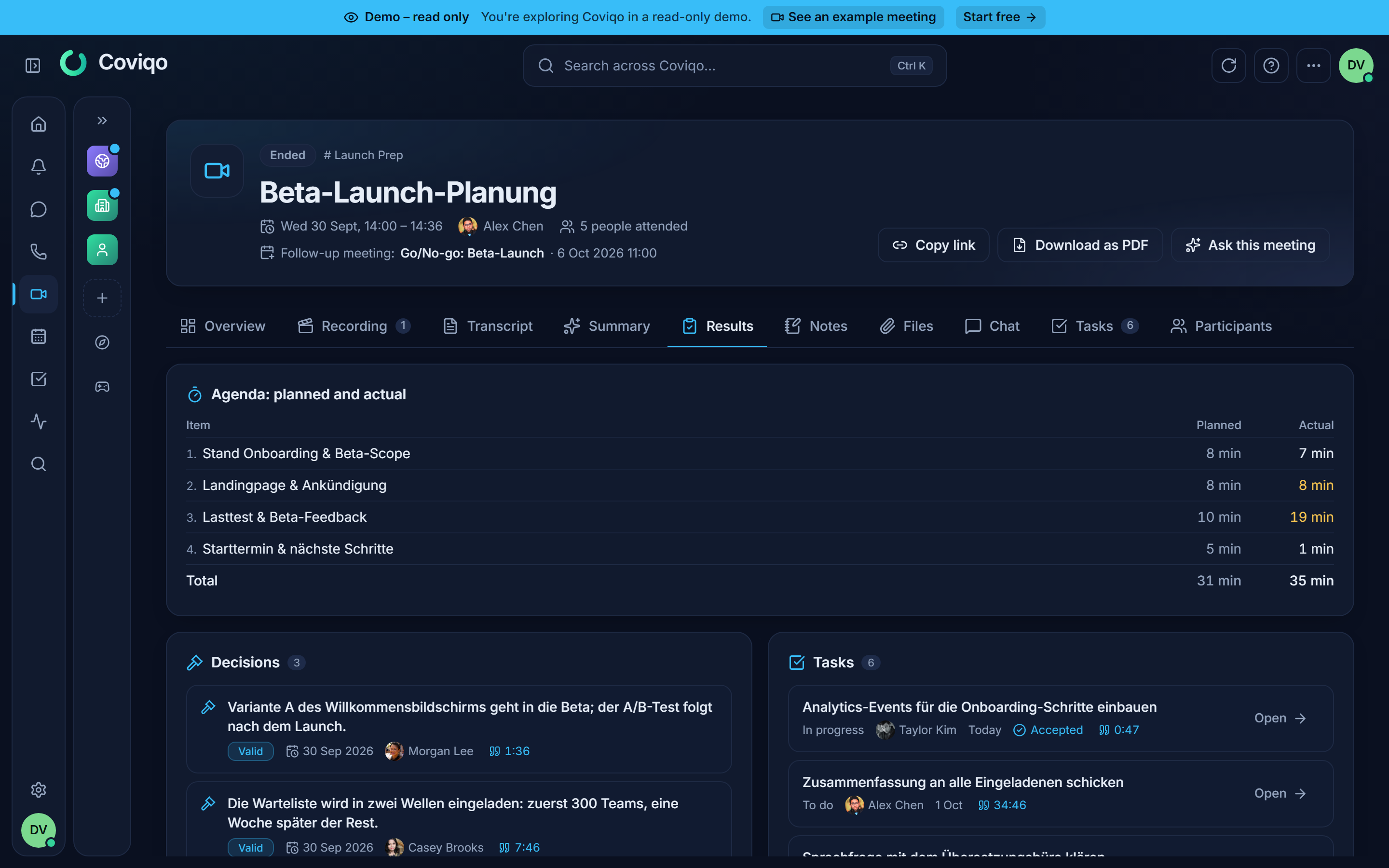
Published action items become real tasks – in the linked room, or on space level when the meeting has no room – and assignees are notified. Published decisions go into the decision log. Drafts that nobody confirms are hidden after 30 days.
Tip
In the summary, organizers find Review & publish and everyone else View results. The chapter Tasks explains what assignees see on a task that comes from a meeting.
The decision log#
Rooms with the Decisions module (on by default) have a Decisions tab with the decisions published from meetings linked to that room. If a room has switched the module off, decisions published from its meetings go to the space's log instead. The whole space's log is available from the space's Meetings page via Decisions. Filter by Valid, Superseded or All, by room, or Search decisions …. Each entry shows its date, the responsible person, the source meeting and, if it was replaced, which decision supersedes it.
Switching meetings off#
Meetings are a module. Space settings › Overview › Features › Meetings switches them off for the whole space; Room settings › Content › Meetings for a single room. The space switch wins over the rooms.
When meetings are off, the Meeting button, the next-meeting card in the room header, Start a meeting / Schedule meeting in menus and the command palette, and the space's Meetings entry in the sidebar disappear for that scope, and Coviqo refuses new meetings there (also from room devices and events). Meetings that already exist are kept: their links, recordings and summaries keep working, and events stay in the calendar.
The next meeting and its agenda#
Open items should not get lost between meetings. The Results tab shows a Next meeting card:
- For a recurring meeting, the next occurrence of the series is used automatically.
- For a meeting with a room, organizers Pick follow-up meeting from the room's upcoming meetings.
In the follow-up meeting's Overview, the Agenda then proposes the open tasks and decisions marked Revisit ("open items from previous meetings"). Organizers Take over what belongs on the agenda or Dismiss the rest, add their own points with Add agenda item … and tick items as Done during the meeting.
Coviqo also reminds assignees of open meeting tasks 24 hours before they are due, and sends a weekly overview of open items every Monday morning. You can adjust both in your notification settings (see the chapter Notifications).
Follow-up actions#
After a meeting, Coviqo helps with the next steps. The AI only suggests them – every action opens a dialog that is already filled in, and nothing is sent or created until you confirm.
Where you find them
- In the Results tab, organizers see the card Suggested follow-up actions: each suggestion shows why it was made (for example "The group wants to continue next week") and a link to the place in the transcript. Apply opens the matching dialog, Dismiss removes the suggestion for good (a new summary does not suggest it again).
- The "Summary ready" notification offers the organizer the two most important suggestions as buttons.
- Tasks that are themselves a follow-up action – for example "Arrange a date for the next meeting" – show a button such as Plan follow-up meeting on the task card and in the task dialog. When you carry the action out, the task is marked done automatically; the message that appears lets you Undo this.
- After a meeting has ended, organizers can always click Plan follow-up meeting in the meeting header – also without AI.
The actions
| Action | What happens |
|---|---|
| Plan follow-up meeting | The scheduling dialog opens with the same participants (including external guests), the title "Follow-up: …", the same space, room and settings, and an agenda made of the open questions, open tasks and decisions to review. If participants have connected their calendars, free times are suggested; otherwise a date mentioned in the conversation ("next Tuesday") is used. Both meetings link to each other ("Previous meeting" / "Follow-up meeting"). |
| Scheduling poll | Propose two to six dates. The participants with a Coviqo account answer yes, maybe or no in the Results tab of the meeting. You then pick a date – the scheduling dialog opens with it. |
| Send summary | An e-mail to the participants you choose, external guests included. The text is taken from the AI summary and can be edited; optionally the meeting report is attached as a PDF (only with sections you may read yourself). Each person gets their own e-mail, replies go to you. Sending is recorded in the space audit log. |
| Create note | A note from a template (minutes, action plan or blank) in the meeting's notes, linked to the meeting and the task. |
| Reminder | A notification for a participant at the date you choose. |
| Invite someone | Invite a person to the planned follow-up meeting, or plan a new one with them. Only members of the space and your contacts are suggested; others can be invited by e-mail. |
| Review decision | A decision of the meeting comes up again at a date: the person responsible is notified, and the decision is proposed on the agenda of the next meeting. |
The meeting report (PDF) can include the section Follow-up actions (organizers only).