Chapter 5
Spaces and rooms
On this page
- Creating a space
- Space settings
- Overview
- Rooms
- Creating a room
- Room visibility
- Room settings
- Tabs of a room
- Categories and order
- The left navigation
- Reordering rooms and spaces in the sidebar
- Archiving and deleting rooms
- Roles and permissions
- Built-in roles
- Creating and editing roles
- Room overrides
- Inviting people
- Invite links and e-mail invitations
- Your own invite link
- Managing members
- External collaboration
- Inviting an external person
- What guests see
- The External people overview
- Project end of a room
- The external-people badge
This chapter shows you how to set up and organise the places where your team or community works: spaces, the rooms inside them, the roles that decide who may do what, and the invitations that bring people in. The last part explains external collaboration – how you work with customers, partners and freelancers who should only see selected rooms, and only for as long as a project runs.
If you have not read it yet, the chapter Introduction and concepts explains the ideas behind spaces, rooms, modules and roles in a few pages.
Creating a space#
- Click Create a space in the space list on the left (or choose it on the welcome screen after registering).
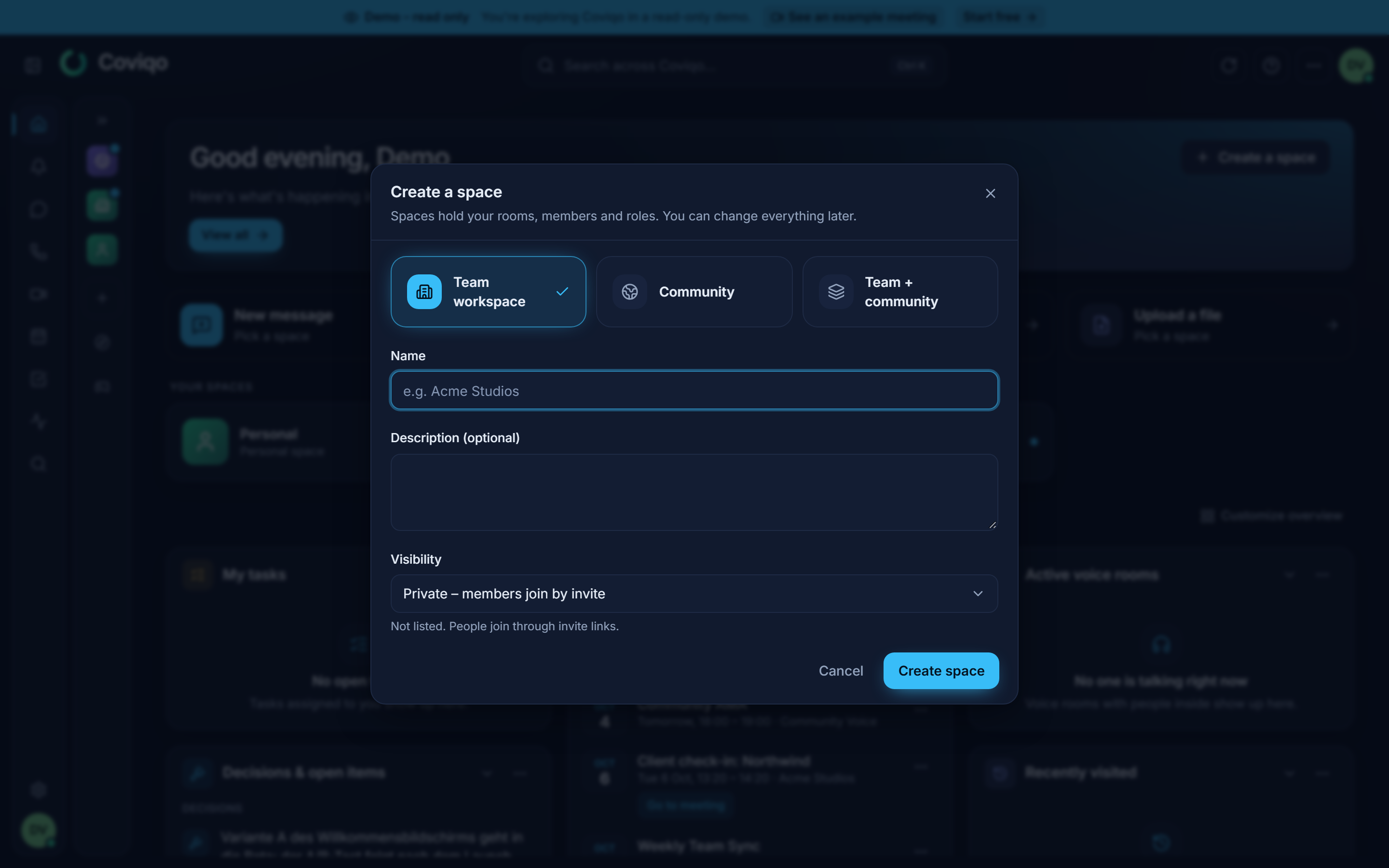
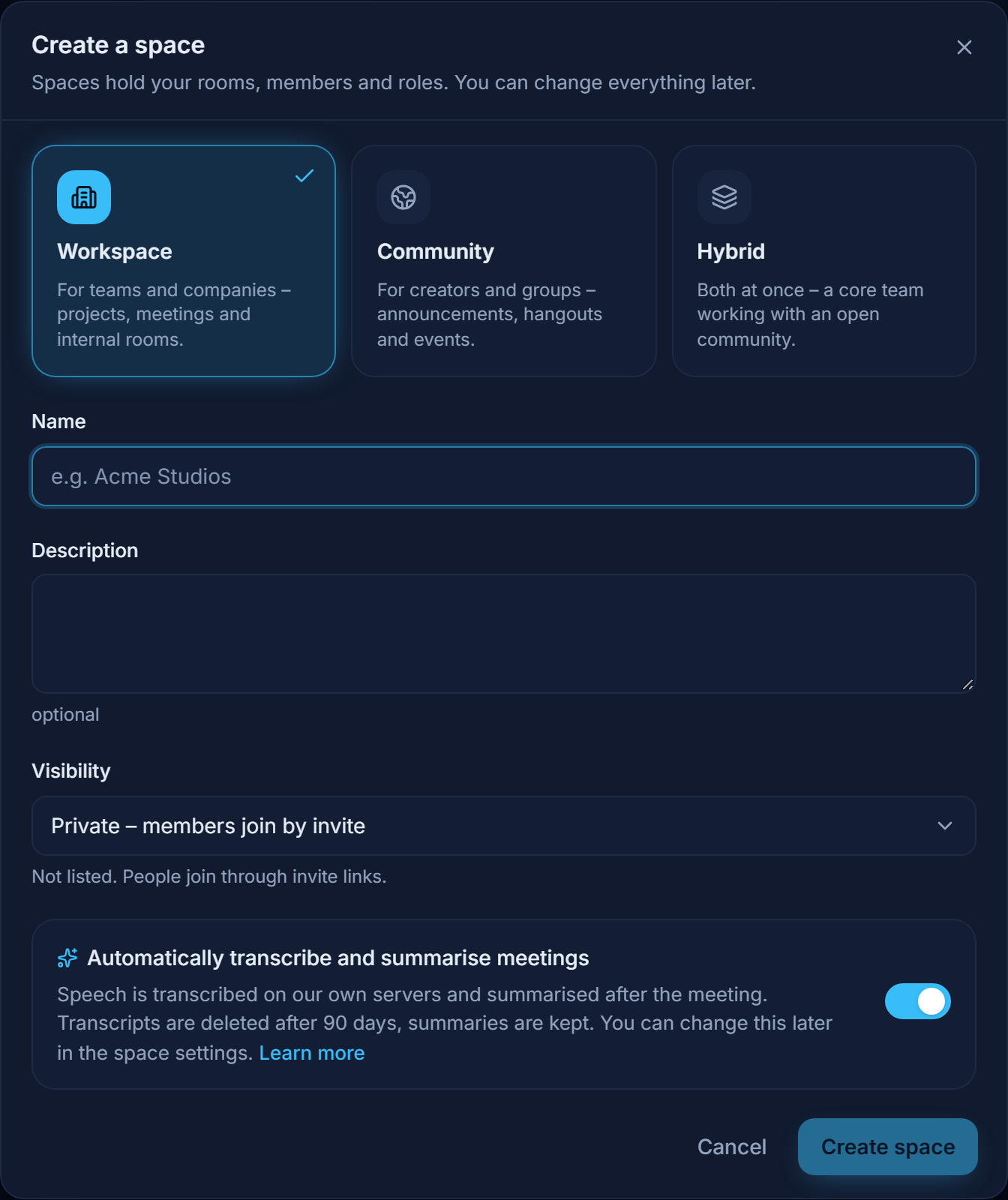
- Pick a Space type: Team workspace, Community or Team + community.
- Enter a Name (for example "Acme Studios") and, optionally, a Description.
- Choose the Visibility: Public – anyone can find and join, Private – members join by invite (the default) or Invite only – hidden, invitation required.
- Decide whether Automatically transcribe and summarise meetings should be on (it is preselected). When it is on, meetings in the space are transcribed on Coviqo's own servers and summarised after the call; transcripts are deleted after 90 days, summaries are kept. Learn more opens the privacy policy section on what is recorded, who sees it and how long it is kept. You can change the choice later under Space settings › AI & transcription. The switch only appears when AI is available on your plan.
- Click Create space. If the name is missing or too short, a hint appears under the field.
Coviqo opens the new space right away. You are its Owner, and depending on the type it already contains a first category with a few rooms, so nobody lands in an empty space:
| Space type | Category | Rooms created for you | Default roles |
|---|---|---|---|
| Workspace | Rooms | general (Standard room), Team Sync (Voice room), Projects (Project room) |
Owner, Admin, Manager, Member, Guest |
| Community | Community | announcements (Community room, members cannot post), hangout, Community Voice, events (Event room) |
Owner, Admin, Moderator, Member, Guest |
| Hybrid | Rooms | general, Voice, Roadmap (Project room) |
Owner, Admin, Maintainer, Contributor, Guest |
You can rename, change or delete all of these later.
Note
Your private space (also called personal space) is created when you want it: in the sidebar choose Create a space › Create private space (German UI: Privaten Space anlegen), or use the card on the welcome page. One click creates it; you can have one at a time. It is always private, contains a private Notes room and cannot be shared – its type and visibility cannot be changed. To work with others, create a separate space. Your private space and your direct messages use the platform's AI defaults (transcription on, transcripts kept 90 days) without asking.
If something needs a private space you don't have yet – for example save privately for a clip – Coviqo asks You need a private space for this – create it now? and then carries on.
Delete it again in its settings: Space settings › Overview › Danger zone › Delete private space (Privaten Space löschen). The confirmation lists what will be deleted (notes, files, tasks, messages, recordings …); type the space's name to confirm. Afterwards you can create a new, empty one at any time. If your organisation does not allow a private space, the option is not shown.
Space settings#
Open a space's settings with Space settings in the space menu, or right-click the space in the sidebar (press and hold on a phone) and choose Space settings. The settings live at /s/<space>/settings.
The menu has 15 pages in six groups. Pages with several sections show them as tabs at the top of the page. You only see the pages and tabs your roles allow – a page appears as soon as you may open at least one of its tabs; an owner or admin sees all of them. If a tab has unsaved changes, Coviqo asks before you switch tabs.
| Group | Page | Tabs |
|---|---|---|
| Space | Overview | – |
| Organization & plan | Plan, Single sign-on (if you administer the space's organisation, single sign-on lives in the organisation area under Security & sign-in – the tab shows the way there) | |
| People & access | Members | Members, Teams, External people |
| Roles | – | |
| Invites & joining | Invites (with the custom invite link), Rules & onboarding | |
| Rooms & voice | Rooms | – |
| Voice & media | Audio & video, Sound profiles, Soundboard, Intercom, AFK | |
| Community | Public profile & directory | Directory (with "Find players"), Website embed |
| Emojis & stickers | – | |
| Memberships & tickets | – | |
| Apps & automation | Apps & integrations | Integrations, Office documents, Bots, Matrix bridge |
| Automations | – | |
| AI & transcription | – | |
| Moderation & safety | Moderation | Reports, Actions, Raid protection |
| Data & log | Data & privacy, Audit log |
A path like Space settings › Members › Teams names the page and the tab. Older links to single sections (for example /s/<space>/settings/teams) still work and open the page on the matching tab.
| Section | What you do there | Needed permission |
|---|---|---|
| Overview | Name, description, type, visibility, branding, privacy, features (Meetings on/off for all rooms), public presence, danger zone | Manage space |
| Roles | Create and edit roles | Manage roles |
| Members › Members | Assign roles, titles and guest access, moderate members | Manage members |
| Members › External people | Guests from outside your organisation | Manage members |
| Invites & joining › Invites | Invite links for new members and guests, custom address | Create invites |
| Invites & joining › Rules & onboarding | Questions and rules for new members | Manage space |
| Rooms | Categories, room order and archived rooms | Manage rooms |
| Voice & media › Soundboard | Sounds for voice rooms | Manage the soundboard |
| Public profile & directory › Directory | Listing in the space directory | Manage space |
| Emojis & stickers | Custom emojis and stickers, approvals (see Community features) | Upload emojis & stickers or Manage emojis & stickers |
| Moderation (Reports, Actions, Raid protection), Data & log › Audit log | Reports, timeouts, bans, raid protection and the history of changes | Moderation permissions |
The tab Organization & plan › Plan (needs Manage space or Manage billing) shows which organisation the space belongs to and its plan – "This space belongs to {organisation} – plan {plan}". Billing is managed per organisation: owners, admins and billing contacts of the organisation get the button Manage billing, which opens https://app.coviqo.com/org/<organisation>/billing.
The sections AI & transcription, Office documents, Integrations, Data & privacy, Plan and Single sign-on are covered in the chapters Meetings, Files, Integrations, Privacy and your data and Plans and billing. Office documents (what the office editor allows in this space) needs Manage space and only appears if your installation offers office documents.
Overview#
- Templates – Team, Community and Gaming set several settings of this page at once (presence, external people, member directory and list, display names, external file links, external images). After the click you see every change (old → new value); Apply fills them into the form, nothing is saved until Save changes (Reset discards them). Settings your organisation decides are never changed by a template.
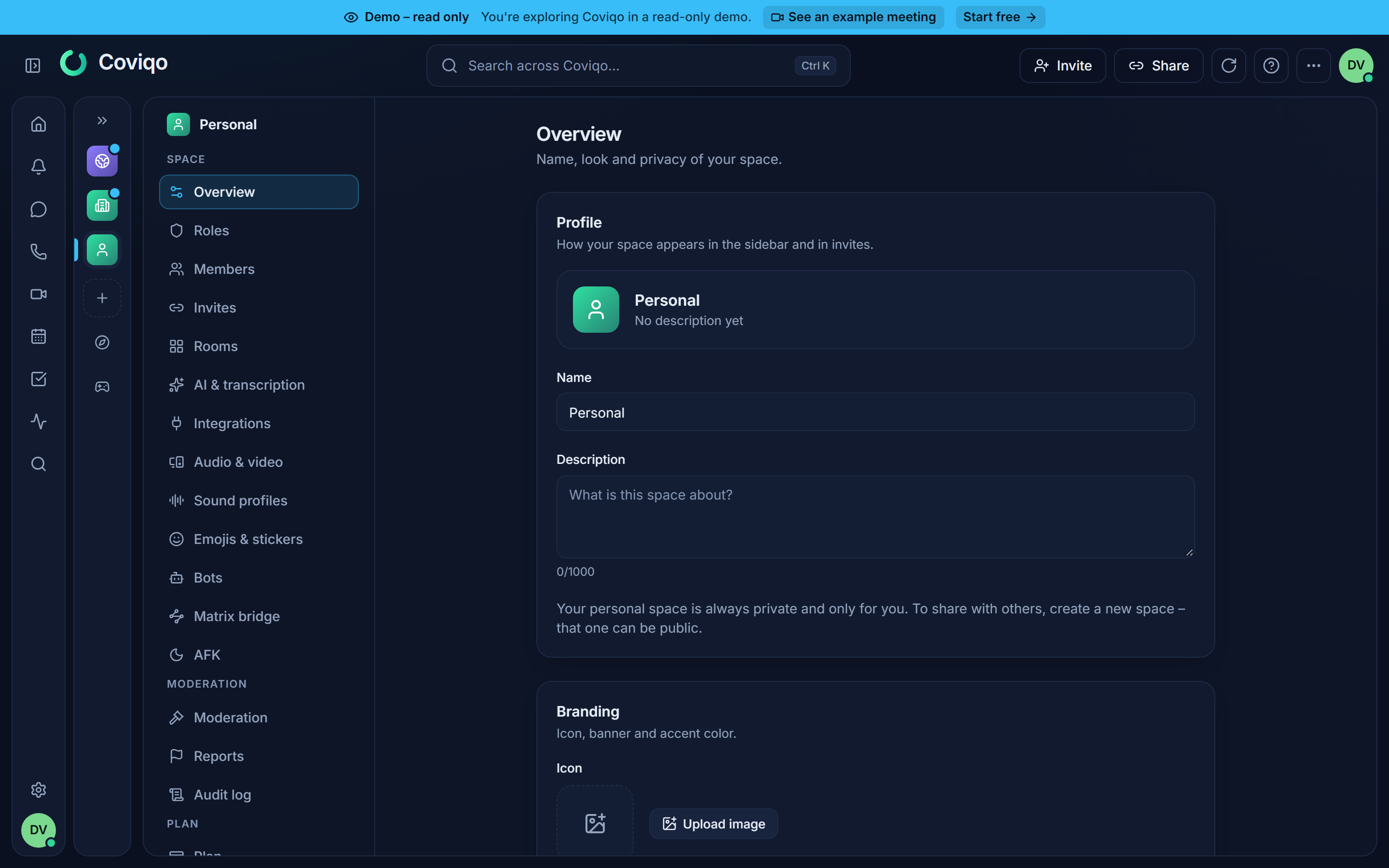
- Profile – Name, Description, Space type and Visibility. Changing the type adjusts wording and defaults; existing roles and rooms stay as they are.
- Branding – Icon, Banner and Accent color.
- Privacy & access – what members can see about each other and who can join:
- Show activity – members see what others are doing, for example that someone is in a meeting.
- Show last seen – members see when others were last online.
- Show voice room – members see which voice room someone is in.
- Allow external people – switch off to disable guest invitations for this space entirely. If your organisation's policy forbids external people, the switch is off and shows Set by the organization (likewise External file links when the organisation forbids share links).
- Member directory – members can browse the member list of the space (Members in the space menu).
- Public presence – links to Custom address (Invites & joining › Invites), Space directory and Website embed (Public profile & directory); you only see the links to tabs you may open.
- Danger zone – Archive space (read-only, can be undone with Restore space), Transfer ownership (only members who can own the space are offered – no guests, no bots), Leave space and Delete space.
Warning
Delete space permanently removes all rooms, messages, notes, files and tasks of the space. If you only want to stop using a space, archive it instead.
If you own a space and want to leave it, Coviqo asks you to pick a New owner first (Transfer and leave). If you are the only member, you can only delete the space.
Rooms#
Creating a room#
Click Create room in the space menu or next to a category, or right-click the space and choose Create room.
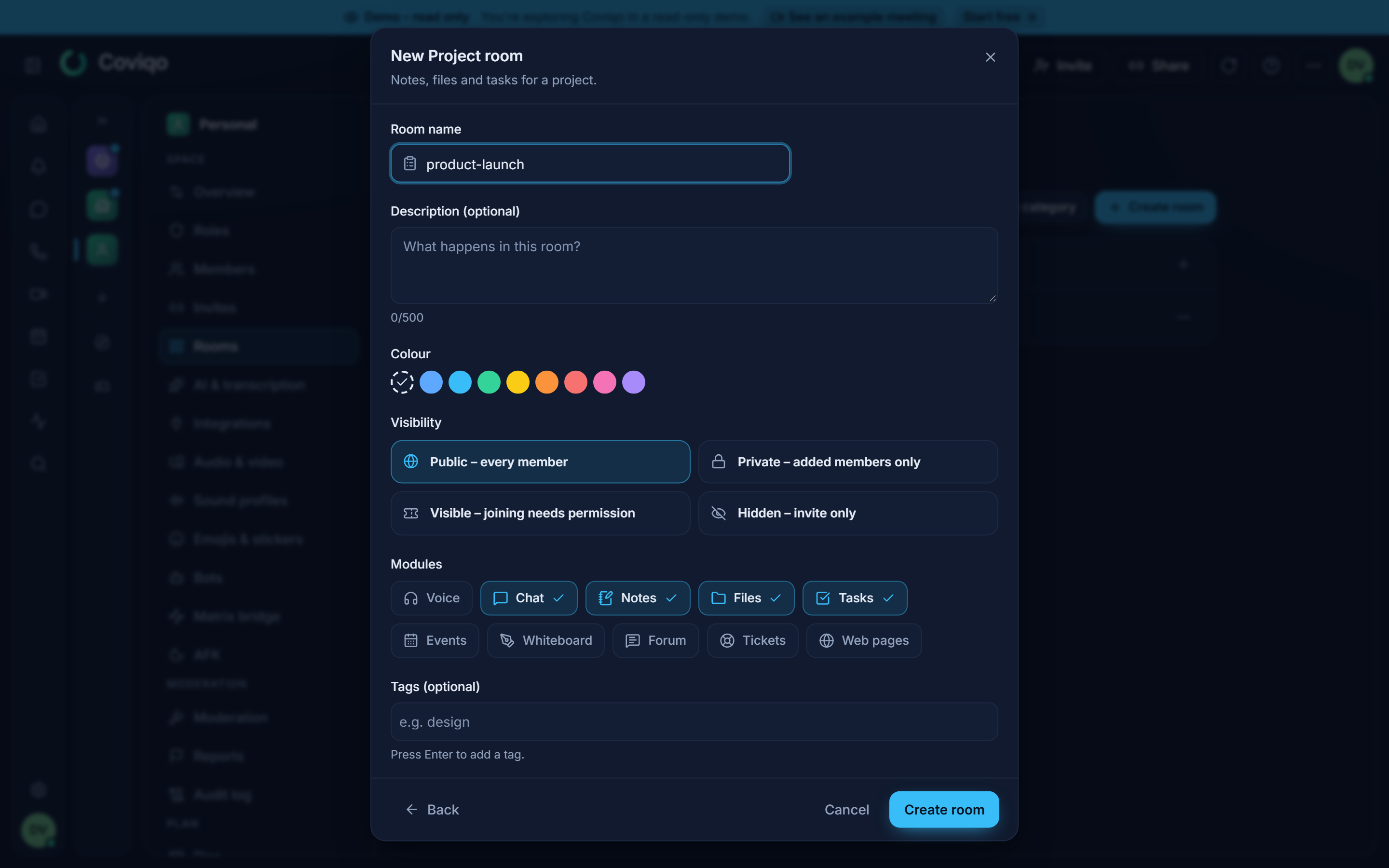
Choose the room type. The type only decides which modules the room starts with:
Room type Starts with Standard room Chat, Files Voice room Voice, Chat, Notes, Files, Tasks Project room Chat, Notes, Files, Tasks Meeting room Chat, Notes, Files, Tasks (the call is joined through the meeting, there is no Voice Room tab) Event room Voice, Chat, Events Community room Chat, Events, Files Stage Voice, Chat Map Voice (as the map), Chat, Notes, Whiteboard, Files – a 2D map with zones and spatial audio (see Maps) Enter the Room name (for example
product-team) and optionally a Description. If the space has categories, choose a Category.Choose the Visibility (see below).
Switch modules on or off – for example Whiteboard for live boards (see the chapter Whiteboard).
Optionally choose a Colour for the room icon, add Tags (press
Enterafter each one) and, for rooms with voice, set a User limit between 1 and 999.Click Create room.
You need the Create rooms permission. In the default roles, owners, admins, managers (Workspace) and maintainers (Hybrid) have it – regular members do not. Ask an admin if the button is missing.
Room visibility#
| Visibility | Who sees the room | Who can enter it |
|---|---|---|
| Public – every member | Every member of the space | Every member with Join rooms |
| Visible – joining needs permission (restricted) | Every member of the space | Only people added to the room, or roles and members that are explicitly allowed Join rooms in the room's permissions |
| Private – added members only | Only added members (and admins) | Only added members |
| Hidden – invite only | Only added members (and admins) | Only added members |
For private and invite-only rooms, you manage access in Room settings › Access › Members with Add member. The creator of the room is added automatically. People who leave a private room need to be added again to return.
Room settings#
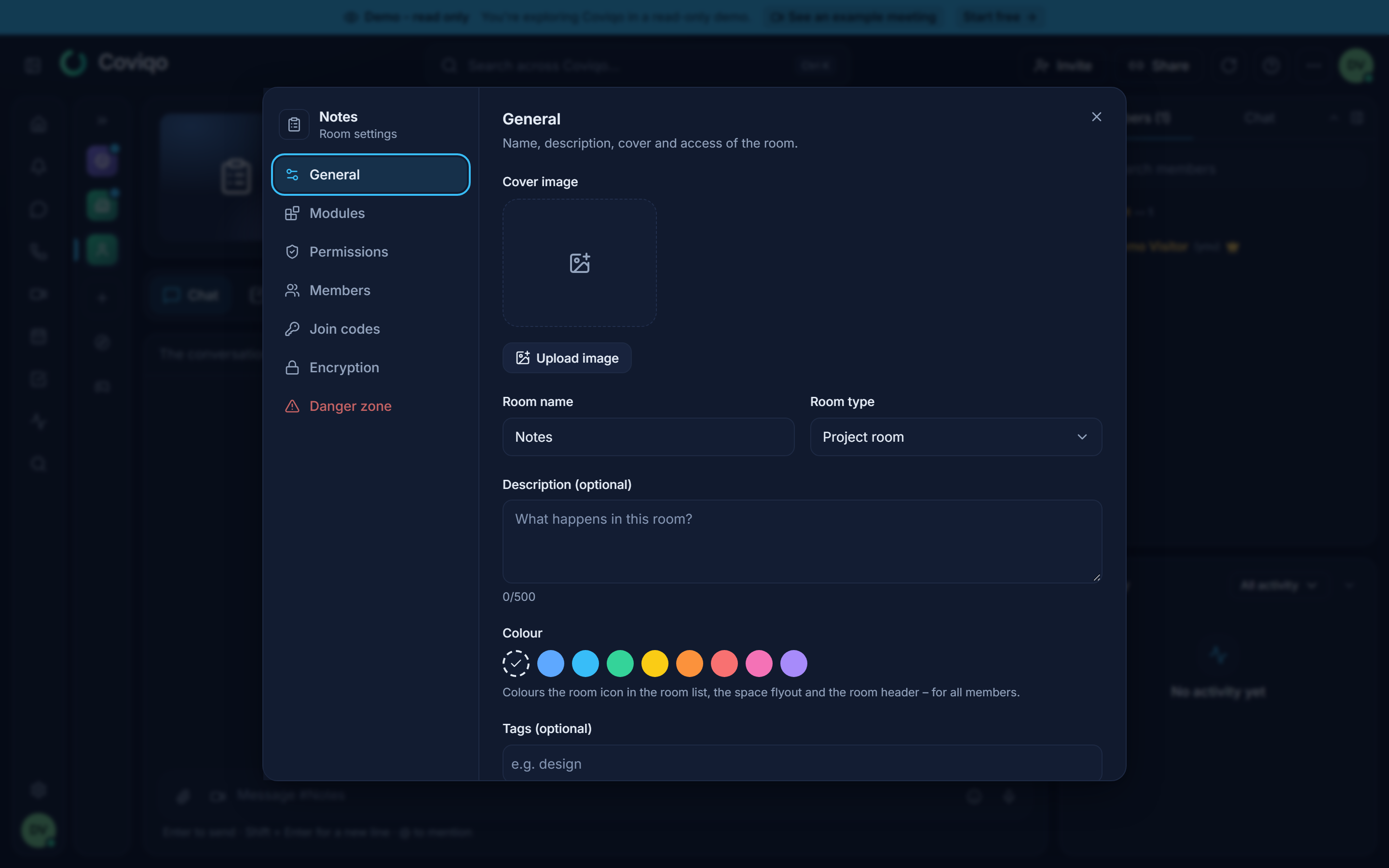
Open Room settings from the gear in the room header or by right-clicking the room in the sidebar. You need Manage rooms (or Add room members for the member list only). The side navigation has five groups; groups with several sections show them as tabs:
- General – Cover image (uploaded; links to images on other websites are not accepted), Room name, Room type, Colour (colours the room icon in the room list, the collapsed space panel and the room header – for all members; Default = no colour), Description, Tags, User limit, Category, Visibility and Project end (see External collaboration below).
- Content (in lobbies: Lobby) – at the top the room overview setting, below it which tabs the room has and in which order (Move up / Move down). At least one module with a tab must stay enabled. Decisions is a module like the others: switched off, the room has no Decisions tab, nobody can record new decisions there, and its decisions disappear from the space's decision log, search and catch-up – they stay stored and come back when you switch the module on again. Meetings (always the last row, it has no tab) decides whether the room offers Meeting in its header, shows its next meeting and can be picked as the room of a meeting; existing meetings are kept. If the space has switched meetings off, the row says Switched off for the space. A module's own settings sit directly below its row: with Notes enabled, Guests may edit notes lets external people edit the room's notes (off by default: guests only read them); Tasks has Edit columns, Tickets and Feed their settings, and in map rooms a link Map settings sits under the map row.
- Access – tabs Permissions (room-specific overrides for roles and members), Members (only for private and invite-only rooms), Join codes (codes that let members of the space open a non-public room; needs Invite to room) and Encryption.
- Voice & media – tabs Audio & video (audio and video quality, intercom with listen-in and the conversation lead, "Bots may join despite external guests"), Sound profile, Soundboard (switch the soundboard of a voice room or lobby on or off, see Community features), Moderated room and Clips.
- Danger zone – Archive room and Delete room; for an archived room Restore room instead of Archive room.
Room managers also find a gear Tab settings in the room's tab bar: it opens Room settings › Content at the module of the current tab.
Tabs of a room#
The enabled modules appear as tabs at the top of the room (Voice Room, Chat, Notes, Files, Tasks, Events, Whiteboard, Forum, Tickets, Web pages, Decisions …). Decisions shows the decisions published from linked meetings and recorded from chat threads; new rooms start with it, and existing rooms have it switched on. Rooms with a linked Jira project or GitHub repository also get a live Jira or GitHub tab (see Integrations; hidden from guests unless the room allows it). The active tab is part of the address, for example /s/acme/r/<room>?tab=chat, so you can bookmark or share a link to a specific tab. On the right, Members and Chat panels and the room's Activity keep you up to date while you work in another tab.
The first time you open a room, its header is a large card with the cover image, the name, the description and the room's details. On later visits – and as soon as you scroll in the room – it folds into a compact bar about 64 pixels high: the cover as a thin strip along the top edge, the room name, the space and whether the voice room is live (Live now with the number of people), badges such as external people or end-to-end encryption, the info button Room info (description, visibility, people in the room and tags) and all actions of the room. Coviqo remembers per browser which rooms you have already seen.
In the tab row, the arrow keys, Home and End move between the tabs; Enter or Space opens the selected one.
The room header also offers Add to favorites and Mute notifications. There is no "leave room": which rooms you see follows your space membership, roles and teams – mute a room you don't need, or leave the whole space from the space menu (Leave space).
Categories and order#
Categories group rooms in the sidebar. Manage them in Space settings › Rooms:
- New category creates a category; the menu of a category offers Rename category, Create room in this category, Permissions and delete. Deleting a category keeps its rooms – they move to Without category.
- Use Move up and Move down to change the order of rooms, and Move to in a room's menu to put it into another category.
- Select switches the room list to a selection mode: tick rooms (hold Shift for a range, or tick a whole category) and Archive, Restore, move or Delete them together. Deleting several rooms asks you to type DELETE or the number of rooms first and warns when people are in their voice channels.
When you create a room, every category of the space is offered (empty categories are only shown in the sidebar to people who may manage rooms).
Permissions of a category#
A category can have its own permissions, set like room permissions (Permissions in the category's menu). Rooms of the category are either synced with it – they follow every change of the category's permissions – or have their own permissions. New rooms in a category start synced. Room settings › Access › Permissions shows which is the case: Synced with the category "Projects" or Own permissions – not synced with "Projects". Changing a permission of a synced room asks End the sync? first; Sync takes over the category's permissions again and replaces the room's own ones.
When you move a room into another category – by dragging, with Move to, with Move up / Move down or in the room settings – and its permissions would change, Coviqo asks which permissions the room should have afterwards: Use category permissions, Keep current permissions or Cancel (when the room leaves every category: Remove room permissions instead). The dialog says for how many roles or people something changes and warns when the room becomes visible – or no longer visible – to @everyone. Moving several rooms at once asks once for all of them.
The left navigation#
The left side of Coviqo has two parts:
- The main bar – always visible – starts with the places that are not tied to a space: Home, Notifications (with the unread count), Messages (with the number of unread direct messages; click it for a small list of your pinned and recent conversations – see Direct messages), Calls, Meetings, Calendar, Tasks, Activity and Search. When the space panel is collapsed, your spaces follow below a line as icons – favourites first – then Create a space, the Space directory and Find players; this part scrolls when you have many spaces. Click a space icon for a small menu with the space's overview, its rooms and meetings; right-click it for the usual space menu; drag it to reorder. At the bottom are Settings and your avatar, which opens your profile card. Point at an icon to see its name.
- The space panel next to it lists your spaces with their rooms, and while you are in a call the voice panel. While the panel is open, the main bar shows no space icons – each space appears only once, in the panel.
Home shows who is where right now. At the top: the greeting with the Since your last visit: line, your unread messages and notifications, and one row of quick actions (New message, Start a meeting, Create a task, Upload a file, Create a space). Below it, Now lists the voice rooms with people in them – with their avatars, who is talking, who is sharing their screen and a Join button – and the meetings that are running. When nobody is live, Now shrinks to the single line Nobody is live right now. Then follow Next up (your next three events) and Your spaces (with unread mentions and how many people are in voice there). Home is the same for everybody and can't be customised; your tasks are on Tasks, the activity on Activity, the decisions in each space.
Finding spaces. The field Search spaces … at the top of the panel filters all your spaces as you type; Esc clears it. Below it, chips choose what the list shows:
- All – three sections: Favourites (spaces you starred), Recently active (the five spaces you opened last that are not favourites) and All spaces (all others, in your own order; your private space stays at the bottom).
- Favourites – only your starred spaces.
- Your own tags – only the spaces with that tag.
Favourites. Click the star next to a space (it appears when you point at the space) or choose Add to favourites in the space menu. A red number next to a space counts mentions of you; a dot means unread messages.
Your own tags. Group spaces as you like, for example "Customers" or "Gaming". Manage tags (the chip at the end of the row, or Tags › Manage tags … in a space menu) opens My tags: create a tag, give it a colour, rename or delete it, and tick the spaces that belong to it. In a space menu, Tags shows a checkbox per tag. Tags are only for you – nobody else sees them and the spaces are not changed. You can have up to 30 tags.
Width and collapsing. Drag the right edge of the space panel to make it wider or narrower; a double-click restores the default width. The arrow at the top of the panel (Collapse space list) – or Collapse sidebar at the left of the top bar – hides the panel; only the main bar stays and now shows your spaces as icons, to give chats, documents and calls more room. Expand sidebar brings the panel back. Coviqo remembers width and state on this device. Full settings pages – your personal settings, space settings and the organisation area opened as a page – fold the panel by themselves to give the settings more room, and open it again when you leave; if you had folded it yourself before, or open it again while you are there, it stays the way you left it. The settings popovers over the page you are on leave the panel alone.
Automatic folding. The page itself always keeps enough room. When the window gets narrower, Coviqo first moves side panels – the members and activity of a room, the member list of a space – out of the page: Members & activity in the top bar (or Members on the space overview) opens them from the right. If that is still not enough, only the main bar remains on the left; Expand sidebar then opens the full navigation over the page. Your own settings do not change – widen the window and everything comes back. The task board of a room always gets the full width.
On phones and small windows the navigation is a drawer that you open from the top bar instead, always with the full space panel (see Using Coviqo on mobile).
Reordering rooms and spaces in the sidebar#
You can arrange the sidebar directly, without opening the settings:
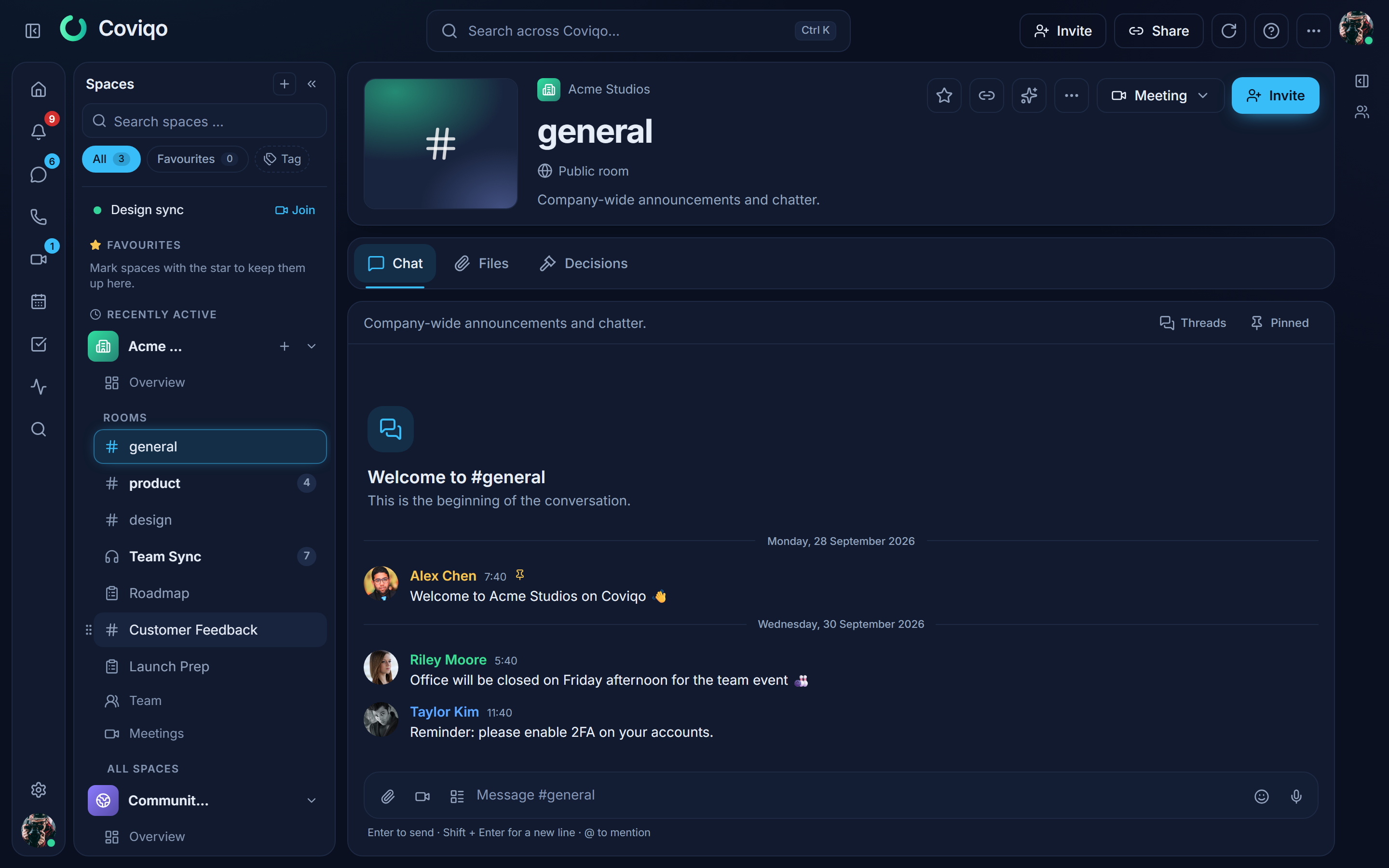
Rooms – if you may manage rooms (Manage rooms permission, owners and admins), drag a room to a new place in its space. In a space with categories the sidebar shows the category names above their rooms, and you can drag a room into another category (drop it on a category name to put it first). The room order is shared: every member of the space sees the new order at once. Members without the permission see no grip and cannot drag. Rooms cannot be moved to another space.
Spaces – drag a space within Favourites or All spaces to change the order of your spaces. This order is personal: it only changes your sidebar, never anyone else's, and it follows you to your other devices and the desktop app. Your private space always stays at the bottom, and spaces you join later appear at the end of the list.
Categories – if you may manage rooms, drag a category name to a new place; its rooms move along as a block. This order is shared as well. Rooms without a category always stay at the top.
Category names sit further left than their rooms – the arrow of a category lines up with the space icon – so the groups stand out from the room list.
You can also collapse the rooms of a space with the arrow next to its name.
The category menu#
Right-click a category name (press and hold on a phone, or the context-menu key or Shift+F10 on the keyboard) or click … next to it:
- Collapse / Expand – clicking the category name does the same. Collapse all and Expand all apply to every category of the space. Collapsing is personal and remembered on this device. A collapsed category still shows the room you have open; a dot marks unread messages in its hidden rooms.
- Create room in this category – with the Create rooms permission.
- Rename, Permissions, Move up / Move down and Delete category – with the Manage rooms permission. Deleting a category keeps its rooms; they move to No category.
Only people who may manage rooms see empty categories; the sidebar shows No rooms below them.
How to drag:
- Mouse – hover over a room, category or space: a grip (⋮⋮) appears at its left edge. Drag the grip or the entry itself; a line shows where it will land. A simple click still opens the room or space as before.
- Touch – press and hold the entry for a moment, then move your finger. If you keep holding without moving, the entry's menu opens instead.
- Keyboard – move the focus to the grip (Tab), press Space or Enter to pick the entry up, move it with the arrow keys, and press Space or Enter to drop it or Escape to cancel.
- Menu – right-click an entry (press and hold on a phone, or the context-menu key) and choose Move up or Move down.
If the new order cannot be saved (for example because the connection dropped), the sidebar jumps back to the previous order and a message tells you so.
Archiving and deleting rooms#
Archive room makes the room read-only and hides it from the sidebar; its content is kept. Delete room permanently removes the room with all messages, notes, files and tasks.
To bring an archived room back, open Space settings › Rooms: the list Archived rooms shows all archived rooms with a Restore button. Alternatively click Restore room in the room's Danger zone. You need Manage rooms for both.
Roles and permissions#
Built-in roles#
Every space starts with five roles (see the table in Creating a space). Their key properties:
- Owner – a System role with every permission. Its permissions cannot be changed and it cannot be deleted – its permission switches show a lock and System role. There is exactly one owner; use Transfer ownership to hand it over.
- Admin – holds Administrator, which grants every permission and bypasses room restrictions.
- Manager / Moderator / Maintainer – can create and manage rooms, tasks and events, or moderate members, depending on the space type.
- Member / Contributor – the Default role that every new member gets automatically.
- Guest – marked Guest; assigned to people who join as guests. Guests can read, chat, react, attach files and talk in the rooms shared with them, but by default cannot upload files in the Files tab, edit notes or create tasks.
Creating and editing roles#
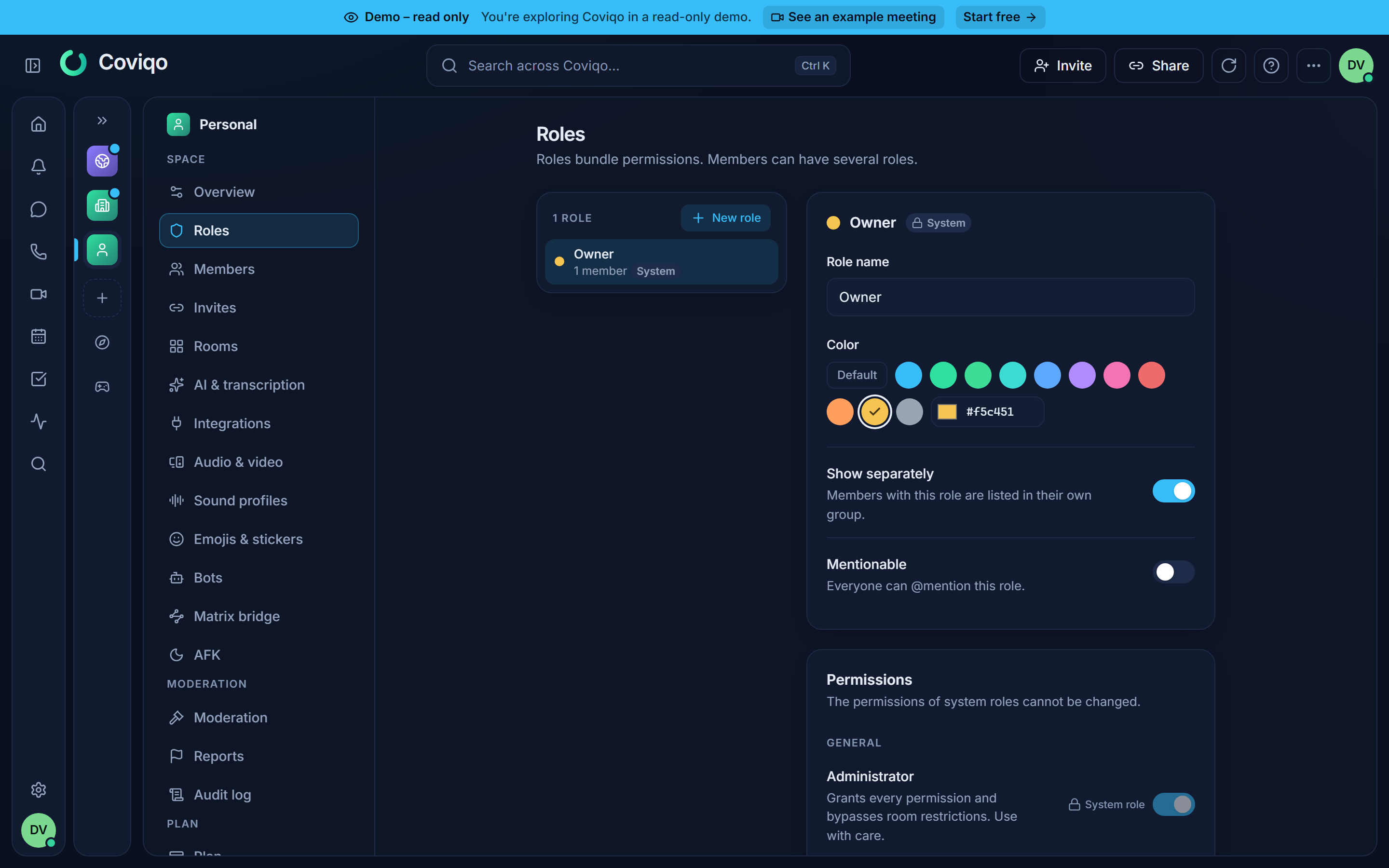
In Space settings › Roles, pick a role on the left or click New role. For each role you set:
- Role name and Color.
- Show separately – online members with this role get their own group, in the role's colour, at the top of the member list (see Teams and the member list).
- Mentionable – everyone can @mention this role.
- Default role – new members receive this role automatically. In the role list it carries the small badge Default; bots see it as
isDefaultin the role list of the bot API and can never assign or remove it. - Permissions – grouped into General, Moderation, Rooms, Audio & video, Chat and Content. If Administrator is on, the other switches have no effect.
Drag a role to its place in the list (on a phone: press and hold, then drag) or use Move up / Move down to order roles. The order matters: people with Manage roles can only create, edit and assign roles below their own highest role. Deleting a role removes it from everyone who has it.
Room overrides#
In Room settings › Access › Permissions, click Role, Member or Add team (see Teams and the member list) to add an override, then set each permission to Allow, Inherit or Deny. Typical uses:
- An announcements room: Deny Send messages for the Member role.
- A restricted room: Allow Join rooms for the roles that should get in.
- One external expert who may upload files in a single room: Allow Upload files for that member.
Member overrides beat role overrides, and the owner and administrators are never restricted. Remove override returns to the space permissions.
Guests never get administrative, moderation or managing permissions (for example Administrator, Manage rooms, Kick members, Manage messages, Invite people) – neither through a role nor through a room override. Coviqo refuses such a change with "Guests cannot get administrative or moderation permissions. Convert the guest to a member first." Assigning such a role in the member list converts the guest to a member automatically.
Inviting people#
Invite links and e-mail invitations#
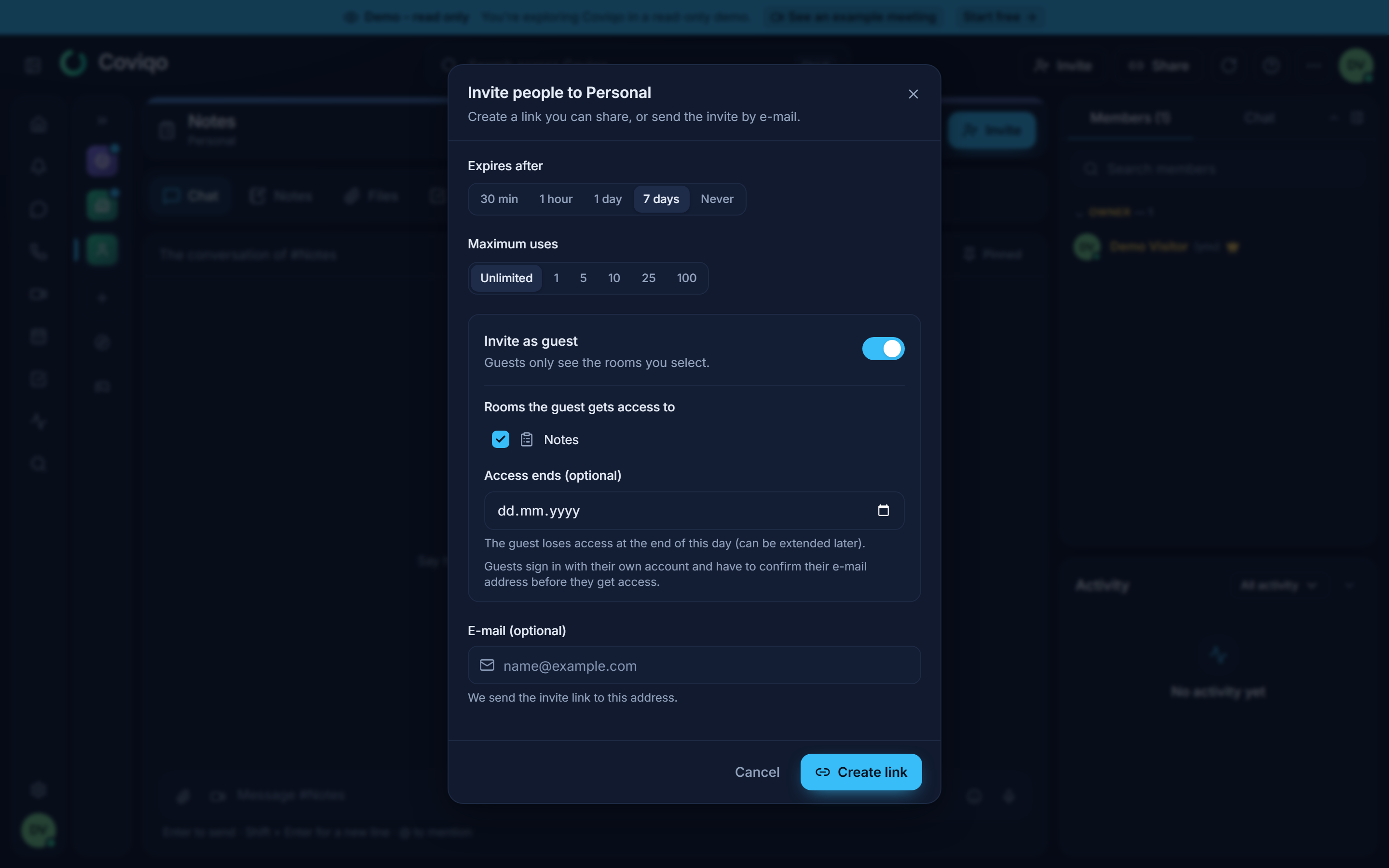
- Choose Invite people in the space's context menu (or Invite to room on a room), or open Space settings › Invites & joining › Invites and click Create invite.
- Set Expires after (30 min, 1 hour, 1 day, 7 days – the default – or Never) and Maximum uses (Unlimited, 1, 5, 10, 25 or 100).
- Optionally choose a Role that is assigned in addition to the default role. The choice appears only if you have Manage roles, and it offers only roles below your own whose permissions you have yourself.
- Optionally enter an E-mail. Coviqo then sends the invite link to that address, and only an account with exactly that address can accept it. To send invitations by e-mail, your own e-mail address must be confirmed ("Confirm your e-mail address before sending invitations by e-mail.").
- Click Create link (or Send invite with an e-mail address) and share the link.
The link looks like https://app.coviqo.com/invite/<code>. The person sees who invited them and can Accept invitation, Create an account to join or sign in with I already have an account. Space settings › Invites & joining › Invites lists all invites (Active or All) with their uses and expiry; revoke one to make the link stop working immediately.
Public spaces can also be joined directly from Discover without an invite.
Your own invite link#
On a paid plan every space can have one invite link with a name you choose, for example https://join.coviqo.com/acme-gaming – easy to remember and to put on a website, a stream overlay or a flyer. The short form https://app.coviqo.com/j/acme-gaming leads to the same page.
- Open Space settings › Invites & joining › Invites. The card Custom invite link is at the top.
- Type the Link name: 3 to 32 characters, lowercase letters, digits and hyphens (no hyphen at the start or end, no two hyphens in a row). While you type, Coviqo checks whether the name is free and shows "Available" or why it isn't – for example "This name is already taken", "Too similar to an existing name" or "This name is reserved" (names of Coviqo pages and system words such as login, support or coviqo can't be used). If a name is taken, click one of the Suggestions.
- Click Create link. Copy puts the link on the clipboard.
Only the space owner and administrators can set up the link, and only with a confirmed e-mail address ("Confirm your e-mail address to set the link name."). You can change the name once every 30 days; your previous name stays reserved for your space for 30 days, so nobody else can take it and you can switch back.
Settings of the link:
| Setting | Effect |
|---|---|
| Link active | Switched off, the link shows "This link is currently not active". The name stays reserved for your space for 30 days; switch it on again within that time and it works as before. |
| Pause joining | The page stays visible, but nobody can join for now. |
| Require approval | People send a join request instead of joining directly. Requests appear in the card with Approve and Decline; owners and administrators get a notification. |
| Public preview | The page shows the space name, icon, description and member count. Switched off, it shows only the link name. |
| Role for new members | The role people get when they join through the link (roles with administrative permissions can't be chosen). |
| Member cap | Nobody can join through the link once the space has this many members. |
The card also shows the Last 30 days: views of the page, joins and requests per day. Coviqo only counts totals per day – it stores nothing about individual visitors.
What people see: the page join.coviqo.com/<name> shows the space (with the public preview) and the button Join (or Request to join). After a short automatic security check they continue to Coviqo, sign in or create a free account, and join the space – or send their request. If you don't want someone to use the link, the usual rules apply: people banned from the space, people you have blocked and people whose organisation doesn't allow joining other organisations' spaces can't join.
When your organisation moves to a plan without custom invite links (for example back to Free), the link stops working immediately and the name stays reserved for 30 days; with a new upgrade within that time the link comes back by itself. Anyone can report a link that looks abusive (Report this link on the join page); reports go to the Coviqo Trust & Safety team.
Managing members#
Space settings › Members lists all members with their Roles, Guest status and Joined date. From each row you can:
- Assign roles.
- Edit title – a title shown next to the name in this space, for example "IT Administrator".
- Switch Guest on or off – turning a member into a guest replaces the default role with the Guest role and removes roles with administrative or moderation permissions. Turning a guest into a member ("converting") needs both Manage members and Manage roles, gives the default role, removes the guest end date and is recorded in the audit log ("Converted a guest to a member"). The highest role counts: if you give a guest any role other than the Guest role, they become a member in the same step – the Guest role and the guest end date go, and they see every room their roles allow. The role picker of a guest says so and also offers Make member directly.
- Warn, Timeout, Kick or Ban (with the matching moderation permissions). A timeout keeps the person reading but stops them from speaking, writing and uploading. A ban with a duration ends by itself: within about 10 minutes after it expires the person is notified and can join the space again. Removing or banning a member also ends their access to private rooms and their space teams; if they join again, they start like a new member.
You can only change members whose highest role is below your own, and only assign roles below your own highest role – nobody can hand out their own rank. Only the owner can change everyone.
The same actions are available by right-clicking a person in any member list (Manage member, Warn, Timeout, Kick from space, Ban from space).
External collaboration#
External people – customers, partners, service providers – work in Coviqo as guests of your space. A guest has their own Coviqo account, sees only the rooms you explicitly share with them, and can have an end date for their access.
Note
Meeting guests who join a single call through a meeting link are a different thing; see the chapter Meetings. They appear in External people too, marked Meeting guest only.
Inviting an external person#
- Open Space settings › Members › External people and click Invite external person, or switch on Invite as guest in the invite dialog.
- Under Rooms the guest gets access to, select at least one room.
- Optionally set an end date – Access ends (optional) in the invite dialog, Access until (optional) under Invite external person. Access ends at the end of that day and can be extended later.
- Enter the person's E-mail and click Send invite (or create a link).
The invited person must sign in with their own account and confirm their e-mail address before they can accept. If they have not confirmed it yet, the invite page shows a hint and Send confirmation e-mail again. Temporary meeting-guest accounts cannot accept guest invitations.
If Allow external people is switched off in the space overview, or your plan does not include external collaboration, guest invitations are not possible – existing guests can still be suspended or removed.
What guests see#
Coviqo enforces the following on the server, not just in the interface:
- Only shared rooms appear in the sidebar, search, activity and My tasks.
- No space-wide tasks, files or calendar entries.
- Only people who can see one of the shared rooms appear in member lists, profiles and @-mention suggestions – and only their online status, their roles and role names are visible to the guest.
- Notes of shared rooms are read-only, unless the room allows guests to edit them (Room settings › Content › Guests may edit notes).
- Meetings only if the guest takes part in them.
The External people overview#
Space settings › Members › External people shows every guest with Company / domain, Rooms (with the status of each room), Granted by, Since, Expires and Status. Filter by All, Active, Expiring soon or Suspended.
| Action | Effect |
|---|---|
| Extend | Set a new end date for all rooms (or one room), or leave it empty for unlimited access. You can only extend access to rooms you may invite people to, and the organisation's maximum guest duration and your plan still apply. |
| Change rooms | Choose which rooms are shared, each with its own optional end date. |
| Suspend | The person immediately loses access to all shared rooms; the membership is kept. |
| Reactivate | Gives access to the selected rooms again, optionally with a new end date. |
| Remove from space | Removes the person including all room and meeting access. A new invite is needed to collaborate again. |
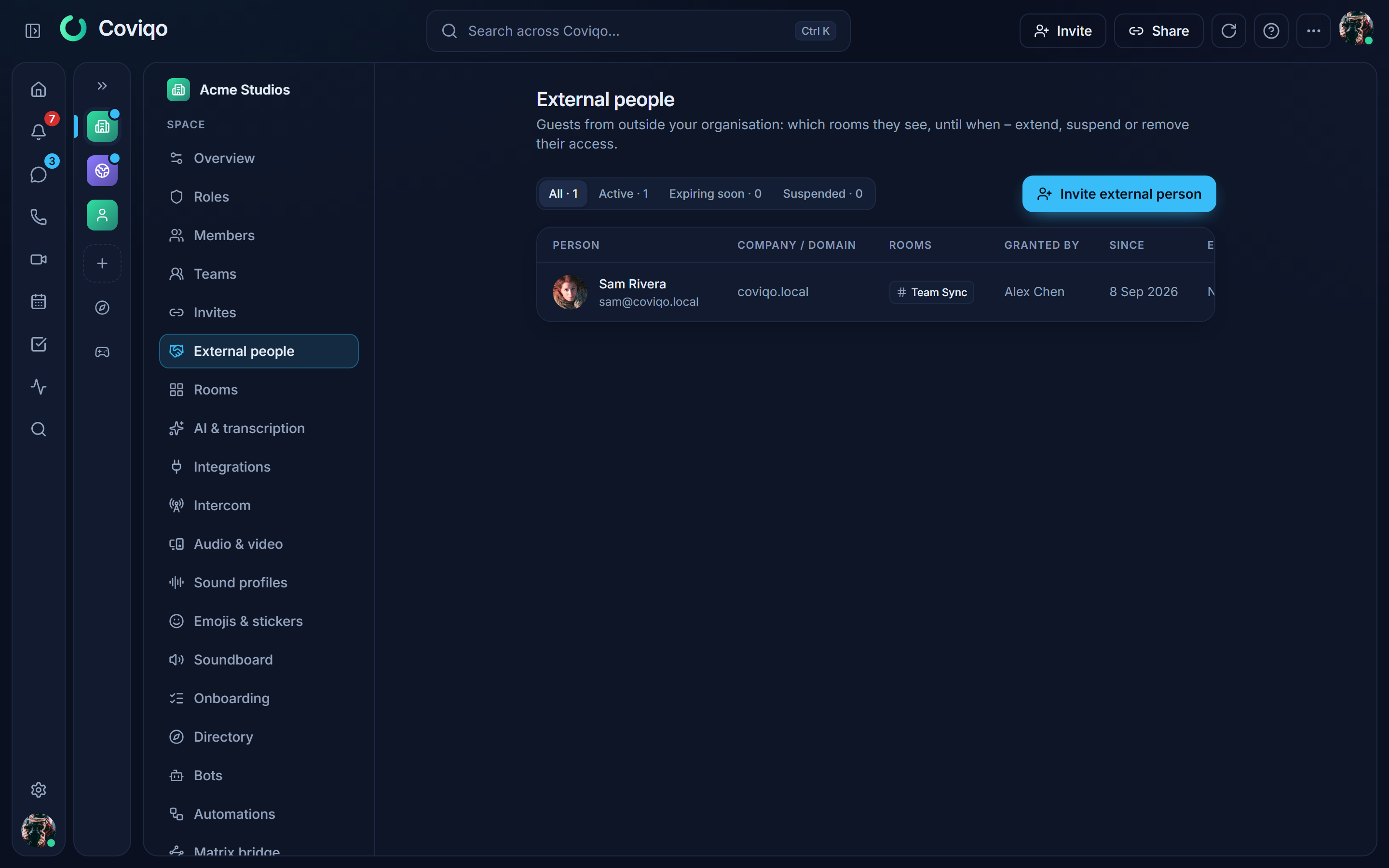
When access expires, it is suspended, not deleted, so you can reactivate it with one click. Seven days before an end date, the person who shared the rooms and the space admins get an Expiring soon notification, and they are notified again when access has expired.
Project end of a room#
In Room settings › General, the optional Project end date ends the access of all external people to that room on that day, whatever their personal end date. The hint below the field shows how many external people are affected. Choosing a date in the past suspends their access as soon as you save. Moving the date later does not reactivate access that was already suspended – use Reactivate for that.
The external-people badge#
In the header of a room shared with guests, members see a small badge such as 2 external people. Click it to see who has access and the room's project end; people with Manage members also get Manage external people. In the room's member list, guests are marked External. Guests themselves do not see the badge.
Tip
Before sharing a room with externals, check what is in its Files and Notes tabs – guests see the full content of a shared room, including its history.