Chapter 42
Calendar and events
On this page
- Events at a glance
- Where you find events
- The Events tab of a room
- The calendar views
- Creating an event
- Responding to an event
- Reminders
- Editing and canceling
- Moving an event to another room
- Adding a single event to another calendar
- Calendar sync
- What syncs
- Connecting a calendar
- Settings per connection
- When something goes wrong
- Disconnecting
- Known limitations
Coviqo has a built-in calendar. You can plan events for a room or a whole space, track who is coming, and get reminded before things start. This chapter covers creating and answering events, the calendar views, and connecting Coviqo to Microsoft 365 or Google Calendar so that events show up in the calendar you already use.
Events at a glance#
An event is an entry with a date and time that belongs to a space and, usually, to a room. Some typical uses:
- a weekly team sync with an online meeting attached,
- a community get-together that people register for, with a limited number of seats,
- an all-day deadline or a public holiday for the whole space.
Every event has an organizer (the person who created it), a list of participants with their responses, optional reminders and an optional recurrence. When an event has an online meeting, the event and the meeting are linked. The meeting brings the join link, lobby, recording and transcript, which are described in the chapter Meetings.
Whether you can see or create events depends on your roles in the space:
| Permission | What it allows |
|---|---|
| View events | See the calendar and events. |
| Create events | Schedule new events. |
| Manage events | Edit and cancel events of others. |
You can always edit and cancel events you created yourself.
Where you find events#
You can reach events from four places.
| Place | What it shows | How to open it |
|---|---|---|
| Events tab of a room | Upcoming events of this room | Open a room and select the Events tab |
| Space calendar | All events of one space in a month view | Space menu › Events, or Calendar in a room's Events tab |
| Your personal calendar | Upcoming events across all your spaces | My events in the top bar menu, Calendar on the home page, or Events calendar in the command palette |
| Home page | Your next three events under Next up | Home |
The Events tab of a room#
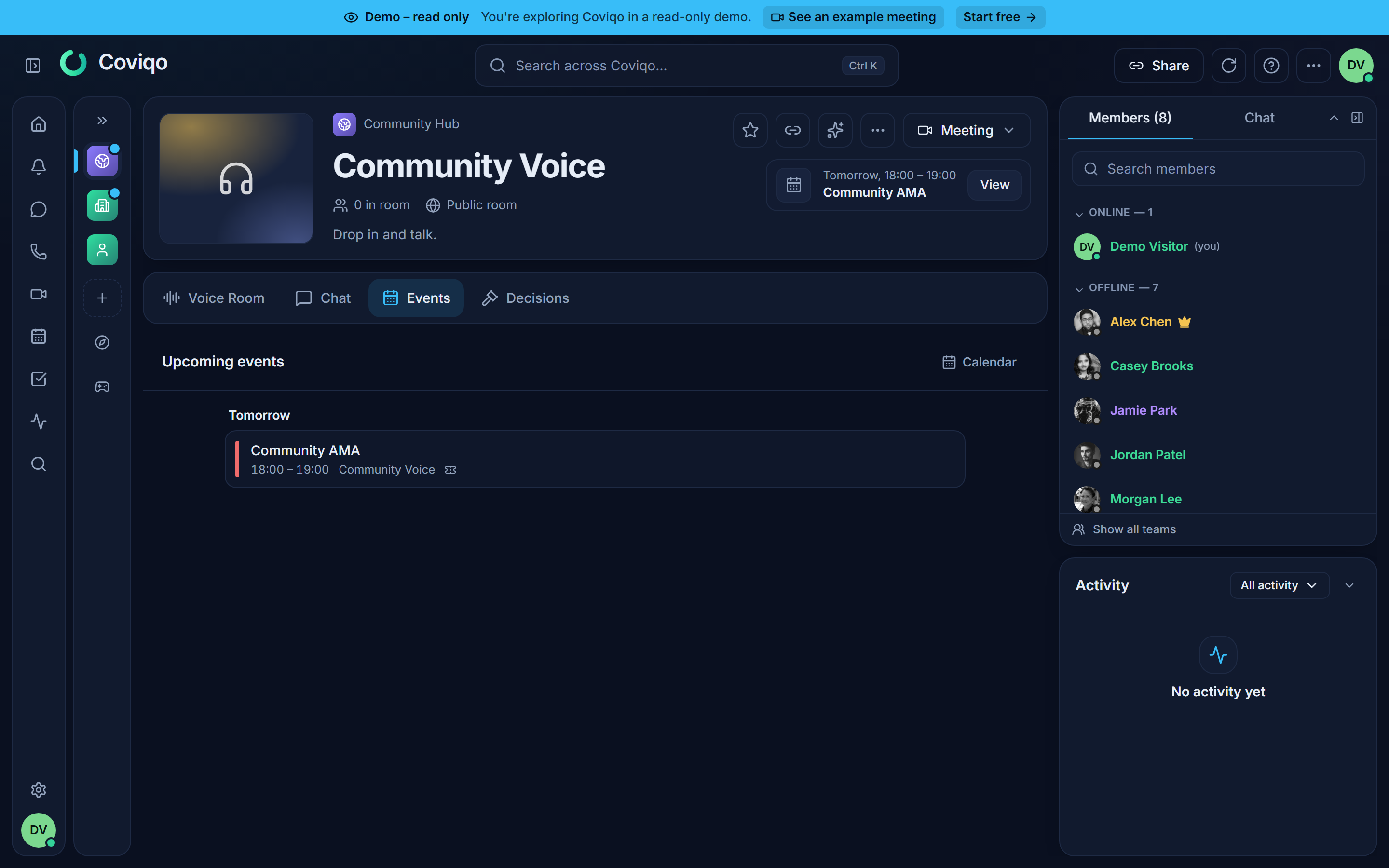
The Events tab lists the Upcoming events of the room. An event that is running right now is marked Happening now. If you may create events, the tab has a New event button. When a room has no events yet, you see No upcoming events.
The calendar views#
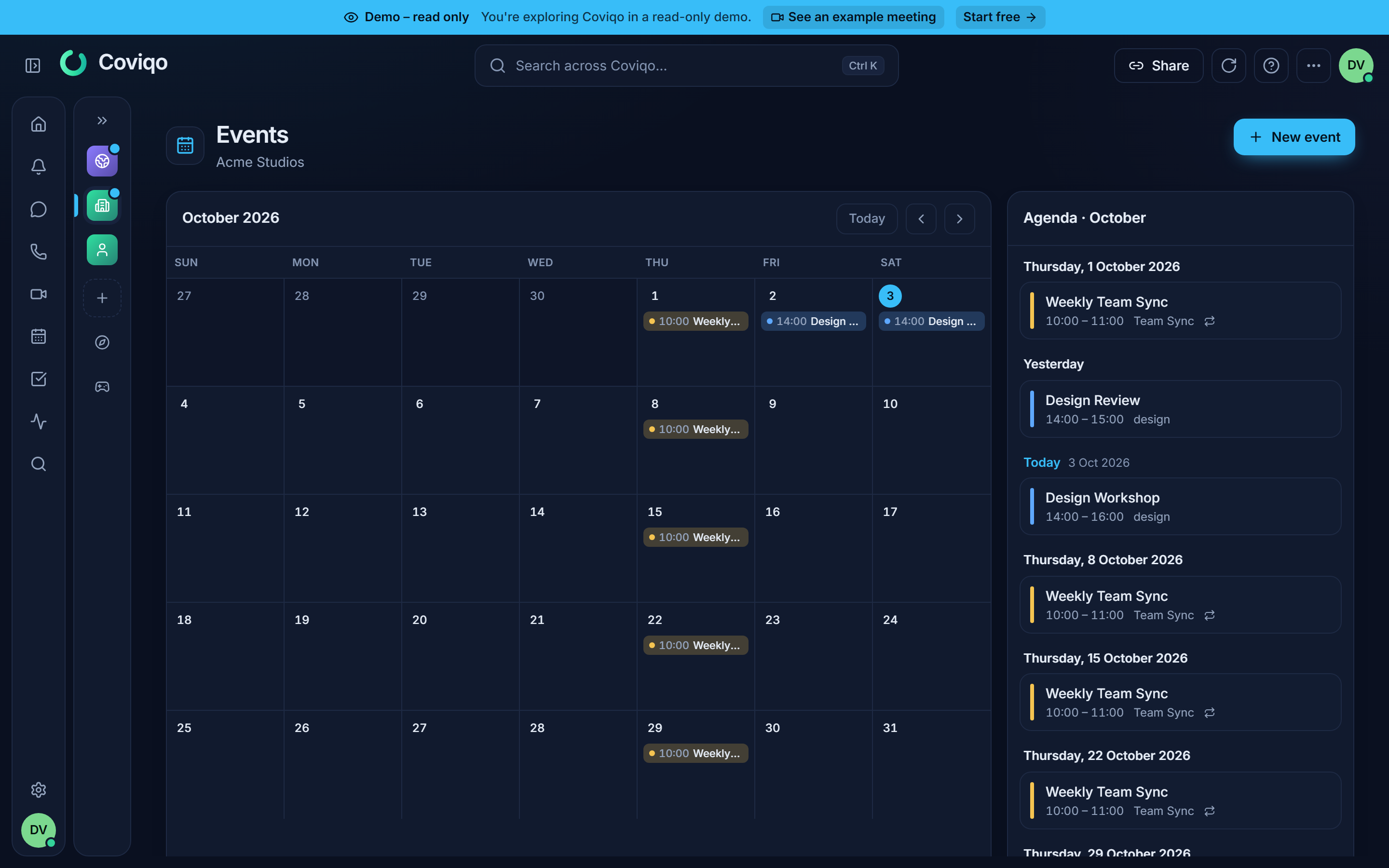
The space calendar and your personal calendar use the same layout:
- Month grid on the left: one cell per day, with coloured entries for each event. Use Previous month, Next month and Today to move around. When a day has more entries than fit, you see +N more.
- Agenda on the right: without a selected day it shows Agenda · {month}, a list of every event in the month. Click a day in the grid to see only that day. Click the day again to go back to the whole month.
In your personal calendar, use Filter by space to show one space or All spaces.
To create an event on a particular day, hover over the day in the space calendar and click + (New event on {day}). You can also right-click the day and choose New event on this day or Schedule meeting on this day. Show this day opens the agenda for that day.
Tip
If you have connected an external calendar (see Calendar sync below), its entries appear in the grid with a dashed outline. Use the eye button Hide external calendars / Show external calendars in the calendar header to toggle them. Coviqo remembers this choice on each device.
Creating an event#
- Click New event in a room's Events tab or in the space calendar.
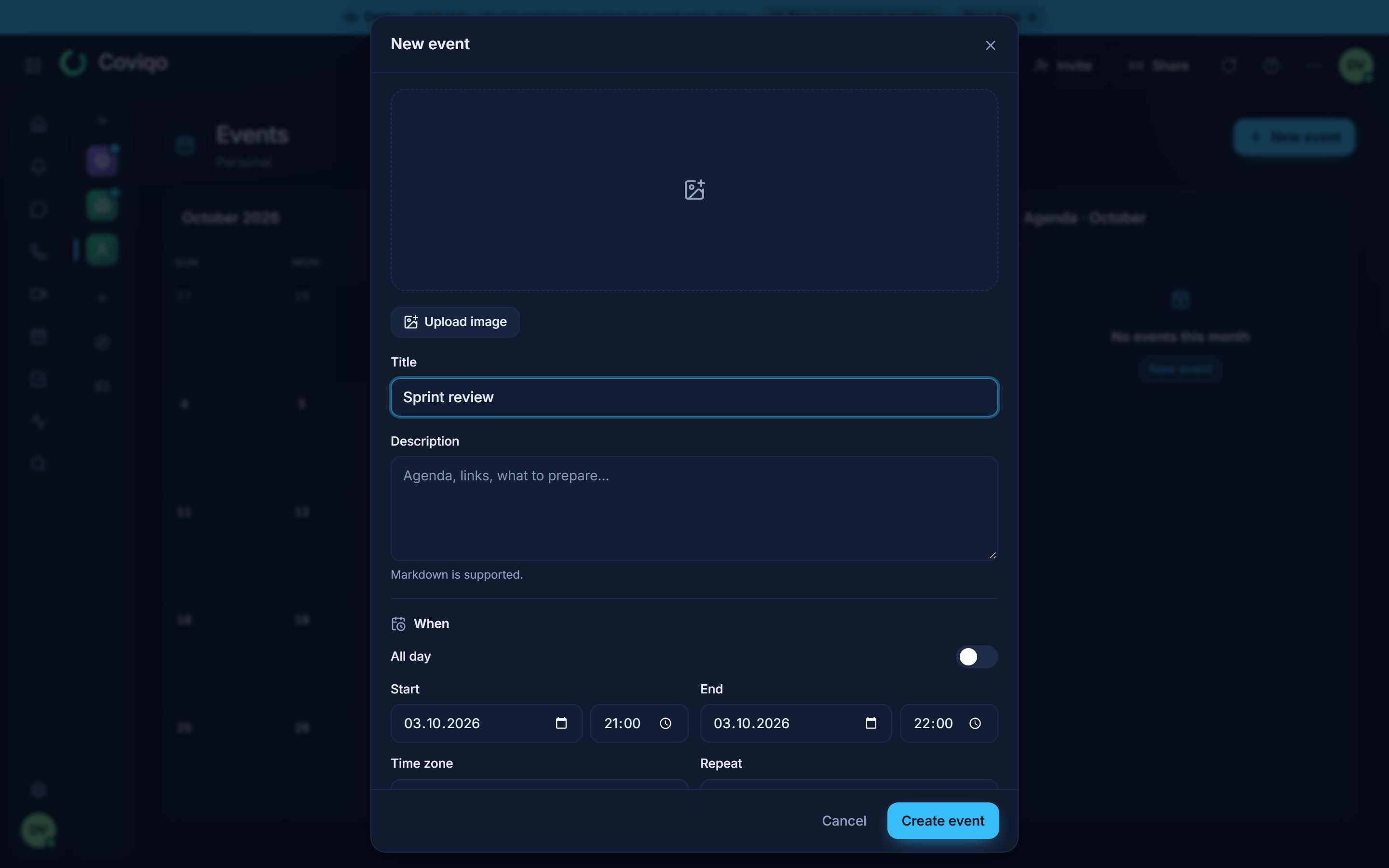
- Fill in the dialog:
- Title: required, for example "Weekly Team Sync".
- Description: agenda, links, what to prepare. Markdown is supported.
- When: Start and End date and time, or tick All day. The end must be after the start.
- Time zone: defaults to the time zone of your browser.
- Repeat: Does not repeat, Every day, Every week on {day} or Every month on day {day}. Events created by other tools can show Custom recurrence.
- Where: the Room the event belongs to, or Whole space (no room). Only rooms you may create events in are offered. Optionally enter a Location, such as an address or a meeting link.
- Online meeting: tick this to create a video meeting with join link, lobby, recording and transcript. This option is Not available for all-day events.
- Reminders: choose one or more of 5 minutes, 15 minutes, 30 minutes, 1 hour and 1 day before. New events start with a 15-minute reminder.
- Registration: tick Requires registration if people should register instead of just saying they're going. Set a Capacity to limit seats, or leave it empty for Unlimited.
- Click Create event. You see Event created, or Event with online meeting created if you ticked Online meeting.
As the organizer, you are automatically listed as a participant (Going, or Registered for events with registration), with reminders switched on.
Responding to an event#
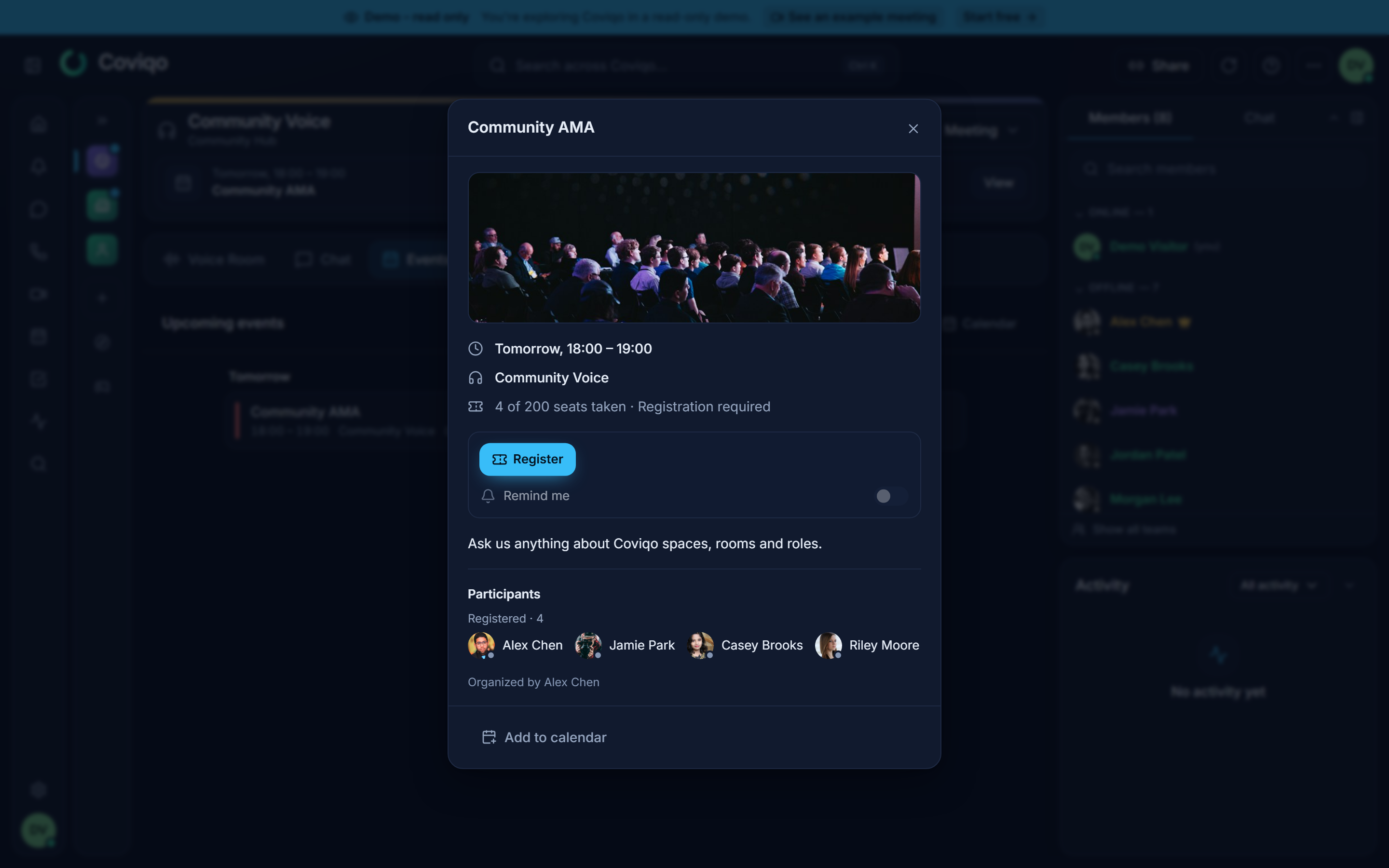
Click an event anywhere in Coviqo to open its details. The details show the time, the organizer (Organized by {name}), the description, the location and the list of Participants.
Under Your response you can choose:
| Response | Meaning |
|---|---|
| Going | You will attend. |
| Maybe | You might attend. |
| Decline | You will not attend. |
| Register | Only for events with registration. Takes one of the available seats. When all seats are taken, the event shows Event full. |
After registering you see You're registered. Cancel registration frees your seat again.
Remind me controls whether you get a reminder for this event. It is switched on automatically when you answer Going, Maybe or Register, and you can switch it off per event.
You can also respond without opening the event: right-click the event (press and hold on a touch screen) and choose Respond › Going, Maybe or Decline. The same menu offers Open details, Join meeting (for events with an online meeting), Add to calendar (.ics), Copy link and, for organizers, Cancel event.
Reminders#
Coviqo sends an Event reminders notification at each reminder time the organizer configured. Reminders go to participants who answered Going, Maybe or Registered and left Remind me on – and who can still see the event: people who left the space or room, or whose guest access ended, get no reminders. If several reminder times fall in the same moment, for example after you joined late, you get only one reminder. How the reminder reaches you (in-app, push, e-mail) is set in Settings › Notifications. See the chapter Notifications.
Editing and canceling#
Organizers, and members with Manage events, can open an event and edit it (Edit event). Participants see the changes right away.
If you move the start time of an event, participants see it in their catch-up as "Your event was moved: {from} → {to}". See the chapter Catch-up and activity.
Moving an event to another room#
An event can move to another room of the same space – or to the whole space and back – without being recreated. Open Edit event, pick the new Room under Where and click Save.
- The event keeps everything that belongs to it: participants and their responses, registrations, tickets, reminders and an attached online meeting. Only the room changes.
- A recurring event moves as a whole series; the dialog says so ("The whole series moves …").
- You need Manage events in the current room and in the new room. For events you created yourself, Create events in the new room is enough. The list only offers rooms where this applies, where the Events module is switched on and that are not archived. Whole space (no room) works the same way with your space-wide permissions.
- An event with an online meeting can only move into rooms where Meetings is switched on; the meeting moves along.
- Members of both rooms see the change right away. People who can't see the new room keep their response, but no longer see the event (and get no reminders) until they get access to the room.
The move is recorded in the activity log and in the audit log of the space (Moved an event to another room). Bots can move events too, with the same rules (see the chapter Bots).
To cancel, choose Cancel event in the details or the context menu and confirm. For a single event, "“{title}” will be canceled for everyone." For a recurring event, all occurrences are canceled. A canceled event stays visible with the banner This event has been canceled. If the event has an online meeting that has not started yet, the meeting is canceled too and its invitees – also external ones – get a cancellation e-mail that removes the entry from their calendar.
Warning
Canceling a recurring event cancels the whole series for everyone. Coviqo has no option to cancel only a single occurrence.
Adding a single event to another calendar#
To put one event into a calendar app without connecting a calendar account, choose Add to calendar in the event details, or Add to calendar (.ics) in the context menu. Coviqo downloads an .ics file that you can open with Outlook, Apple Calendar, Google Calendar or any other calendar application.
Meeting invitations sent by e-mail also contain a calendar invitation, so most mail programs offer to add them to your calendar directly. Accept or decline such a meeting in Coviqo (Accept or decline in the e-mail, or Respond in Coviqo) – replies from your calendar program don't reach Coviqo. See The invitation e-mail in the chapter Meetings.
The .ics file is a snapshot. If the event changes later, the copy in your calendar is not updated. For automatic updates, use calendar sync.
Calendar sync#
Calendar sync connects Coviqo with Microsoft 365 (Outlook, Exchange Online and personal Microsoft accounts) or Google Calendar (Google Workspace and personal Google accounts). The sync works in both directions.
What syncs#
| Direction | What happens |
|---|---|
| Coviqo → your calendar (Add Coviqo events) | Events and meetings you created, were invited to, answered Going, Maybe or Registered to, or take part in as a meeting participant are written into the chosen calendar. The entry includes the description, location, recurrence, time zone, a reminder and the Coviqo join link. Usually this takes a few seconds. |
| Your calendar → Coviqo (Show external events) | Entries from the connected calendar appear read-only in your Coviqo calendar views, with a dashed outline. Coviqo checks for changes every 5 minutes, or right away when you click Sync now. It looks at entries from 30 days in the past to 180 days in the future. |
| Changes made outside Coviqo | If the organizer edits the Coviqo entry in Outlook or Google Calendar (title, description or time), the Coviqo event or meeting is updated too. If the organizer deletes that entry, the event is canceled in Coviqo and all participants are notified. If a participant deletes their copy, only that participant's link is removed. |
Some details you should know:
- Each person gets their own copy of an event in their own calendar. Coviqo does not send invitations through Microsoft or Google.
- When an event is canceled, when you decline it, or when you are removed from it, Coviqo removes the entry from your external calendar again.
- External entries are only visible to you. Other members of your spaces never see them.
- Clicking an external entry offers Open in {provider}.
Connecting a calendar#
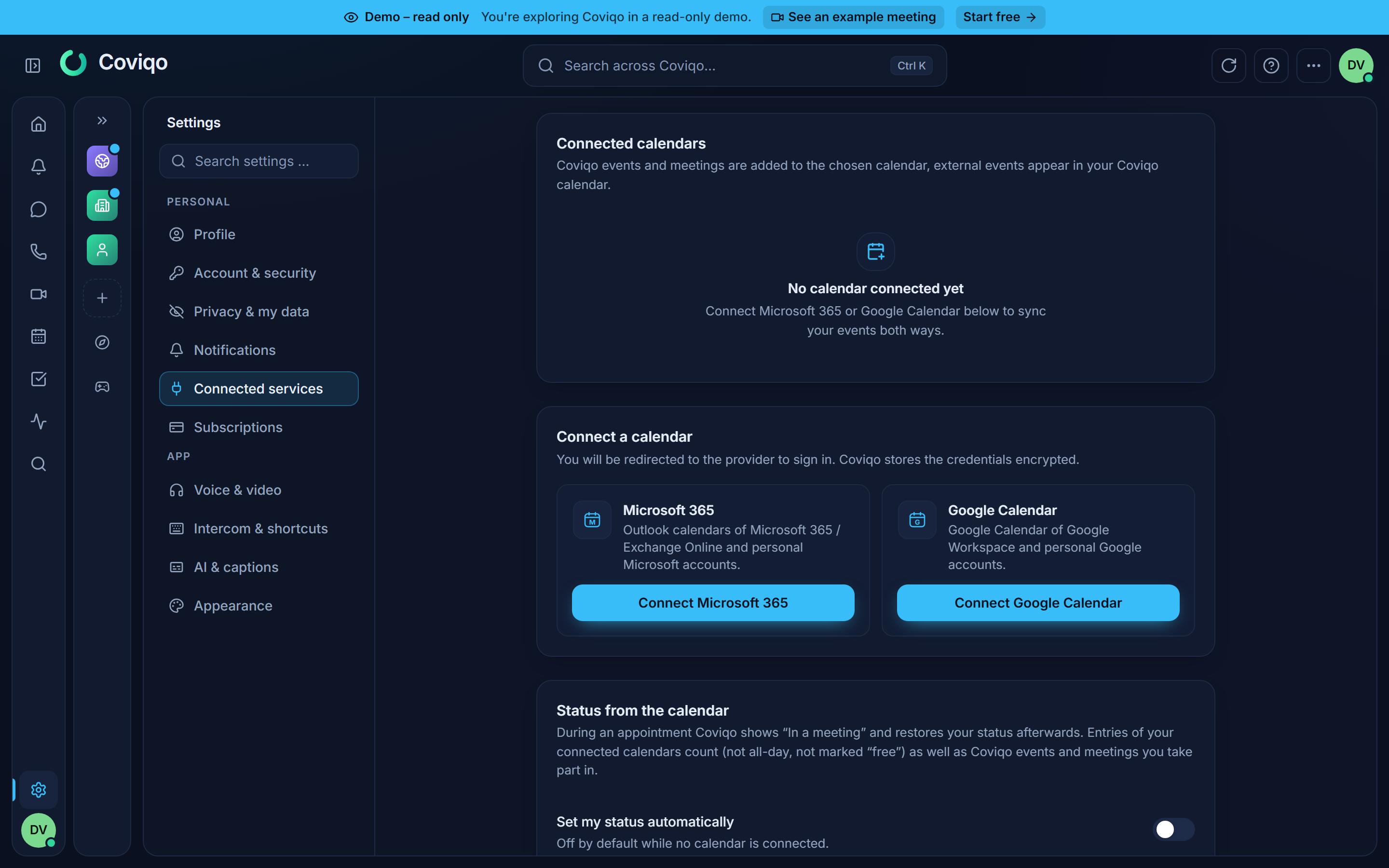
- Open Settings › Connected services.
- Under Connect a calendar, click Connect Microsoft 365 or Connect Google Calendar.
- Sign in with the provider and allow access. For work accounts, your IT department may need to approve Coviqo first.
- You come back to Coviqo and see "{provider} connected – the first sync is running".
Finish the sign-in in the same browser you started it in; a connection started in another browser is refused ("The connection was started in another browser or session"). In the desktop app the provider opens in your system browser, which then asks to open the Coviqo app again to complete the connection.
If a provider shows Not set up, the operator of your Coviqo server has not configured it yet. Contact your administrator.
Note
Coviqo stores the access tokens for your calendar encrypted. It only asks for permission to read and write calendar entries, never for access to your mailbox or files.
Settings per connection#
Each connected calendar appears under Connected calendars with its status (Active, Error or Disconnected) and the time of the last sync (Last synced {when}). You can change:
- Calendar: which calendar Coviqo writes to and reads from. The provider's default calendar is marked default. If you choose a different calendar, existing Coviqo entries are moved there ("Calendar changed – events are being transferred again").
- Add Coviqo events: switch off if you don't want Coviqo events and meetings in your external calendar.
- Show external events: switch off if you don't want to see your external entries in Coviqo.
- Sync now: start a sync right away instead of waiting up to 5 minutes.
When something goes wrong#
- Error: the last sync failed, for example because the provider was briefly unavailable. "The last sync failed. Coviqo retries automatically." Usually nothing needs to be done.
- Disconnected: access expired or was revoked, for example because you changed your password with the provider or an administrator withdrew consent. You also get a notification. Click Reconnect and sign in again.
Disconnecting#
Click Disconnect on the connection and confirm Disconnect {provider}?. Coviqo loses access, and the external entries disappear from your Coviqo calendar.
The Keep transferred events option decides what happens to the entries Coviqo added to your external calendar. With the box ticked they stay there. If you untick it, Coviqo deletes them from the external calendar.
For Google, Coviqo also revokes its access at Google. Microsoft doesn't offer this, so you may want to remove the app in your Microsoft account yourself as well (at myapps.microsoft.com).
Known limitations#
- Outlook can't store some complex recurrence rules, such as "last day of the month". Such series appear in Outlook as a single entry for the first occurrence. Google receives the full rule.
- Changes to a single occurrence of a series in your external calendar are not copied back to Coviqo. Changes the organizer makes to the whole series (title, time) are.
- Changes to the recurrence rule itself are not copied back from the external calendar.