Chapter 2
Getting started
On this page
- Creating an account
- Signing up with a social account
- Signing up with Steam or Epic Games
- Verifying your e-mail address
- Signing in
- Single sign-on (SSO)
- Two-factor authentication when signing in
- Trusting a device for 30 days
- Forgot your password?
- Security check after failed attempts
- Setting up two-factor authentication
- Sessions and linked accounts
- Getting started after registration
- Help menu and guided tour
- The guided tour
- The User Guide
- About Coviqo
- Your profile and settings
- Profile, avatar and bio
- Custom status
- Identities & worlds
- Language and time zone
- Theme and density
- Unsaved changes
- The desktop app
- Download and installation
- Desktop settings
- Hotkeys and global push-to-talk
- Updates
- Installing Coviqo on your phone or tablet
- Android (Chrome, Edge and other Chromium browsers)
- iPhone and iPad (Safari)
- Trying the live demo
This chapter takes you from your first visit to a fully set-up account. You learn how to register and sign in (with a password, a social account or your organisation's single sign-on), how to protect your account with two-factor authentication, how to set up your profile and preferences, and how to install Coviqo as a desktop app or as an app on your phone.
Creating an account#
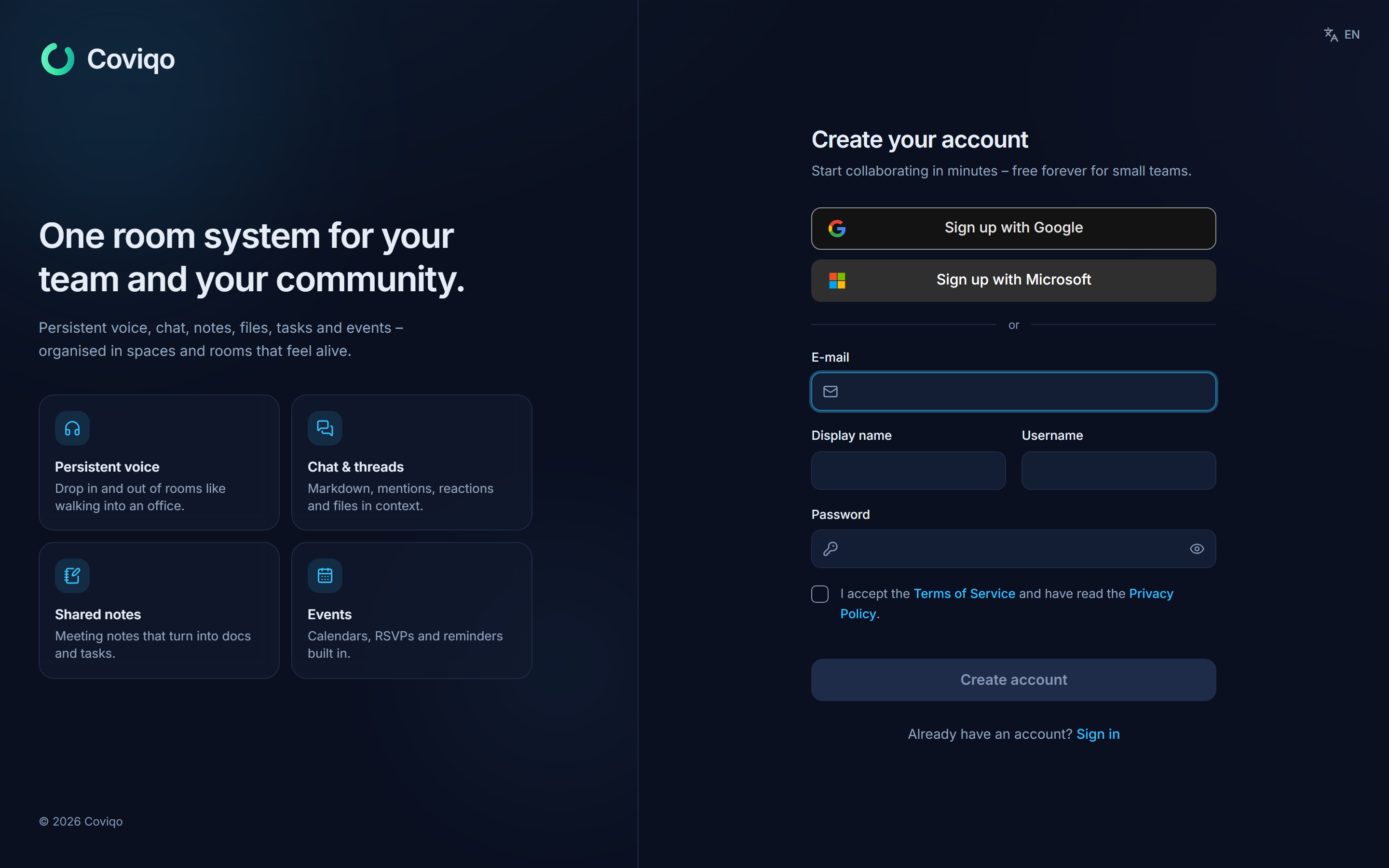
Open Coviqo at https://app.coviqo.com (or, if your organisation runs its own server, the address it gave you) and click Create an account, or go directly to the registration page. The website coviqo.com links to it as well.
- Enter your E-mail.
- Choose a Display name – the name other people see, for example "Anna Schmidt".
- Choose a Username. It is used for mentions and your profile link and must be 3–32 characters long: lowercase letters, numbers, dots and underscores.
- Choose a Password with at least 10 characters. A strength indicator (Weak, Fair, Good, Strong) helps you pick a good one.
- Tick I accept the Terms of Service and have read the Privacy Policy.
- Click Create account.
Note
Coviqo protects the registration page against automated sign-ups with an invisible security check: your browser solves a small computation in the background. There is nothing to click and no puzzle to solve – if you submit very quickly, the button briefly shows Checking…. The check sets no cookies and sends nothing to third parties. The same check runs on Forgot your password?, the website contact and privacy-request forms, contract cancellation and withdrawal, meeting guest join and password-protected share links.
Note
Depending on how your Coviqo installation is configured, registration can be switched off or limited to people with an invitation. In that case, use the invite link you received – it takes you to the registration page and remembers the invitation.
Signing up with a social account#
Instead of a password you can use an existing account from Google, Microsoft, Apple, Discord, Steam or Epic Games – click Sign up with Google (or the respective provider). Only the providers your administrator has enabled are shown.
A few things to know:
- If the provider confirms your e-mail address, your Coviqo e-mail counts as verified right away.
- An account created this way has no password. You can add one later under Settings › Account & security with Set password – Coviqo sends you a link by e-mail.
- If an account with the same e-mail address already exists, Coviqo links the social login to it automatically only when both addresses are verified (not for Microsoft). Otherwise sign in with your password first and link the provider in Settings › Account & security › Linked accounts.
Signing up with Steam or Epic Games#
Steam and Epic Games do not share an e-mail address with Coviqo. The first time you sign in with one of them on https://app.coviqo.com, Coviqo therefore asks for one:
- Click Sign up with Steam (or Sign up with Epic Games) and sign in at Steam or Epic.
- Back in Coviqo, the page Confirm your e-mail address shows your Steam or Epic name. Enter your e-mail address and click Send code.
- Enter the 6-digit code from the e-mail (valid for 10 minutes; Send a new code if it expired). Optionally keep Use "…" from Steam as my display name and picture ticked, accept the terms if asked, and click Create account.
Your account is only created after you entered the code, and the address counts as verified. From then on you simply click Sign in with Steam / Sign in with Epic Games again.
- If the address already belongs to a Coviqo account, Coviqo does not connect Steam or Epic automatically. Click Sign in and link, sign in to that account as usual (password and two-factor code, or another linked provider) – you land in Settings › Account & security › Linked accounts, where Steam or Epic is highlighted: click Link. Or choose Use another address.
- If your organisation manages your address and requires single sign-on, the page offers Continue with single sign-on instead.
- In the desktop app, the whole step runs in your browser; afterwards the browser hands you back to the app.
Verifying your e-mail address#
After registering with a password, Coviqo sends you a verification e-mail. Click the link in it; you see E-mail verified and can Continue to Coviqo. The link is valid for 48 hours.
You can use Coviqo before verifying, but some things require a verified address – for example accepting an invitation as a guest of another organisation's space, or being recognised when someone invites your e-mail address to a meeting. If the e-mail got lost, open Settings › Account & security and click Resend e-mail next to your address, which is marked Not verified.
Please verify within 7 days. Until then a banner at the top of Coviqo shows the deadline and a Resend e-mail button. After 7 days you can still sign in and use your spaces and existing conversations, but until you verify your address you cannot create spaces, invite people, send direct messages to people you don't share a space or conversation with, or create public links (file share links, meeting guest links, links on your profile). If you signed up with single sign-on or a provider that confirmed your e-mail address, nothing changes for you.
Signing in#
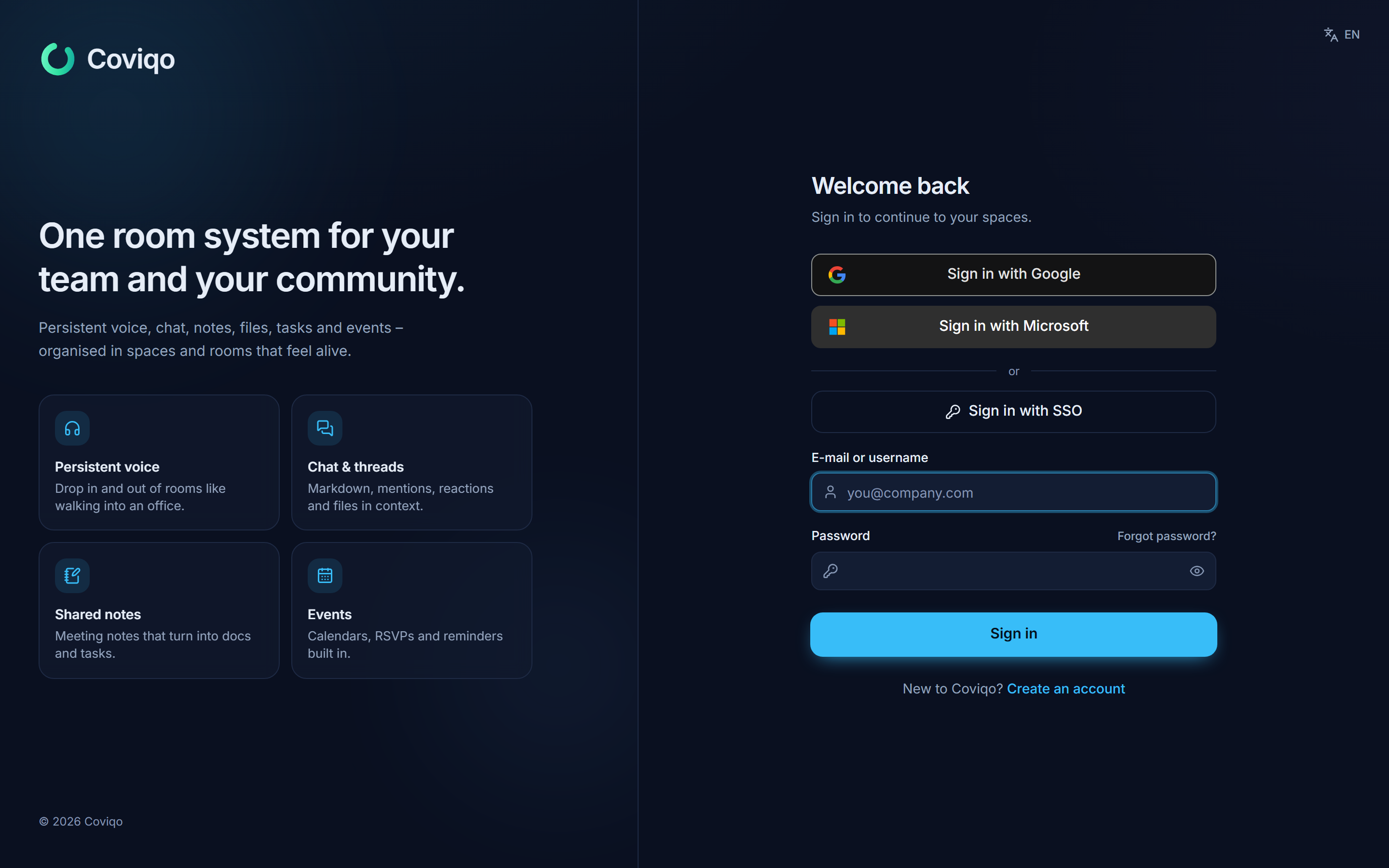
Go to the sign-in page (Welcome back), enter your E-mail or username and your Password, and click Sign in. If a field is empty, Coviqo tells you right under it (for example "Enter your password."). Alternatively, click one of the Sign in with … buttons for your social account.
Single sign-on (SSO)#
If your organisation uses single sign-on (SAML or OpenID Connect via Microsoft Entra ID, Okta, Google Workspace, Keycloak and others):
- Click Sign in with SSO.
- Enter your Work e-mail and click Continue.
- Coviqo forwards you to your organisation's sign-in page. After signing in there, you land in Coviqo.
As soon as you type an address of an SSO domain into the normal sign-in field, Coviqo shows a hint such as "Acme uses single sign-on" with a Continue with Acme SSO button. If your organisation enforces SSO, password and social sign-in are refused for its e-mail domains – always use the SSO button then.
With SSO, your organisation usually handles two-factor authentication. If it additionally requires Coviqo's own two-factor authentication, you are asked to set it up after signing in.
Two-factor authentication when signing in#
If two-factor authentication is enabled for your account, Coviqo asks for a code after your password (Two-factor authentication):
- Enter the 6-digit Authentication code from your authenticator app and click Verify.
- Lost your phone? Click Use a recovery code instead and enter one of your recovery codes.
Trusting a device for 30 days#
On your own computer you can tick Trust this device for 30 days below the code field before you click Verify. For the next 30 days, signing in to https://app.coviqo.com from this browser (or from the Coviqo desktop app on this computer) no longer asks for the authenticator code – whether you use your password or a linked account such as Google, Microsoft, GitHub, Discord, Steam or Epic Games. After a social sign-in you briefly see Checking this device … and then land in Coviqo directly. After 30 days Coviqo asks for the code again – using the device does not extend the period.
screen: auth-mfa-trust-device- Only tick the box on a device that only you use – never on a shared or public computer.
- Coviqo sends you a security notification and an e-mail ("New trusted device: Chrome on Windows, …"). If this wasn't you, change your password straight away.
- The option is not offered when you sign in with your organisation's single sign-on, or when you use a recovery code. Your organisation may shorten the period or switch the option off.
- Coviqo operators (accounts with a Coviqo Control role) can trust a device for 7 days only.
- Even on a trusted device, security-relevant changes – changing your password or e-mail address, removing trusted devices, exporting your data, changing single sign-on, organisation or integration settings, billing – first ask for a current authenticator code (Confirm with your authenticator). The confirmation lasts 10 minutes.
Trust ends automatically for all your devices when you change or reset your password, switch two-factor authentication off, use a recovery code, click Sign out all other sessions, or when your account is suspended or deactivated.
Forgot your password?#
- On the sign-in page, click Forgot password?.
- Enter your e-mail and click Send reset link.
- Open the e-mail and follow the link (valid for one hour).
- Enter a New password, repeat it in Confirm password and click Update password.
All other sessions are signed out when you reset your password. If the link has expired, you see Invalid reset link – click Request a new link.
Security check after failed attempts#
After several wrong passwords for your account, the sign-in form shows For your protection, an automatic security check runs before this sign-in. Your browser solves a small task in the background – you do not have to do anything, signing in just takes a moment longer.
Too many wrong attempts from the same network block further sign-ins from there for 15 minutes ("Too many failed sign-in attempts"). From your usual devices and networks you can still sign in. Coviqo sends you an e-mail when this happens – if it wasn't you, change your password. Resetting your password lifts every block.
Setting up two-factor authentication#
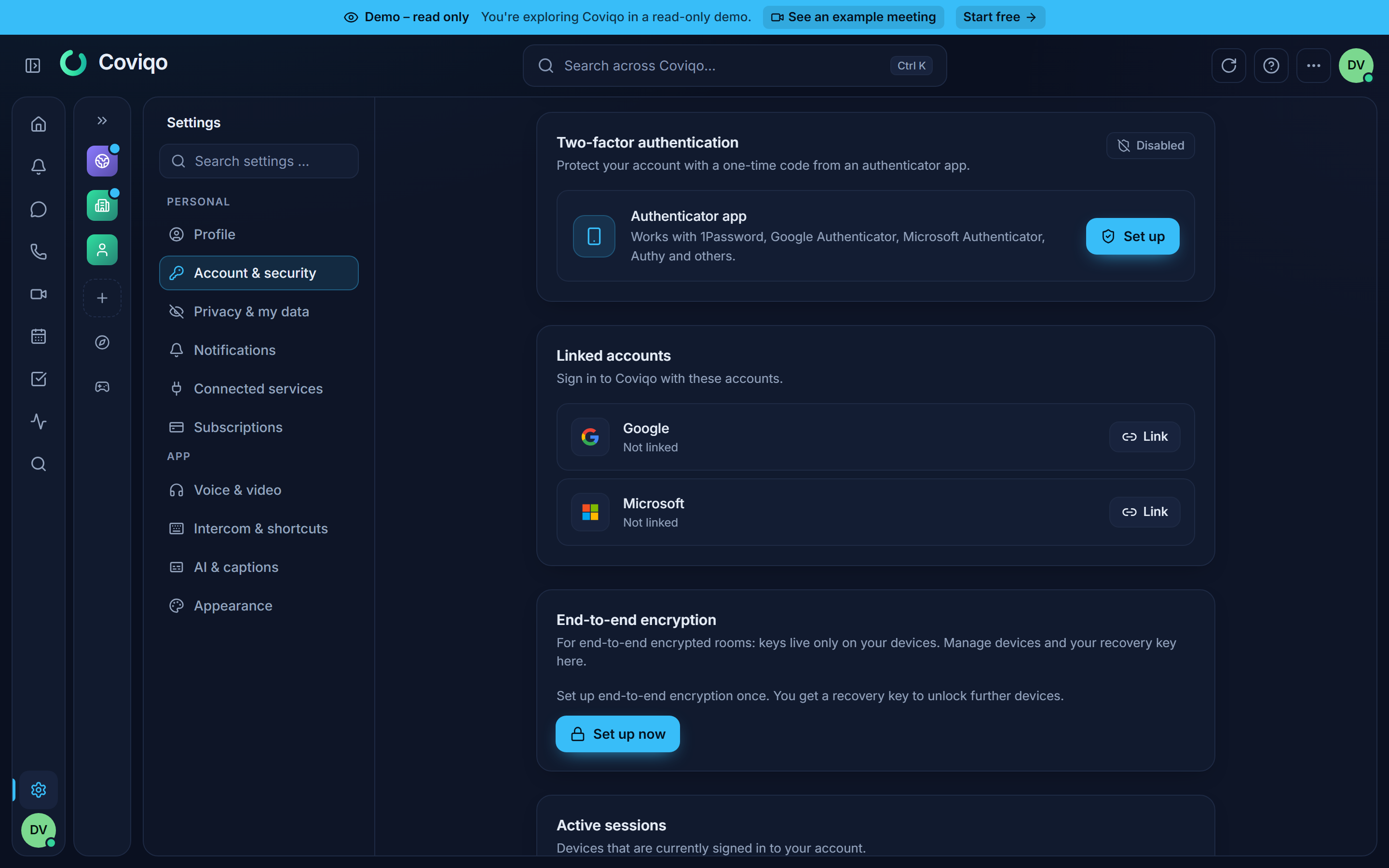
Two-factor authentication (MFA) protects your account even if someone learns your password. You need an authenticator app such as 1Password, Google Authenticator, Microsoft Authenticator or Authy.
- Open Settings › Account & security.
- In the Two-factor authentication card, click Set up. If you signed in more than 10 minutes ago, Coviqo first asks you to confirm it's you with your password (or, for accounts without a password, a code sent by e-mail).
- Scan the QR code with your authenticator app, or enter the setup key manually.
- Type the 6-digit code shown in the app and click Verify & enable.
- Coviqo shows you 10 recovery codes. Store them somewhere safe – each code works once and they are shown only now. Use Copy codes or Download .txt, then confirm with I have saved my recovery codes.
When two-factor authentication is switched on, all your other sessions are signed out; the device you are using stays signed in.
Warning
Without your authenticator app and without recovery codes you cannot sign in any more. If you have used up or lost your codes, create new ones in time with Generate new codes (this invalidates the old ones).
If you set up two-factor authentication before September 2026, the card may show Your recovery codes are outdated. These older codes use a weaker format and stop working after 31 December 2026. Click Generate new codes, confirm with a current code and store the new codes safely – the warning then disappears.
To switch two-factor authentication off, click Disable and confirm with your password and a current code.
Without your authenticator app you can confirm Disable and Generate new codes with Use a recovery code instead and one of your recovery codes; using a recovery code also removes all your trusted devices.
Sessions and linked accounts#
Also under Settings › Account & security you find:
- Password – change your password (Change password). All other devices are signed out.
- Linked accounts – link or remove Google, Microsoft, Apple, Discord, Steam or Epic Games for signing in. You cannot remove your last sign-in method while you have no password. For Steam and Epic Games, the switch Show on my profile (on by default) decides whether others see the account as a badge on your profile (see Your profile and settings).
- Active sessions – every signed-in device (Web browser, Desktop app, Mobile app) with its last activity. Click Sign out next to a session you don't recognise, or Sign out all other sessions.
- Trusted devices (only with two-factor authentication) – the browsers that may skip the authenticator code, with the date they were trusted, their last use and when the trust expires; This browser marks the one you are using. Click Remove next to a device, or Remove all, and confirm with your password. Signed-in sessions stay signed in – the next sign-in on that device asks for the code again.
Getting started after registration#
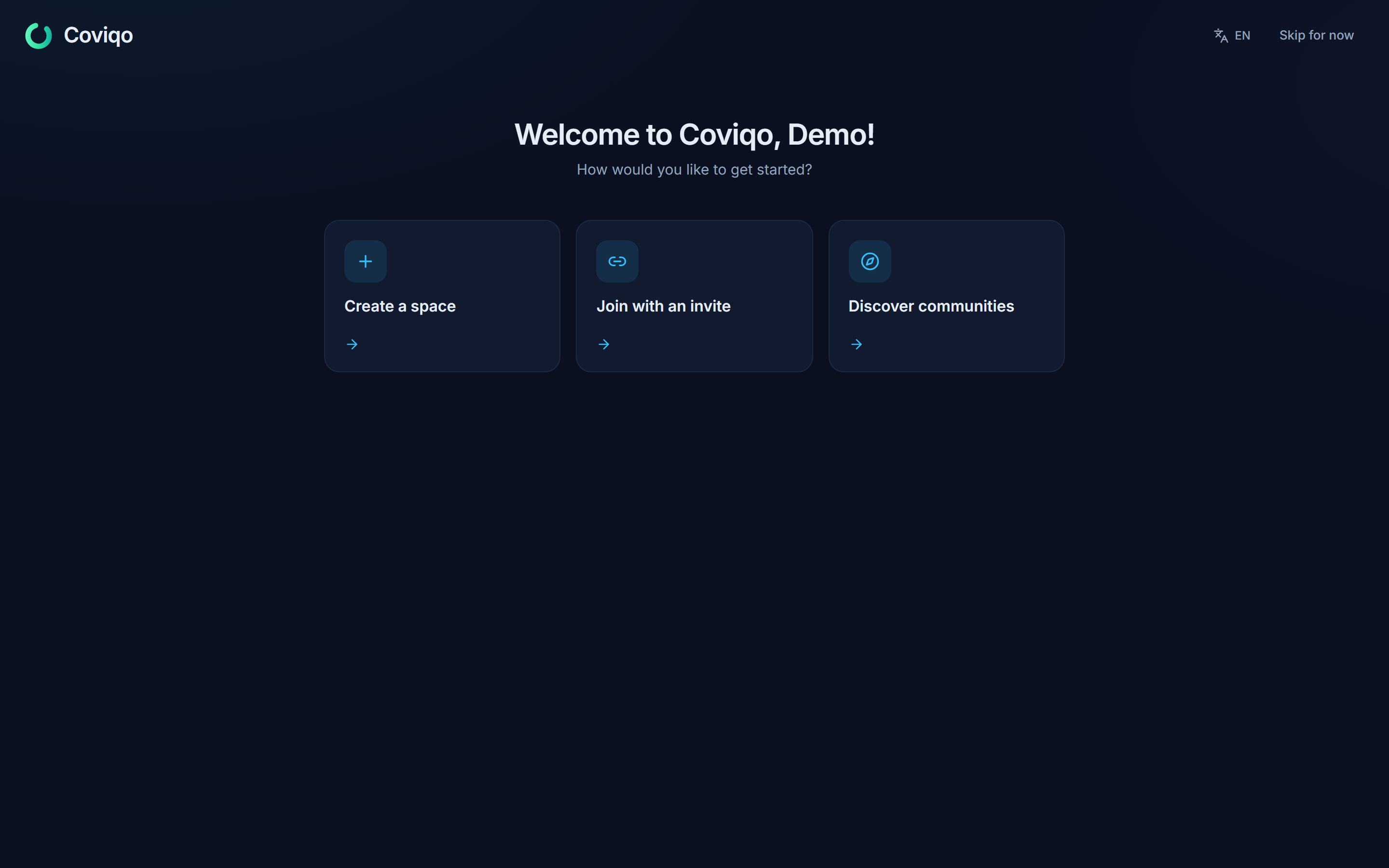
After your first registration, Coviqo welcomes you with three options:
- Create a space – set up a workspace for your team or a home for your community (see the chapter Spaces and rooms).
- Join with an invite – paste an Invite link or code you received, for example
https://app.coviqo.com/invite/…or just the code, and click Continue. - Discover communities – browse public spaces and click Join on one you like.
You can also click Skip for now and do all of this later from the space list on the left.
Help menu and guided tour#
The ? button (Help) at the top right of the top bar opens a small menu with three entries: Tutorial, User Guide and About Coviqo. On phones the button is not shown; the same entries are at the bottom of the … menu instead.
The guided tour#
Tutorial starts a short tour of the screen. Coviqo dims the page and highlights one area at a time, with a small card next to it that explains it:
- Welcome – what the tour is about.
- Navigation – the main bar with home, notifications, messages, calls, meetings, calendar, tasks, activity and search (on phones: the menu button ☰, which opens the navigation).
- Spaces – your teams and communities, each with its own rooms, members and permissions; favourites, recently active spaces and your own tags.
- Rooms – the rooms of a space for chat, voice and video, tasks, notes and more.
- Direct messages – writing to people directly and calling them.
- Search – rooms, people and messages, also with Ctrl K (Mac: ⌘ K).
- Room tabs and Members & chat – only when you start the tour inside a room.
- More – the … menu with your tasks and events, creating a space and – if you manage them – the space settings and your organisation; on phones also invite, share, leave room and help.
- Settings – your personal settings.
- Help – where to find the tour again.
Areas that are not on screen right now are left out – for example the room steps on the start page, or the sidebar steps on a phone – so the counter on the card (for example 3 / 9) always counts the steps you will actually see.
Use the buttons on the card or the keyboard:
| Action | Button | Key |
|---|---|---|
| Next step (on the last step: finish) | Next / Done | Enter or → |
| Previous step | Back | ← |
| End the tour | Skip | Esc |
The tour is offered automatically once, shortly after you sign in with a new account (not for meeting guests or while Coviqo support is helping you). In the live demo it starts at the beginning of every demo session and ends with Have a look at an example meeting (see "Trying the live demo"). Coviqo remembers with your account that you have seen it – it is not offered again on another device or browser; you can start it again at any time with ? › Tutorial.
The User Guide#
User Guide opens this guide on the Coviqo website (/guide) in a new browser tab – in the desktop app in your default browser. The online guide has a search over all chapters, a chapter list grouped by topic and a Download PDF button for the same content as a PDF with a table of contents and page numbers. The guide is available in English and German: you automatically get the edition in your app language (English for every other language).
About Coviqo#
About Coviqo shows the copyright notice, the version of the web app you are using and – in the desktop app – the version of the desktop app. Please mention these versions when you contact support. The dialog also links to the Legal notice, the Privacy policy, the Terms, the Third-party notices (open-source licences), the DSA contact points and the form Report illegal content (see Privacy and your data).
Your profile and settings#
Open the account menu (your avatar at the top right) and choose Settings, or click the gear (Settings) at the bottom of the main bar on the left.
Two menus at the top right. Your avatar opens everything personal: presence status and custom status, Edit profile, Settings, light / dark mode, Subscriptions (only if you manage the billing of an organisation) and Sign out. The … menu only holds what is not elsewhere: your tasks and events, Create space, Space settings and Organisation (if you manage them), Coviqo Control for operators, and on small screens the buttons that do not fit (invite, share, leave room, help). Notifications are in the sidebar. Inside the app the settings open as a popover over the page you are on; a direct link opens them as a full page. Settings are grouped into Personal settings that follow your account and App settings that apply to this device or app.
| Section | What you set there |
|---|---|
| Profile | Name, picture, banner, bio, custom status, per-space identities and notification worlds. |
| Account & security | E-mail address, language and time zone; under Security password, two-factor authentication, linked accounts, trusted devices, end-to-end encryption and sessions; under My data & account the data export, consents, contracts and account deletion. |
| Privacy & my data | Who may write to you, who can find you, whom you blocked, streamer mode, game activity and the clips opt-out – followed by the Privacy cockpit (where your data lives, exports, AI processing). |
| Notifications | What reaches you, and where (in-app, push, e-mail) – with the presets Everything, Important, Only mentions & direct messages and Custom. |
| Connected services | Microsoft 365 or Google Calendar, Google Drive or OneDrive, your developer accounts (GitHub, Jira) and the apps you signed in to with Sign in with Coviqo. |
| Subscriptions | Plan, seats, cost, next invoice and status of every organisation whose billing you manage – Manage opens its billing page. Shown only when you manage the billing of an organisation. |
| Memberships | Your paid community memberships (only when paid memberships are switched on). |
| Audio & video | Microphone, speakers, mic test, input mode, the noise suppression switch and the camera; more under Advanced. |
| Intercom & shortcuts | Your intercom channels, the discussion lead key and all keyboard shortcuts – in the desktop app including the global ones. |
| AI & captions | Transcription opt-out, caption and summary language. |
| Appearance | Theme, density and the Developer mode (follows your account to every device). |
| Desktop app | Startup, tray, notifications, interface and updates of the desktop app (only in the desktop app). |
| Developer | Your own bots and apps – shown once you have one, or when Developer mode is on (Settings › Appearance). |
| Legal decisions | Statements of reasons when Coviqo restricted your content or your account, and your complaint against them – shown only when there is at least one (see Privacy and your data). |
Notifications, connected services are described in their own chapters, subscriptions in the chapter Plans and billing; voice settings in the chapter Communication, AI settings in the chapter Meetings.
Searching the settings. The field Search settings … above the section list finds every section and every setting card – also by everyday words such as mic, headset, password, 2FA, dark or push. Use ↑ / ↓ and Enter (or tap a result): Coviqo opens the section, scrolls to the card and highlights it briefly. Esc clears the field. The same search is available in the space settings, the organisation area and the room settings (there from four sections on); it also finds every section by its former name – security finds Moderation › Raid protection, modules finds Content, external guests finds External people – and, in the room settings, every module (e.g. tickets).
On a phone. Personal settings, space settings and the organisation area start with a grouped list of all entries. Tap an entry to open it; ‹ All settings at the top takes you back to the list.
Advanced. Pages with many options show the everyday ones first. The rest sits in collapsible groups under Advanced – closed at first; Coviqo remembers in this browser which groups you opened. A search result inside a closed group opens it. In the space settings this also applies to: Overview › Privacy (member list, display names, share links, external images), Voice & media › Audio & video (own bitrate, video codec, RTMP destinations for live streams), Roles (Administrator and whole permission groups on top, every single permission under Advanced), Organization & plan › Single sign-on (certificates, provisioning with JIT, groups and SCIM) and Public profile & directory › Website embed (the code for your website). If something there already differs from the default, Advanced is open by itself.
Old links. Links to former sections keep working: Security opens Account & security, Privacy cockpit opens Privacy & my data, Calendars and Integrations open Connected services – each scrolled to the right place.
Profile, avatar and bio#
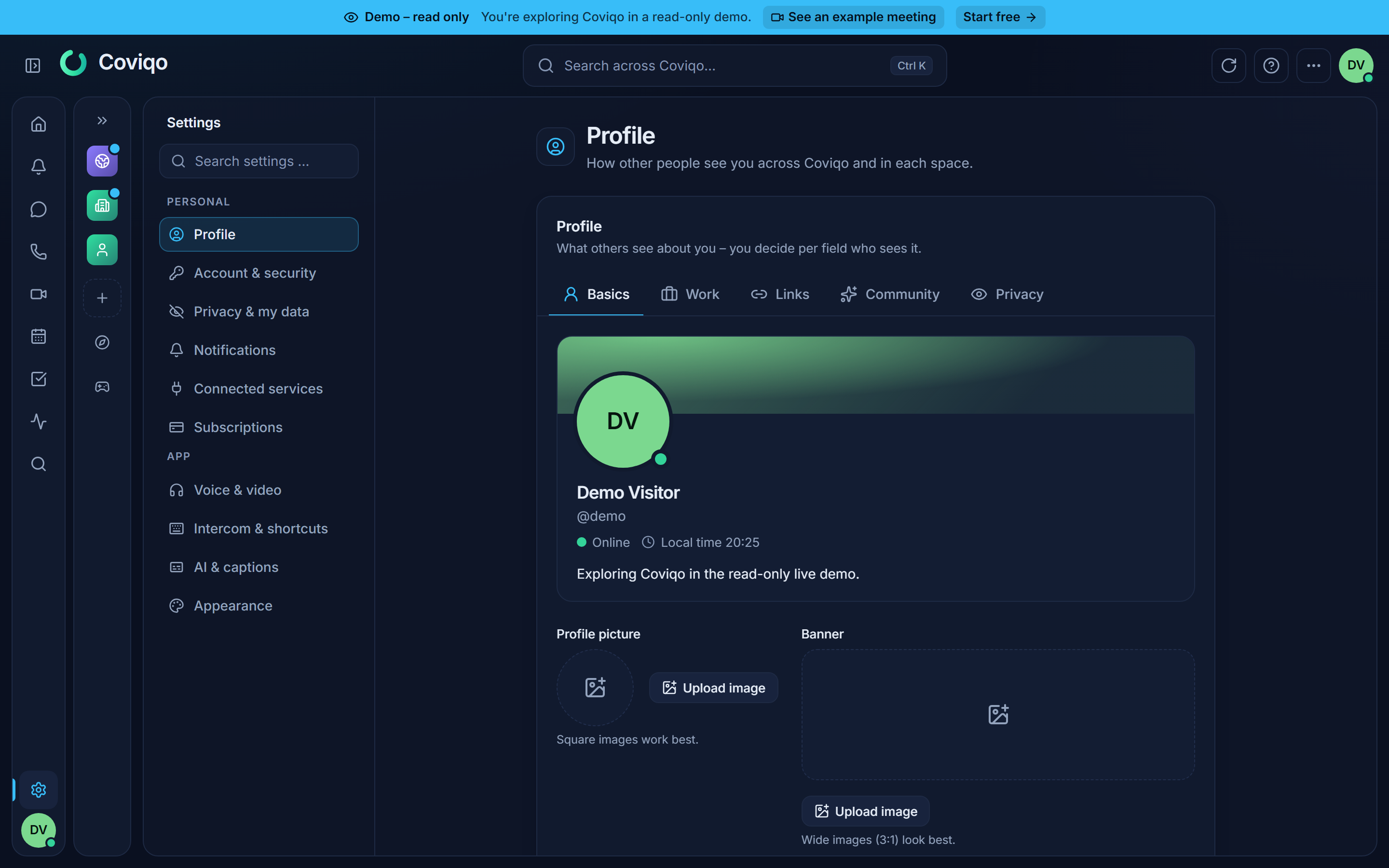
In Settings › Profile (Public profile) you set:
- Profile picture – after choosing an image you move and zoom it into the circle (see Your profile › Adjusting an image).
- Banner – shown as a wide 3:1 strip; you pick the section in the same way.
- Display name and Username. The username can be changed once every 30 days; your previous username stays reserved for you for 30 days (see Direct messages › Changing your username).
- Bio – up to 500 characters about you.
A Preview shows how others see your profile card. Click save when you are done.
The profile settings have more to offer – pronouns, job and working hours, links, community details, themes and, for every detail, who may see it. The chapter Your profile explains all of it.
Gaming accounts on your profile. A linked Steam or Epic Games account appears as a badge under Gaming accounts in your profile card, and as a small Steam or Epic mark next to your name in member lists. Steam badges show your Steam name and link to your public Steam profile; Epic Games shows only your Epic display name. Only people who can already see your profile see the badge. Switch it off per provider under Settings › Account & security › Linked accounts › Show on my profile. Your Steam name and picture are refreshed every time you sign in with Steam.
Custom status#
Under Custom status (or in the account menu via Set a custom status) you can pick an emoji and a short text such as "🌴 On holiday until Monday". Choose when it should disappear under Clear after: Don't clear, 30 minutes, 1 hour, 4 hours or Today. Click Set status; Clear status removes it. The presence status (Online, Busy, Focus …) is explained in the chapter Communication.
Identities & worlds#
In Identities & worlds you can appear differently in each space – a different Display name, Space avatar, Pronouns, Status in this space, Title (for example "Product Designer") and Bio. Empty fields fall back to your account profile. Only members of that space see these details. Click Edit identity next to a space. Worlds (Work, Leisure …) decide when a space may notify you – see the chapter Identities and worlds.
Here you also choose Notifications from this space: All messages, Mentions only or Mute space (direct items such as mentions of you in meetings still arrive).
Language and time zone#
In Settings › Account & security, section Language & region:
- Language – one of 23 languages (English and the official EU languages that Coviqo's speech recognition understands). It applies to the app and to the e-mails Coviqo sends you.
- Time zone – Automatic (use this device) or a fixed time zone. Event times and reminders use this time zone.
The same page shows your E-mail address (with Change e-mail, which sends a confirmation link to the new address – if that address already belongs to another Coviqo account, no link is sent, but the message you see is the same, so nobody can use this form to find out which addresses have an account) and the Danger zone with Delete account. Deletion first deactivates your account; it is deleted for good after a grace period, and signing in again before then cancels the deletion. If you still own spaces, transfer or delete them first.
Theme and density#
In Settings › Appearance choose the Theme – Dark (the default) or Light – and switch on Compact mode for tighter spacing in lists, chat and sidebars. These settings apply to the current device only. You can also switch the theme quickly with Light mode / Dark mode in the account menu. As long as you haven't chosen a theme, the public website pages (start page, pricing, guide …) follow the light or dark setting of your system.
Unsaved changes#
When you have changed something in a form that you save with a button – your profile, account or notification settings, space and room settings, roles, an event or task dialog and so on – and try to move on without saving, Coviqo asks first: Unsaved changes. Choose Save to save and continue (offered when the form is complete and valid), Discard to throw the changes away and continue, or Cancel (or Esc) to stay where you are. The question appears when you click a link, switch a tab, use the browser's back button or close a dialog with the X, Esc or a click outside it. If you reload or close the browser tab, your browser shows its own, similar warning. Editors that save automatically, such as notes, whiteboards and office documents, never ask.
The desktop app#
The Coviqo desktop app for Windows, macOS and Linux wraps the web app and adds:
- Global hotkeys – push-to-talk and mute from any application, even in full-screen games or presentations.
- Native notifications – system notifications, a badge on the taskbar or dock icon, and a flashing taskbar button when someone mentions you.
- System tray – Coviqo starts with your computer and keeps running in the tray, with quick voice actions (Mute, Deafen, Leave voice).
- A screen picker for sharing a whole screen or a single window, with Sound (a window's own sound, the whole computer or off) and Quality chosen before the share starts.
- On Windows, native screen sharing with the hardware encoder of your graphics card – smooth also while a game has the focus (see Communication › Screen sharing).
- On Windows, the game overlay on top of your game and game clips of your best moments (see the chapters Game overlay and Game clips).
- Web pages of a room that do not allow embedding open in an app view inside the room (see Web pages).
- Automatic updates – checked on every start, with an update window that shows what's new.
Download and installation#
Download the app from the Coviqo website. The page Download (coviqo.com/download, linked in the website menu and footer) lists every platform – Windows, macOS and Linux – with version, size, release date and file, plus how to use Coviqo in the browser and on Android and iOS without installing anything. In wide windows the header of coviqo.com also shows a Desktop app button (Download desktop app on very wide screens): on a Windows, macOS or Linux computer it downloads the current version for your operating system right away – hover over it to see the version and size –, otherwise it opens the Download page. The desktop app itself doesn't show the button. You can also use the direct links:
screen: website-desktop-download| Platform | Download link |
|---|---|
| Windows | https://coviqo.com/download/desktop/windows |
| macOS | https://coviqo.com/download/desktop/mac |
| Linux | https://coviqo.com/download/desktop/linux |
If your organisation runs its own Coviqo server, your administrator provides the installer instead. The installers are:
| Platform | Installer |
|---|---|
| Windows (64-bit) | Coviqo-Setup-<version>-x64.exe |
| macOS (Intel and Apple silicon) | .dmg disk image |
| Linux | .AppImage |
On Windows, run the installer. You can choose the installation folder; the installer creates a desktop and a Start menu shortcut and starts Coviqo when it finishes. No administrator rights are required for a per-user installation.
On macOS, open the .dmg and drag Coviqo into Applications. On first use, macOS asks for permission to use the microphone, the camera and screen recording – allow them, otherwise voice, video and screen sharing do not work.
On Linux, make the .AppImage executable and start it.
Warning
Depending on how your organisation distributes the app, the installer may not be code-signed. Windows SmartScreen or macOS Gatekeeper then show a warning on first start. Only continue if you received the installer from your own organisation's Coviqo server.
The app connects to the Coviqo server it was built for; the address can't be changed in the app. If your organisation runs its own Coviqo server, your administrator provides an installer built for that server.
If the server can't be reached, the app shows a small page Coviqo is currently unreachable. It keeps trying automatically; you can also click Try again, open the status page (Status), Open logs folder for your IT support, or Quit Coviqo.
When you use Sign in with Google (or another social provider) in the desktop app, the sign-in continues in your normal web browser. Afterwards the browser shows Back to the Coviqo app – confirm the prompt with Open Coviqo and the app signs you in. SSO sign-in runs directly in the app window.
Desktop settings#
All settings of the desktop app are in the app's normal settings: Settings › Desktop app and Settings › Intercom & shortcuts. The desktop app has no separate settings window; Settings… in the tray menu (and ⌘+, on macOS) opens Settings › Desktop app. The Desktop app entry only appears in the desktop app, not in a browser.
Settings › Desktop app has these cards:
- Startup & window – Launch on startup, Start minimized, Minimize to tray, Close to tray and Ask when closing.
- Desktop notifications – Native notifications, Notification sound, Flash on mention.
- System – Hardware acceleration (turn off if you see rendering glitches; requires a restart) and Spell check.
- Interface – Zoom of the whole app and the Spell check languages (for example
en-US, de-DE). - Game overlay – see the chapter Game overlay (Windows).
- Game clips and My clips – see the chapter Game clips (Windows).
- Hotkeys – a pointer to Settings › Intercom & shortcuts, where all shortcuts are (see below).
- Updates – Check for updates, Automatic updates, Update channel (Stable or Beta).
- About – version information, Open logs folder and Reset settings.
Confirmation in the desktop app. Some changes could be misused by a manipulated web page, so the desktop app itself asks before it applies them: switching Launch on startup on, switching Automatic updates off, choosing the Beta channel and global hotkeys (see below). A dialog of the desktop app (not of the web page) asks Change desktop settings? and lists the changes; only Apply saves them, Cancel keeps everything as it was ("Not changed – cancelled in the desktop app."). These settings show the note "Switching it on is confirmed in the desktop app." (or similar). Switching them back – autostart off, automatic updates on, back to Stable – needs no confirmation.
If your desktop app is older than the settings page, the settings it doesn't support yet are hidden and a note lists them: "Your desktop app is too old for some settings". Click Check for updates to update the app.
Closing the window. With Ask when closing on, the close button asks Close Coviqo?: Minimize to tray keeps Coviqo running in the tray – you stay reachable and open it again with a click on the tray icon –, Quit ends it, Cancel keeps the window open. Tick Remember my choice to not be asked again; you can change it later under Settings › Desktop app. When the question is off, Close to tray decides. All questions of the desktop app – closing, restarting, confirmations – appear in Coviqo's own dialogs.
Links and files. Links to other websites and files of the Coviqo server that open in a new tab open in your normal browser. Encrypted pictures from end-to-end encrypted rooms open in a viewer inside the app.
While the server is being updated. If the Coviqo server is briefly unavailable during an update, the app shows Coviqo is being updated, checks every 10 seconds and reloads by itself as soon as the server is back. If the app ever looks outdated or broken, Reload (clear cache) in the tray menu or the app menu (or Ctrl+Shift+R) loads it fresh.
Hotkeys and global push-to-talk#
All keyboard shortcuts are in Settings › Intercom & shortcuts (group App, next to Audio & video, AI & captions and Appearance). The other settings pages link there, for example Set hotkey in the push-to-talk settings and Set keys in the intercom settings.
- In the browser the page shows the keys that work while the Coviqo tab is in front: Push to talk, Speak as discussion lead and Intercom: reply (the key of each intercom channel is set under Audio & video › Intercom), plus the Built-in shortcuts:
Ctrl+Kopens the quick switcher; in a meetingM,V,H,FandEsc(see the chapter Meetings). - In the desktop app the page shows all hotkeys of the desktop app including the global ones, any problems with a shortcut (for example Already taken by another app) and the Release delay for push-to-talk.
The desktop app has these hotkeys; Global ones also work while Coviqo is in the background:
| Action | Default shortcut | Global |
|---|---|---|
| Push to talk | CapsLock (switched off by default) |
yes |
| Toggle mute | Ctrl+Shift+M |
yes |
| Toggle deafen | Ctrl+Shift+D |
yes |
| Toggle camera | Ctrl+Shift+V |
no |
| Toggle screen share | Ctrl+Shift+S |
no |
| Leave voice | Ctrl+Shift+L |
no |
| Show Coviqo | Ctrl+Alt+C |
yes |
| Quick switcher | Ctrl+K |
no |
| Save game clip (Windows, only while game clips are on) | Alt+F8 |
yes |
| Start / stop game recording (Windows, only while game clips are on) | Alt+F7 |
yes |
On macOS, Ctrl in these defaults is ⌘.
Push to mute, Intercom: reply, Speak as discussion lead and the intercom channels are unbound until you add a key.
The list shows only actions that have a key. Add keybind opens a list of actions; pick one and press the key. With desktop app 0.5.2 or newer:
- Several keys per action: pick an action that already has a key (shown as "… – another key"), for example push to mute on
Kand onJ. The action stays active as long as any of its keys is held. The trash icon removes just that one key. - One entry per intercom channel (Intercom: followed by the channel name) instead of the fixed slots Intercom 1 to Intercom 5. Keys you had on a slot move to the channel the slot was set to, once and without asking again. A channel you can no longer use is marked Not available; you can remove its key.
- Push to mute: hold the key to mute your microphone, release it to unmute. It only works with Voice activity (with push to talk the microphone is off anyway). Releasing the key only unmutes if holding it muted you – if you muted or unmuted yourself in the meantime, or a moderator muted you, your microphone stays as it is. You never speak where you aren't allowed to (moderated rooms, stages).
Older desktop apps have one key per action and the slots Intercom 1 to Intercom 5 (which channel is on which slot is set under Audio & video › Intercom). In the browser, Push to mute is a key under Settings › Intercom & shortcuts that works while the Coviqo tab is in front.
To change a shortcut, click it (Record shortcut) and press the new key or combination; Esc cancels. Coviqo shows and uses the keys as printed on your keyboard: on a German keyboard, Ctrl + the key labelled Y is recorded, shown and triggered as Ctrl+Y. Every action accepts a single key without modifier (desktop app 1.0.13 or newer) – a letter, a digit, F13, CapsLock or a numpad key – and mouse buttons (Mouse 3 middle button, Mouse 4 and Mouse 5 side buttons, also with modifiers). While you type in a text field in Coviqo, a single letter, digit or Space types instead of triggering its shortcut. Shift together with a letter or digit counts as typing too – such a key does not trigger while you type in Coviqo. A global single typing key (a letter, a digit, Space …) needs the native keyboard detection: Coviqo only observes the key, so it keeps working in other applications. Older desktop apps accept letters without modifier only for push to talk, intercom and discussion lead and say Single keys need a newer desktop app. otherwise. Mouse buttons and real push-to-talk need the desktop app's native keyboard and mouse detection; if it isn't available on your system, Coviqo says so and doesn't save a mouse button. If another application already uses a combination, Coviqo shows Already taken by another app instead of failing silently. The same key can't be used twice – not for two actions and not twice for one action. Reset to default restores a single row of a built-in action, Reset all hotkeys all shortcuts and removes the extra keys (global ones after one confirmation in the desktop app).
Global shortcuts and the confirmation dialog. A global shortcut observes your keyboard system-wide. So that a manipulated web page can never set one up unnoticed, the desktop app asks before a global shortcut changes on the web page: after you record a global shortcut, switch Global on or switch a global shortcut back on, a dialog of the desktop app itself (not of the web page) asks Change global shortcut? with the action and the keys. Only Change saves it; Cancel keeps everything as it was (the page then shows "Not changed – cancelled in the desktop app."). For a single key without modifier the dialog adds a note that the action fires everywhere, also while you type in other applications. Switching Global off, disabling or removing a shortcut needs no confirmation. Older versions of the desktop app that can't take global shortcuts from this page show them marked "Global shortcut – update the desktop app to change it here." – update the desktop app to change them.
To use real push-to-talk – your microphone is open only while you hold the key, in any application:
- In Settings › Audio & video, set Input mode to Push to talk.
- Open Settings › Intercom & shortcuts, activate Push to talk and, if you like, record a different key – for example
CapsLock,F8or a mouse side button.
The desktop app detects both pressing and releasing the key system-wide. The Release delay in the voice settings keeps the microphone open for a moment after you let go, so the ends of words aren't cut off.
Tip
In the browser, push-to-talk only works while the Coviqo tab is focused. If you play games or present while talking, use the desktop app with a global push-to-talk key.
Importing keybinds from Discord#
If you used Discord before, you can take over its keybinds instead of setting everything up again (desktop app 1.0.17 or newer, Windows). In Settings › Intercom & shortcuts, click Import from Discord at the top of the hotkey list.
Coviqo reads only the keybinds that Discord stored on this computer – nothing else from Discord and nothing is sent anywhere. If you have several Discord installations (Discord, Discord PTB, Discord Canary), pick one under Discord installation. Discord may stay open; if the keybinds can't be read, quit Discord completely (also in the tray) and try again.
The dialog shows a table: the Discord action, the matching Coviqo action and the keys.
| Discord | Coviqo |
|---|---|
| Toggle mute | Toggle mute |
| Toggle deafen | Toggle deafen |
| Push to talk | Push to talk |
| Push to mute | Push to mute |
| Priority speaker | Speak as discussion lead |
| Toggle overlay / overlay lock | Show / hide game overlay (Windows, with the game overlay) |
| Save clip | Save game clip (Windows, with game clips) |
| Disconnect from voice | Leave voice |
| Go live | Toggle screen share |
Rows Coviqo can't take over are greyed out with the reason – for example an action Coviqo doesn't have (screenshots, soundboard), a modifier key alone as the shortcut, several keys at once, controller buttons or a key Coviqo can't use on your keyboard layout. Rows marked Already set are already the same in Coviqo. Keybinds you switched off in Discord are not ticked.
Tick the rows you want – the checkbox in the table header (Select all) ticks or clears every row Coviqo can import. If a key or action is already used in Coviqo, the row shows the conflict, and you choose:
- Replace the existing keys – the Coviqo action gets the Discord key; a key used for another action is taken from it.
- Skip these keybinds – your current Coviqo keys stay as they are.
Click Import selected (n) for the ticked rows, or Import all to take over every keybind Coviqo supports in one go (conflicts follow the option you chose above). Imported keys work system-wide, like in Discord, so the desktop app asks once (Change desktop settings?) and lists all new keys. Cancel keeps everything exactly as it was – nothing is imported halfway. Push to talk only works once Input mode is set to Push to talk (Settings › Audio & video).
Game profiles#
A game profile gives a game its own keys (desktop app 1.0.17 or newer). Example: in your shooter, the side mouse button should mute you, while everywhere else it does nothing for Coviqo. Game profiles are in Settings › Intercom & shortcuts › Game profiles.
- Click Add game. Coviqo lists games that are running right now (and games it recently saw in the foreground). Pick one, use Browse for program file … to choose the game's
.exe, or enter a Name and the Program file (the name of the.exe, as shown in the Task Manager) by hand. - Open the profile and add keys with Add keybind – the same as in the normal list. Every key of a profile works system-wide while the game is active; the desktop app asks you to confirm new keys once.
- Choose when the profile is Active: Only while the game is in the foreground (default) or As long as the game is running.
- Choose what happens to your Normal keys:
- Keep the normal keys as a fallback (default): a profile key for an action replaces that action's normal keys while the game is active; a normal key that the profile uses for something else pauses. All other normal keys keep working.
- Only the keys of this profile: while the game is active, all other Coviqo keys pause.
Coviqo switches automatically and immediately when you switch between the game and other windows. The active profile is marked Active in the list, and the tray icon's tooltip and menu show Game profile: …. Switch a profile off with its switch or remove it with the trash icon. Profiles are stored on this computer, like all hotkeys of the desktop app.
Coviqo only checks the name of the program in the foreground (or of the running programs) – nothing is read from the game, nothing is injected into it, and nothing leaves your computer, so anti-cheat software is not affected. On macOS and Linux, Coviqo can't check the foreground window; there a profile is active as long as the game is running.
Updates#
The desktop app checks for updates every time it starts (a few seconds after launch) and then every four hours. When a new version is available, a small Update available window opens next to the main window:
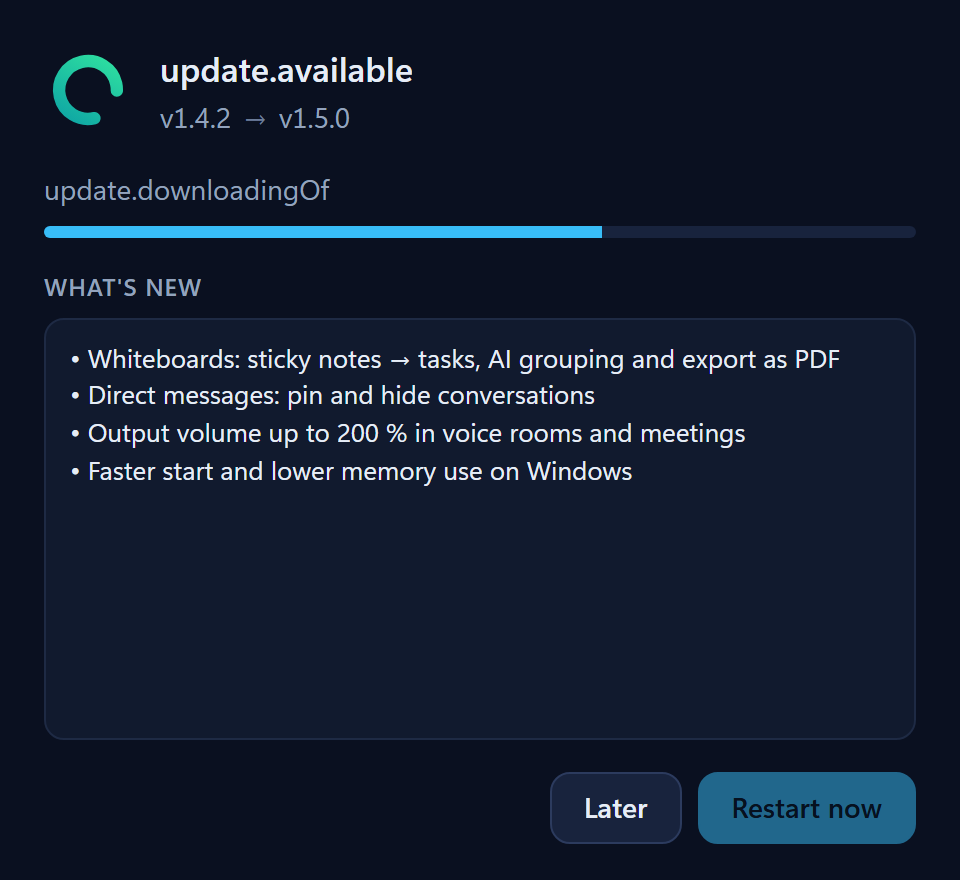
- It shows your current and the new version ("1.4.0 → 1.5.0"), the download progress and, under What's new, the release notes.
- When the download is finished (Update ready), click Restart now – Coviqo restarts briefly and installs the update.
- Click Later to keep working. The update is then installed the next time you quit Coviqo, and the window doesn't appear again for this version until the next start.
- If Coviqo was started hidden in the tray, the window waits until you open Coviqo.
Occasionally the operator may roll back to an earlier version after a problem; the window then says Version is being rolled back and shows a Rollback badge.
While an update downloads, the top bar of Coviqo shows Downloading update … %; when it is ready, a button Install update (Update in narrow windows) appears there. Clicking it asks Install Coviqo 1.5.0? and restarts the app – if you are in a call, the dialog tells you that the call will be disconnected.
The Updates card under Settings › Desktop app shows the same state (Version … is ready to install, Restart & install), and you can also use Restart to update in the tray menu. Check for updates there checks right away and shows the window again, even for a version you postponed with Later. Switch off Automatic updates if your IT department distributes updates itself; choose the Beta channel to get new features earlier. The desktop app confirms both in its own dialog (see Desktop settings).
Installing Coviqo on your phone or tablet#
On phones and tablets, Coviqo runs in the browser and can be installed as an app (a progressive web app). The installed app starts from the home screen, opens in its own window without browser bars and can receive push notifications.
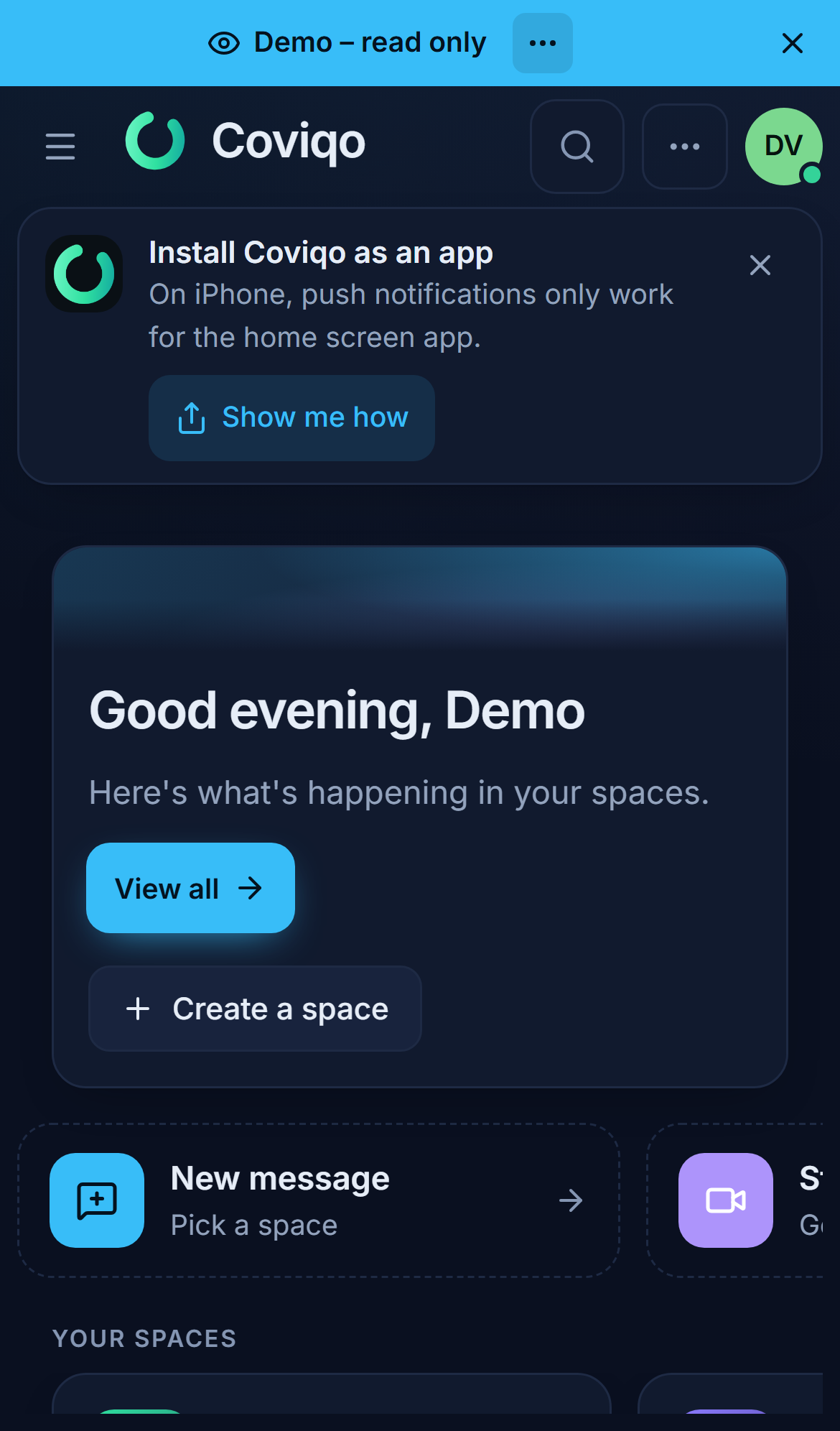
When you open Coviqo in a mobile browser, a hint Install Coviqo as an app appears at the bottom. You can hide it with Hide hint; it returns after 30 days.
Android (Chrome, Edge and other Chromium browsers)#
- Open Coviqo in Chrome and sign in.
- Tap Install in the hint (or choose Install app / Add to Home screen in the browser menu).
- Confirm the browser's installation dialog.
iPhone and iPad (Safari)#
On iOS and iPadOS, only the home screen app can receive push notifications (iOS/iPadOS 16.4 or later).
- Open Coviqo in Safari.
- Tap Show me how in the hint, or directly: tap the Share icon in Safari.
- Choose Add to Home Screen.
- Open Coviqo from your home screen and sign in.
- Turn on push notifications in Settings › Notifications.
Note
Camera and microphone permissions are granted per browser or app. If a call says the camera or microphone is blocked, Coviqo shows step-by-step instructions for your device – on iPhone, for example, Settings › Apps › Safari › Camera/Microphone › Allow.
Trying the live demo#
If you want to look around before creating an account, click Try the live demo on the Coviqo website (or open /demo). Coviqo opens the Acme Studios demo space with sample rooms, chats, notes, tasks and meetings. The demo is read-only and ends after 60 minutes; a banner Demo – read only reminds you, and Start free takes you to registration. On phones the banner is a single line; See an example meeting and Start free are in its … menu.
Example meeting. The demo contains a finished meeting, Beta-Launch-Planung (in Acme Studios › Launch Prep), so you can see what Coviqo does after a meeting: the transcript with speakers and times, the AI summary (also in English), decisions, tasks, a bookmark, the planned follow-up meeting and the PDF report. Open it with See an example meeting in the demo banner or the button at the end of the tour. The first time you open it, a short tour walks you through the tabs. In the demo these results are prepared in advance – no AI runs, and Ask this meeting is switched off; with a free account you can try everything with your own meetings. You were "invited but not there", so What did I miss? in Acme Studios shows the meeting's decisions for you.