Chapter 61
Using Coviqo on mobile
On this page
- Browser or installed app?
- Installing Coviqo on your phone
- Android (Chrome, Edge and other Chromium browsers)
- iPhone and iPad (Safari)
- Without a connection
- Finding your way on a small screen
- The bottom navigation bar
- The top bar
- The navigation drawer
- Rooms on a phone
- Chat on a touch screen
- Tasks, settings and dialogs
- Context menus: press and hold
- Push notifications on your phone
- Android
- iPhone and iPad
- If notifications are blocked
- Voice rooms on a phone
- Meetings on a phone
- Before you join
- During the call
- When you switch apps or lock the phone
- Joining a meeting as a guest from a phone
- Known limitations on mobile
Coviqo works on phones and tablets without a separate app from an app store. You open it in the browser and, if you like, install it on your home screen as an app (a progressive web app, or PWA). This chapter explains how to install it on Android and iPhone, how to find your way around on a small screen, how to get push notifications on your phone, and what to expect when you join voice rooms and meetings from a phone. At the end you find the things that work differently on mobile or not at all.
Browser or installed app?#
You can use Coviqo in any current mobile browser. Installing it as an app gives you a few extras:
| In the browser | Installed app | |
|---|---|---|
| Starts from | A bookmark or the address bar | An icon on your home screen |
| Window | With the browser's address bar and toolbars | Its own full-screen window, no browser bars |
| Push notifications on Android | Yes | Yes |
| Push notifications on iPhone/iPad | No | Yes (iOS/iPadOS 16.4 or later) |
| App shortcuts | – | My tasks, Meetings and Notifications (Android: press and hold the icon) |
Both variants are the same Coviqo – same account, same data, same features. You don't need to install anything to join a meeting as a guest.
Installing Coviqo on your phone#
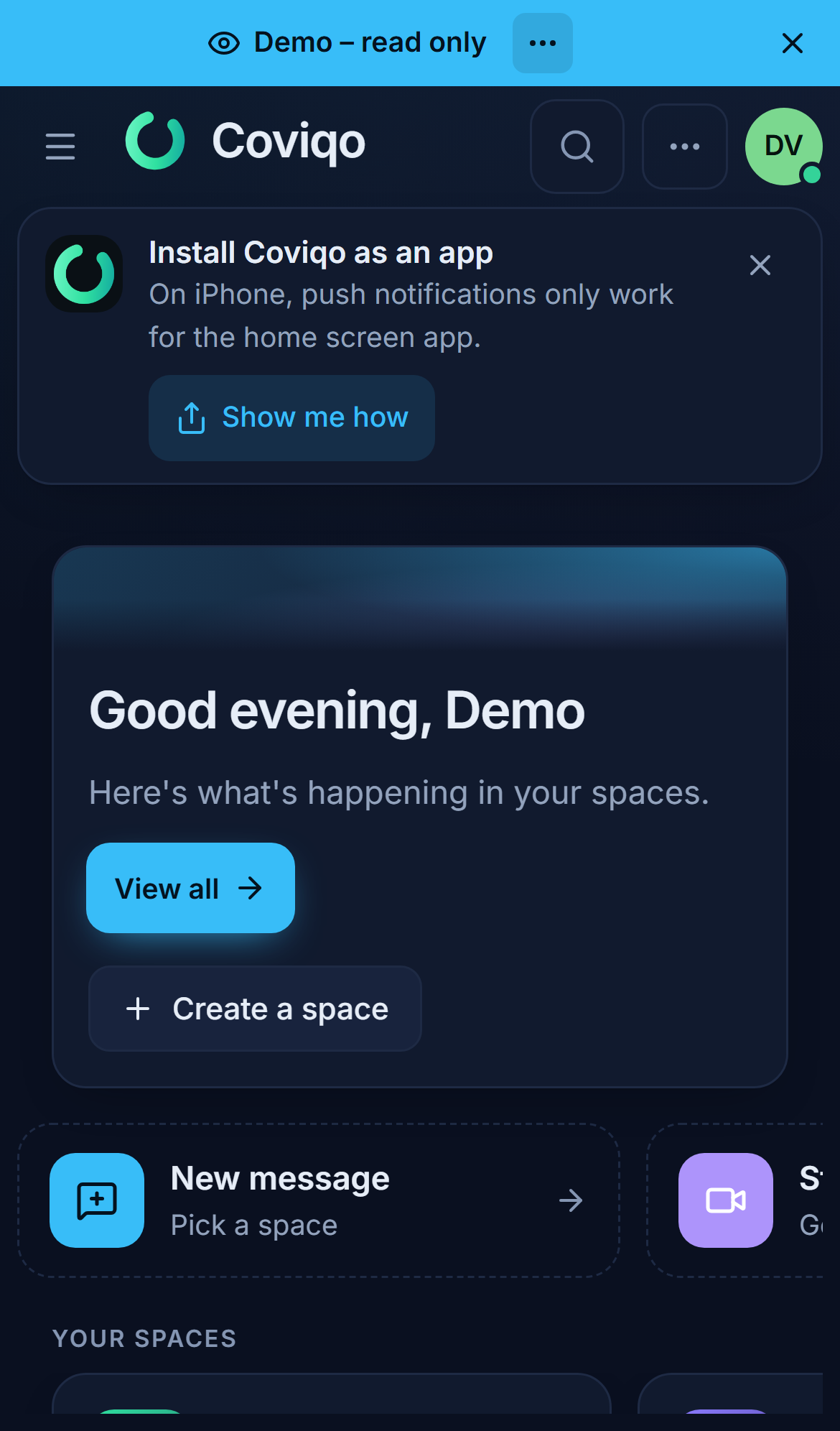
When you open the home page in a mobile browser, Coviqo shows the hint Install Coviqo as an app below the top bar. It only appears where installing is possible (Android browsers that offer installation, and Safari on iPhone and iPad) and not if Coviqo is already installed. Tap the X (Hide hint) to hide it; it comes back after 30 days. In landscape orientation the hint is hidden to leave room for the content.
Android (Chrome, Edge and other Chromium browsers)#
- Open your Coviqo address in Chrome and sign in.
- On the home page, tap Install in the hint. If you have hidden the hint, open the browser menu and choose Install app or Add to Home screen.
- Confirm the browser's installation dialog.
The Coviqo icon now appears on your home screen and in the app drawer. Press and hold the icon to jump straight to My tasks, Meetings or Notifications.
iPhone and iPad (Safari)#
On iOS and iPadOS, apps are added to the home screen from Safari's share menu. Tap Show me how in the hint to see the steps in the app:
- In Safari, tap the Share icon.
- Choose Add to Home Screen.
- Open Coviqo from your home screen and sign in.
screen: mobile-install-ios-stepsNote
Sign in again in the installed app. On iPhone, the home screen app keeps its own sign-in separate from Safari.
Tip
Use Safari for the installation. In other browsers on iPhone (Chrome, Firefox, Edge) the hint is not shown, and depending on your iOS version adding to the home screen is not offered there at all.
Without a connection#
Coviqo needs an internet connection; it does not store content for offline use. If you open the installed app without a connection, you see You are offline with a Try again button. The page reloads by itself as soon as you are back online.
One exception: if the connection drops while you are writing in a note (for example in a train tunnel), just keep writing. The status shows Offline – your changes will sync when you reconnect, and your changes are merged into the note once you are back online. See Writing without a connection in the chapter Notes.
Finding your way on a small screen#
On phones and small tablets (below about 1024 pixels wide), Coviqo moves the sidebar into a drawer and simplifies the room header. On phones held upright (below about 768 pixels wide), a navigation bar at the bottom of the screen keeps the most important places within reach of your thumb.
The bottom navigation bar#
| Item | What it does |
|---|---|
| Home | Goes to the home page with your catch-up. |
| Spaces | Opens the navigation drawer with your spaces and rooms (the same drawer as the menu icon at the top). |
| Messages | Your direct messages. A red number shows how many are unread. |
| Calls | Your call history. A red number shows missed calls. |
| Me | The account menu with your status, Edit profile, Settings, light or dark mode and Sign out. |
The item for the page you are on is highlighted. The bar hides itself while the on-screen keyboard is open, so you have the full height for writing, and in landscape orientation, where height is scarce – the top bar then still has everything. Content always ends above the bar; nothing is hidden behind it.
The top bar#
| Element | What it does |
|---|---|
| Menu icon (Open navigation) | Opens the drawer with the space list, rooms and your personal links. |
| Coviqo logo (Home) | Goes to the home page with your catch-up. |
| Magnifier (Search across Coviqo…) | Opens the search and quick switcher. |
| More actions (…) | Notifications, My tasks, My events, Create a space, Settings and, if you are allowed, Invite and Space settings. While you are in a voice room, Leave room is here too. |
| Your avatar | The account menu with your status and Profile & settings. On phones held upright it is under Me in the bottom bar instead. |
The navigation drawer#
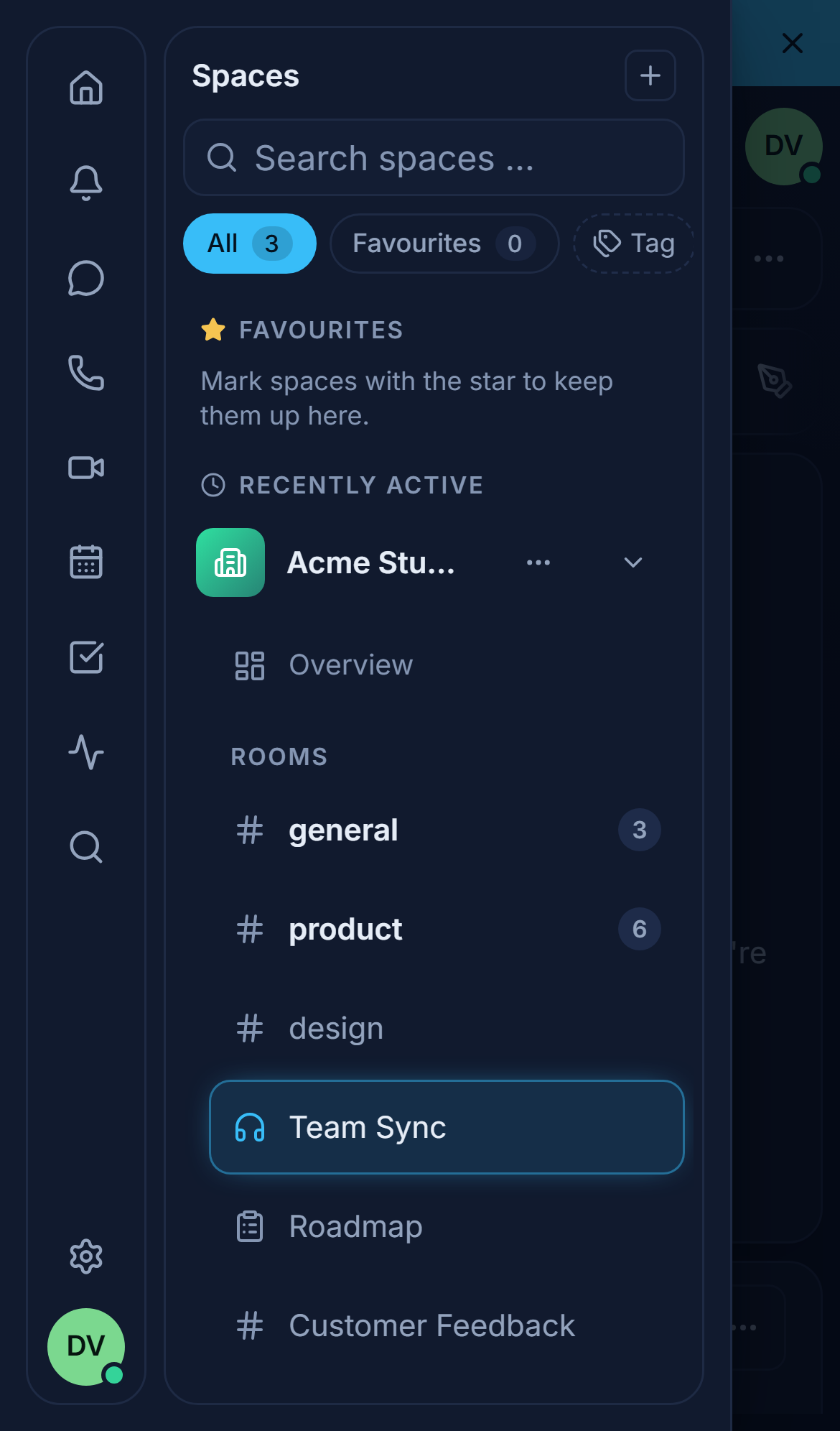
Tap Spaces in the bottom bar or the menu icon at the top to slide in the drawer from the left. It contains the same sidebar as on a computer: the list of spaces, the rooms of the current space grouped by category, and the gear icon for Settings at the bottom. Tap a room and the drawer closes by itself. Tap outside the drawer to close it without navigating.
Next to a space name there are only the … menu and the arrow that collapses the rooms, so the name has room. Marking the space as a favourite, Ask the space and Create room are in the … menu; a small star after the name shows that a space is a favourite.
Rooms on a phone#
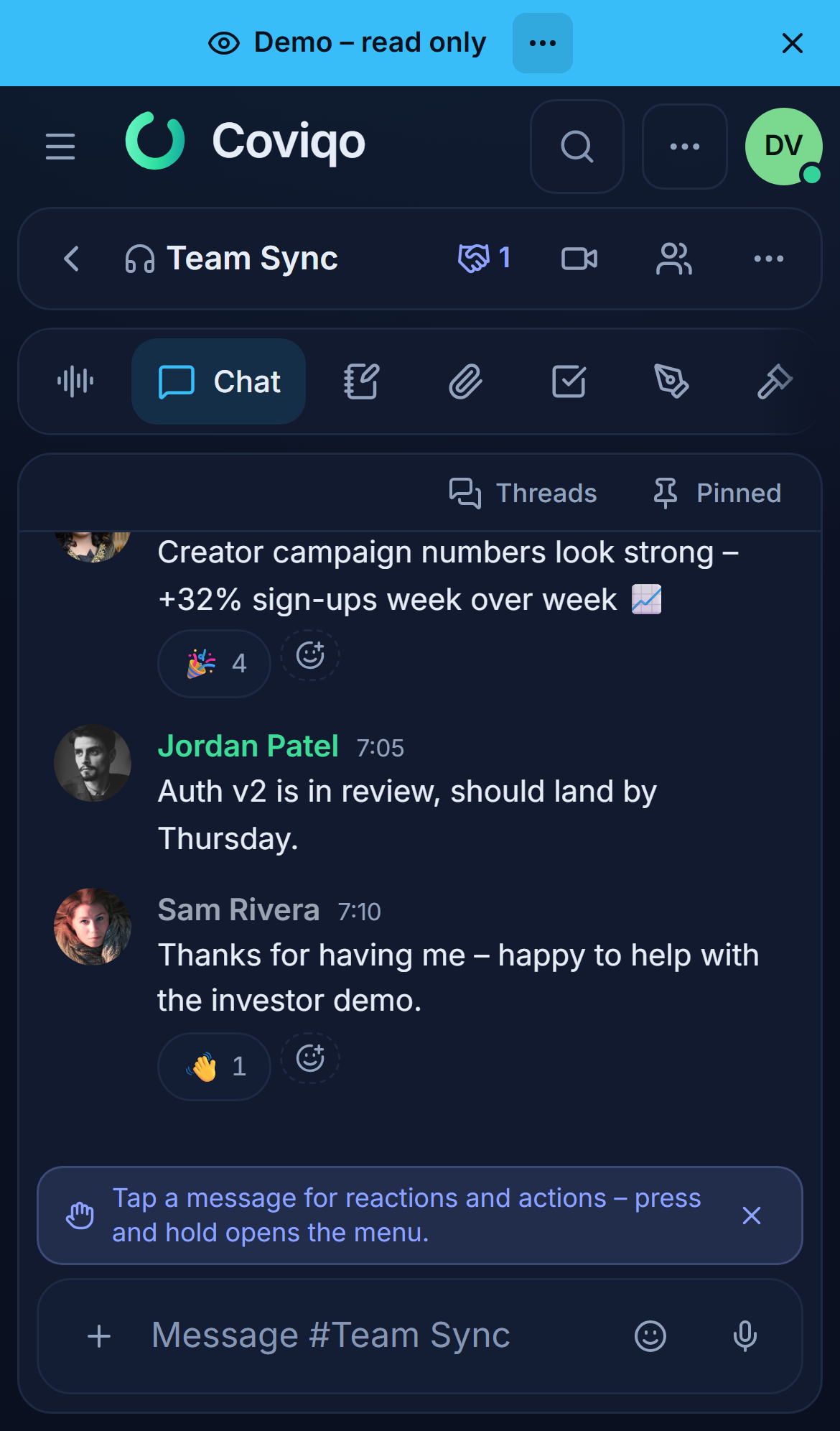
Inside a room, the large header card is replaced by a compact bar:
- ‹ takes you back to the space.
- The room name, and a green dot with a number when people are in the voice room.
- A badge with a handshake icon when external people have access to the room. Tap it to see who and until when.
- The meeting button of the room, if it has one.
- Members & activity opens the member list and activity feed as a sheet.
- More actions (…) contains Add to favorites, Copy link, Invite and the room's other actions such as Mute notifications or Room settings.
The module tabs (Chat, Notes, Files, Tasks …) show their icon with the name below it, so you can tell every tab apart at a glance. The active tab is highlighted. If a room has more tabs than fit, swipe the row sideways; a soft fade at the edge shows that there is more.
Chat on a touch screen#
A few things behave differently from a computer, because there is no mouse and no Shift key:
- Enter on the on-screen keyboard starts a new line. Tap the send button to send your message.
- Tap a message to select it. You then see its time and the action bar with reactions, reply and more.
- Press and hold a message to open the full menu of actions.
- The + button (Add content) next to the message field collects Attach files, Take photo (opens your phone's camera so you can send a picture straight away), Record a video message and Insert live component. If only one of them is available to you, it appears as its own button instead.
- Threads and Pinned sit in a slim row above the messages.
The first time you open a chat on a touch screen, a banner right above the message field reminds you: "Tap a message for reactions and actions – press and hold opens the menu." Tap Hide hint once you know – the banner then stays away.
Tasks, settings and dialogs#
- In a room's Tasks tab, a round New task button sits at the bottom right, just above the bottom navigation bar. Tapping a task opens its details in full screen.
- Settings shows its sections as a horizontal list at the top that you can swipe through.
- Many dialogs and panels open as sheets from the bottom of the screen. Tap Close or outside the sheet to dismiss them.
- If you tap a button that can't be used yet because a form is incomplete or invalid – for example Create without a name –, the button and the fields that still need your attention shake briefly, and phones that support it vibrate. Fill in the highlighted fields and try again. (If your phone is set to reduce motion, the shaking is left out.)
- Office documents (Word, Excel, PowerPoint, PDF) always open in the full screen with the editor's mobile view, which is made for touch. Tap Close editor at the top to return to the file list. See Office documents in the chapter Files.
Context menus: press and hold#
Everything you can right-click on a computer – spaces, rooms, messages, people, files, tasks, notes, events and meetings – has the same menu on a touch screen. Press and hold the item for a moment.
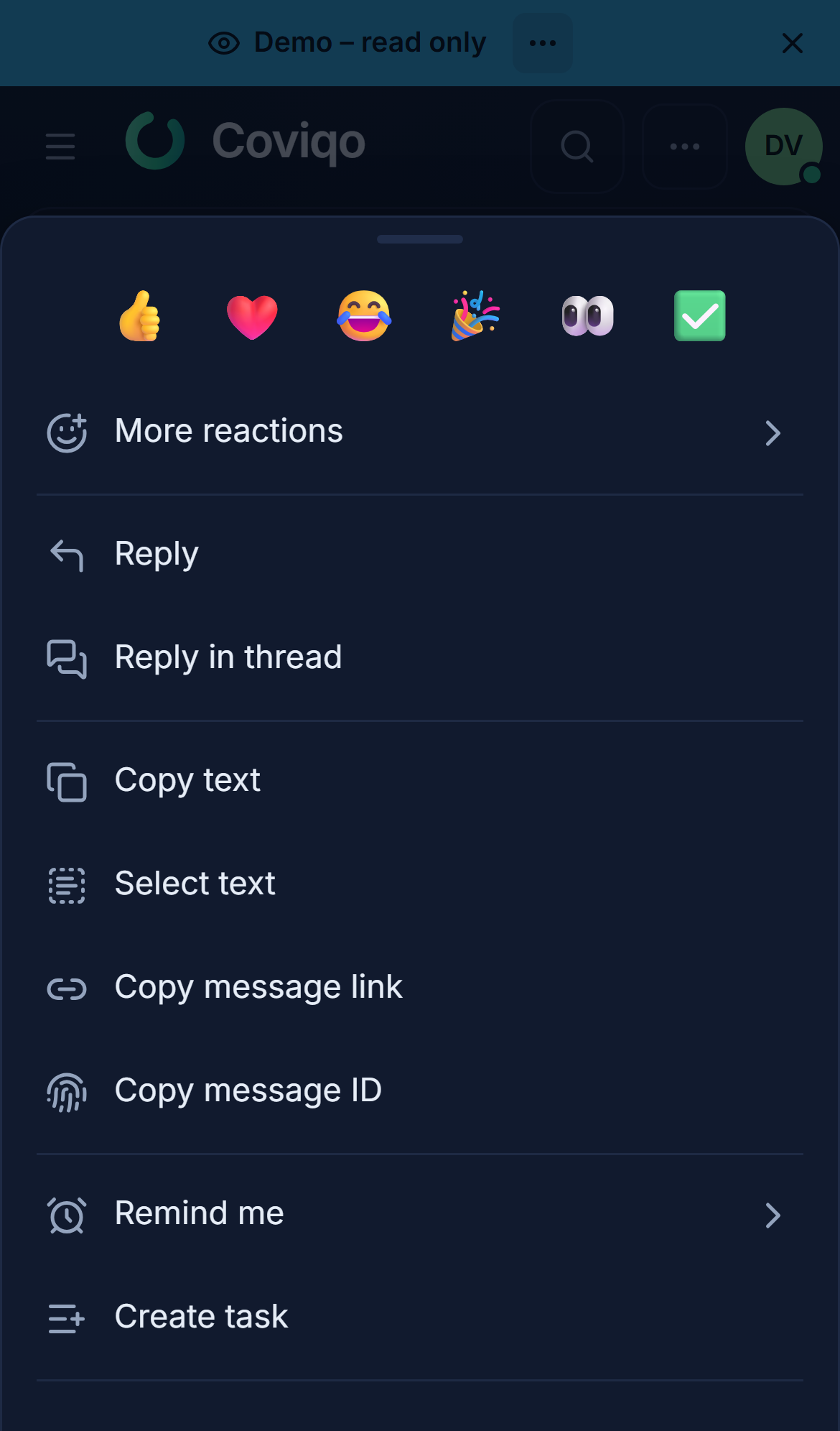
On a phone, the menu opens as an action sheet from the bottom of the screen instead of a small pop-up:
- Every entry is a large row that is easy to hit.
- Quick reactions to a message appear as a row of large emoji at the top.
- Entries with a submenu open a second page; ‹ takes you back.
- If an action is not available, the reason is shown directly below the entry.
- The … buttons in headers and lists open the same kind of sheet.
For messages, the sheet also offers Select text. It shows the message text on its own so that you can "Press and hold to select a part of the text, then copy it."
Tip
On tablets with a keyboard and mouse or trackpad, a right-click opens the normal desktop menu. Tapping a … button on a tablet opens a small drop-down menu, because there is enough room for it.
Push notifications on your phone#
Push notifications reach your phone even when Coviqo isn't open. You set them up once per device.
Android#
- Open Coviqo (in Chrome or as an installed app) and go to Settings › Notifications.
- Under Notifications on this device, turn on Browser notifications (push).
- Allow notifications when Android asks.
- Tap Send test. A notification "Push notifications work." should appear.
iPhone and iPad#
On iOS and iPadOS, websites in Safari cannot receive push notifications. Only the home screen app can, and only from iOS/iPadOS 16.4.
- Install Coviqo on your home screen as described above.
- Open Coviqo from the home screen icon and sign in.
- Go to Settings › Notifications and turn on Browser notifications (push) under Notifications on this device.
- Tap Allow when iOS asks for permission.
- Tap Send test to check.
If you open the notification settings in Safari instead, Coviqo tells you: "Install Coviqo on your home screen to receive push notifications. Then open Coviqo from the home screen and turn on push here (iOS 16.4 or later)." On older iOS versions it says "Push notifications need iOS/iPadOS 16.4 or later."
screen: mobile-push-iosIf notifications are blocked#
If you declined the permission once, the phone doesn't ask again. Coviqo shows instructions for your device:
| Device | Where to allow notifications again |
|---|---|
| iPhone (home screen app) | iOS Settings › Notifications › Coviqo and turn on Allow Notifications. |
| iPhone (Safari) | Install Coviqo on your home screen and allow notifications there. |
| Android (Chrome) | The icon next to the address → Permissions › Notifications › Allow, then reload the page. |
Which notifications reach your phone is set per type in the Push column of Settings › Notifications. See the chapter Notifications.
Note
If Coviqo is open and in the foreground, you get an in-app notice instead of a system notification, so nothing appears twice. Tapping a push notification opens Coviqo directly at the message, task or meeting it is about.
Voice rooms on a phone#
You join a voice room on a phone the same way as on a computer: open the room and tap Join voice. The control bar at the bottom has large buttons for Mic, Camera, More and Leave.
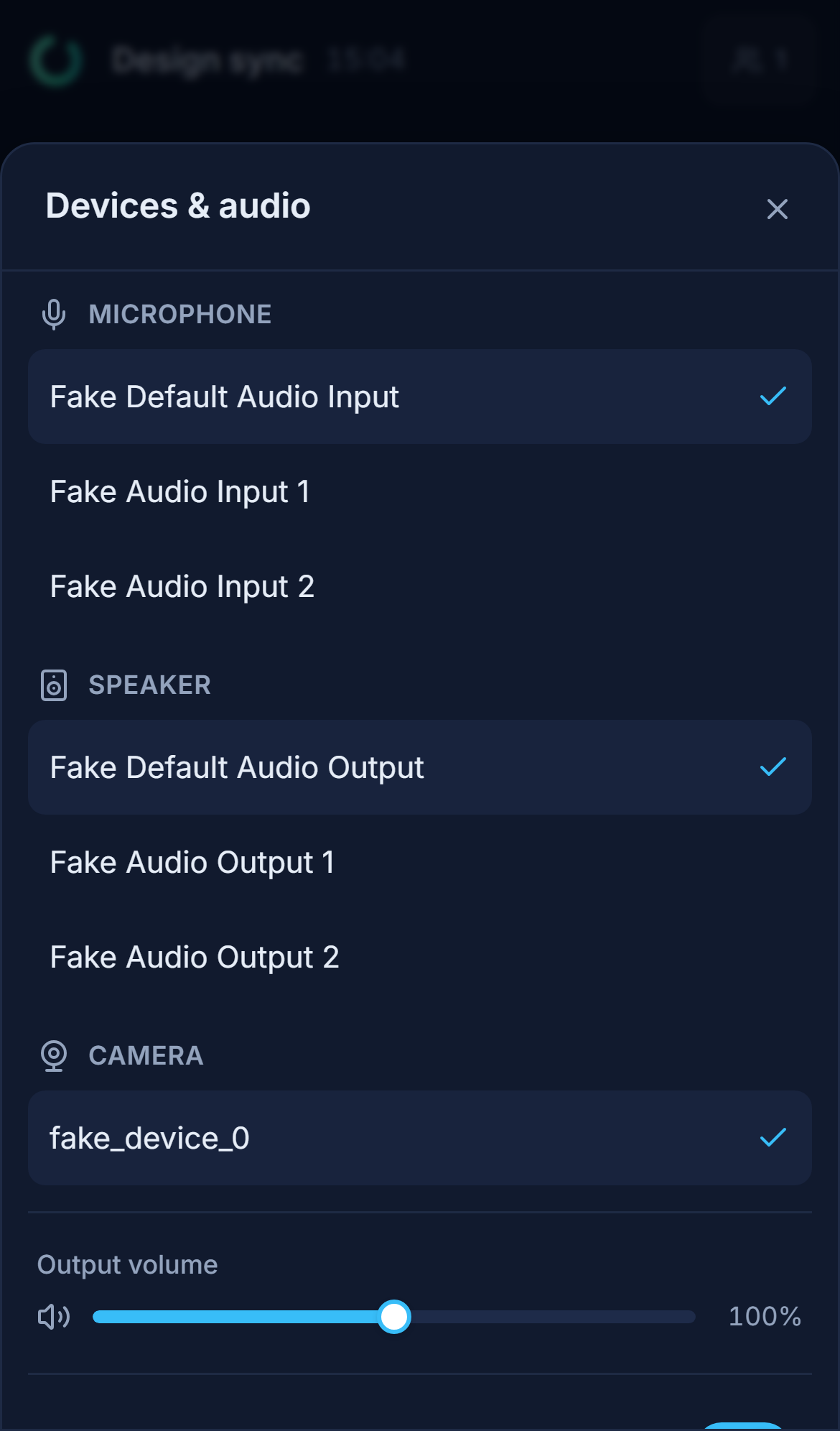
Under More you find Deafen, Raise hand (in a stage, while you are in the audience), Devices & audio, Start recording (if you are allowed) and Audio & video settings. Devices & audio opens a sheet in which you choose the Microphone, the Speaker (where the browser supports it) and the Camera, and switch Voice isolation, Noise gate and Deafen on or off. Audio & video settings takes you to the full settings page. The control bar only shows a Share button on devices that can share their screen, so you won't see it on a phone.
Push-to-talk is controlled by a key on a keyboard. On a phone, use Voice activity as the input mode (Settings › Audio & video › Input mode) and mute yourself with the mic button when you aren't talking.
Meetings on a phone#
Before you join#
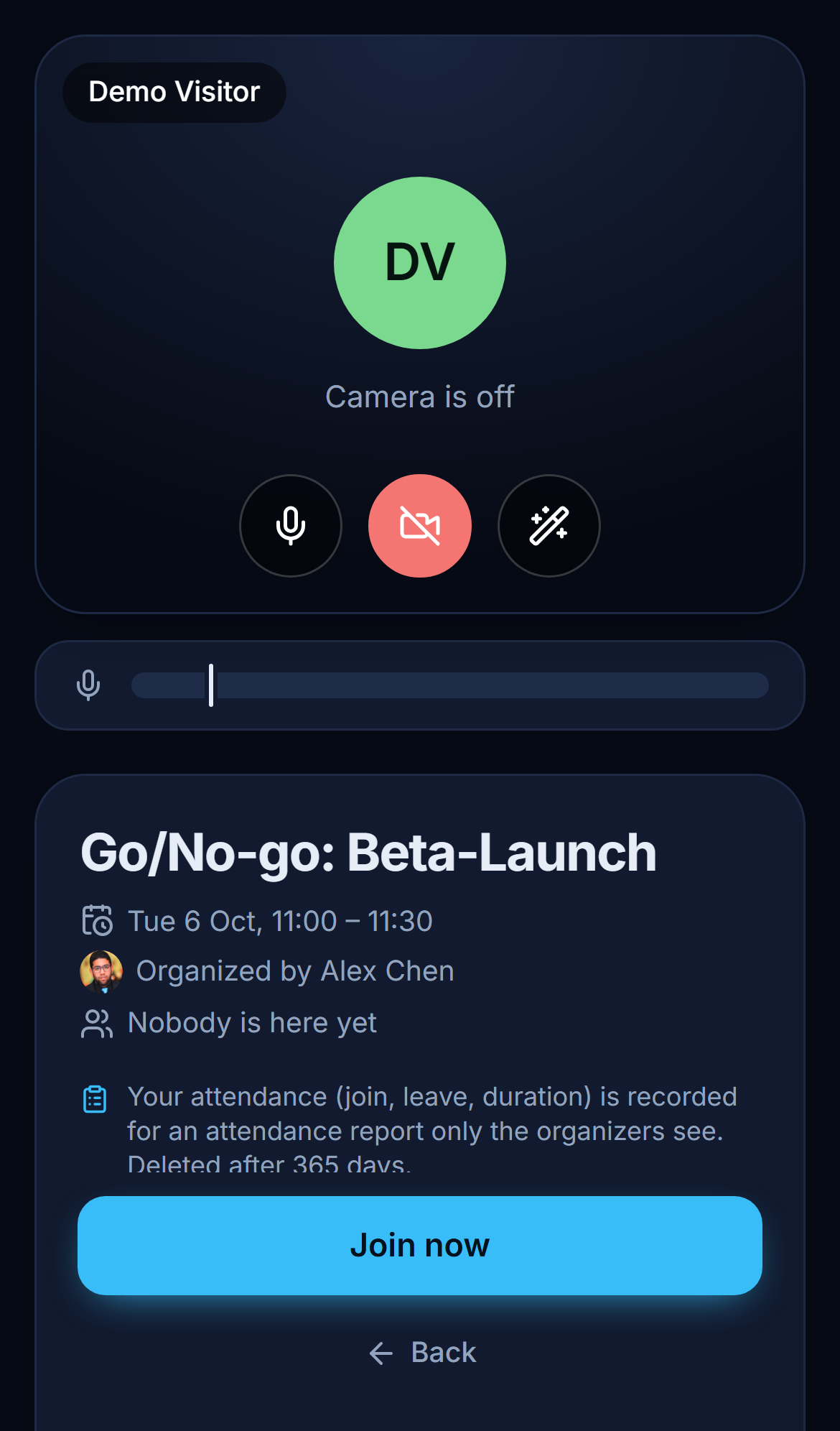
When you open a meeting, the pre-join screen shows the meeting title, your camera preview, the buttons to turn your microphone and camera on or off, and Join now. On a phone:
- Switch camera on the preview flips between the front and back camera.
- Devices unfolds the microphone, speaker and camera selection. It is folded by default to keep Join now on screen.
- In landscape orientation, the preview sits on the left and the join card on the right.
If the browser has no access to your camera or microphone, you see a card such as No access to camera and microphone with instructions for your device and a Try again button. You can still join without camera and microphone. The instructions for the most common cases:
| Device | How to allow camera and microphone |
|---|---|
| iPhone/iPad in Safari | Tap aA in the address bar → Website Settings and set Camera and Microphone to Allow. Or: iOS Settings › Apps › Safari › Camera/Microphone. |
| iPhone/iPad home screen app | iOS Settings › Apps › Safari → set Camera or Microphone to Allow, then reopen Coviqo. |
| Android | The icon next to the address → Permissions › Camera/Microphone › Allow. Also check Android Settings › Apps › Chrome › Permissions. |
During the call#
The call is laid out for small screens:
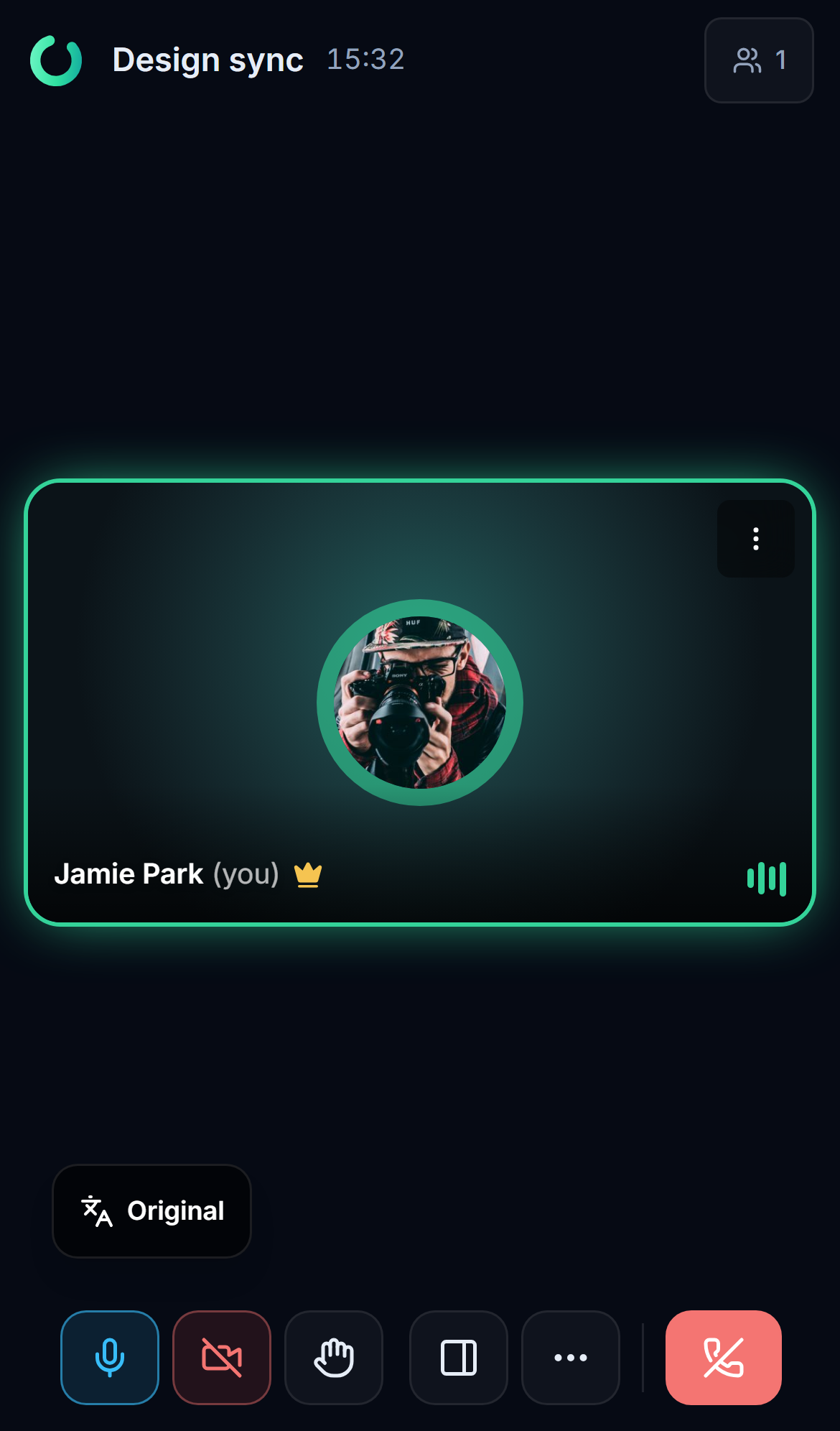
- The control bar at the bottom has only large buttons. The small arrows next to the mic and camera buttons that you know from the computer are gone. Their options are in More: Switch camera, Devices & audio, layout, Background effects, captions and, for organizers, recording.
- Participants, Chat and the other side panels are under Panels and open as sheets from the bottom. The control bar stays visible and usable.
- With three or more people, your own camera appears as a small picture in the corner.
- In landscape orientation, the control bar hides itself after about three seconds so the video can use the whole screen. Tap the screen to bring it back.
- When someone shares their screen, rotate your phone to landscape to see it larger, or pinch to zoom. Use Fill screen / Fit to screen and Presentation fullscreen on the shared screen.
- When you tap Leave, Coviqo asks Leave the meeting? first, so a mis-tap doesn't throw you out.
When you switch apps or lock the phone#
While you are in a call, Coviqo keeps the screen switched on. If you switch to another app or lock the phone, your audio keeps running, but Coviqo stops sending your camera. When you come back, the camera starts again and you see "Camera back on – it was paused while Coviqo was in the background."
Warning
Some phones, especially iPhones, may pause or stop the browser in the background after a while, or cut the audio when a phone call comes in. For long calls on the go, keep Coviqo in the foreground.
Joining a meeting as a guest from a phone#
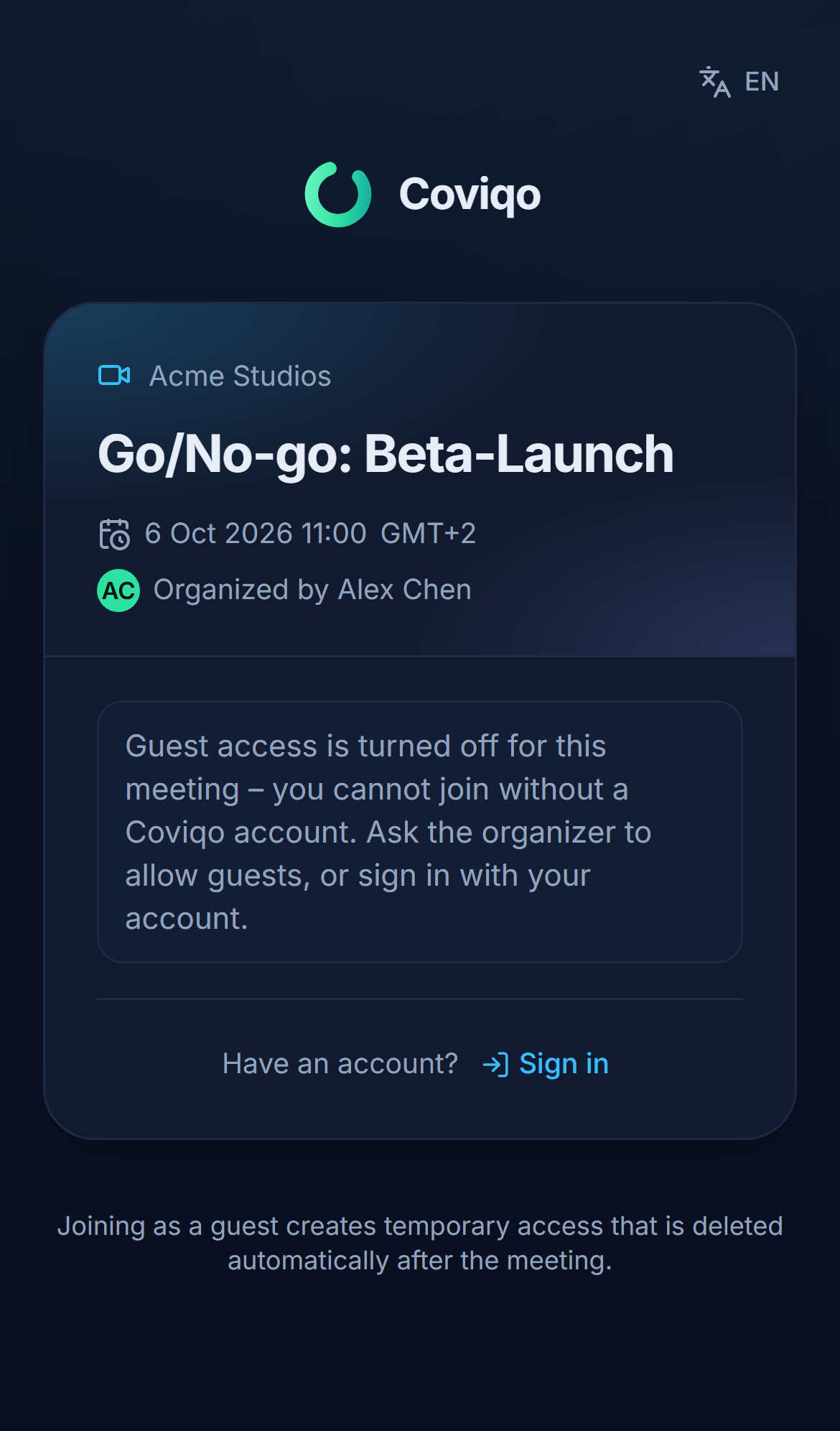
Guests don't need an account or an app. Everything runs in the phone's browser:
- Open the meeting link you received (it looks like
https://app.coviqo.com/m/…). - Enter Your name – "This is how others see you in the meeting." – and, if the meeting has one, the Passcode.
- Tap Join as guest. If you already have a Coviqo account, tap Sign in under Have an account? instead.
- On the pre-join screen, allow camera and microphone when the browser asks, and tap Join now.
- If the meeting has a lobby, you see You're in the lobby until an organizer lets you in. Stop waiting takes you out of the queue.
The language switcher at the top of the join page changes the language of the whole guest experience. As the page says: "Joining as a guest creates temporary access that is deleted automatically after the meeting."
screen: mobile-lobbyKnown limitations on mobile#
| Topic | What to expect |
|---|---|
| Screen sharing | Phones and tablets can't share their screen – mobile browsers don't allow it. The button is not shown. You can of course watch what others share. |
| Speaker selection | Safari on iPhone and iPad always uses the system output. Choose headphones or the speaker in iOS itself (Control Center). |
| Push-to-talk | Needs a keyboard key; use voice activity and the mute button instead. |
| Push on iPhone | Only in the home screen app and only from iOS/iPadOS 16.4. Not in Safari, not in Chrome for iOS. |
| Full screen on iPhone | iOS only allows a video to go full screen. Presentation fullscreen shows the shared screen alone, without the rest of the call. |
| Offline | No offline mode. Without a connection you only see the offline page. Notes you are already editing keep your changes until you are back online. |
| Volume above 100 % | The Output volume and per-person Volume sliders only go beyond 100 % where the browser can amplify audio (Chromium-based browsers that support it). In Safari – and therefore on every iPhone and iPad – and in Firefox they end at 100 %. |
| Background | The camera pauses in the background; the operating system may stop the audio after a while. |
| Desktop-only features | Global hotkeys, the system tray, native desktop notifications and the screen picker belong to the desktop app for Windows, macOS and Linux. |
| Keyboard shortcuts | The Keyboard shortcuts overview and the F shortcut for full screen are not offered on touch screens. |
| Whiteboard | View, zoom and pan with two fingers; with edit rights add, write and move sticky notes via the large Sticky note button (chapter Whiteboard). |