Chapter 35
Tasks
On this page
- Tasks at a glance
- The task board
- Grouped by status
- Grouped by due date
- Moving tasks with drag & drop
- Custom columns
- Several task lists (tabs)
- Categories
- Activity log of the room
- Room overview card
- Creating tasks
- Working on tasks
- Completing a task
- Editing a task
- The right-click menu
- My tasks
- Tasks from meetings
- Where they appear
- The meeting origin
- Accepting a task or asking for a correction
- Reminders
Tasks keep track of who does what and by when. Every room with the Tasks module has its own task board, and My tasks collects everything assigned to you across all your spaces. Tasks can also come out of meetings: action items that the organizer publishes after a meeting become tasks with a link back to the moment in the transcript where they were agreed.
This chapter explains the task board, how to create and edit tasks, statuses, priorities, assignees and due dates, the My tasks page, and what is special about tasks from meetings.
Tasks at a glance#
A task has:
| Field | Description |
|---|---|
| Title | What needs to be done – up to 300 characters. |
| Description | Details, links or a checklist. Markdown is supported. |
| Status | To do, In progress, Done or Canceled. |
| Priority | Low, Medium (the default), High or Urgent. |
| Assignee | One member of the space, or Unassigned. |
| Due date | A calendar day, or none. |
| Comments | A discussion thread on the task. |
Tasks belong to a room. Tasks published from a meeting without a linked room live on space level instead; they appear in My tasks for their assignee but on no room board.
What you may do depends on your permissions in the room:
| Permission | What it allows |
|---|---|
| View tasks | See the task board. |
| Create tasks | Create tasks and comment on them. |
| Manage tasks | Edit and delete tasks of others. |
Independently of these, the creator and the assignee of a task can always edit it. Only the creator and people with Manage tasks can delete it. Everyone else sees the task read-only ("Only the creator, the assignee or task managers can edit this task.").
The task board#
Open a room and select the Tasks tab. Above the board there is one row: New task, Filter, View and the activity button at the end.
- Filter – Assignee: All or Assigned to me; Category: All categories, one category or No category. The button shows how many filters are on; Reset filters switches them all off.
- View – Arrange by Status (the board) or Due date (the list); Hide completed hides done and canceled tasks; Group by category groups the tasks inside every board column by category (see Categories below). People with Manage rooms also find Edit columns and Edit categories here.
Phones show the same two menus; New task is the round button at the bottom right.
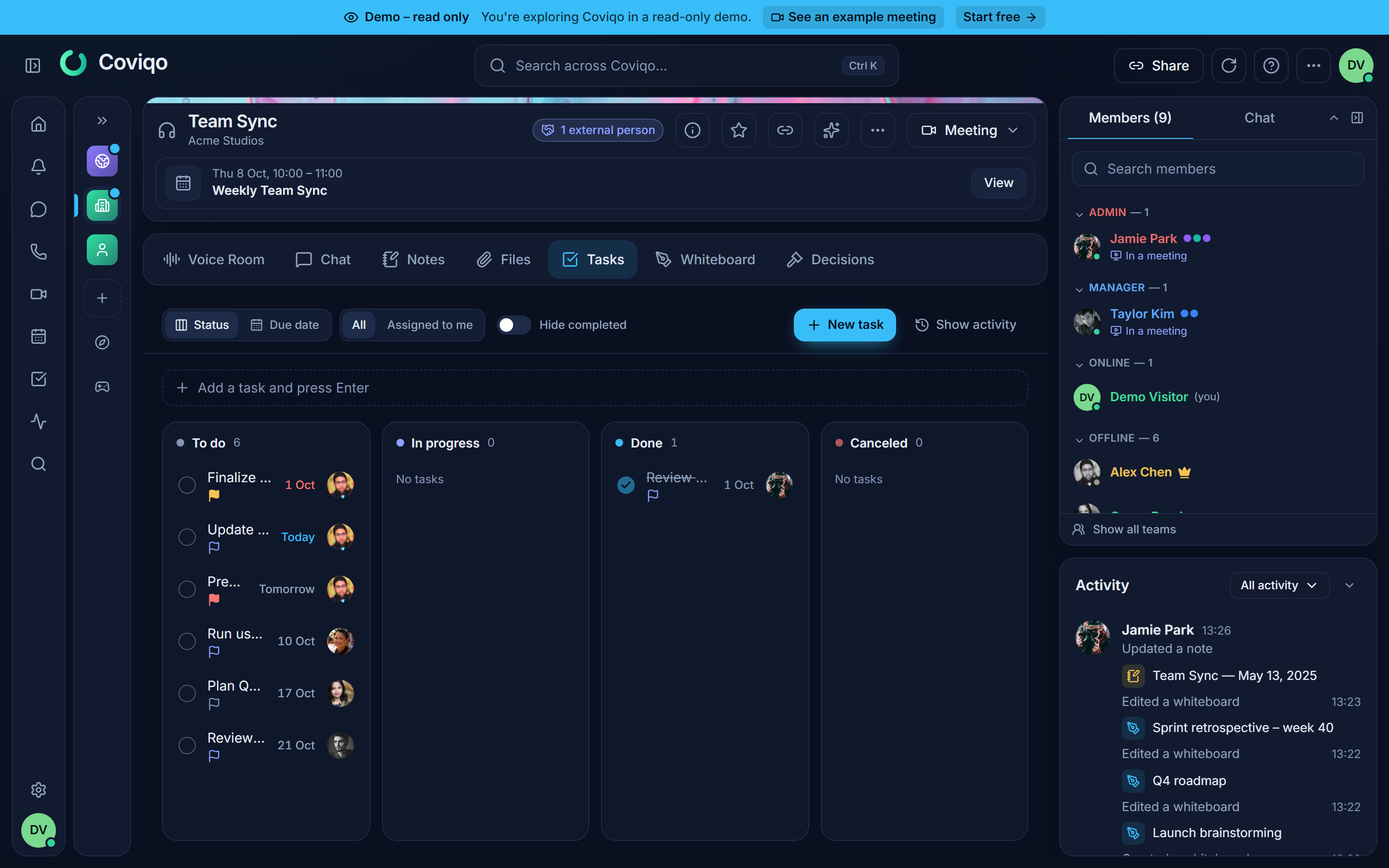
Grouped by status#
The Status view is a board with one column each for To do, In progress, Done and Canceled, with the number of tasks in the column header. With Hide completed switched on, only To do and In progress remain.
Each task card shows the title on up to two lines and below it a round checkbox, the due date, a priority flag, the category, the number of comments and the assignee's avatar (or a dashed placeholder when nobody is assigned). Columns keep a minimum width; when they don't fit next to each other, the board scrolls sideways. The Due date list shows one row per task.
Grouped by due date#
The Due date view is a list sorted by urgency:
| Group | Contains |
|---|---|
| Overdue | Open tasks whose due date has passed (shown in red). |
| Today | Tasks due today. |
| This week | Tasks due until the end of the current week. |
| Later | Tasks due after this week. |
| No date | Tasks without a due date. |
| Completed | Done and canceled tasks, most recent first. |
Within a group, tasks are sorted by due date and then by priority, highest first.
Moving tasks with drag & drop#
You can drag tasks you are allowed to edit – tasks you created, tasks assigned to you, or any task if you have Manage tasks.
- Status view – drag a task to another column to change its status, or up and down within a column to change the order. The target column is highlighted and a placeholder shows where the task will land. The order is saved for everyone in the room.
- Due date view – drag a task onto Today, This week, Later or No date to change its due date. Today sets today's date, This week the last day of the current week (following your week start), Later a date one week from today, and No date removes the due date. A time of day that was already set is kept. Overdue is not a drop target, and completed tasks stay where they are. While you drag, empty groups appear as drop targets.
- My tasks – works like the due-date view.
Starting work claims the task. If you drag an unassigned task from To do to In progress, it is assigned to you at the same time. The message In progress · assigned to you confirms this. Tasks assigned to someone else keep their assignee; moving a task to Canceled also keeps the assignee. Moving a task to Done records the completion time; moving it out of Done clears it again.
Undo. After every move a message appears for five seconds with Undo. Undo puts the task back into its previous column and position, and restores the assignee and due date.
Tasks you cannot edit, and all tasks in an archived room, cannot be dragged – hovering the grip at the left edge of the task tells you why. If a move fails (for example because you lost access in the meantime), the task jumps back and you see the reason.
Keyboard. Move the focus to the grip at the left edge of a task (with Tab), press Space or Enter to pick it up, move it with the arrow keys, and press Space or Enter again to drop it. Esc cancels. Screen readers announce each step.
Touch. Press and hold a task briefly (about a quarter of a second) until it lifts, then drag it. A quick swipe still scrolls the page. If you keep holding still, the task menu opens instead, and you can use Status there as before.
Custom columns#
People with the permission Manage rooms can adapt the board to the way the room works – for example Backlog → In progress → Review → Testing → Done for a software team. Choose View › Edit columns above the board, or open the room settings › Content and, below the Tasks row, Edit columns.
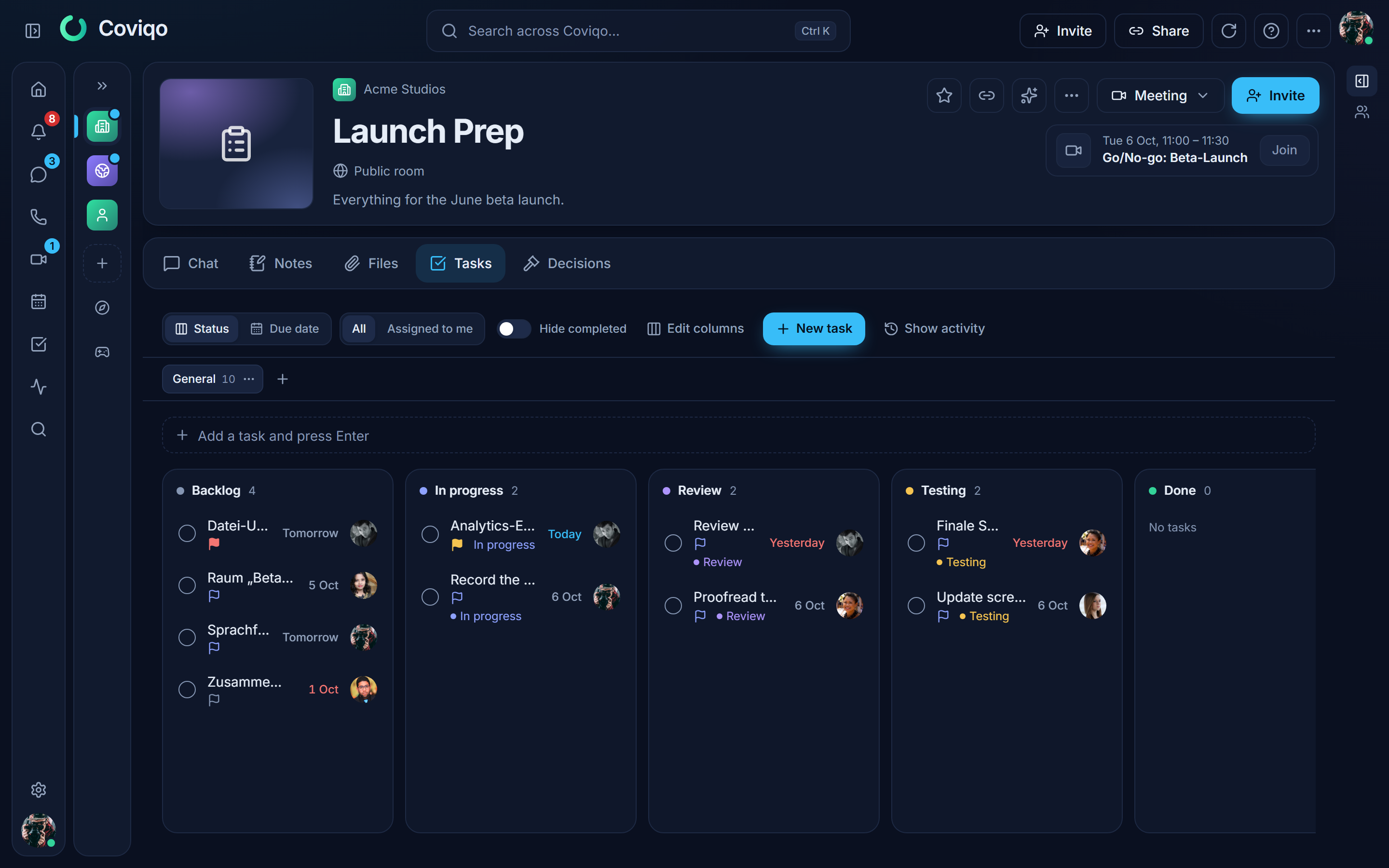
In the dialog you can:
- Rename a column (an empty name shows the category name) and pick a colour.
- Add columns (up to 12) and reorder them with the arrows.
- Choose the category of each column: To do, In progress, Done or Canceled. The category decides what the column means everywhere else: ticking a task off, My tasks, reminders, the catch-up and the GitHub / Jira status sync all work with the category.
- Mark the default column of a category with the star. New tasks start in the default To do column, and status changes that only know the category – the checkbox, the Status menu without custom columns, GitHub or Jira – put the task into the default column of that category.
- Start from a template: Standard (the four built-in columns), Software (Backlog, In progress, Review, Testing, Done) or Client project (Open, In progress, Waiting for client, Approved).
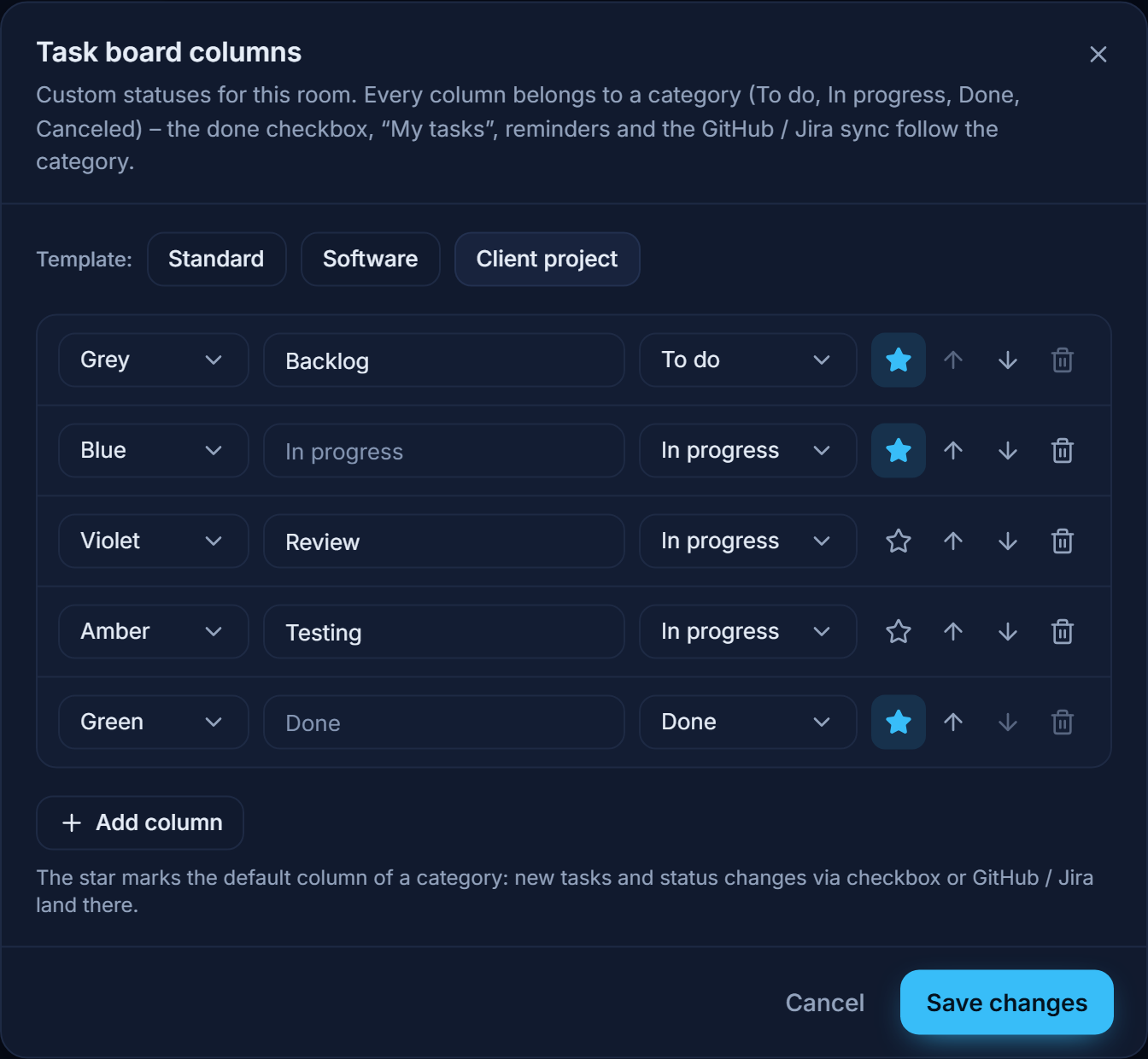
A board needs at least one To do and one Done column. When you delete a column that still contains tasks, the dialog asks where these tasks should go; if you don't choose, they move to the default column of their category. Changes to the columns are recorded in the room's activity and in the audit log.
Rooms that never changed their columns keep the four built-in ones. Drag & drop works across custom columns the same way; the "starting work claims the task" rule applies when a task moves from a To do column to an In progress column. Task rows show the name of a custom column (for example Review) – also in My tasks.
Several task lists (tabs)#
A room can split its tasks into several lists – for example Frontend, Client or Sprint 1.0. The tabs appear in a row above the board; the number next to a name counts its open tasks, and the open tab is part of the address (?list=…). Every task belongs to exactly one tab. Existing tasks, and tasks created elsewhere (meetings, bots, automations, My tasks), are in the room's first tab General (German UI: Allgemein).
- Create a tab with + next to the tabs (people with Manage rooms, the same permission as Edit columns; up to 30 tabs).
- The … menu of a tab offers Rename, Move left / Move right and Delete tab. Deleting asks where the tasks of the tab should go; the General tab cannot be deleted.
- Move a task to another tab by dragging it onto the tab, or with the Tab field in the task dialog. The move is recorded in the task's history ("Tab: Frontend → Client").
- All tabs share the room's columns. New tasks (quick add and New task) go into the tab that is open.
Categories#
Categories say what kind of task it is. Every room starts with Feature, Bug, Improvement, Task and Docs (German UI: Feature, Bug, Verbesserung, Aufgabe, Dokumentation). A task has one category or none; the category shows as a coloured chip on the task.
- View › Group by category groups the tasks of every column under category headers (colour dot, name, number of tasks); tasks without category come last under No category. Click a header to collapse or expand the group. Coviqo remembers per room and device whether the board is grouped and which groups are collapsed. Once tasks of a room have categories, grouping is on until you switch it off.
- Drag & drop: drop a task on a task of another group in the same column, or on a group header, to give it that category. Moving a task to another column keeps its category unless you drop it on a header.
- Filter › Category filters the board and the due-date list to one category or to No category. While a category is filtered, new tasks get it.
- View › Edit categories (people with Manage rooms) lets you rename categories, change their colour, reorder them with the arrows, delete them and add new ones (up to 30). Clear the name of a built-in category to get its original name back. Deleting a category keeps its tasks – they lose the category.
- Changes of a task's category are recorded in its history ("Category: Feature → Bug").
Activity log of the room#
The activity button at the end of the row above the board (Show activity, German UI: Verlauf einblenden) opens a panel next to it with every change of every task in the room, newest first – for example "Dennis moved "Discord Import" from In progress → Done · 2:02 PM". Scroll down to load older entries; new changes appear as they happen. Click a task title to open the task. Hover over the time to see the exact date. Filter by person, by change type (status, assignee, due date, created, commented …) and with This tab only by the open tab. Coviqo remembers on each device whether the panel is open. On narrow screens the activity takes the place of the board until you switch it off again with the same button. The log shows the same entries as the History of each task and follows the same permissions: whoever can see the room's tasks can see their activity.
Room overview card#
On the room's Overview, the Tasks card shows the next open tasks grouped into this week and later. Use Add task to create one right there, or View all tasks to open the board. When nothing is open, the card says You're all caught up.
Creating tasks#
There are several ways to create a task:
- Quick add – type into the field Add a task and press Enter at the top of the board and press
Enter. The task is created with the default values. If the filter Assigned to me is active, the new task is assigned to you. Start with a category name and a colon to set the category –bug: Login button brokencreates the task "Login button broken" in Bug. - New task – opens the full dialog with all fields. On a phone, New task is a floating button at the bottom right.
- From a chat message – right-click a message and choose Create task. The dialog opens with the message text already filled in.
- From a meeting – organizers publish action items from the meeting results (see Tasks from meetings below).
In the dialog New task:
- Enter a Title ("What needs to be done?").
- Optionally add a Description. Switch between Write and Preview to check the formatting.
- Choose the Priority, the Assignee and the Due date. For the due date you can use the shortcuts Today, Tomorrow and Next week. In rooms with several task lists, Tab picks the list (preset: the open tab). Category sets the category.
- Click Create task.
When you assign a task to someone else, they receive a notification.
Tip
Due dates are whole days. Coviqo keeps the day stable for everyone, even when your colleagues work in other time zones.
Working on tasks#
Completing a task#
Tick the round checkbox in front of a task to mark it as done; tick it again to reopen it. Done tasks are shown struck through, and the task remembers when it was completed. Canceled tasks cannot be ticked.
Editing a task#
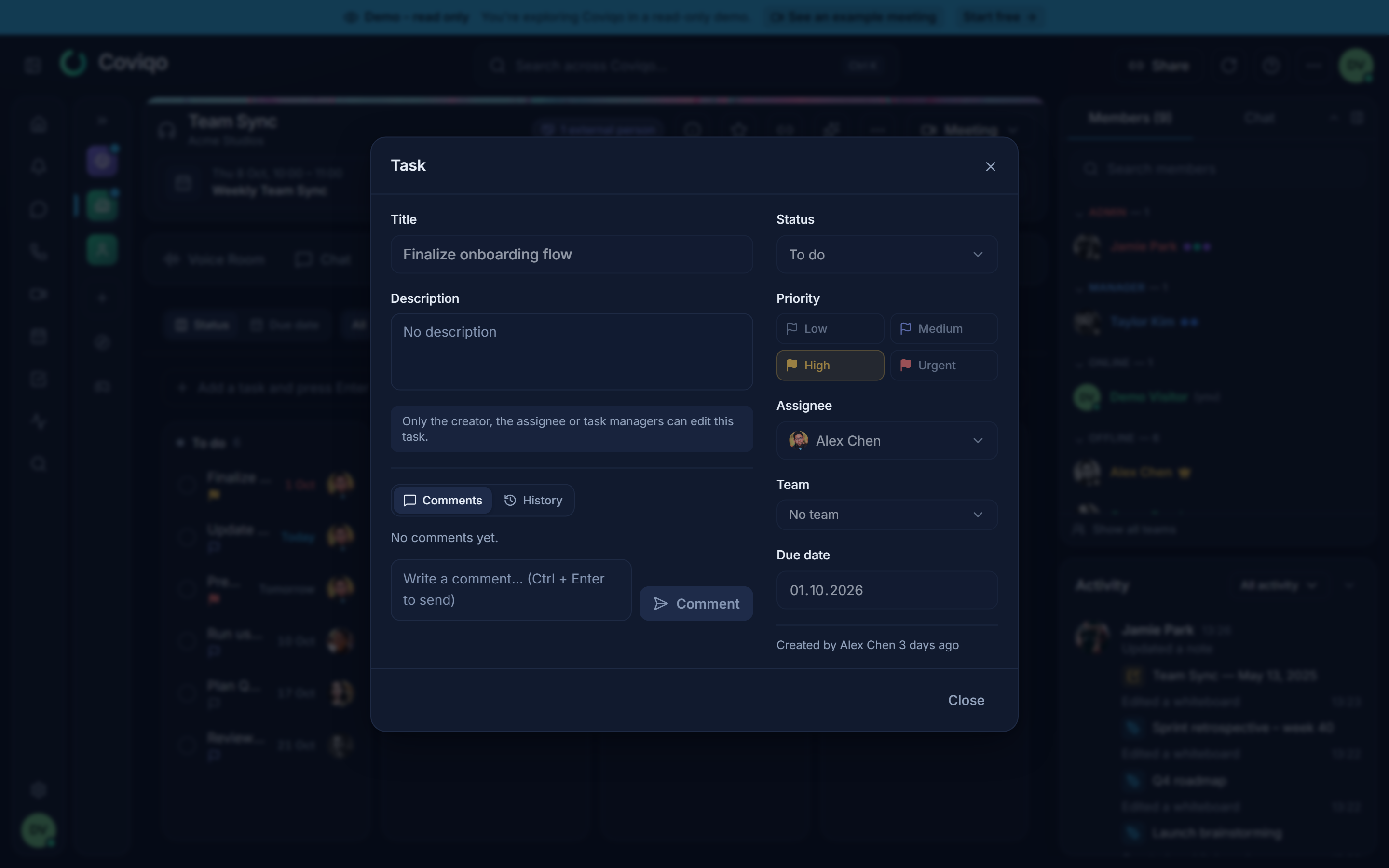
Click a task to open it. The dialog Task shows all fields, plus:
- Status – set it to To do, In progress, Done or Canceled – or, in a room with custom columns, to one of the room's columns.
- Category – the category of the task, or No category.
- Comments – the discussion on the task. Write a comment and send it with Comment or
Ctrl+Enter. - Who created the task and when, and when it was completed.
- Open in … – when you opened the task from My tasks, this link takes you to the room.
Click Save to apply your changes. Delete removes the task and its comments after a confirmation.
Note
If your room is connected to GitHub or Jira, the task dialog also shows Linked issues. With Create issue in GitHub/Jira you turn the task into an issue in the connected tool. See the chapter Integrations.
The right-click menu#
Right-click a task (or long-press it on a touch screen) for quick changes without opening the dialog:
| Action | What it does |
|---|---|
| Open | Opens the task dialog. |
| Mark as done / Reopen | Completes or reopens the task. |
| Status | Sets To do, In progress, Done or Canceled (in rooms with custom columns: one of the room's columns). |
| Priority | Sets Urgent, High, Medium or Low. |
| Due date | Today, Tomorrow, Next week or Remove due date. |
| Assign to me / Unassign | Takes over the task or removes the assignee. |
| Copy link | Copies a link that opens the task directly. |
| Delete task | Deletes the task after a confirmation. |
Actions that change the task only appear if you are allowed to edit it; Delete task only if you may delete it.
My tasks#
My tasks shows everything assigned to you in all spaces. Open it from the … menu in the top bar, from the command palette (Ctrl+K › My tasks) or from the app shortcut of the installed app.
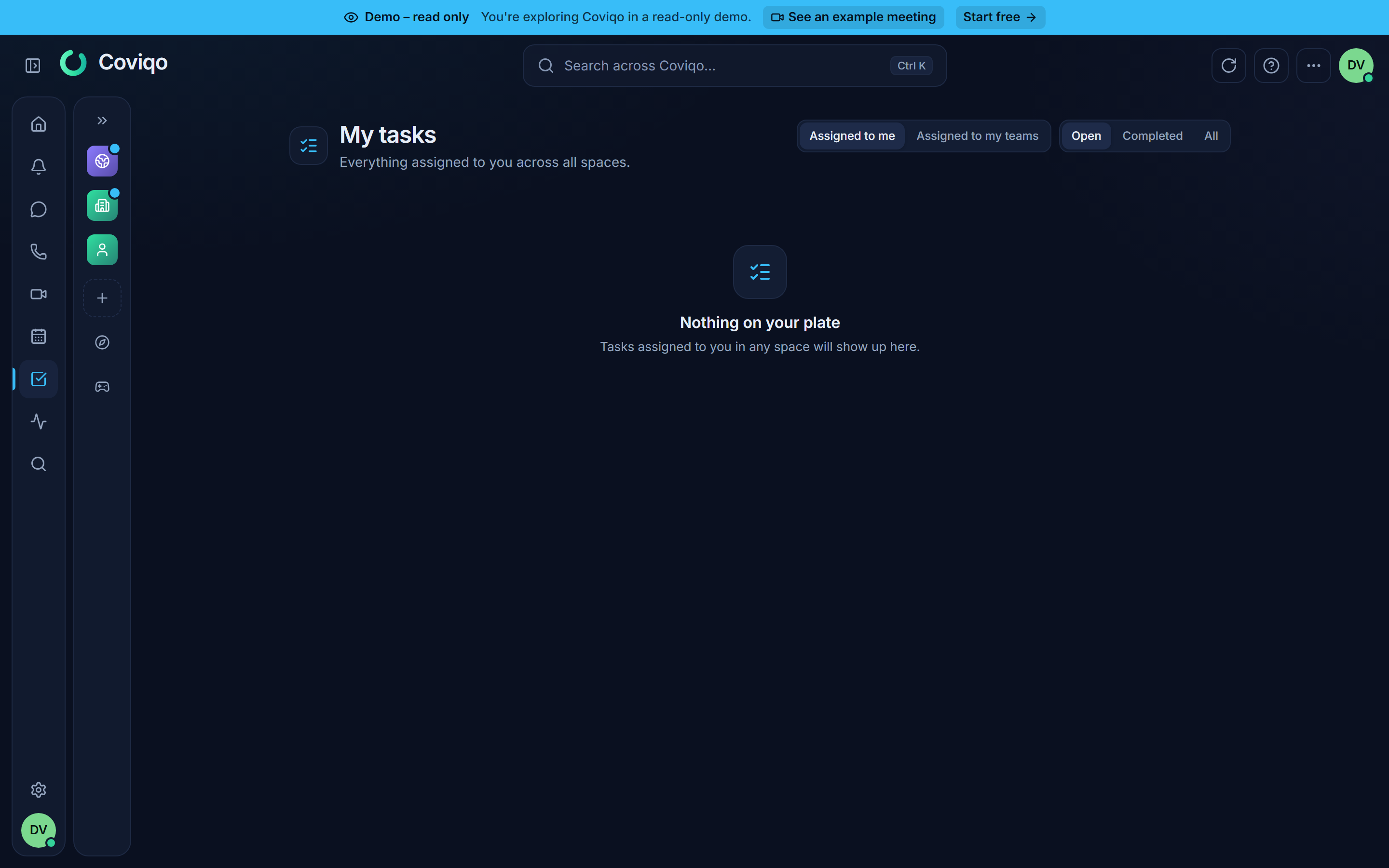
The page groups your tasks the same way as the due-date view – Overdue, Today, This week, Later, No date and Completed. Use the switch at the top to show Open, Completed or All tasks. A second switch changes between Assigned to me and Assigned to my teams: the team list shows tasks assigned to any of your teams – including teams above your sub-teams – and marks each task with its team.
To assign a task to a team, pick it under Team in the task dialog (in addition to, or instead of, a person). See the chapter Teams and the member list.
Each row shows the space and room the task belongs to; click it to jump to the room's board. Tasks that come from a meeting additionally show which meeting they come from. You can tick tasks as done and open them right from this page.
When you have nothing to do, you see Nothing on your plate. Due tasks also appear in the catch-up (see the chapter Catch-up and activity).
Tasks from meetings#
After a meeting, the organizer reviews the action items the AI suggested and publishes them as tasks (see the chapter Meetings). These tasks behave like any other task, with a few additions.
Where they appear#
- In the Tasks tab of the room the meeting is linked to – or on space level if the meeting has no room.
- In the Tasks tab and the Results tab of the meeting.
- In My tasks of the assignee, with the meeting as origin.
The meeting origin#
When you open such a task, the dialog shows From the meeting with the meeting's title and a Source link that opens the exact position in the transcript – or plays the recording from there, if you may see it. This way you can always check what was actually said.
Accepting a task or asking for a correction#
If you are the assignee, you confirm the task or ask for a change:
- Open the task.
- Click Accept task if everything is right. The task shows "Accepted on …".
- If something is wrong – the wrong person, a misunderstood deadline, an unclear title – click Request correction, describe What should be corrected? and click Send.
The organizers of the meeting are notified of the correction request and see Correction requested on the task in the meeting results. After they have fixed it, they click Correction done, and you are notified.
Reminders#
For open tasks from meetings, Coviqo reminds the assignee 24 hours before the due date. Every Monday morning you also get a weekly overview of your open meeting tasks that are overdue or due within the next seven days. Both can be adjusted per channel in your notification settings (see the chapter Notifications).
Note
Regular tasks that were not created from a meeting have no due-date reminder. Use the Overdue and Today groups in My tasks to stay on top of them.