Chapter 59
Organisation settings
On this page
- Who can manage the organisation
- Setting up the organisation
- Voice region
- Spaces of the organisation
- Policies
- Before you save
- Managed accounts
- Org chart and organisation teams
- When someone leaves: deactivation, handover and reactivation
- Guests, share links and requests
- Phone system
- Further phone features
- Outbound features
- Call flows
- Numbers and call flows
- Creating a flow
- Building a flow step by step
- Check, publish, history
- Trying it out
- Operating mode and caller lists
- Analytics (Business)
- Which plan includes what
- Security settings
- Confirming changes
- Privacy & transparency
- Audit log and export
- For members: what you notice
- Your account is managed
- Something is not allowed
- Asking for approval
- Password-protected share links
Companies that use Coviqo on the Business or Enterprise plan can manage their people centrally: which accounts belong to the organisation, what members may do in spaces of other organisations, what guests may do in the company's spaces, how members sign in, and what happens when someone leaves. This chapter first explains the organisation area for administrators and then what members notice.
Note
Organisations that already completed the setup on the Free or Community Pro plan keep their preset, but it only takes effect after an upgrade to Business or Enterprise. Until then, everything works as before ("Open"). Organisations without the setup on these plans – for example your personal organisation or a small community – see only the Billing section of the area; the setup appears after an upgrade to Business.
Who can manage the organisation#
The organisation area is open to the owner and the admins of an organisation (the people who can also manage its billing and see its single sign-on settings). Only the owner can change single sign-on and SCIM provisioning; admins see those settings read-only. Admins also cannot deactivate, hand over, release, sign out, put on legal hold or export the owner's account – only the owner can act on their own account. Billing contacts only see the Billing section. Changes to the organisation settings are only possible after you have confirmed your identity again (see Confirming changes below).
Open it via Manage organization in the user menu (top right) or directly at https://app.coviqo.com/org (or the same path on your own server). The billing page of an organisation is https://app.coviqo.com/org/<organisation>/billing; Subscriptions in the user menu lists all organisations whose billing you manage and opens it with Manage. If you administer more than one organisation, pick one from the list at the top of the navigation – it also contains the organisations whose billing you manage. The area is divided into groups and entries:
| Group | Entry (tabs) | What you do there |
|---|---|---|
| Organization | Overview | Plan, active preset, counters (spaces, managed accounts, deactivated accounts, guests, share links, open requests) |
| Billing | Current plan, seats in use / purchased, change plan (monthly / yearly), payment method and billing address (Stripe), invoices, contract, Cancel contracts here and Withdraw from contract – see the chapter Plans and billing; All subscriptions leads to Settings › Subscriptions | |
| Spaces | All spaces of the organisation with type, state, owner, members, storage and creation date – search, filter, sort; open a space or its settings where you are a member | |
| People & access | Managed accounts | Managed accounts: search, details, sessions, deactivate, reactivate, hand over, release, claim existing accounts |
| Org chart / teams | Teams of the organisation (org chart) | |
| External collaboration (tabs External people, Share links, Approval requests) | Everybody from outside the organisation in your company spaces – and remove them; all active public file links – and revoke them; approval requests of members who want to join spaces of other organisations (the number of open requests is shown on the entry and the tab) | |
| Rules & security | Policies | Preset and the individual rules |
| Security & sign-in | Two-factor requirement, remembered devices, session duration, idle timeout, allowed networks and apps; below it Single sign-on (SAML / OpenID Connect, verified domains, provisioning, SCIM) – formerly in the space settings | |
| Devices & telephony | Telephony | Phone connection, numbers and the phone system (opening hours, voice menus, call queues, block list, hold music, reports) |
| Room devices | Mini PCs, Android boxes and kiosk browsers in meeting rooms | |
| Accountability | Audit log | Everything that happened in the organisation |
| Privacy & retention (tabs Retention & export, Privacy & transparency) | Legal hold, account exports, audit export and SIEM connection (Enterprise); what the organisation can see about its members |
What the organisation decides is shown further down with Set by the organization: if the policy forbids external people or share links, Allow external people and External file links in the overview of the space settings are off and locked; if it limits direct messages, Settings › Privacy & my data › Messages and contacts carries the same note.
Several former sections are combined into one entry with tabs; old links such as …/org/<organisation>/guests still open the right tab. Search settings … above the navigation also finds every section by its former name (e.g. "External guests").
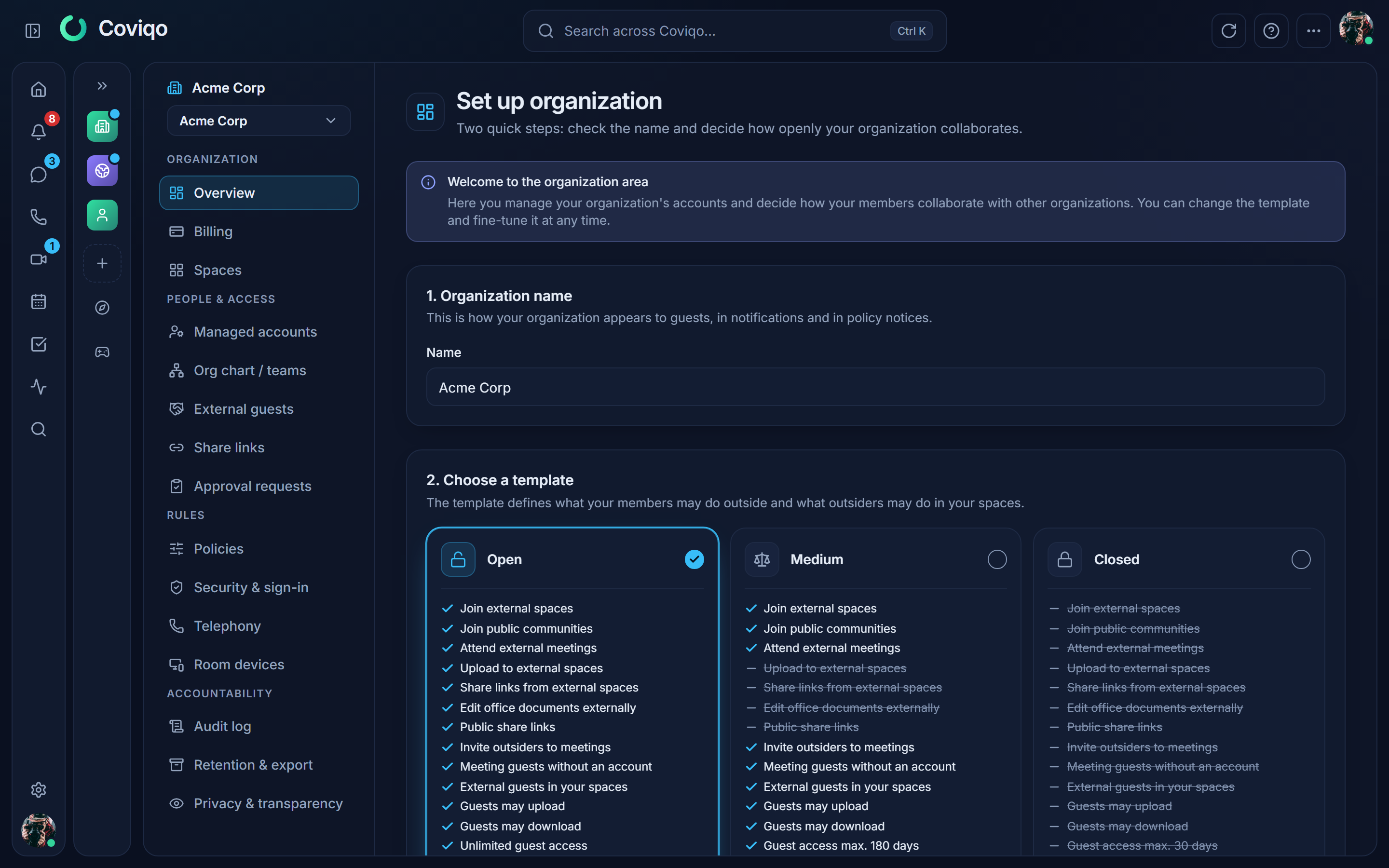
Setting up the organisation#
The first time you open the area, a short setup asks for the organisation's name and a preset – a starting point for all rules. You can change the preset and individual rules at any time later.
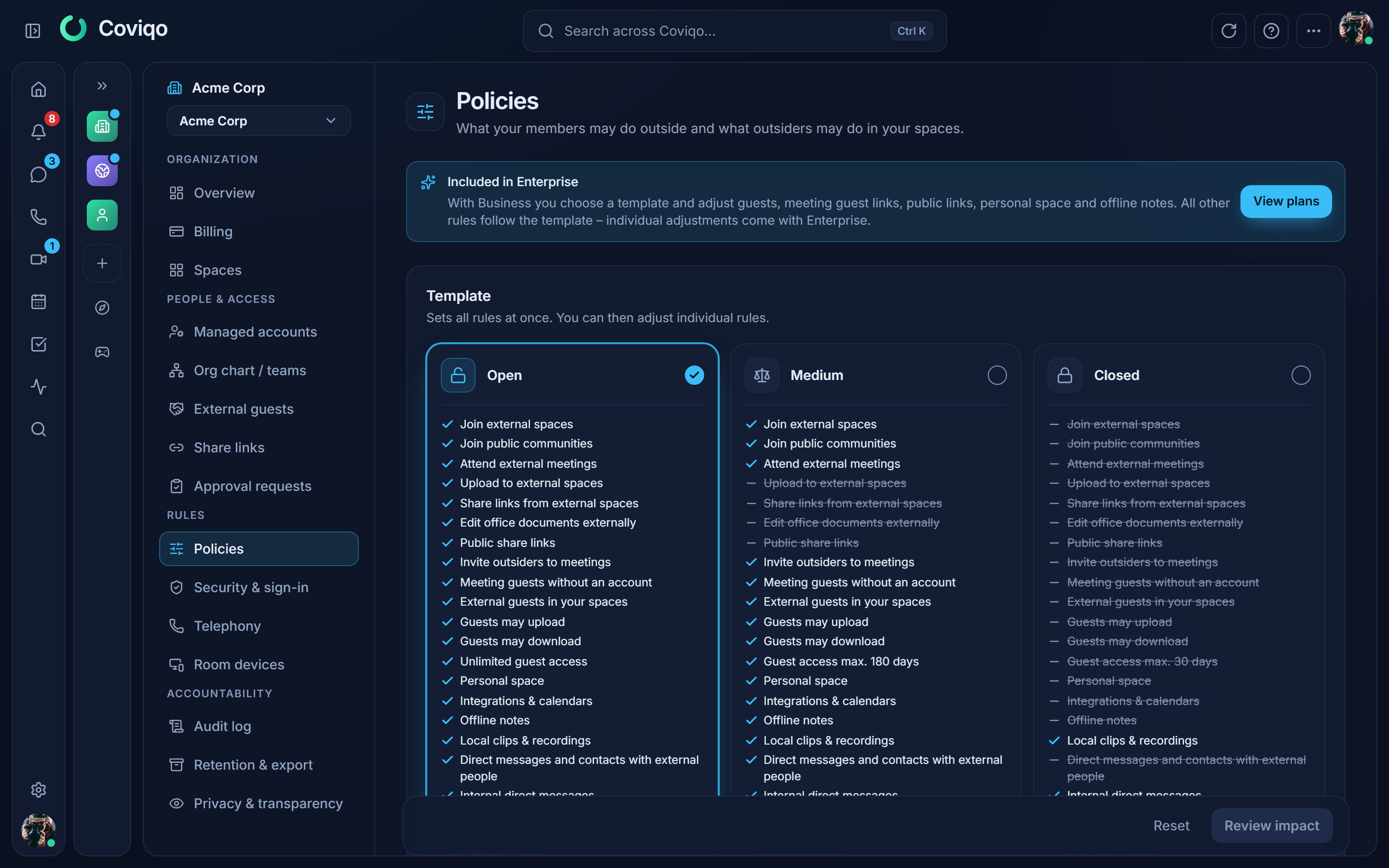
| Preset | In short | What it means |
|---|---|---|
| Open (Offen) | Maximum collaboration – as before | Members join spaces and meetings of other organisations, upload and share files there, invite guests and create public file links. Default for every existing organisation. |
| Medium | Take part outside, but give nothing away | Members may still join spaces and meetings of other organisations, but may not upload, share or edit documents there. Public file links are off; guests in your spaces for at most 180 days. |
| Closed (Geschlossen) | Everything stays in the organisation | No spaces or meetings of other organisations, no guests, no public links, no personal space, no personal integrations and no offline copy of notes. |
Each preset card shows only the few rules in which the presets differ, each with a tick (on) or a cross (off). Show all rules below the cards opens one table with every rule for Open, Medium and Closed side by side; rules that are the same in every preset are listed once at the end under Same in every template. Hide rules closes it again. The rules for sign-in security are independent of the preset and live under Security & sign-in.
Voice region#
When your Coviqo offers calls in more than one region, the organisation overview shows Voice region. It decides where the live audio and video of your organisation's calls run – choose the region closest to your people for the lowest delay:
- Automatic (recommended) – every call uses the region nearest to its first participant, otherwise the region of your organisation's data region. Regions outside the EU are only chosen automatically if you allow them (see below).
- A fixed region, e.g. "United States (Virginia)" – all calls of the organisation use it, unless an organiser picks another region for a single meeting.
Allow voice regions outside the EU (off by default) – only shown when a region outside the EU is offered. While it is off, Automatic only uses regions inside the EU, even if the first participant is, say, in the USA. Switch it on if calls with people far away should use the nearer region outside the EU. Owners and admins can change this switch on every plan. Choosing a region outside the EU as the fixed region (or an organiser choosing it for a meeting) is an explicit choice and works without the switch.
Only the owner of the organisation can change the region itself, and your plan must include the choice of region. Messages, files, recordings, transcripts and all other data always stay in the main system – the region only affects the route of the live call. A running call keeps its region; the change applies to calls started afterwards. If a region does not support recording or live transcription, the setting says so.
Spaces of the organisation#
Spaces lists every space that belongs to the organisation – workspaces, communities and hybrid spaces, including archived and suspended ones (deleted spaces are not shown). For each space you see its icon and name, the type, whether it is public, private or invite-only, its state (Active, Archived, Suspended), the owner, the number of members, how much storage its files use and when it was created. Search by name or address, filter by type and state, sort by name, age or number of members, and page through large organisations 25 spaces at a time. The overview shows the number of spaces as a counter that leads here.
The list shows information about the spaces, not their content: no rooms, messages, files or member lists. Being owner or admin of the organisation does not give you access to a space. Open appears only for spaces you are a member of yourself, and Settings only where your role in that space lets you manage it. For any other space you see Not a member – ask the space owner for an invitation if you need access. Personal spaces and direct messages are never listed.
Policies#
Under Policies you see the preset and every rule. On Business you can choose the preset and adjust a few basic rules on top of it: guests in company spaces, meeting guests without an account, public file links, the personal space, offline notes and the maximum guest duration. On Enterprise you can adjust every rule individually.
Members outside the organization (applies to managed accounts):
- Join spaces of other organizations – Allowed, Only partner organisations, Partners directly, others after approval or Not allowed. Partners are organisations whose domain you add to the partner list (Enterprise).
- Join public communities outside the organisation.
- Attend meetings of other organizations of other organisations.
- Upload files to external spaces, share files via link and edit office documents in spaces of other organisations. Viewing stays possible.
Organization's meetings: whether members may invite people from outside, and whether guests without a Coviqo account may join via link.
Outsiders in the organization's spaces: whether external guests are allowed at all, from which e-mail domains, for how many days at most, and whether they may upload, download, edit office documents and post messages.
Public share links: allowed or not, maximum lifetime in days, and whether every link needs a password.
Managed accounts: personal space (when off, managed accounts cannot create a private space and an existing one is hidden), personal integrations and calendar sync (all, only selected ones, or none), and the offline copy of notes in the browser.
Web pages in rooms: Allowed (any https page), Approved domains only or Off – which external pages the room module Web pages may show (see Web pages).
Local clips and recordings (desktop app): whether members may save game clips and recordings on their own computer with the desktop app (see Game clips). The desktop app enforces it on a best-effort basis – it is no copy protection.
Direct messages (Business and Enterprise): Direct messages and contacts with external people – allowed, only partners or not allowed (in both directions: members cannot message outsiders and outsiders cannot message members; the same applies to contacts and contact requests, existing external contacts are hidden); Internal direct messages on or off; Usernames locked. Offen allows everything, Medium allows text with outsiders but no attachments to them, Geschlossen blocks direct messages with outsiders and locks usernames. Details in the chapter Direct messages.
Files & documents: blocked file types for uploads (for example exe) and a watermark with name, e-mail address and date over the office editor.
Before you save#
When you change rules, Coviqo shows what the change affects: for example how many members are in spaces the new rule no longer allows, how many share links will stop working, how many accounts have no two-factor authentication yet, and which integrations will be disconnected. Stricter rules affect existing things like this:
- Blocked actions (uploading, sharing, joining …) are blocked right away.
- Members stay in spaces of other organisations, unless you tick Remove members from external spaces that are no longer allowed – then they are removed and notified.
- Integrations and calendar sync that are no longer allowed are disconnected when you save.
- Share links that no longer fit the rules simply stop working; you see them marked in Share links.
- Guests stay, but may only do what the new rules allow. Remove them under External collaboration › External people if needed.
- Sessions from networks or apps that are no longer allowed end within about 15 minutes.
- Direct conversations with people outside the organisation that the new rules no longer allow become read-only; nothing is deleted.
Managed accounts#
A managed account is an account that belongs to your organisation. Only managed accounts are bound by the rules for members and by the sign-in security. An account becomes managed when
- the person signs in with your organisation's single sign-on, or is created by your identity provider (SCIM), with an address of one of your verified domains, or
- you claim it: Managed accounts › Claim accounts lists existing Coviqo accounts with addresses of your verified domains. Select them and confirm. (Verify a domain first under Single sign-on › Domains.)
The person gets a notification and an e-mail that their account is now managed by your organisation. Managed accounts keep their content; they can no longer delete themselves, can only change their e-mail address to one of your domains, and – with single sign-on – get their name from the identity provider.
Click an account to see its sessions (sign out one device or all), its spaces (including those of other organisations), connected integrations and calendars. Stop managing ends the management – the account becomes a normal, self-managed account again.
Org chart and organisation teams#
Org chart / teams (Business plan) shows the teams of your organisation as a collapsible tree – for example IT › Development › QA – with member counts. Organisation teams work in every space of the organisation: people can @mention them, rooms can be shared with them and tasks can be assigned to them. Members of sub-teams count as members of the teams above.
- New team creates a top-level team; Create sub-team in a team's menu adds one below it.
- Drag a team onto another team to move it – its whole sub-tree moves along. With the keyboard use Move to…. Teams can be at most six levels deep.
- Show members expands a team to its members; Add members picks people of your organisation, optionally as team lead. Team leads manage their team and all teams below it.
- Enterprise: enter an IdP group on a team to take over its members from your identity provider (SCIM group or groups claim at sign-in). People who leave the group leave the team; the structure itself stays under your control here.
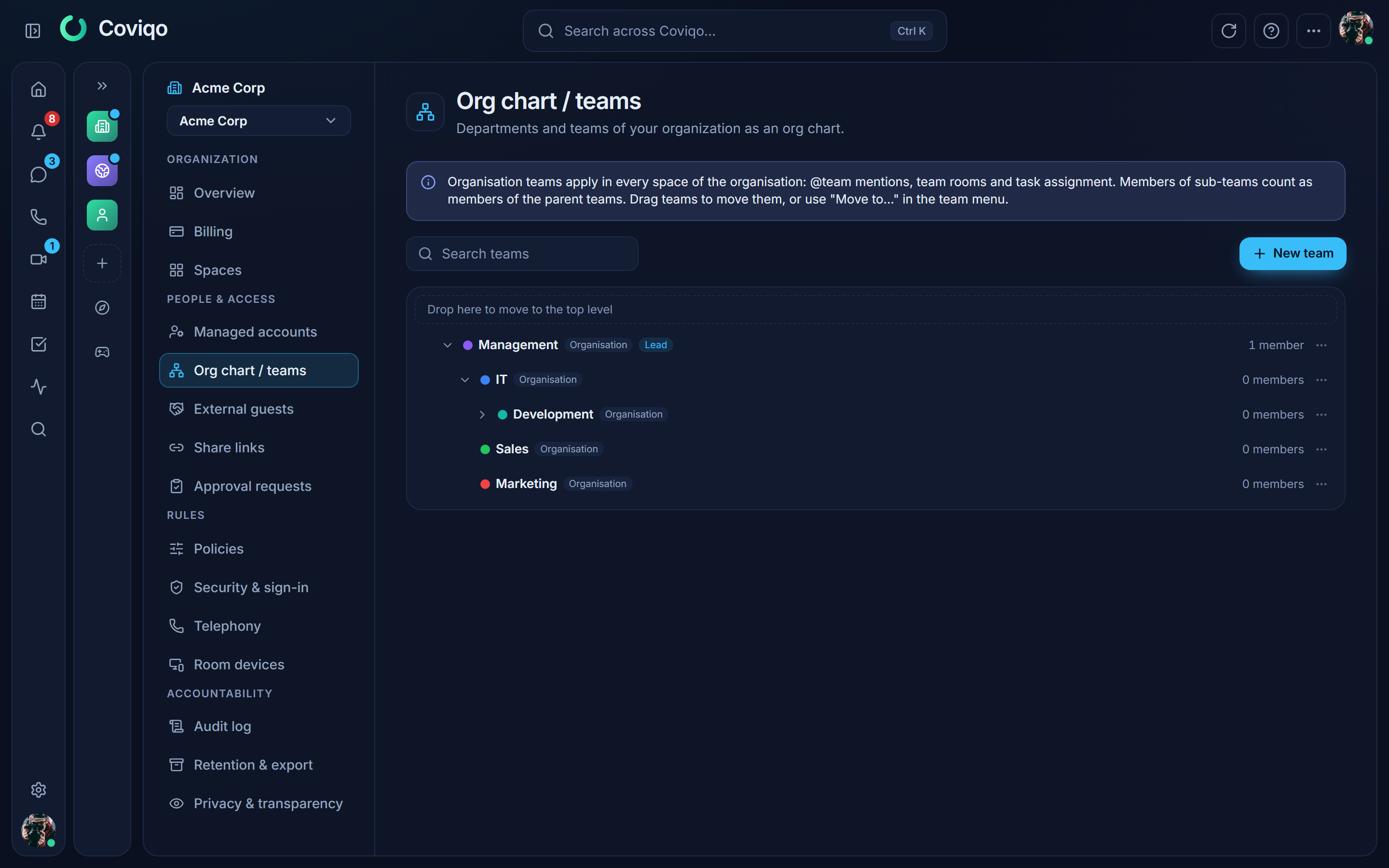
Every change asks you to confirm your identity, like all changes in the organisation area. Space admins see organisation teams read-only above their own teams in Space settings › Members › Teams and can hang space teams below them.
When someone leaves: deactivation, handover and reactivation#
Managed accounts › (person) › Deactivate signs the person out everywhere immediately:
- Optionally choose a successor who takes over their spaces, files, open tasks and upcoming meetings.
- Enter a reason (optional) and confirm.
Coviqo then ends all sessions on all devices, removes the person from running calls, disconnects personal integrations and calendar sync, revokes their share links and – unless you switched this off – removes them from spaces of other organisations. Messages, files and notes stay. You get an offboarding report of what was done, which you can download later.
After the grace period (30 days by default, adjustable under Policies), the account is anonymised automatically at night. Until then you can Reactivate it. If your identity provider deactivated the account (SCIM), reactivate it there – Coviqo tells you so.
Handover also works without deactivation, for example when someone changes teams.
Legal hold (Enterprise, Retention & export or the account page): while it is on, the account is never anonymised or deleted. Export CSV / Export JSON (Enterprise) creates the same data export for a managed account that people can request for themselves.
Guests, share links and requests#
- External people lists everybody from outside the organisation in your company spaces, with their space, home organisation and end date. Remove ends their membership.
- Share links lists all active public file links of your company spaces, who created them, when they expire, whether they are password-protected and whether they still fit your rules. Revoke stops a link immediately.
- Approval requests shows approval requests when joining other organisations' spaces needs approval. Approve or Deny (optionally with a note); the member is notified. A decision cannot simply be switched: use Reopen on a decided request (optionally with a reason, recorded in the audit log) and decide again. Reopening does not remove a membership the person already has.
Phone system#
Phone numbers – every number of your organisation follows its call flow (Call flows): the flow decides who rings, what is announced and when the mailbox answers. Under Telephony → Phone numbers you set for each number:
- Direct line of – the person the number belongs to: it is their caller ID, they have their own mailbox and see the number under My numbers. Nobody (shared number) makes it a shared number; in its Mailbox you choose who gets the messages.
- Meeting dial-in (PIN) – callers enter a meeting PIN instead (only if the platform's meeting dial-in is set up); such a number has no call flow.
- Call flow – the flow the number uses (Open in editor opens it). With None, or while the flow is not published, callers hear "not available" – the list shows a warning at the number.
- New default flow – creates a fresh Direct line flow and assigns it; the previous flow is kept.
When you Add number, Who should ring? creates its first flow right away: One person (a direct line – it rings for 25 seconds, honouring the person's forwarding and Do not disturb, then the number's mailbox answers), Several people (everybody rings at once, then the mailbox) or Nobody yet (an empty flow – the number is "not available" until you build and publish it under Call flows). Numbers that the operator assigns to your organisation also get an empty flow. There is no separate routing or switch any more: what a caller hears is always the number's call flow.
If your organisation has a phone line, Telephony has a Phone system card with the tabs Opening hours, Voice menus, Call queues, Block list, Hold music, Reports and Settings. Opening hours, voice menus and call queues are building blocks of your call flows; each one shows in how many call flows it is used, and it cannot be deleted while a flow uses it. Everything stays inside the organisation: calls are passed on to people, numbers, queues and mailboxes of your organisation, never to outside numbers.
Opening hours – Add opening hours (e.g. "Office hours"): time zone, the time ranges per weekday (Apply to Mon–Fri copies Monday), Public holidays (Luxembourg, Germany nationwide or a German state – calculated automatically every year) and Own days that are Closed or have Changed hours (e.g. Christmas Eve 9–12). Use them in a call flow with the block Opening hours: what happens when you are closed or on a holiday – an announcement, the mailbox, an emergency group – is wired there.
Voice menus – Add voice menu: the Announcement (per language; Suggestion writes a text from your key labels), Keys 0–9, * and # each with a Label, an Operator key, Dial an extension (callers type an extension and #), Time for input and Repetitions. Where a key leads is decided by the call flow that uses the menu (block Voice menu – one exit per key, plus what happens without input or after an invalid key). Extensions are set per person under Telephony → Who may call external numbers? → Extension (2–6 digits).
Call queues – Add call queue: the Agents (in order), the Distribution (All at once, In order, Round robin, Longest idle), the Ring time, a Greeting, the Hold music, Announce position, the Max. waiting time, the Max. calls in the queue and what happens when Nobody signed in (Wait or Pass on at once). Where callers go when the time is up, the queue is full or nobody is signed in is decided by the call flow that uses the queue (block Queue). Agents sign in and out themselves in their Call settings; the list shows how many are signed in and how many callers are waiting. Waiting callers occupy a line, and on numbers provided by Coviqo the waiting time counts as incoming minutes. Callback instead of waiting (Pro, needs the outbound feature of the same name): waiting callers hear an offer and can request a callback with a Key, keeping their place – set Offer after, Attempts, Interval between attempts and optionally your own offer and confirmation. When somebody is free, Coviqo rings them first ("Callback"), then calls the caller; open callbacks expire after 24 hours. Callbacks lists open and recent callbacks (administrators all, agents those of their queues) with Cancel; the Reports show requested, called back, not reached and the average time until the callback.
Mailbox of a shared number – a number without a person (Nobody (shared number)) has its own mailbox (Mailbox at the number). Under Who gets the messages? you choose the people who see its messages – agents of a call queue are not added automatically.
Block list – enter a Number (for all numbers or one) and Block, or use Block next to an incoming call in the Call list. Reject anonymous calls rejects callers who hide their number – for the whole organisation here, or per number (Reject anonymous at the number). Blocked callers are rejected at once; nothing rings and no minutes are used.
Hold music – callers on hold or in a queue hear the Coviqo hold music (made by Coviqo itself, no licence fees). You can Upload music of your own (MP3, WAV, OGG … up to 5 minutes). Tick I hold the rights to this music: playing protected music to callers usually needs a licence from the collecting society (for example SACEM Luxembourg or GEMA), which is your organisation's responsibility. Remove own music switches back to the Coviqo music.
Settings – Busy while in a call sets the default for everybody: people who are on the phone or in a meeting are not rung for further calls. Each person can change it for themselves.
Language of announcements – at each number you choose up to three of German, English, French and Dutch, played in this order (for example French, German, English in Luxembourg). The texts of your menus, queue greetings and announcements are written per language.
Reports – inbound calls of the last 7, 30 or 90 days: calls, answered, missed, hung up, mailbox, closed, blocked, waiting times, average call duration, Service level (answered within 20 seconds), transfers and the call quality (Avg. quality (MOS), Poor quality) – per day, By number, per voice menu (which keys callers chose) and per call queue. The quality is measured on the device of the person who answered. The reports come from the call list and contain no further personal data; they reach back at most 180 days.
Further phone features#
For the following features the phone system has the additional tabs Tickets, Phone book, Outcomes and Live calls. Plans: Basis – tickets, phone book, outcomes; Pro – wallboard, pauses, calendar; Business – listening in.
Tickets – a missed call or a voicemail automatically becomes a ticket. Set up the Default for all numbers and, if needed, an Own rule per number (No tickets switches a number off): Room (a room with tickets), Create on (Missed call, Voicemail), Assignee and / or Role, Category, Priority and Merge repeat calls (minutes) – if the same number calls again within that time, the open ticket gets a note instead of a new ticket. The ticket contains the full number, the voicemail as a file and the transcript, and is visible only to the room's ticket team.
Phone book – names for numbers, shown when a call rings: Add entry with Number, Name and optionally a Member. People who had a call can also save the caller directly from the call panel. The list shows numbers only shortened; up to 5000 entries.
Outcomes – the choices for Note & outcome after a call (for example "Call back agreed"), with a Colour and an order, at most 30. An outcome that has already been used is archived when you delete it (Restore brings it back). The Reports show how often each outcome was chosen.
Wallboard and pauses (tab Call queues) – Open wallboard shows live, per call queue, how many callers are waiting, who is available, on a call, in after-call work or on a pause, and today's figures (good for a second screen, with Full screen). Administrators, supervisors and the agents of their queues can see the wallboard; you can also put it into a room as a tile. Under Pause reasons you define up to 12 reasons (for example "Lunch"). In each call queue you set After-call work (seconds) (0–600): for that long a person gets no further call after a queue call.
Calendar (tab Opening hours) – link opening hours to a Space (optionally one Room) and / or an ICS address (for example a holiday or company-closure calendar from Outlook, Google or Nextcloud). Every entry of that calendar closes the line – so use a dedicated calendar or room, for example "Company holidays". All-day entries close whole days, entries with a time only that time; Own days take precedence. Coviqo refreshes automatically (ICS every hour), at once with Refresh now; Upcoming closures shows what is coming. The ICS address is stored encrypted; only its server is shown.
Listen, whisper, barge (tab Settings, Business plan, off by default) – supervisors can listen to running phone calls, speak only to the agent or join the conversation; nothing is recorded. Turn on (with Confirming changes) shows a list you confirm – among other things that employees were informed in writing beforehand, the works council (Germany) or the staff delegation (Luxembourg) is involved, nobody listens secretly, callers are informed and listening in serves only coaching and quality assurance. This is not legal advice – clarify it with your legal adviser first. Then:
- The person in the call always sees that somebody is listening – this cannot be switched off.
- Notice for callers (off by default) – callers hear at the start that calls may be listened to for training purposes.
- Supervisors – administrators always are; Add person picks more. They see running calls under Live calls (the caller's number only shortened).
Every use and every change is in the audit log. If the acknowledgment text changes, listening in is off until you choose Confirm again.
Outbound features#
Telephony → Outbound features collects what calls into the phone network or records calls. Every feature must also be enabled by the Coviqo operators; Feature status shows for each one whether it is Available or why not (Not enabled in Coviqo, Not in your plan, No outbound line …). Changes are confirmed like other sensitive settings (Confirming changes).
- Allow calls to external numbers – members allowed to dial (Who may call external numbers?) may call numbers in the phone network. Required for callbacks, external forwarding and "The meeting calls me". Outbound minutes are used – on Business only with the add-on Outbound calls (billed per minute up to your monthly spending limit, chapter Plans and billing); emergency, premium-rate and not allowed countries stay blocked.
- Allow forwarding and simultaneous ring to external numbers (Pro) – members may forward to their mobile or let it ring at the same time, transfer calls to external numbers, and call flows may ring external numbers (block Call an external number). Every such forwarding is an outbound call. Caller ID is always one of your numbers.
- Confirm acceptance on mobiles and external numbers (default: on) – whoever answers a forwarded call on a mobile or an external number first hears "Call for (your organisation). Press 1 to accept." and is connected only after 1. So a mobile's voicemail never takes a call; without 1 the call counts as not answered there (it keeps ringing, the call flow takes the No answer exit, a forwarding says "not available"). When transferring to an external number you can switch the confirmation on or off for that transfer in the dialog. Callbacks are never screened.
- Callback instead of waiting (Pro) – in call queues (see above) and with the block Offer a callback.
- Call recording (Pro) – Allow recordings (without it nothing is ever recorded), Start during a call (everybody hears an announcement first), Only with consent (only calls whose caller agreed with a key in the call flow), Create transcript (self-hosted transcription, marked as AI, only if your AI settings allow it), Retention (1–365 days, then deleted automatically) and Who may listen (Participants and admins or Admins only). Use the block Recording notice / consent in your call flows to inform callers or ask for consent. Whether a notice is enough or consent is needed depends on your country – your organisation is responsible for it.
- AI receptionist (Business) – the block AI receptionist in call flows: a self-hosted AI (conversations never leave Coviqo) tells callers first that they are talking to an AI, answers questions from the knowledge you enter and routes by request, can take a message or hand over to a person. Privacy & transparency lists every AI receptionist conversation of the last 30 days – only time, turns, duration, model and outcome, never what was said.
SMS (for example after a missed call) is not available yet.
Call flows#
A call flow describes step by step what happens to a call to one of your numbers: check the opening hours, play an announcement, offer a voice menu, ring people or a queue, take a message, create a ticket … You build it like a flowchart, try it out in the simulator and with a test call, and only then publish it. Call flows are for incoming calls only; nothing calls outside numbers.
You find them under Telephony → Phone system → Call flows. Organisation admins manage everything; on Business, admins can also let other people edit single flows, and operating modes can be switched by the people chosen for them.
Numbers and call flows#
Call flows are always on: every number uses its own flow (see Phone system – a new number gets a Direct line flow or an empty one). A change only reaches callers once you publish it, so you can edit a flow in peace; a number whose flow has never been published answers "not available". To give a number another flow, choose it at the number (Call flow) or under Numbers in the editor. The former switch Use call flows and the old per-number routing no longer exist – earlier routings were turned into flows called "Nummer …".
Creating a flow#
New flow offers three ways to start:
- Template – ready-made flows: Direct line (ring one person or several, then the mailbox), Small office, Practice / law firm, Support with queue, Multilingual LU, Club / community, On-call service. The preview shows what the template does in plain language.
- Guided – a few questions (When can callers reach you?, Play a greeting?, Voice menu?, Who answers?, If nobody answers?, Outside opening hours?, Ticket or message for missed calls?) and Create flow builds the flow for you.
- Empty – start from scratch. Here you can also create a Building block instead of a flow: a reusable piece (e.g. "Out of office") that other flows insert (Pro).
The editor opens as its own page. Under Numbers (or Assign number) you choose which numbers use the flow.
Building a flow step by step#
The editor shows the Flow view: your flow from top to bottom, like a tree. Left is the Blocks palette, right the Properties, at the bottom the Plain language summary. Changes are saved automatically as a draft ("Saved").
- Add the first block. Click + What next? below Start and choose a block from the list (search with Search blocks) – or drag a block from the palette onto a + slot. The blocks are grouped into Switches (Opening hours, Operating mode, Condition, Caller list …), Prompts & input (Announcement, Voice menu, Choose language, Digit input …), Ringing (Ring person, Ring group, Queue, Voicemail, Move to room), Coviqo (Notify, Create ticket, Tag caller …) and Structure (Building block, Other flow, Hang up). A Pro or Business badge shows blocks your plan does not include.
- Set up the block in Properties: e.g. which opening hours, which person rings and for how long, the text of an announcement per language (Insert variable adds things like the caller's country).
- Connect the exits. Every block has named exits – Opening hours has open, closed, holiday; Ring person has no answer, busy … Each exit gets its own + What next? slot: add the next block there. Blocks with one exit simply continue below.
- Jump to an existing block. To send an exit to a block that already exists (e.g. "back to the menu"), use Go to … in the exit's menu, choose the target under Exits in Properties, or drag the target card onto Connect here. The flow shows a "↪" chip there.
- Default end. An exit without a target ends at the Default end (bottom of the flow): an announcement, then Hang up or a Mailbox. Click it to change the text or choose a mailbox.
- Rearrange. Each card has a menu with Insert after …, Move to …, Go to …, Copy, Cut, Paste, Duplicate, Copy branch, Save as building block (Pro) and Delete (Keep what follows or Delete what follows). Drag cards with the mouse, or on a phone with a long press. Undo / Redo are in the top bar.
Keyboard: arrow keys move through the flow, Enter opens a card (or inserts a block at a slot), Space picks up a card for moving (arrow up / down chooses the place, Space or Enter drops, Escape cancels), Shift+F10 opens the menu, Delete deletes, Ctrl+C / X / V / D copy, cut, paste and duplicate, Alt+arrow up / down reorders. Everything you can drag also works with a menu or the keyboard.
Graph (Pro, larger screens): the same flow as a diagram. Drag from an exit onto a block to connect it, or onto an empty spot to place a new block there (New block here). Auto layout tidies up, Overview map and Show all help with large flows. Both views always show the same flow. On phones the editor uses the flow view; Properties and the palette open as sheets from below.
Check, publish, history#
The editor checks your flow while you work: cards with problems get a badge, Check lists all problems. Errors (e.g. a person no longer in the organisation, a missing text for a chosen language) prevent publishing; warnings (e.g. an exit without a target) do not.
Publish → Publish now makes the draft the live version (with an optional Comment). With Publish later (Pro) you pick a Time and Schedule – e.g. the holiday flow from 24 December. Calls already running stay on the version they started with.
History lists every published version: Make live again switches back to an older version at once, As draft loads it into the editor, Compare (Business) lists the changes in plain language. Cancel schedule removes a planned publication. If two people edit at the same time, you choose between Keep my version and Reload.
Trying it out#
- Simulate plays a call through your current draft – nothing rings. Choose the time, the caller, the language, the operating mode, whether people are free, busy or offline, and answer menus with the Keypad or Force result. The path lights up in the flow. Save as test case (Pro) keeps the scenario; Run all checks all test cases, and failing test cases stop publishing.
- What happens on …? (next to the plain-language summary): pick a date and time and Show where a call ends – e.g. on a public holiday at 10:00.
- Test call (Pro): your browser calls the draft. You hear the real announcements and use the keypad; under Who should ring? choose only me or selected people – nobody else is rung, no ticket or message is created and the mailbox records nothing. Answer on your own ringing banner.
Operating mode and caller lists#
Operating mode – switches with your own states, e.g. Normal, Company holiday, Emergency. Add switch, name the States and choose Who may switch. The block Operating mode in a flow then branches on the current state. The chosen people switch on the Calls page (Operating mode) – also on the phone – optionally until a time, after which it switches back.
Caller lists – e.g. VIP or Suppliers: Add list, then add a Number or take one From the call list. The block Caller list checks whether the caller is on it (also: known contacts, members of a space, the block list, anonymous callers). Coviqo stores only a protected fingerprint and a shortened form of the number.
Analytics (Business)#
Analytics in the editor shows for the last 7, 30 or 90 days how many calls took each path and where callers hung up – as numbers on the exits and thicker lines in the graph. It contains no names or phone numbers.
Which plan includes what#
| Plan level | Includes |
|---|---|
| Basis (Free) | Opening hours, Operating mode, Voice menu, Announcement, Music / wait, Ring person, Ring group, Voicemail, Move to room, Hang up; flow view, simulator, versions |
| Pro (Community Pro) | additionally Queue, Condition, Date range, Switch, Caller list, Available?, Queue load, Choose language, Digit input, Notify, Create ticket, Tag caller, Set variable, Recording notice / consent, Offer a callback, Call an external number, building blocks; graph view, test cases, test call, scheduled publishing |
| Business (Business, Enterprise) | additionally AI receptionist, Percentage split, Webhook (only to addresses your organisation allows under Webhook hosts), analytics, version comparison, edit rights for single flows |
Recording notice / consent, Offer a callback, Call an external number and AI receptionist also need the matching outbound feature; while it is not available, callers take the block's safe exit (no recording, no callback, no external call, straight to a person).
Variables and entered digits exist only during the call. If a Digit input is shown to the person who answers (Show to the person answering), the digits are stored encrypted with the call record and deleted with it after 180 days.
Security settings#
| Setting | Plan | Effect |
|---|---|---|
| Require two-factor authentication | Business | Managed accounts that don't sign in with single sign-on must set up two-factor authentication before they can continue. |
| Allow "remember this device" (2FA) | Business | If off, managed accounts enter their second factor at every sign-in. |
| Maximum duration in days | Enterprise | Shortens the period (up to 30 days, 0 = off). |
| Maximum session lifetime (hours) | Enterprise | After this many hours, members must sign in again. |
| Sign out after inactivity (minutes) | Enterprise | Members who have not used Coviqo for this many minutes must sign in again. |
| Allowed networks (IP list) | Enterprise | IP addresses or ranges (for example 203.0.113.0/24) from which managed accounts may sign in. |
| Allowed apps | Enterprise | Web, desktop app and/or mobile. |
Coviqo does not let you lock yourself out: it refuses to save a network list that doesn't include the network you are using, or an app list without the app you are using.
Confirming changes#
Before the first change, Coviqo asks for your password (or a code sent to your e-mail address if you sign in without a password). The confirmation is valid for 10 minutes; after that you are asked again.
Privacy & transparency#
Organisation › Privacy & transparency gives owners and administrators an overview for their data protection work:
- where the organisation’s data lives (region, hosting, file storage, backups, AI on own servers) and which hosting providers and processors are involved,
- which AI features are allowed by the platform and by your plan, and in how many of your spaces they are switched on,
- how often AI features ran in the last 30 days (counts only – no content and no people),
- exports with personal data in the last 90 days, the number of audit entries, the audit retention and open deletion requests from members,
- the data processing agreement (download), your retention settings and – on Enterprise – your own encryption key (BYOK) with its status, key version and the number of key operations. After you rotated your key in your Vault, Re-wrap moves all space keys to the newest version.
Members see the AI processing and exports that concern them in their own privacy cockpit.
Audit log and export#
Audit log shows every change and action in the organisation and its spaces – setups, policy changes, claimed and deactivated accounts, removed guests, revoked links, approvals, exports – filterable by action, person and time. On Enterprise you can export it as CSV or JSON (up to 50,000 entries) and connect a SIEM integration (security monitoring system): every new entry is sent there immediately, signed with a secret that is shown only once.
Two changes need an extra confirmation with your authenticator app, even right after you confirmed your identity: changing the IP allowlist and changing the SIEM connection (new address, new secret or removing it). Coviqo asks for the current 6-digit code; the confirmation is valid for 10 minutes. You need two-factor authentication for these changes – set it up under Settings › Account & security first.
For members: what you notice#
Your account is managed#
If your organisation manages your account, you get a notification and an e-mail, and Settings › Account & security shows which organisation manages it. With single sign-on your name comes from your organisation's directory; you can only change your e-mail address to one of your organisation's domains; and you cannot delete the account yourself – your administrators do that when you leave.
Something is not allowed#
When a rule blocks an action, the button stays visible but is greyed out; hover over it (or tap it) to see why, for example:
- "Your organisation does not allow uploads into external spaces"
- "The organisation of this space does not allow downloads by guests"
- "The organisation of this space requires a password for share links"
Rules can come from your organisation (when you work in spaces of other organisations) or from the organisation that owns the space (when you are a guest there). The message says which one. Office documents you may not edit open read-only with a notice; some organisations show a watermark with your name over the document.
If you are signed out with a message like "Your organisation ended this session" or "… does not allow signing in from this network", your organisation's security settings apply – sign in again, or contact your administrators.
Asking for approval#
If joining a space of another organisation needs approval, accepting the invitation shows With approval. Your administrators get the request; you get a notification when they decide. After approval, open the invitation again.
Password-protected share links#
If your organisation requires it, you set a password when you create a share link. Give the password to the recipient separately (for example by phone). The recipient opens the link, sees the file name and size, enters the password and downloads the file.